

Atari ST - ICD, Inc. - 1991
ICD Hard Disk Utilities
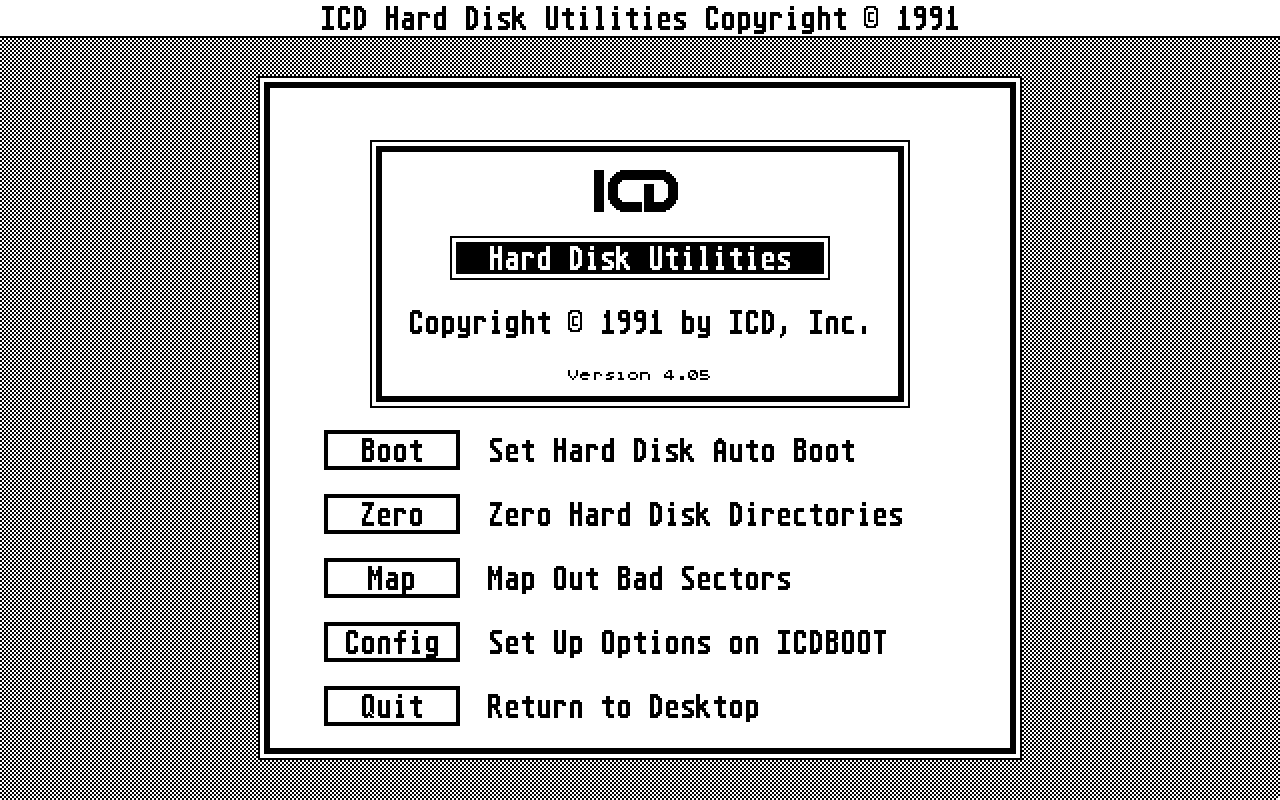
- Genre
- Tape / Disk / Cartridge Utility
- Year
- 1991
- Language
- [unknown]
- Publisher
- ICD, Inc.
- Controls
- Mouse
- Distributor
- —
- Resolution
- Low / Medium / High
- Developer
- [n/a]
- ST Type
- ST, STe / 0.5MB
- Licensed from
- —
- Programmer(s)
- [unknown]
- Country

- MIDI
- —
- Software
- English
- Version
- 4.05
- Box/Instructions
- English
- Number of Disks
- 1 / Double Sided / HD Installable
- License
- Commercial
- Dump
- Download
- Serial
- —
- Dump format
- MSA
- Protection
- —
OTHER VERSIONS WITH THE SAME TITLE (2)
INSTRUCTIONS
ICD AdSCSI ST host adapter software update 2/5/91
-------------------------------------------------

This file documents the ICD AdSCSI ST host adapter software.
These utilities are packaged with all ICD ST Hard Drive Systems
and ICD ST host adapters and WILL ONLY WORK WITH AN ICD HOST
ADAPTER in your system.  They are all Copyright 1987-1991 by ICD,
Inc., and are provided for our ICD ST host adapter customers
only.

Companies using this software with their products must include an
ICD ST host adapter as part of that product or they will be in
violation of United States and/or International Copyright Laws!

If you have any questions:

     ICD, Inc.
     1220 Rock Street
     Rockford, IL  61101-1437

     Voice:  (815) 968-2228
     BBS:    (815) 968-2229
     FAX:    (815) 968-6888
     Orders: (800) 373-7700   NO TECH SUPPORT on this number!!!

The ICD BBS always has the latest versions of the ICD ST host
adapter software, as well as various handy utilities, etc., all
yours for the downloading.  Our BBS has a US Robotics
Dual-Standard modem (9600 baud and 14,400 baud HST) and is
usually up 24 hours a day.  Support and updated files are also
available on GEnie (ICDINC) and CompuServe (76004,1600).

Suggestion: make a printed copy of this file for future
reference.

+---------------------------------------------------------------+

This documentation only includes changes made to the ICD AdSCSI
ST host adapter software since the latest manual was printed.
The latest manual has the number 36-90 in the lower-right corner
of the back cover.  If you would like to receive the latest
manual and the latest software on disk, send $15 to ICD (Canadian
customers send US $20 and overseas customers send US $25).

+---------------------------------------------------------------+

Changes to the ICD AdSCSI ST host adapter software since the
latest manual was printed:

-    This release now fully supports the Atari TT SCSI port as
     well as the ACSI port.  For the most part, hard drives
     connected to the SCSI port of the TT can be treated just
     like drives connected to the ICD AdSCSI host adapter.  The
     primary difference is that the devices connected to the ICD
     AdSCSI are numbered 0-7 and the devices connected to the TT
     SCSI port are devices 8-15.  Since the TT itself is a SCSI
     device, it uses one of the device numbers.  The ICD software
     sets the TT to SCSI ID #7 (device 15), so that number is not
     available for any other devices.

     Drive letters are assigned to devices attached to the SCSI
     port before those attached to the ACSI/DMA port.

     Keep in mind that an ICD AdSCSI host adapter is still
     required to use the ICD host adapter software on the TT.

-    Due to changes in the boot sector, you should run HDUTIL to
     install the latest boot sector and ICDBOOT.SYS.  On the TT,
     the boot sector that gets installed is different on a drive
     connected to the SCSI port than one connected to the ACSI
     port.

-    COPYFIX.PRG has been updated to fix a bug which caused
     compatibility problems with several applications.  There
     should no longer be any problems with it.

-    All programs have been tested and modified as necessary to
     present a proper display in the Atari TT's new graphics
     modes.  Be advised, though, that any programs which didn't
     work in the ST's low-resolution also will not work in TT
     low-res (256 color mode).

-    Several minor bugs have been fixed.  Because of this, it is
     advisable that you always use the latest version of the ICD
     AdSCSI ST host adapter software.

-    When using the ESC key to disable the booter options, only
     the caching gets disabled.  The TOS buffers are still
     allocated so that BGM partitions can be accessed.  If you
     need the additional memory, use HDUTIL to disable the
     buffers and reboot.

-    Simple statistics on the cache effectiveness are maintained
     and can be checked with CACHEHIT.TOS.

+---------------------------------------------------------------+

Changes to files on the distribution diskette:

BOOTFIX.TOS    version 2.x
     This has been updated to support drives attached to the TT
     SCSI port as well as the ACSI\DMA port.

     There is no need to run this program if you have formatted
     with ICDFMT.PRG version 4.62 or later as this bit is
     automatically set when formatting or partitioning.

                       *** CAUTION ***

     After running BOOTFIX be sure you NEVER format a Seagate
     drive using a version of ICDFMT.PRG older than 4.62.  Doing
     so will cause you to get four bombs on power up.  The reason
     for this is not known.  If you do this the solution is to
     turn off the offending hard disk, run ICDFMT.PRG version
     4.62 or later and let it go through to the 'No SCSI devices
     found' dialog box.  Then power on your hard drive and after
     letting it initialize, click on RESCAN.  Then go through a
     format or partition operation and all should be OK again.

     This caution does not apply to Quantum Drives.

CACHEHIT.TOS   version 1.x
     This program displays the effectiveness of the caches.  It
     displays the percentage of reads which were satisfied by
     the cache, and the percentage of writes which updated
     entries already in the cache.  This can be used to
     determine what cache settings are the most efficient for
     your system.

     It's important to note that this only gives statistics for
     the cache buffers, and not the TOS buffers.  The TOS
     buffers are maintained by the operating system and can't be
     checked.  The ICD AdSCSI ST host adapter manual explains
     the TOS buffers in more detail.

CACHEOFF.PRG   version 1.x
CACHEON.PRG    version 1.x
     These programs are used to enable and disable the write
     cache function of ICDBOOT.  Users of the Supercharger PC
     emulator must turn off the write cache before running the
     Supercharger intialization program or the Supercharger will
     NOT be able to write to the hard disk.

     Turning the cache off this way does not reduce memory usage.

CFGCBOOT.PRG   version 2.x
     This program configures COLDBOOT.PRG to skip selected
     ACSI/DMA devices.  See section on COLDBOOT.PRG (below) for
     additional documentation.

CLDEMO.PRG     version 4.xx
     This is a demo version of our CLEANUP ST program.  It will
     locate bad sectors, corrupted files/directories, bad FAT
     tables, collisions between multiple files, bad directory
     names, invalid allocation chains, and other defects.  The
     working version of CLEANUP ST allows you to correct these
     defects and recover as many files as possible.

     The working version of the program is available direct from
     ICD for US $29.95.  Send Attn: CLST Order.  Orders outside
     the USA need to add US $5 for shipping and handling charges.

     See CLDEMO.DOC for more complete documentation.

COLDBOOT.PRG   version 2.x
     This has been updated to support devices attached to the TT
     SCSI port as well as the ACSI/DMA port.

     Versions 1.30 and later of ICD COLDBOOT.PRG are
     configurable to allow skipping of the ACSI/DMA ID of the
     Supercharger from Talon Technologies.  To configure COLDBOOT
     run CFGCBOOT and specify the ID(s) you wish to skip when
     doing a coldboot.  The Supercharger is normally shipped as
     ID 3.  This should only be necessary for those users who do
     not have Quantum, Seagate, or other drives which autoboot
     upon power-up, and who are also using the Supercharger.

COPYFIX.PRG    version 1.5
     This has been updated to fix a bug which caused
     compatibility problems with several applications.  There
     should no longer be any problems with it.

DESKTOP.PRG    version 3.xx
     This program (formerly a desk accessory) has been updated
     to be compatible the Atari TT and all TOS versions.  See
     DESKTOP.DOC for a more complete explanation of changes since
     previous versions.

HDPARK.TOS     version 2.x
     This has been updated to support the TT SCSI port.
     This program replaces MAKEPARK.PRG.  See HDPARK.DOC for
     complete documentation.

HDPARTS.TOS    version 2.xx
     This program displays various statistics about each hard
     drive partition on the system.  For the most part, this
     information will only be of use to people who have some
     understanding of disk structures.

HDUTIL.PRG     version 4.x
     This has been updated to support the TT SCSI port.  This
     affects several functions:

     -    Setting a hard disk for auto-booting will result in
          either TT-SCSI boot sectors or ACSI/DMA boot sectors
          being written to the drive based on which port the
          drive is connected to.  If you ever move the drive to
          the other port, you will have to reinstall the boot
          sector with HDUTIL.
     -    It is possible to disable scanning of any of the 16
          devices.  The device number of the TT itself will
          never be scanned, regardless of the button settings.

HOST.TOS       version 1.xx
     This is a utility to tell you what kind of host adapter you
     have connected to each hard drive on line.   Note that it is
     not always possible to differentiate between AdSCSI Plus ST,
     AdSCSI ST, and AdSCSI Micro ST host adapters.  This is
     particularly true when multiple host adapters are connected.

     It is also not possible to differentiate between one of
     ICD's original STHA boards and one of those made by another
     manufacturer.  These items do NOT have signatures.  We are
     merely seeing which ones do full SCSI commands and which
     ones have ICD real time clocks.

ICDBOOT.PRG    version 5.x.x
     This has been updated to support devices connected to the
     TT SCSI port as well as devices connected to the standard
     ACSI/DMA port.  Full SCSI arbitration is supported on the
     SCSI port, which offers great potential.

     A few other minor bugs were fixed, so it is advisable to
     use this version even if you don't own a TT.

ICDFMT.PRG     version 5.xx
     This program can now format drives connected to the TT SCSI
     port as well as the ACSI/DMA port.  As with the other
     software, the devices attached to the SCSI port are
     numbered 8-15.

ICDFMT.DAT
     This file is constantly updated to include more hard drive
     models.  (See additional documentation below)

ICDTIME.PRG    version 2.x

IDCHECK.PRG    version 2.x
     This has been updated to check devices connected to the TT
     SCSI port as well as the ACSI/DMA port.  When running on a
     TT, the left-hand column shows the devices attached to the
     SCSI port (including the TT itself) and the right-hand
     column shows the devices attached to the ACSI port.

RATEHD.PRG     version 2.x
     This has been updated to test drives connected to the TT
     SCSI port as well as the ACSI/DMA port.  See RATEHD.DOC for
     complete documentation.

TIMESET.PRG    version 1.5

WHEREIS.TOS    version 1.x

+---------------------------------------------------------------+

The ICDFMT.DAT File
-------------------

     The ICDFMT.DAT file contains information about ST506/412
compatible hard drives only (not drives with embedded SCSI
controllers).  The ICDFMT.PRG gets data about SCSI embedded
drives by doing an Inquiry and Mode Sense to get the necessary
data directly from the drive.

To add a drive, enter the following information about your drive
in the EXACT same format (position sensitive) as the others listed
as follows:
     a. The letter 'd' to indicate a drive
     b. The name of the drive
     c. The number of heads on the drive
     d. The number of cylinders on the drive
     e. The cylinder number at which to start using reduced write
        current (if not sure, then just put same number as # of
        cylinders)
     f. The cylinder number at which to start using write precomp
        (if not sure, then just put same number as # of
        cylinders)
     g. The parking cylinder (usually 40-50 cylinders beyond the
        last cylinder).
     h. The step rate; normally 2 (unless very old).
        0 = 3ms non-buffered step for older drives (ST506)
        1 = 28us buffered step rate (ST412 and maybe others)
        2 = 15us buffered step rate (Almost all new drives)

Presently we support 98% of all hard drives and SCSI controllers
that can be used on the Atari ST.  Some may not work on the ST at
all.  If in doubt, try it, or you can call or write our technical
support department.

+---------------------------------------------------------------+

Miscellaneous Notes
-------------------

Connecting Supra/Atari Drives:
     Supra drives are SCSI=0, LUN=0, so if you want to boot off
     your ICD drive, you may wish to change the ID of the Supra
     drive.  Alternatively, you could set the SCSI ID of the
     controller or drive in your ICD drive to a different value
     and boot off the Supra drive.  Contact ICD Technical Support
     for assistance if necessary.

     Atari SH204 drives are also set as SCSI=0, LUN=0, BUT they
     have a bug in their hardware.  They respond to ALL LUN
     numbers causing havoc to the system.  A provision in the
     drive handler has been made to only see LUN=0 with a SCSI ID
     of 7.  Therefore you will need to set the 3 position dip
     switch in your SH204 to ID 7 (flip all three switches to the
     other position).

     Atari Megafile (SH205) drives are set as SCSI=0, LUN=0.  The
     SCSI ID # is changeable inside the box.  It uses a
     combination host adapter/controller board but can be
     formatted with our software as an Adaptec 4000 for their 20
     Meg and Adaptec 4070 for the 30 and 60 Meg drives.

Clock Battery:
     If the clock is way off or seems to return crazy times, the
     battery may be low. For a replacement battery, send $5.00,
     unless your host adapter is in warranty.  If it is in
     warranty, call us and we will send a batter at no charge.  A
     new battery socket is available for an additional $3.00.
     Soldering is usually required with older original ICD ST
     Host Adapters.  The newer units already have the socket
     installed and replacing the battery is a very simple
     operation.  We will install battery and/or socket for $20
     when unit is out of warranty.

Host Adapter Mounting:
     There are four mounting holes on the board; mount it as you
     see fit.  ICD makes a mounting bracket kit for the host
     adapter which you can probably use in your application.  It
     is called the ST/MK and is US $8.95 plus S & H (contact us to
     order, or for more information).

Using Multiple SCSI ID's and Host Adapters:
     When using multiple SCSI ID's and host adapters a few rules
     apply:

     -    Power up the device closest to the computer first
          (plugged in). Then power up the next out in the chain
          and continue in this fashion until all devices are
          powered.  Now BOOT the computer.

     -    SCSI ID #0 will be the first device seen and will
          provide the booter and AUTO folder for the system.  It
          will be assigned as C, D, E, etc.  The next SCSI ID
          found will provide the next partitions beginning after
          ID #0's and so on.  It does not matter physically where
          these drives are in the daisy chain except for power up
          procedures.  The SCSI ID #s also do not need to be
          consecutive although that is recommended for proper
          software support by other companies.

Setting Up Your AUTO Folder For Programs Which Use GDOS:
     It is usually necessary to have GDOS be the last file in the
     AUTO folder.  Since the ST displays files in sorted order,
     the only way to insure this is to create a JUNK folder, copy
     all files except GDOS to it, delete the AUTO folder, and
     recreate it.  Then copy all files back to the AUTO folder
     from JUNK, delete JUNK, and finally copy GDOS to the AUTO
     folder.

     To avoid these problems try G+PLUS from Codehead Software.

Setting Up Your Hard Drive To Boot pc-ditto From A Partition:
     First, set up the partition to boot with the HDUTIL
     program. Create a JUNK folder on another drive and copy
     ICDBOOT.SYS to it. Now run the pc-ditto program's formatter
     which sets MS-DOS to boot.  Finally copy ICDBOOT.SYS back to
     the root directory of your boot drive.  Now when you boot,
     the ICD Boot Program will run...then pc-ditto will boot.

     CAUTION: If you disable autobooting with HDUTIL, you will
     probably destroy your pc-ditto boot information as well.

What To Do When You Get "Locked Out" Of Your Hard Disk:
     Installation of certain .ACC files may cause you to bomb
     every time you boot and you can't access your hard drive to
     remove or rename the offending file!

     To cure this: turn off the hard drive, place the ICD AdSCSI
     ST host adapter disk in Drive A, and boot.  Turn on the hard
     drive and let it come up to speed.  Double click on
     ICDBOOT.PRG in the AUTO folder of the disk.  Install an icon
     for Drive C: and double-click on it.  Now you can rename the
     offending .ACC file to some other extension, and then you
     will be able once again to boot from your hard drive.

     If this doesn't work, call ICD, and we will help you regain
     access to the hard drive.

Suddenly your hard drive won't auto-boot:
     Something has trashed partition information or corrupted the
     ICDBOOT.SYS file.  First try re-running HDUTIL and
     resetting the boot drive.  If this doesn't help, or if the
     Boot dialog shows no hard drives, something has wiped out
     your partition sector.  Try running Cleanup ST to try and
     save the partition.  Alternatively, you you can rewrite
     partition info using the ICDFMT.PRG.  To do this, run
     ICDFMT and select PARTITION.  Re-enter your partition
     information (of course you have kept a record of this).
     Make sure all partitions are enabled (check mark under
     "On").  Select REWRITE PARTITION INFO ONLY at the bottom
     left side of the dialog box.  Be careful here!  This is one
     place you want to be ABSOLUTELY SURE that your information
     is 100% correct.

+---------------------------------------------------------------+