

Atari ST - Antic Publishing - 1986
Crystal
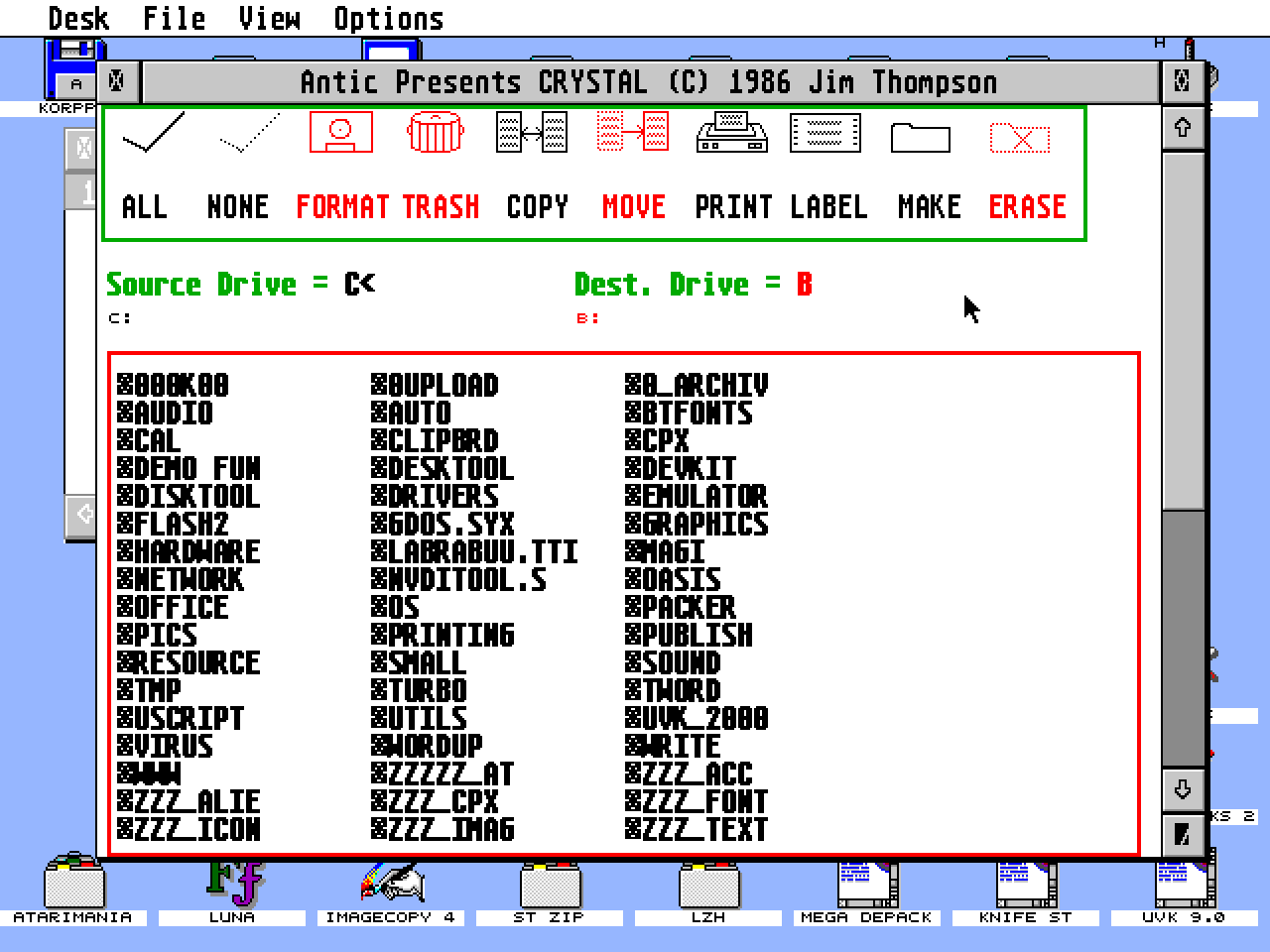
- Genre
- Tape / Disk / Cartridge Utility
- Year
- 1986
- Language
- [unknown]
- Publisher
- Antic Publishing
- Controls
- Mouse
- Distributor
- —
- Resolution
- Medium / High / VGA
- Developer
- [n/a]
- ST Type
- ST, STe, TT, Falcon030 / 0.5MB
- Licensed from
- —
- Programmer(s)
- Thompson, Jim
- Country

- MIDI
- —
- Software
- English
- Version
- 1.2
- Box/Instructions
- English
- Number of Disks
- 1 / Double Sided / HD Installable
- License
- Commercial
- Dump
- Download
- Serial
- —
- Dump format
- MSA
- Protection
- —
OTHER VERSIONS WITH THE SAME TITLE (1)
INSTRUCTIONS
                          ANTIC PRESENTS...
                              CRYSTAL


  INTRODUCTION

  The GEM desktop provides a very friendly interface between the
  computer and the user, however the desktop commands are not
  always there when you may need them. As Crystal was developed
  there were two goals in mind. The first goal was to enhance the
  features available with the GEM desktop. By adding features for
  printing, and allowing easy selection of multiple files, file
  maintenance has become an easier task.

  The second and main goal was to provide the features of the GEM
  desktop from within any GEM application. CRYSTAL is a desk
  accessory that meets these two goals. At any time while running
  another GEM application program, CRYSTAL can be activated and
  used to:
  -- Format a disk
  -- Look at a disk Directory
  -- Copy files
  -- Move files
  -- Delete files
  -- Print files
  -- Print a disk directory
  -- Make folders
  -- Delete folders

  I hope that you find as much use for CRYSTAL as I have.

  Antic is a trademark of Antic Publishing, Inc.
  Crystal is a copyrighted work by Jim Thompson
  Copyright (c) 1986 Jim Thompson
  ------------------------------------------------------

  CRYSTAL is provided on an uprotected disk because the authors and
  Antic both believe that the buyer should be able to make backup
  copies for his or her use ONLY.  Because it is unprotected, we expect
  you to respect the copyright and NOT give, sell or even lend copies
  of this program to anyone else.

  The author spent many hours designing, writing and testing this
  product.  His income depends on its sales.  The unauthorized
  reproduction of the CRYSTAL diskette is illegal.  Please help us
  to protect and enforce the author's rights in this product so
  that we may continue to provide you with unprotected software.
  No part of this product may be reproduced and/or distributed in
  any form or by any means without the prior written consent of Antic.

  This is a powerful program and its potential for misuse and error is
  greater in the hands of a novice.  Please make sure you know how to
  use this product properly before attempting to do important work with
  it.  Antic and the author disclaim responsibility for any damages
  resulting from the use or misuse of this software product, and
  disclaim liability for losses of any kind or nature, financial or
  otherwise, incurred or alleged to have been incurred as a result
  of the purchase and use of this product.


           Page 1


  LOADING CRYSTAL

  CRYSTAL must be used as a desk accessory within the GEM operating
  enviornment. This disk contains five files. These are:

  CRYSTAL.ACC       CRYSTAL program.
  CRYSTAL.DOC       Documentation for CRYSTAL.
  CRYSTAL.RSC       Resource file for color monitor.
  CRYSTALH.RSC      Resource file for monochrome monitor.
  INSTALL.PRG       Installation program to set up printer codes.

  In order to use CRYSTAL, at least two files must be on the disk
  you use to turn on your computer (the boot disk). If you have a
  monochrome monitor attached to your computer, copy CRYSTAL.ACC
  and CRYSTALH.RSC to your boot disk. If a color monitor is
  attached, copy CRYSTAL.ACC and CRYSTAL.RSC to the boot disk. IF
  you plan on using both monitors at times, copy both of the .RSC
  files to your disk. If you wish to set up special printing codes,
  also copy the INSTALL program to your boot disk.

  STARTING CRYSTAL

  When the ATARI ST computer is turned on, the CRYSTAL files must
  be on the disk in the boot disk drive. On a floppy disk system,
  this is usually drive A. As the computer comes to life, CRYSTAL
  is automatically loaded as a desk accessory. When using the GEM
  desktop, point to the DESK menu option and a list of desk
  accessories will pull down. Point to CRYSTAL and click the left
  mouse button. A window will open and show CRYSTAL. When CRYSTAL
  starts, the source drive will be accessed to read the files on
  that drive. When first started, this defaults to the last drive
  specified as the default drive. For example if the desktop had
  just displayed the directory for drive A, then drive A would be
  the default.

  Manipulating the CRYSTAL window

  CRYSTAL runs inside a window on the GEM desktop. The same
  controls that are available when controlling a desktop directory
  window are available on the CRYSTAL window. These include:
  -- Moving the window.
  -- Sizing the window.
  -- Using the slider bars to view the directory list displayed.
  -- Using the Arrows to scroll the directory list displayed.
  -- Open icon to toggle window to full size and back.
  -- Close icon to close CRYSTAL and remove it from the desktop.

  NOTE: When some application programs are loaded, they erase any
  existing windows from the screen. If CRYSTAL is erased in this
  manner, there is no way to access CRYSTAL again until the
  computer is rebooted. Because of this it is a good idea to close
  the CRYSTAL window before loading a new application program.

  USING THE CRYSTAL WINDOW

  The CRYSTAL window consists of the following parts.
  -- ICON bar.


           Page 2


       ALL NONE FORMAT TRASH COPY MOVE PRINT LABEL MAKE ERASE

  -- Disk drive designation line.

       Source Drive = A<      Dest. Drive = B

  -- Pathname designation line.

       A:                     B:

  -- Directory display area.

  The basic operation for CRYSTAL would include the following four
  steps:
  1. Choose a source and destination disk drive and folder.
     (destination drive is only used for copy, move, and make
     folder commands)
  2. Select the desired files on the source drive to act on.
     (Selecting is available ONLY on the source drive)
  3. Choose an ICON that represents the desired command.
     (Function keys F1-F10 also select the ICONS.)
  4. Answer any dialog boxes presented for the command.

  ----------------------------------------------------------

  SELECTING SOURCE AND DESTINATION DRIVES

  The directory display area is at the bottom of the screen and
  displays either the source or destination disk drive directory.
  At any time you can determine which directory is being displayed
  by looking at the disk drive designation line. A "<" character is
  displayed next to the drive being displayed. For example, a
  screen display of:

  Source Drive = A<            Dest. Drive = B

  would indicate that the display is for the source drive which is
  drive A. On a color monitor, the source disk drive directory is
  displayed in black, and the destination disk drive directory is
  displayed in red. To change the display to the destination drive,
  either press TAB on the keyboard or click the mouse button when
  pointing to "Dest. Drive = B".
       When a directory is displayed, the files listed reflect the
  contents of a disk when it was last read. This may not be the
  current contents of the disk. To update the display for the disk
  which has the "<" character next to it on the disk drive
  designation line, either hit RETURN or ESC on the keyboard or
  press the mouse button when pointing between the equals sign and
  the "<" characters. At the end of the file list, a space to
  display the amount of free disk space is displayed. Clicking on
  this line will calculate and display this information. Clicking
  the mouse anywhere in the directory window below the displayed
  filenames will cause the disk directory to be updated and is the
  same as typing RETURN on the keyboard.
      To change the drive that has the "<" character next to it,
  press the letter of the desired drive on the keyboard, or press


           Page 3


  the mouse button when pointing to the left of the equals sign
  nearest to the "<" charater. When the mouse is clicked, a dialog
  box will be displayed allowing you to select disk drive a,b,c,d,e
  or f. After selecting the letter, select the DISPLAY button to
  read the drive directory.
       In order to leave as much room in memory for your primary
  application, CRYSTAL only will display the first 150 filenames in
  any directory display. If a folder has more files than this
  limit, only the first 150 filenames will be displayed.

  ----------------------------------------------------------

  SELECTING PATHS

  When a directory is displayed, any folders within the current
  folder are displayed in bold and have a symbol designating them
  as a folder. Click the mouse on a folder name to open that folder
  and display its contents. The PATHNAME designation line will show
  the source and destination folder names.
       When a folder is open, there are two special folders
  displayed in the directory list. One is a single dot, and the
  second is two dots. If the mouse is clicked on the single dot
  filename, the directory will display the files in the root
  folder. This is a quick way to move from within many levels of
  folders to the root. Click the mouse on the ".." folder name to
  display the directory of the parent folder. This would change the
  directory list and display the folder you were just in as a
  folder name in the current directory list.

  ----------------------------------------------------------

  SELECTING FILES

  After the drives and pathnames are selected, the files you wish
  to work with must be selected. This can be done one at a time by
  pointing to the filename in the source disk directory list and
  clicking the mouse button. The name will be displayed in bold,
  and a check mark will be displayed to the left of the name. Click
  on all filenames that you wish to work with.
       If you need to select all the files on a disk, the ALL icon
  in the ICON line can be clicked. This will display all files in
  bold and add a check mark next to each filename.
       Clicking the mouse on a file that is in bold with a check
  mark next to it will cause the file to be de-selected. It will
  return to the normal font and the check mark will dissappear.
  Clicking on the NONE icon in the ICON line will cause all
  selected filenames to be de-selected.

      A second method of selecting files that are similar in their
  names is available by double clicking the mouse on "Source Drive
  = ". When this is done, a dialog box will be displayed allowing
  you to enter a mask to be used in the selection of filenames.
  Type in the selection mask using the following special
  characters:

  * = Match any characters to the end of the first or second part
  of the filename.


           Page 4


  ? = Match any character at this character position.
  SPACE = same as ?
  ex. *.LET    will find all files with an extension of LET.
      ?d*.*    will find all files with a second character of "D".

  After typing in the mask, strike RETURN on the keyboard, or click
  on the OK exit button. Any files that match the mask will be
  displayed in bold and check marks will appear next to their
  names.

  ----------------------------------------------------------

  ICON SELECTION

  Each Icon in the Icon display line executes a specific function.
  An Icon is selected by either clicking the mouse button on the
  icon or by typing a Function key on the keyboard. The function
  keys are assigned as follows:
       F1 - ALL
       F2 - NONE
       F3 - FORMAT
       F4 - TRASH
       F5 - COPY
       F6 - MOVE
       F7 - PRINT
       F8 - LABEL
       F9 - MAKE
       F10- ERASE

    The following will describe the use of each Icon:

  ALL

  This is used to select all the files in the current source drive
  directory list.


  NONE

  This command will de-select all files in the current source drive
  directory list.


  FORMAT

  Selecting format will display a dialog box that allows you to
  format disks. The dialog will allow you to enter the disk drive
  that you wish to format, assign a name to the disk, and select
  either single or double sided formatting. The CANCEL button can
  be selected to abort the format command.


  TRASH

  This command will delete any selected files on the source disk
  drive (files displayed in bold, with check marks).


           Page 5


  COPY

  Selecting COPY will cause any selected files on the source drive
  to be copied to the destination drive. The source and destination
  drives can be the same if the folders selected are different. If
  a file being copied exists on the destination drive, an alert box
  will give you the choice of replacing the file with the new copy,
  or skipping over the file.


  MOVE

  Selecting MOVE will cause any selected files on the source drive
  to be moved to the destination drive. The source and destination
  drives can be the same if the folders selected are different.
  Moving the files is accomplished by copying the files one at a
  time, and erasing the file from the source disk only after the
  file exists on the destination disk. If a file being moved exists
  on the destination drive, an alert box will give you the choice
  of replacing the file with the new copy, or skipping over the
  file. If the source and destination drives are the same, then the
  files will just be renamed to save time. This allows files to be
  moved within a disk without the need for free disk space.


  PRINT

  The PRINT command gives you a method of printing text files with
  some basic formatting. After selecting PRINT, a dialog box gives
  you the choice of sending the file to the printer, or the screen.
  The screen option is given as two choices, one to display only
  the ascii codes of a file, the other to display all codes in a
  file. If the screen is selected for the output, the marked files
  will be displayed a screen at a time inside the CRYSTAL window.
  Auto word wrap will keep a word from starting on one line and
  finishing on the next. After a screen full of text is displayed,
  a prompt line at the bottom of the window will give the options
  of continuing with the listing or quitting. Point to the desired
  choice using the mouse and press the left mouse button. The
  keyboard can also be used to control the display. Press the space
  bar to continue with the listing. Press the ESC key to quit.

  If the printer is selected as the output device, a dialog box
  will be displayed allowing you to set up the following formatting
  commands before the printing starts:

  ASCII, ALL -  Two radio buttons are used to choose if only ascii
                codes are sent to the printer, or if all codes should
                be sent.

  Line Length - Length of the printed line. If longer lines are in
                the file, word wrap will re-format the file.

  Header - A header is a line that is displayed at the top of
           every printed page.


           Page 6


  Footer - A footer is a line that is displayed at the bottom of
           every printed page.

       A Header or a Footer is made up of three parts. Words can
  either be flush left on the line, centered on the line, or flush
  right on the line. Three lines are available for each the Header
  and the Footer to enter the desired text. When typing in this
  text, there are two special characters that can be used. A "@"
  anywhere in the text will be expanded to print the filename of
  the file being printed. A "&" will be expanded to print the page
  number.

  EX.
            HEAD          Line Length: 65       FOOT
  L:Printout Of @___________________ L:_________________________
  C:________________________________ C:Page &___________________
  R:Final Printout__________________ R:_________________________

  This setup would print lines 65 characters wide. The Header
  printed when the file "A:TEXT" is printed will be:

  Printout Of A:TEXT                      Final Printout

  The Footer would be:

                          Page N

  Where N is the page number.

  After setting the print setup commands, clicking on the OK button
  will cause all selected files on the source disk drive to be
  printed using the parallel printer port on the ST. If you wish to
  interrupt the printing after it has begun, hit the ESC key on the
  keyboard.

  NOTE: When the ASCII display or printing command is selected, all
  ascii characters will be output. In addition three non-ascii
  codes are processed to make popular word processor files appear
  more readable. These special codes are -
       Decimal 0  -  Translates to a carriage return
       Decimal 28 -  Translates to a space
       Decimal 30 -  Translates to a space

  LABEL

  The label command is used to print disk directory labels. A
  dialog box allows you to set up a printer initialization string
  that will be sent to the printer before the filenames are
  printed. There are two defaults set up, one for printing labels
  for a disk, and a second for printing the directory on paper. The
  only difference is with the initialization string. The PAPER
  selection will print "DISK #1" in expanded type on an EPSON
  printer, and default type will be used for the filenames.
  Selecting the LABEL radio button will cause "DISK #1" to be
  printed in the default type style and the filenames to be printed


           Page 7


  in condensed print. These strings can be modified to meet your
  needs by running the INSTALL program. This procedure is described
  at the end of this document.

  Either of the initialization strings can be modified to produce
  any desired results. The format of the string is as follows:

  -- Any text to be printed must be enclosed in double quotes.
  -- All number entries are decimal numbers that will be sent to
     the printer.
  -- All entries will be seperated by commas.

  After selecting either the PAPER or LABEL button, select the
  number of columns that you wish printed. This can be set from one
  to nine. When all the parameters are set up, click on the OK
  button and the directory will be printed. In order to allow
  selective directory printing, only the folders and selected files
  will be printed. To print a complete listing, click on the ALL
  icon before selecting the LABEL icon.


  MAKE

  This command is used to make a new folder on the disk drive which
  has the directory list displayed. When selected, a dialog box
  will be displayed allowing you to enter the name of the folder
  that is to be create. Type in the name and hit RETURN or click on
  the OK button. A folder will be created on the currently active
  drive and within the currently active folder. The command allows
  folders to be created on both the source and the destination
  drives.


  ERASE

  This command allows you to erase folders on either the source or
  destination drives that do NOT contain other folders. To erase a
  folder, display the directory of the folder that you wish to
  erase. Select the ERASE command and the folder will be erased.
  The directory display will be updated to reflect the parent
  folder. If any files exist in the folder to be deleted, you will
  be asked if you really wish these files to be deleted. If the
  files are not deleted, then the folder will not be erased.

  ------------------------------------------------------------

  Viewing file statistics and Re-naming files

  By double-clicking on a filename, a dialog box will be displayed
  showing details about that file. This will include:

      Filename
      Size in bytes
      Creation Date
      Creation Time

  At this time, you may press RETURN on the keyboard or click on


           Page 8


  the OK button to erase the dialog box. If before doing this, you
  change the filename field, the file will be renamed to the
  revised name.

  If many files with similar names need to be renamed, a mass
  rename can be requested. There are two steps to this procedure.
  First, all the files that are to be renamed are selected. This
  can be done by clicking on each file or by using the selection
  mask described above. After the files are selected, double click
  on "Source Drive = " and a dialog box will be displayed. Click on
  the rename radio button and enter into the Rename Mask field the
  new name. The following special characters can be used for this
  rename field:
  * - Leave the rest of the characters in this part of the
  filename
      as they are.
  | - Erase any characters from this point to the end of the
      filename. If a "." immediately follows this character, then
      only the characters up to the "." will be erased.
  SPACE - Leave the character in this position as it is.

  Any other character will replace the existing character.
  EX.
  *.GEM     Will rename all selected files with the extension GEM.
   C*.*     Will change the second character of all selected files
            to a "C".
    |*.*    Truncate the filename after the first two characters.

  ---------------------------------------------------------

  INSTALLATION PROGRAM

  The installation program can be used to change the defaults used
  in the printing dialog boxes. These include:
      - Header Line
      - Footer Line
      - Number of characters in a line
      - Label initialization strings
      - Number of columns for label printing
  To use the installation program, insert the disk containing the
  installation program into drive A and open the disk onto the
  desktop. Double click on the file INSTALL.PRG and a window will
  open displaying the installation main menu. At this time there
  are three commands available in addition to the normal window
  manipulation commands. These commands are:

      F1  - Used to display and change the Print dialog box
      F2  - Used to display and change the Label dialog box
      F3  - Select Display of Verify Dialogs
      F10 - Used to end the installation program

  When F1 or F2 is pressed, a dialog box is displayed, which is the
  same as that used by CRYSTAL. Change any of the commands to show
  the defaults that you wish. Use the OK or CANCEL buttons to
  return to the main menu. Pressing F3 will display an alert box
  giving you the choice of having the safety dialog boxes displayed
  by CRYSTAL.


           Page 9


  When F10 is pressed from the main menu, a dialog will ask if you
  wish to save these changes. Select "Yes" to write the changes to
  the file CRYSTAL.ACC (Make sure that the file CRYSTAL.ACC is on
  the disk that contains the install program or the changes will
  not be made). Select "No" to not save the changes and to exit the
  installation program. Select "Cancel" to return to the main
  menu.


  ---------------------------------------------------------

  Good Luck in using CRYSTAL, I hope you find many ways to use the
  power in this desk accessory.


           Page 10