

Atari ST - Mirage Concepts, Inc. - 1985
Atari 520ST Toolbox - Volume One
- Genre
- Tape / Disk / Cartridge Utility
- Year
- 1985
- Language
- [unknown]
- Publisher
- Mirage Concepts, Inc.
- Controls
- Keyboard / Mouse
- Distributor
- —
- Resolution
- Medium / High
- Developer
- Holmes & Duckworth
- ST Type
- ST, STe, TT, Falcon030 / 0.5MB
- Licensed from
- —
- Programmer(s)
- Duckworth, Oliver / Holmes, Chester
- Country

- MIDI
- —
- Software
- English
- Version
- —
- Box/Instructions
- English
- Number of Disks
- 1 / Double Sided / HD Installable
- License
- Commercial
- Dump
- Download
- Serial
- —
- Dump format
- MSA
- Protection
- —
INSTRUCTIONS
                           ATARI 520 ST TOOLBOX
                                Volume One

                                Created By
                    CHESTER HOLMES and OLIVER DUCKWORTH

     -------------------------------------------------------------------
                              DOCUMENTATION
     -------------------------------------------------------------------


     INTRODUCTION

          I must say that Chester and I are quite appreciative of your
     confidence in our ability to programme on the Atari ST machine
     expressed in your purchase of this TOOLBOX utility.  We do hope
     that it brings you a great deal of enjoyment and satisfactory
     resolution to the predicaments we all seem to get into while
     working with these "blessed creations."

          You must know that neither of us is totally above suggestion,
     so we welcome yours concerning this programme, and other facets of
     the Atari market (both stateside and international).  You may reach
     us through the mail at our American headquarters which is:

            MIRAGE * 4055 W. SHAW #108 * FRESNO, CA  93711

          At any rate, we do desire that you enjoy our work in this
     package and that you will look forward with confident assurance to
     the whole line of products Mirage will be releasing for us in the
     near future.

                With best regards,    OLIVER DUCKWORTH


     COPYING THE PROGRAM DISK

          There is no piece of Holmes & Duckworth software which is
     copy-protected.  We believe that you, as a patron of our software,
     deserve the right to make backup or archive copies without
     limitation -- FOR YOUR OWN PERSONAL USE.

          Please honor our rights by not making unauthorized copies of
     this programme.  You must understand that in order to keep our
     prices minimal and our quality maximal, we must have your
     cooperation in this matter.

          If you hear of anyone making illegal copies of this or any of
     our HOLMES & DUCKWORTH packages, please give us a jingle. We
     will, of course, preserve your anonimity through all legal
     proceedings.  Thank you in advance for your assistance.


     CUSTOMER SUPPORT

          Mirage has graciously offered to provide support for our
     products from their Fresno, California, offices.  We have been
     informed that their technicians will be available to receive your
     calls every weekday afternoon from 1:00pm to 5:00pm (Pacific) at
     (209) 276-1485.  I regret that we will not be available personally
     to field your inquiries, but can assure you that we have taken
     great pains to make sure our assistants are well versed on this
     programme.


     FILES ON THIS DISK

          This disk contains 11 files - five pairs of program files and
     the file you are presently reading.  Each of our software tools is
     made up of two files - a program (.PRG) and a resource (.RSC).
     When you copy the programs to your own disks, be sure to copy both
     files over for each program.  NOTE: You will find it useful to keep
     a copy of the FORMAT AND COPY program on each of your disks (as we
     do).


     BEGINNING A PROGRAM

          You may begin using any one of the programs in this TOOLBOX by
     double clicking the left button of the mouse on its icon (the one
     with ".PRG" at the end of it).

     Although instructions for each of the programs is listed below, you
     most likely will not refer to them often as the on-screen
     prompting in the programs is quite extensive.

          NOTE: If you are using a color monitor, it must be set to
     "Medium" resolution.


     -------------------------------------------------------------------
                      PROGRAM DESCRIPTIONS & INSTRUCTIONS
     -------------------------------------------------------------------


     FILE RECOVERY PROGRAM - "FRECOVER.PRG"

          This program is designed to recover a file that has just been
     deleted (or "trashed").  Although your chances of file recovery are
     very good, there is always a chance of something going wrong.  It
     is strongly suggested, therefore, that you make a backup of your
     original disk before attempting to recover a file.  Hopefully, you
     will never need to use this program...but to err is human...

          After double clicking on the "FRECOVER.PRG" icon, a dialog box
     will appear on the screen reminding you to make a backup before
     proceeding.  It will then ask you to insert the disk that contains
     the deleted file into "Drive A".  After inserting the disk, click
     on the "OK" button.

          The dialog box will disappear and the window underneath will
     show a listing of any and all deleted files on your disk.  A letter
     will preceed the name of each filename - use this letter to select
     which file you wish to recover.  Note that the first character of
     each file name listed has been replaced with an underline.

          At the bottom of the window you will be asked to input the
     letter of the file you wish to recover.  Upon entering a letter,
     the computer will go to work.  After recovering the file, you will
     will be asked if you want to 1) Recover any other files, or 2) Exit
     the program.

          When you examine the directory, you will see that the file you
     recovered is now included in the listing.  The first character of
     its name has been replaced with an 'X', marking it as a recovered
     file.  REVIEW THE CONTENTS OF THE FILE THOROUGHLY.  Just because it
     is listed does not mean that all of the file has been recovered.
     In some cases, only the first part of the file will be retained.

          Because there are so many variables involved, such as type of
     file, number of deletions, order of deletions, etc., THERE IS NO
     GUARANTEE that you will be able to retrieve any part of the file
     you accidently deleted.


     DIRECTORY LISTING - "DIRECTRY.PRG"

          This is one of the simplest, yet most useful programs on this
     disk. It does one thing that the writers of the Atari ST operating
     system forgot to include (the little devils) -- it allows you to
     make a printed listing of a disk directory without having to do
     multiple screen dumps.

          After clicking on the "DIRECTRY.PRG" icon, the program asks
     you to insert the disk you want to make a listing of in either
     drive (if you have two).  The default drive is "A", but you can
     select drive "B" by clicking on the button which reads "Drive B".
     Once you have selected the proper drive, click on the "OK" button.

          The disk directory will be read into the computer and you will
     be asked to insert the disk you want to save the listing on.  The
     easiest method is to save the file that contains the listing on the
     disk you currently have in the drive.  You may, however, want to
     keep a master directory disk that contains listings of all of your
     disks.  In that case, insert that master disk into the drive.

          The default name for the directory listing file, the name
     under which the directory will be saved, is 'DIRECTRY.LST' (shown
     in the dialog box).  You may change the name if you desire.

          When the proper disk is in place, and you have chosen the file
     name you desire, click on the "OK" button.  Your directory will be
     saved on the disk as a standard text file.

          In order to print the file, return to the "DESKTOP" and click
     twice on the directory listing file icon.  Click on the "Print"
     button and your directory will be listed to the printer.


     FORMAT AND COPY - "FRMTCOPY.PRG"

          You can format and copy a complete disk with the standard
     GEM operating system...it does, however, require quite a lot of
     work and time.  We do think you will find our FORMAT AND COPY
     program to be faster and considerably easier to use (typically
     British).

          Important Note:  Always "Write-Protect" your original disk
     before attempting to copy it.  To do so, push the tab in the upper
     right corner of the disk to the "open" position (up).

          To begin, click on the "FRMTCOPY.PRG" icon.  You can then
     select to copy on either a dual disk drive or single disk drive
     (the default is single drive).  If you are using a single drive to
     make the copy, you will be required to "swap" disks in and out of
     the drive (you will be prompted).  Be very careful to insert the
     proper disk at the right time or you may end up writing over your
     original (if it is not "Write-Protected").

          If you are using the dual drive copy be sure you insert the
     original source disk into "Drive A" and the destination disk into
     "Drive B".

          To begin the actual copy process, click on the "OK" button.
     If all goes well (as it should), the copy will be made and you will
     be asked if you would like to make another.  If, by some ill stroke
     of fate, an error in the copying process occurs, you will be asked
     if you would like to "RETRY" or "ABORT".  A disk error may be
     indicated for a variety of reasons, some of which include the use
     of a disk of poor quality, a disk not seated properly in the drive,
     an unformatted destination disk in the wrong drive, a write-protect
     tab in the wrong position, and so forth.  Before ABORTING, check
     your disks for some of these problems -- correct the situation --
     and click on the RETRY button.


     FILE AND SECTOR EDITOR - "FSEDITOR.PRG"

          This program was designed to allow you to view and/or edit any
     file or sector on an ST disk.

     BEFORE USING THIS PROGRAM, WE STRONGLY RECOMMEND THAT YOU MAKE A
     BACKUP COPY OF THE DISK YOU WILL BE MANIPULATING.  YOU MAY ALTER
     DATA ON ANY PARTICULAR DISK TO A POINT WHERE IT CAN NO LONGER BE
     USED!

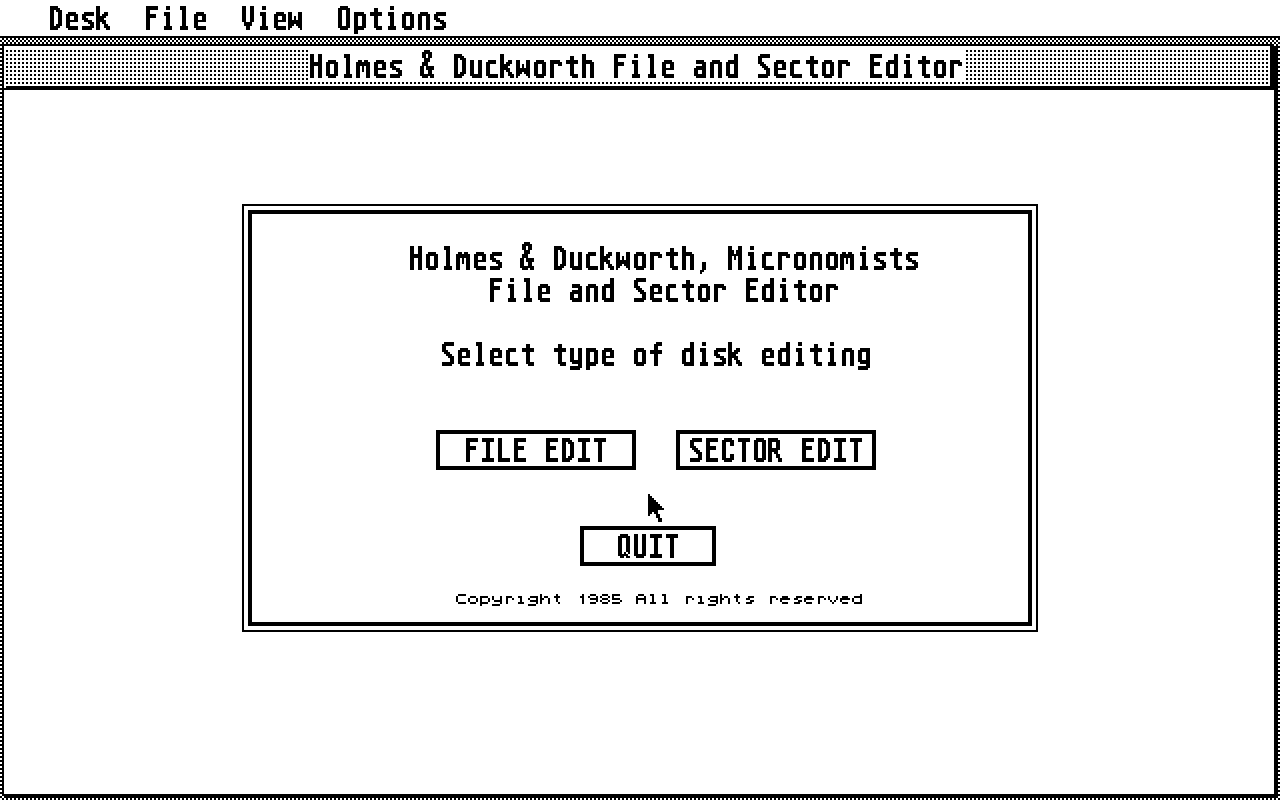
          To begin, double click on the "FSEDITOR.PRG" icon.  A dialog
     box will appear giving you the option of editing either files or
     sectors.  Choose the option you want by clicking on the appropriate
     button.  A screen asking for your choice of either "Drive A" or
     "Drive B" will appear.  Before continuing, insert the disk you want
     to view/edit into a drive.  When you have done so, click on the
     button which corresponds with the drive location of the disk you
     just inserted (the default drive is "A").


     File Mode

          If you had previously selected to work in the "File Mode," a
     file selection box will display on the screen.  Select the file you
     want to edit by double clicking on its name or by typing a file
     name in the selection box.

          After a file has been selected, the program will display the
     first screen of 256 bytes. This is the beginning of your file.
     Options available to you in your manipulation of the information on
     this screen are listed below.  Note: All options can also be
     executed out by using the function keys (F1 to F10).  Movement of
     the cursor may be controlled either by:  1) Using the arrow keys,
     or 2) By positioning the arrow (using the mouse) over data or ASCII
     text and clicking the left button on the mouse.


     Sector Mode

          If, when you entered the program you chose to work in the
     "Sector Mode," the first prompts appearing after the selection of a
     disk drive will request the numbers of the TRACK (0 - 79) and
     SECTOR you want to look at.

          Note: The program is designed to be used with single-sided
     drive systems only.

          When TRACK and SECTOR numbers have been entered, the program
     will load a SECTOR into memory.  A SECTOR consists of 512 bytes, so
     it takes two screens to display one full SECTOR.  To view the
     second portion of a SECTOR, scroll down using the  Function
     Key.


     MEMORY EDITOR - "MEMEDIT.PRG"

          WARNING:  WITH THIS PROGRAM, YOU HAVE TOTAL ACCESS TO ALL 512K
     OF YOUR COMPUTER'S RAM MEMORY.  IF YOU CHANGE DATA IN CERTAIN
     AREAS OF MEMORY, THERE IS A STONG LIKELYHOOD THAT THE SYSTEM
     WILL CRASH AND LITTLE "BOMBS" WILL APPEAR ON YOUR SCREEN.  The
     "Bombs" cause no permanent damage to the system, but we do suggest
     that you reset the system after their "explosion".  It is also a
     good idea not to have any disks in the drives during memory
     "exploration".  Don't blame us, we told you so!!!  H. & D.

          The MEMORY EDITOR works very much like the FILE AND SECTOR
     EDITOR (above).  After clicking on the icon which reads
     "MEMEDIT.PRG", the very first 256 bytes of your Atari ST's RAM
     memory will appear on the screen.  The same set of commands
     available to you in the FILE AND SECTOR EDITOR (see below)
     are now at your disposal.

          If you would like to look in memory at the code we wrote to
     perform this program, it can be found somewhere between the memory
     addresses pointed to by locations 432h (contains low TPA address)
     and 436h (contains high TPA address ).


     -------------------------------------------------------------------


                    FILE/SECTOR EDITOR AND MEMORY EDITOR
                            MENU BAR DESCRIPTIONS


                          FUNCTION              DESCRIPTION
                            KEY

       I.    DESK                   -You may run any desk accessory from
                                     within the FILE/SECTOR EDITOR and
                                     MEMORY EDITOR

      II.    FILE

                Print        F6     -The current screen will be sent to
                                     your printer.
                Quit         F1     -Quit to MAIN MENU

     III.    VIEW

                Goto Offset  F5     -GOTO a specific byte in the file or
                                     memory.  In SECTOR mode, it allows
                                     you to select another track and
                                     sector.


                Find String  F4     -Find a string of characters.
                                     Capital and lower case specific.
                                     This command is only available in
                                     FILE mode and MEMORY EDIT.

                Scroll Up    F7     -Scrolls up one screen

                Scroll Down  F8     -Scrolls down one screen

       IV.  Options

                Display      F2     -Display data only.  No changing of
                                     data allowed.

                Edit         F2     -Allows data to be changed

                ASCII        F3     -When in EDIT mode, text only may be
                                     entered

                Hex          F3     -When in EDIT mode, any hexadecimal
                                     number may be entered.)


        MIRAGE * 4055 W. SHAW #108 * FRESNO, CA  93711 * (209) 227-836