Atari ST - 1986
Ultra Fast RAM Disk
- Genre
- Memory
- Year
- 1986
- Language
- [unknown]
- Publisher
- [no publisher]
- Controls
- -
- Distributor
- —
- Resolution
- Low / Medium / High / VGA
- Developer
- [n/a]
- ST Type
- ST, STe, TT, Falcon030 / 0.5MB
- Licensed from
- —
- Programmer(s)
- Smeton, Charles
- Country

- MIDI
- —
- Software
- English
- Version
- 1.0
- Box/Instructions
- English
- Number of Disks
- 1 / Double Sided / HD Installable
- License
- PD / Freeware / Shareware
- Dump
- Download
- Serial
- —
- Dump format
- MSA
- Protection
- —
INSTRUCTIONS
             Ultra Fast RAM Disk for ATARI 520/1040 ST
                         Version 1.0

                         April, 1986
                      by Charles Smeton

        ****************************************************
        *                                                  *
        *      This program  can be  freely  distributed   *
        *   (excluding  media  costs), it is and  should   *
        *   remain  in the  PUBLIC DOMAIN. Any questions   *
        *   should  b
        *   arising  from  the  use  of  this  program.    *
        *                                                  *
        ****************************************************


       This program sets aside a portion of the ST's memory to
      act as an Ultra-Fast Disk Drive.  Unlike other RAM Disk
      programs that are installed as desk accessories, this
      RAM Disk can be installed automatically by placing it
      in AUTO folder on boot disk.  This save a desk accessory
      slot for more useful purposes. The RAM disk can also be
      installed by renaming it to a ".TTP" extension and clicking
      it from the desktop.

       To install the RAM Disk for automatic setup upon booting:

      1)  Install the RAM Disk icon with drive letter you want
         the RAM Disk to be.  This is accomplished from the
         desktop by clicking Floppy Disk A or B's icon once
         (causing it to turn black).  Then select "Install Disk
         Drive" from the "Options" menu in the Desk Top.
         Change the "Drive Identifier" to the drive you want the
         RAM Disk to be and the "Icon Label" to "RAM DISK".  Then
         select the "Install" box. Drag the RAM DISK icon to
         where you want it to be on the desk top.  Insert your
         boot disk in drive A and then select "Save Desktop"
         from the "Options" menu. This creates the "DESKTOP.INF"
         file on the boot disk.

      2)  Create a new folder on the boot disk called "AUTO",
          then copy the RAMDISK.PRG file into this folder.

      3)  Using a standard text editor create a file called
          "RAMDISK.INF" in the main directory of the boot
          disk. This file need only contain the following:
          a) the drive letter for the RAM Disk
          b) the size of the RAM Disk in Kilobytes.

          An example would be:

                C200

           for drive C, 200K bytes.

            The drive letter can be any letter upper or lower
          case from "C" through "P". The first letter found in
          the file in this range is interpreted as the drive
          letter.  After the drive letter is determined, then
          the first numeric character located starts the drive
          size number, this number is determined complete when
          any non numeric character is found or the end of the
          file is detected.  If the no number is found, then
          a default RAM Disk size of 100K is assumed.  Likewise,
          if no drive letter is found, then "D" is assumed as
          the drive and 100K bytes as the size. If the file
          "RAMDISK.INF" is not found on the boot disk, then
          the RAM Disk program will also assume the above
          defaults.

          Note: If a size less than 50K is given, then 50K
          is used as the drive size. If there is not enough
          memory available, then the RAM Disk is not
          installed by the program.


        The RAM Disk contents will survive a resolution change
      on a  color monitor.  Since the DESKTOP.INF file will be
      re-loaded after a resolution change, make sure it has the
      RAM Disk Drive icon installed. It is a good idea to have
      the boot disk in drive A during this time, otherwise you
      will need to reinstall RAM disk icon manually.

         The RAM Disk data transfer has been optimized for speed.
      This should out perform many commercial RAM Disks. Try the
      RAM Disk with a slide show to see how fast it is.

         The RAM Disk can be initialized manually by double
      clicking the program file name or icon from the desktop.
      If you rename the program to have a ".TTP" extension,
      then the RAM Disk Drive parameters can be entered in the
      dialog box just as they would be from the RAMDISK.INF file.
      If no parameters are given, then the RAMDISK.INF file is
      checked for the valid parameters as described above. If
      the command line is entered incorrectly, then the default
      parameters are used.
         The RAM Disk can be initialized from a Command line
      interpreter environment, but  it is advisable to use
      one of the other methods. The command line can be typed
      as follows:  RAMDISK D200.

      The problem using this method is that the memory used
      by the command program is below the RAM Disk and cannot
      be released to GEMDOS. The system may lockup or the
      RAM Disk contents may be lost if the user tries to exit
      back to the desktop. If the user plans to stay in the
      command environment, then ther is no problem.


      RAM Disk Size specification:

        Any size RAM Disk from 50K bytes to 60000 bytes below
      the total amount of free memory may be specified. As
      stated before attempting to use less than 50K bytes,
      gives you a 50K byte minimum RAM Disk. The 60000 byte
      saftey margin is to insure that there will be enough
      memory for the desktop to operate as well as the minimum
      to run a small program. The RAM Disk will not be installed
      if you specify an amount above this limit.

      Note: On a normal 520ST with TOS in ROM, there is enough
      room for a 351K RAM Disk. This will not leave much room
      for programs to run, but for copying files/disks it
      gives the same memory as a single sided disk. On a 1040ST
      or expanded 520ST, RAM Disks up to 700K bytes should be
      no problem.

      Note: You cannot copy a Floppy Disk to/from a RAM Disk by
      dragging the disk icon on top of the other icon. This
      is true no matter what size RAM Disk is used. To get around
      having to draw a box around all the files in a window and
      dragging them to the other window or disk icon (this may
      take several iterations), just drag the disk icon into the
      open (empty) window of the destination. This will copy
      each file from the source to the destination disk.

         The RAM Disk size specified is the total number of data
      clusters available for storage in the RAM Disk. Where one
      cluster = two sectors = 1K bytes.  The memory needed for the
      boot sector (1 sector), the two copies of the File Allocation
      Table (FAT) (2 * 5 sectors) and the directory (7 sectors) is
      allocated in addition to the specified size . For some reason,
      GEMDOS reserves 2K bytes of the specified RAM Disk size for its
      own use. The total memory displayed by a "SHOW INFO" of the RAM
      Disk's icon be 2048 bytes less than the RAM Disk size * 1024 bytes.

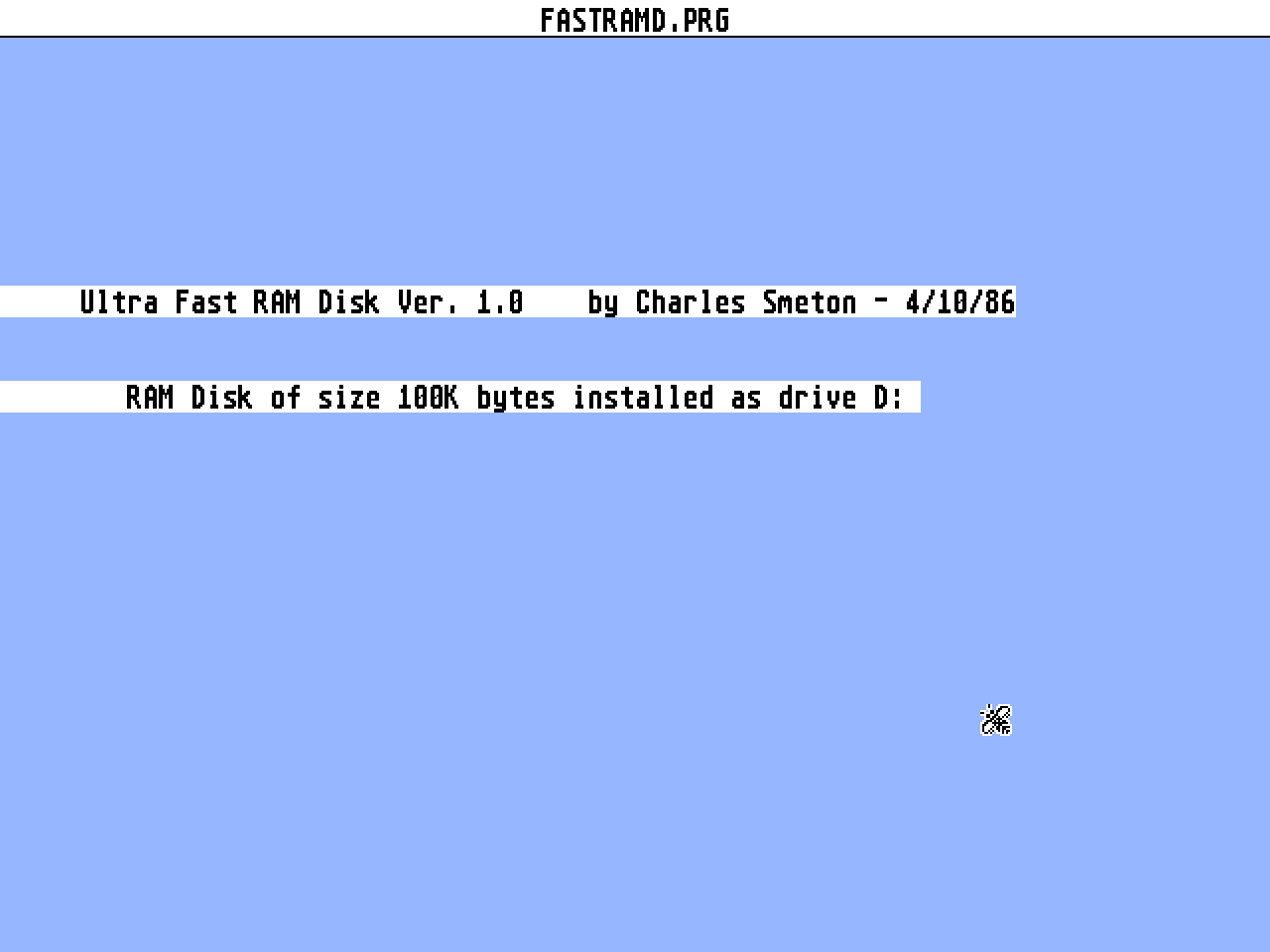
        If the RAM Disk is successfully installed, a message indicating
      the Drive and size allocated is displayed. If the RAM Disk can
      not be installed, then and Error message is printed and two
      console beeps are generated to grab your attention. These message
      appear for only a second or two, since the desktop will wipe
      them out, but there is plenty of time to view them when the
      RAM Disk is installed from the AUTO folder.