

Atari ST - 1991
ST Tools
- Genre
- Programming - Aids / Routines / Tools
- Year
- 1991
- Language
- Other
- Publisher
- [no publisher]
- Controls
- Mouse
- Distributor
- —
- Resolution
- Medium / High
- Developer
- [n/a]
- ST Type
- ST, STe, TT, Falcon030 / 0.5MB
- Licensed from
- —
- Programmer(s)
- Cornio, Stephen
- Country

- MIDI
- —
- Software
- English
- Version
- 1.1
- Box/Instructions
- English
- Number of Disks
- 1 / Double Sided / HD Installable
- License
- PD / Freeware / Shareware
- Dump
- Download
- Serial
- —
- Dump format
- MSA
- Protection
- —
OTHER VERSIONS WITH THE SAME TITLE (1)
INSTRUCTIONS
                               Table of Contents

    Introduction
         Copyright
         Program Overview
         Requirements
         Technical Notes
    Using ST Tools
         Icons
         Windows
         Drop-Down Menus
              Desk Menu
                   About ST Tools
                   Desk Accessories
              File Menu
                   Save Configuration
                   Quit
              View Menu
                   Names Compressed
                   Names with Periods
                   Names with Spaces
                   Names Unchanged
                   View as Large Text
                   View as Small Text
              Sort Menu
                   Sort Items by Name
                   Sort Items by Date_Time
                   Sort Items by Size
                   Sort Items by Extension
                   No Sort
              Function Menu
                   List Disk Information
                   List FAT Entries
                   HexDump File
                   HexDump Sector
                   HexDump Memory
                   Search File
                   Search Sector
                   Search Memory
         Start Location Dialog Box
         Search String Dialog Box
         Edit Dialog Box


                                 Introduction


                                   Copyright

    ST Tools is copyright 1991 Stephen Cornio.  All Rights Reserved.  This
program is being distributed as shareware with a $10 suggested contribution.
This program may be posted on any public BBS as long as it is not modified and
the documentation is included.  Any comments and/or suggestions would be
appreciated.  I can be reached on CompuServe (73637,2527), or send me mail.

    Stephen Cornio
    P.O. Box 1734
    Woodbridge, VA  22193


                               Program Overview

    ST Tools is reminiscent of PC Tools for MS-DOS computers.  The main display
includes a directory tree and a listing of files by directory.  As the name
implies, the program is a set of tools for use on the Atari ST.  Current
functions include listing File Allocation Tables, Hex dumping of files, sectors
or memory and searching files, sectors or memory.  The program is entirely GEM
based, with the standard drop-down menus, scrollable windows and dialog boxes.


                                 Requirements

    ST Tools requires approximately 256K of memory to execute.  The program
will run in both High and Medium resolutions and has been tested with versions
1.2 and 1.4 of TOS.


                                Technical Notes

    ST Tools is written almost entirely in FORTRAN using Prospero FORTRAN for
GEM, along with the Prospero Developers Toolkit, specifically its Make facility
and macro assembler.  Assembly language is used to process the File Allocation
Tables, perform logical bit functions and other operations not easily performed
by FORTRAN.

                                Using ST Tools


                                     Icons

    Disk icons representing each floppy disk and hard-disk partition as well as
any RAM-disk are displayed across the bottom of the screen.  The current disk
will be indicated by a highlighted icon.  To make a different disk be the
current disk, simply click on the desired icon.


                                    Windows

    The main display consists of two windows.  The left window is a directory
tree of the current floppy or hard-disk partition with the current directory
indicated by a highlighted line.  The right window is a list of files,
including directories, found in the current directory with the current file
indicated by a highlighted line.  When the program starts, the left window is
active.  To make the file window active, simply click in the right window or
press the right arrow key.  To return to the directory window, either click in
the right window or press the left arrow key.  To change the current directory
when in the left or directory window, you can click on the desired directory or
use the slider or use the up and down arrow keys.  The same methods will work
to change the current file when the right or file window is active.  Note that
clicking on a file will cause that file to be selected.  This will be indicated
by an asterisk (*) in front of the file name.  To deselect a file, simply click
on the file a second time.  Selected files are important whenever a file
function is performed.  If no files are selected, then the function starts at
the current file and all files in the directory are accessible.  If any files
are selected, then only those files are accessible by the function, in the
order that they were selected.

    Normally the file window will show the filename, size, date, time of last
modification and file attributes.  By clicking on the full window button, the
file window will be expanded to cover the directory window and the first
cluster and sector of the file will also be displayed.  Click again on the full
window button to return to normal size file window.


                                Drop_Down Menus

    Across the top of the screen is found a standard menu bar.  All of the
program's features and functions are accessed by using the drop-down menus
contained on this menu bar.


                                   Desk Menu

    About ST Tools

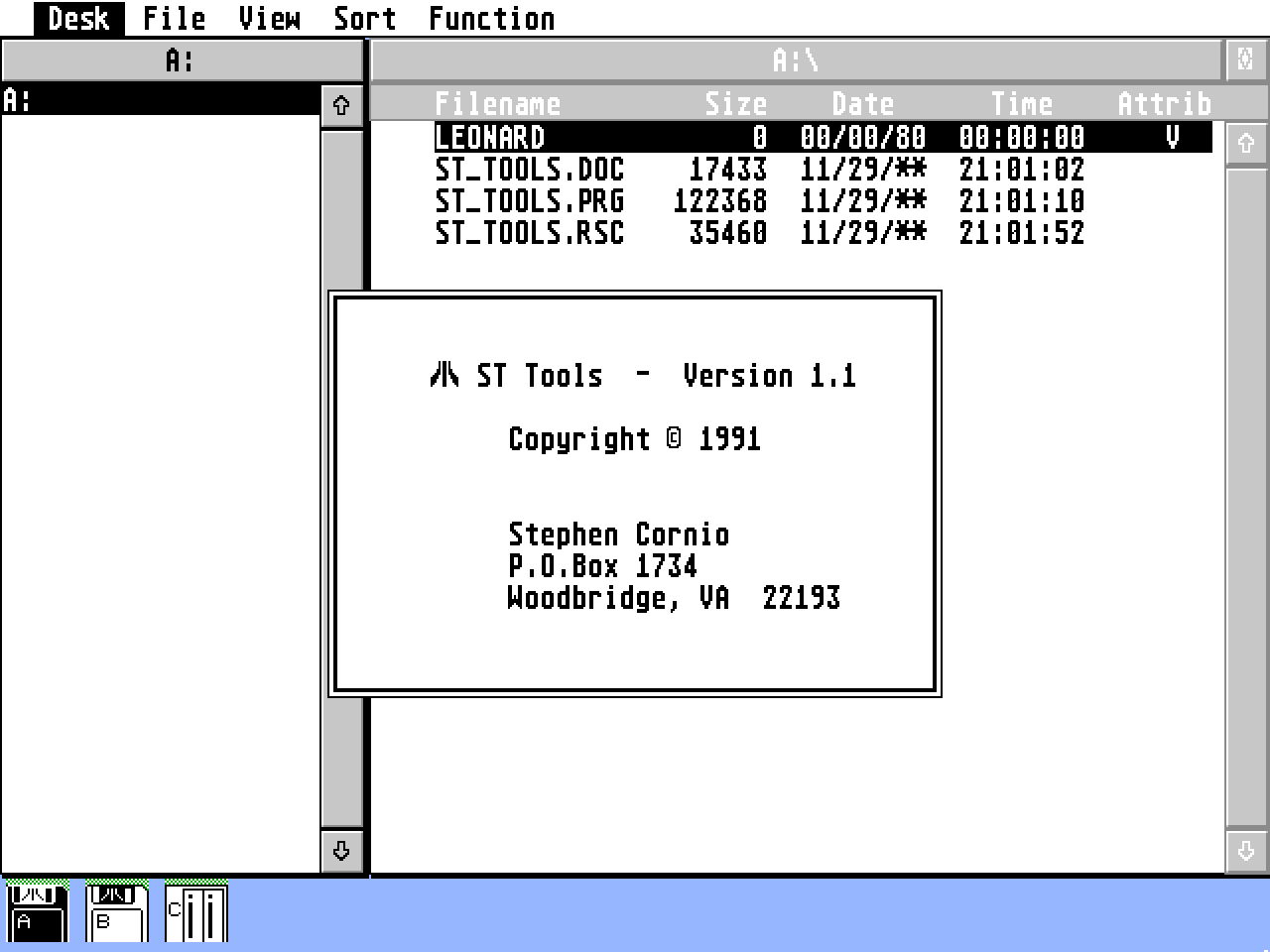
    Clicking on the "About ST Tools" entry in the Desk menu will display
copyright information about the program, along with my name and address.

    Desk Accessories

    Desk accessories will work within ST Tools, including MultiDesk.  The desk
accessories are selected in the normal manner, by clicking on them.


                                   File Menu

    Save Configuration

    The "Save Configuration" entry will cause the standard file selector to be
displayed with the standard name 'ST_TOOLS.CFG' listed as the selection.  Click
on the "OK" button to save the current configuration to this file.  This file
is used on program startup to alter the standard initial Name, View and Sort
options.

    Quit

    Clicking on the "Quit" entry will cause the program to terminate
immediately.


                                   View Menu

    The "View Menu" is broken into two sections.  The top section is used to
select the "Name" option, which determines how the names found in each
directory are listed.  The bottom section is used to select the "View" option,
which determines the number of directories or files that can be listed in each
window.  This section is only of use in high resolution.

    Names Compressed

    The "Names Compressed" entry will cause the file names to be listed with a
period between the main part of the name and its extension with any embedded
blanks deleted as in 'NAME.EXT'.

    Names with Periods

    This entry is similar to the one above except that the embedded blanks will
be included as in 'NAME    .EXT'.

    Names with Spaces

    This entry will cause the file names to be listed with a space between the
main part of the name and the extension with embedded blanks included as in
'FILENAME EXT'.

    Names Unchanged

    This entry will cause the file names to be listed exactly as they are in
the directory itself as in 'FILENAMEEXT'.

    View as Large Text

    The "View as Large Text" entry will cause the font appropriate for the
current screen resolution to be used, resulting in 19 directories and files to
be listed in each window.

    View as Small Text

    This entry which is only available in high resolution (monochrome) mode,
will cause the medium resolution character font to be used, resulting in double
the number of directories and files to be listed in each window.


                                   Sort Menu

    Sort Items by Name

    The "Sort Items by Name" entry will cause files listed to be sorted by
name, with directories first.

    Sort Items by Date-Time

    This entry will cause the files listed to be sorted by Date and Time of
last modification, with directories first.

    Sort Items by Size

    This entry will cause the files listed to be sorted by size of the file,
with directories first.

    Sort Items by Extension

    This entry will cause the files listed to be sorted by their extensions,
with directories first.

    No Sort

    This last entry will cause the files listed to not be sorted at all, but
instead shown in the order as defined in the directory.


                                 Function Menu

    List Disk Information

    The "List Disk Information" entry will cause various pieces of information
about the current disk to be listed.  This information includes FAT size, the
total number of sectors on the disk, the number of usable clusters on the disk,
and any volume label, including A NeoDesk label if it exists.

    List FAT Entries

    This entry will display a dialog box listing the first set of FAT entries
for the current disk.  Both the cluster number and the cluster pointed to by
that cluster are displayed in hexadecimal.  For floppies, the pointer is
usually 12 bits which translates to 3 hexadecimal digits.  For hard disks, the
pointer is normally 16 bits or 4 hexadecimal digits.  To indicate end-of-file,
negative one is used, 'FFF' for floppies or 'FFFF' for hard disks.  Five
buttons are displayed in this dialog box.  "First" will display the first set
of entries.  "Prev" will display the previous set of entries.  "Exit" will
cause this dialog box to exit.  "Next" will display the next set of entries.
"Last" will display the last set of entries.


    HexDump File

    The "HexDump File" entry will cause the selected files, or current file if
no files are selected, to be dumped to the screen in a dialog box.  The dump is
both in hexadecimal and in Ascii.  The file name, sector number and cluster
number within the file, and absolute disk sector will be displayed at the top
of the dialog box.  Eight buttons are displayed at the bottom of the box.
"Prev File" will cause the previous file to be dumped.  "First" will dump the
first sector of the current dump file.  "Prev" will dump the previous sector of
the current dump file.  "Edit" will allow the user to edit or modify the data
displayed on the screen.  "Exit" will cause this dialog box to exit.  "Next"
will dump the next sector of the current dump file.  "Last" will dump the last
sector of the current dump file.  "Next File" will cause the next file to be
dumped.

    HexDump Sector

    This entry will allow any sector of the current disk to be dumped to the
screen in a dialog box.  A starting sector dialog box will first be presented
in order to allow the user to select the sector to start dumping at.  Once the
starting sector is selected and the "Dump" button is clicked, the sector will
be dumped in both hexadecimal and Ascii.  The sector number and type of sector,
Boot, FAT, Root or Data will be displayed at the top of the box.  Six buttons
are displayed at the bottom of the box.  "First" will dump the first sector of
the disk or Boot sector.  "Prev" will dump the previous sector of the disk.
"Edit" will allow the user to edit the current data on the screen.  "Exit" will
cause this dialog box to exit.  "Next" will dump the next sector of the disk.
"Last" will dump the last sector of the disk.

    HexDump Memory

    This entry will allow any block of memory to be dumped to the screen in a
dialog box.  This can be RAM, ROM or hardware chips such as DMA, video or sound
chips.  A starting memory dialog box will first be presented which will allow
the user to select the memory to start at.  Once this is done and the "Dump"
button is clicked, the standard dump screen will be displayed.  The actual
address of memory dumped is listed to the left.  Six buttons are displayed at
the bottom of the box.  "First" will dump the first block of memory.  "Prev"
will dump the previous block of memory.  "Edit" will allow the user to edit the
data on the screen.  "Exit" will cause this dialog box to exit.  "Next" will
dump the next block of memory.  "Last" will dump the last block of memory.
Note that if the memory displayed is not RAM, then the "Edit" button will be
disabled.


    Search File

    The "Search File" entry will cause the selected files, or current file if
no files are selected, to be searched for a 16 character long string.  The
string may be input in either hexadecimal or Ascii.  The search may be case
sensitive of insensitive.  The search may be in a forward or backward
direction.  While the files are being searched, their names will be displayed
at the top of the search dialog box.  The search may be stopped at any time by
clicking on the "Stop" button or pressing the Return key.  Once the string has
been found, the dump file screen will be displayed with the search string
indicated by reverse video on monochrome and green text on color systems.  Six
buttons are displayed at the bottom of the box.  "Search Prev" will search for
a previous instance of the string.  "Prev Block" will dump the previous block
of the file displayed.  "Edit" and "Exit" work as usual.  "Next Block" will
dump the next block of the file displayed.  "Search Next" will search for the
next instance of the string.

    Search Sector

    This entry will allow the searching of disk sectors.  The starting sector
dialog box is displayed followed by the search dialog box.  Once the search is
started, the sectors being searched will be displayed at the top of the search
dialog box.  When the string is found, the dump sector screen will be displayed
with the same six buttons found on the "Search File" dialog box.

    Search Memory

    This entry will allow the searching of memory.  The starting sector and the
search dialog boxes will be displayed to determine the starting memory and the
string to search for.  When the string is found, the dump memory screen will be
displayed with the same six buttons as above.


                           Start Location Dialog Box

    This dialog box is used any time a dump or search of disk sectors or memory
is requested from the "Function" drop-down menu.  The title of the box will
reflect the function requested.  For disk sector functions, the maximum disk
sector on the current disk is displayed.  For memory functions, the maximum
memory (FFFFFF or 16 megabytes) is displayed.  By clicking on the '+' and '-'
buttons, each digit of the starting sector/memory can be increased or
decreased.  A "Cancel" button is provided to cancel the requested function.
The other button will be "Dump" or "Search" to reflect the type of function to
be performed.  Clicking on this button will cause the program to proceed to the
next step.  For "Dump" functions this means the desired sector or memory will
be dumped.  For "Search" functions, the following dialog box will be displayed
and processed.


                           Search String Dialog Box

    This dialog box is used any time a search of files, disk sectors or memory
is requested from the "Function" drop-down menu.  The title of the box will
reflect the type of string being searched for, hexadecimal or Ascii.  The type
of string may be toggled by clicking on the desired search type.  The case of
the search may also be selected, sensitive or insensitive.  The case only
applies to the letters A-Z whether the search type is hexadecimal or Ascii.  A
"Cancel" button is provided to cancel the search function.  When doing a
hexadecimal search, the input digits must be between 0-9 and A-F.  An error in
the search string will be indicated by grey text on monochrome systems and red
text on color systems.  Once the desired string has been entered, the search
direction is selected by clicking on the "Search Forward" or "Search Backward"
button as desired.  While the search is proceeding, the "Cancel" button will be
relabelled as a "Stop" button.  Clicking on this button will cause the search
to stop and two additional buttons to appear.  They are used to indicate the
point at which to continue the search from.  "Start Point" will cause the
search to be restarted from the original starting point.  "Current Point" will
cause the search to be restarted from where it was stopped.


                                Edit Dialog Box

    This dialog box is used any time the "Edit" button is clicked from a dump
display.  Two buttons are displayed at the bottom of the dialog box.  "Do It"
will cause any changes made to the current screen to be written to disk or
memory.  Each hexadecimal digit will be checked for validity first and any
errors will be flagged with grey text on monchrome systems and red text on
color systems.  A "Cancel" button is provided to allow the user to cancel the
edit function with no changes being made to disk or memory.