Atari ST - 1989
Little-Net
- Genre
- Communications / Radio / Electronics
- Year
- 1989
- Language
- [unknown]
- Publisher
- [no publisher]
- Controls
- Mouse
- Distributor
- —
- Resolution
- Medium / High / VGA
- Developer
- [n/a]
- ST Type
- ST, STe, TT, Falcon030 / 0.5MB
- Licensed from
- —
- Programmer(s)
- Woitha, Dirk
- Country

- MIDI
- —
- Software
- German
- Version
- 1.1
- Box/Instructions
- German
- Number of Disks
- 1 / Double Sided
- License
- PD / Freeware / Shareware
- Dump
- Download
- Serial
- —
- Dump format
- MSA
- Protection
- —
INSTRUCTIONS
S  E  C  R  E  T  S      O  F      L I T T L E N E T
====================================================


 How to use Dirk Woitha's amazing freeware desk accessory
 to connect Atari ST and TT computers in a two-way network


 _________________________

 B Y   A L   F A S O L D T

 -------------------------


 Technology Writer, Syracuse Newspapers and Newhouse News Service

 Systems Editor, the Herald-Journal, the Herald American
 and the Post-Standard

 Syracuse, New York


 Copyright (C) 1993 by Al Fasoldt. All rights reserved.


I N T R O D U C T I O N
-----------------------


I connect, you connect, we can all connect
------------------------------------------

Networking has been around for a long time. The cheapest method
has always been "sneakernet" -- running floppy disks from one
computer to another to share files. The most expensive is an
Ethernet connection in which all kinds of activity can be shared
among many computers.

Atari users who own more than one ST or TT have had only a few
choices if they wanted to network their computers. "Sneakernet"
is the option chosen most often, although sophisticated (and
expensive) networking systems are available for Ataris. There is,
as yet, no readily available system that takes advantage of the
networking ports on the Mega STe and the TT computers, but there
are a few systems that use another method -- one that all Atari
computers from the original ST to the latest Falcon can take
advantage of. This is MIDI networking, which uses the computer's
built-in MIDI ports to send and receive data to and from another
Atari.

MIDI networking has many advantages:

 - It can connect any Atari computer to any other Atari (an ST to
   a TT, a TT to a STacy laptop, a Mega ST to a Falcon, for
   example).

 - It uses connecting cables that are inexpensive and easy to
   find.

 - It is reliable.

But potential users should know about the disadvantages of MIDI
networking:

 - In its most basic form, it can only connect two Ataris.

 - It cannot connect computers that are very far apart. (MIDI
   cables normally come in lengths of up to 20 feet, but the
   practical limit of MIDI networking is 100 to 200 feet, using
   custom-length cables.)

 - It is slow. MIDI signals are transferred at a rate of about
   150 kilobytes per minute, or 2,500 bytes per second. This is
   quite fast compared to typical modem transfer rates of a few
   hundred bytes per second, but it is no match for the transfer
   rates achieved by hard drives -- or, for that matter, for the
   rates that a modern Ethernet system is capable of.

These disadvantages would be serious impediments if MIDI
networking involved a major expense. But it doesn't have to. It
can be practically free -- the only outlay being the purchase of
MIDI cables if you don't have them already -- if you use the
networking software from Dirk Woitha called LittleNet. This brief
guide will tell you how to set up LittleNet, what conflicts to
watch for, and what you can do to make the most of this freeware
desk accessory.


 * * * * * * * * * * * * * * * * * *

Author's note:

This may be freely distributed in any form, but only if it remains
intact. You do not have permission to edit this or use it
commercially in any way.

If you have comments or questions, and especially if you find errors
in this work, you can reach me at these addresses:

 Al Fasoldt
 Syracuse Newspapers
 Box 4915
 Syracuse, NY 13221

 GEnie: a.fasoldt
 America Online: Al Fasoldt
 Internet: afasoldt@erc.cat.syr.edu

This is Version 1.0.0, written in June 1993 at the computer
center at Countless Pines, Baldwinsville, New York.


 * * * * * * * * * * * * * * * * * *


W H A T   M I D I   C A N   D O
-------------------------------


It ain't just for musicians
---------------------------

When Atari introduced the ST in 1985, the computer had an extra
set of input and output connectors called Musical Instrument
Digital Interface ports. These MIDI ports have remained a hallmark
of the entire Atari line to this day. As their name indicates,
they are primarily designed to serve as the computer's access
points to MIDI components -- keyboards, synthesizers and
countless other devices.

MIDI ports are two-way connections. Like the serial ports used to
send and receive signals to a modem, the MIDI ports can send and
receive any kind of data. This is important; in just one example,
it provides a way for a properly written software program to use
the MIDI ports as a hard-wired replacement for a modem when two
Ataris are connected by MIDI cables. (Among the advanced
telecommunications programs that can make use of MIDI connections
are STalker and Flash II.)

Using MIDI ports this way makes a lot of sense. Rather than
setting up a null-modem connection -- a way of connecting two
modems directly, so that there is no need for a telephone line --
an Atari user can transfer files to and from another Atari over a
pair of MIDI cables using STalker or Flash II. No modems are
necessary, and the speed of the transfer will be much faster than
even a typical high-speed modem can attain.

But file transfer is not networking. What's needed in a true
networking system is a way to access the other computer remotely,
just as if you were sitting at its keyboard. A true networking
system should be able to use the MIDI ports as a gateway for
accessing and running programs, for sharing files and for
sending and receiving electronic messages.

That's just what LittleNet can do.


T H E   S E T U P
-----------------


It doesn't get any easier
-------------------------

To set up a LittleNet network, you need two Atari computers, a
pair of MIDI cables and the LittleNet desk accessory, called
LITT_NET.ACC, along with its resource file, LITT_NET.RSC. Plug
the MIDI cables into the two MIDI ports of each computer, making
sure that the cable that is plugged into one computer's MIDI OUT
port is connected to the other computer's MIDI IN port, and vice
versa.

If your desk accessories are run the standard way -- from the root
directory of your boot drive -- place LITT_NET.ACC and
LITT_NET.RSC in the root (main) directory of drive C: (or drive
A: if you don't have a hard-disk drive), making sure that you do
not have more than six desk accessories active in the root
directory. (In other words, if you have more than six desk
accessories there, make sure that only six of them have .ACC as
the filename extender; the ones you don't want to use can be
disabled by renaming their extenders to .ACX. Note, however, that
the limit of six desk accessories does not apply if you are
running a multitasking operating system in which the GEM
desk-accessory limit has been removed. If in doubt, boot up with
only six, and try adding more later.)

If you use an AUTO folder utility that allows desk accessories to
be placed in a folder instead of the root directory, you can put
the two LittleNet files in that folder. But you should not place
LITT_NET.ACC inside the CodeHead desk-accessory manager,
MultiDesk Deluxe; LittleNet works best when it is run as a
standard accessory, with its own desk menu slot.

LittleNet is not sensitive to the loading sequence of desk
accessories. You can have it first or last or anything in
between. (Beware of an oddity of the Atari operating system,
however: Although accessories are loaded in the order in which
the operating system finds them on the disk -- in their physical
order, from first to last, based on their placement in the file
table -- the TOS desktop's desk menu shows them in "backward"
order, with the last accessories that were loaded at the top of
the list and the first at the bottom.)

If you are using the CodeHead screen accelerator and display
manager, Warp 9, make sure you have the Warp 9 configuration desk
accessory loaded either as a regular accessory or as a resident
accessory in MultiDesk Deluxe. You will need the Warp 9
configuration DA to solve one of the few compatibility problems
with LittleNet: While LittleNet is active in transmitting or
receiving data, the Warp 9 screen acceleration must be turned
off. By opening up the Warp 9 configuration accessory, you can
click on the screen acceleration box to disable that feature
temporarily. (You do not need to disable any other Warp 9
functions.)

The last step is to create a desktop icon for the network drive.
LittleNet uses Drive N: as its means of communicating with the
other computer. Each of the two computers must have a Drive N:
installed on the desktop. If you are using a standard TOS
desktop, highlight (click once on) an existing drive icon and
drop down the Options menu. You'll see "Install Disk Drive" as
the first selection. Click on that menu item and type "N" for the
"Drive identifier" and "Network" for the "Icon label." Then click
on "Install." An icon for Drive N: will appear on the desktop.
Move it wherever you want it, and then save the desktop, using
the menu item that is also under the Options drop-down menu.

If you are using an alternative desktop, follow the instructions
the accompany your software. Note that some alternative desktops
will not recognize a new drive installed on their desktops unless
you have already installed the drive on the TOS desktop. If in
doubt, install the drive on both desktops.

That's all there is to it. Make sure the MIDI cables are
connected, and be sure both Ataris have LittleNet ready to load.
Reboot the two computers, and you're ready to use LittleNet.


U S I N G   L I T T L E N E T
-----------------------------


My file is your file
--------------------

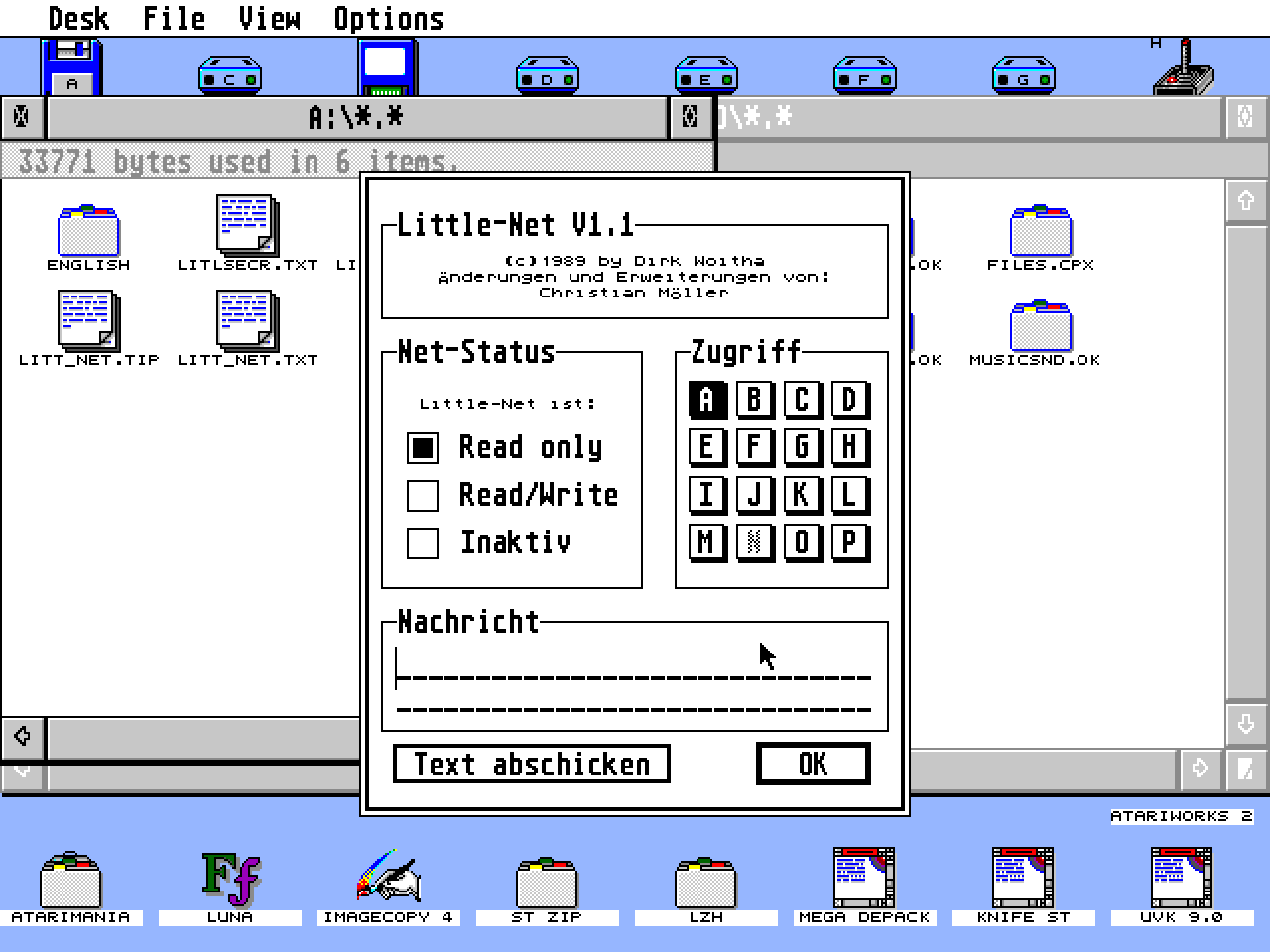
When each computer boots up, LittleNet will appear in the list of
desk accessories under the Desk menu. Drop it down and choose one
of the three operating modes -- "read only," "read/write" or
"off." "Read only" and "read/write" control the access the other
computer has to the files on the host computer.

The first mode prevents the other computer from writing any data
to the host system's file storage. (This includes, of course, file
deletion as well as file creation, file renaming and so forth.)
The second mode places no limitations on the other computer's
access rights. With "read/write" in effect, the other computer
can do anything to the files on the host computer's floppy and
hard drives.

It's important to understand that the access limits in Computer
A's LittleNet settings pertain only to what Computer B is allowed
to do with Computer A. It is not possible for one computer to
control its access to the other computer; the host computer, in
each case, has full control over access rights to its own drives.
That means Computer A can keep Computer B from altering any of its
files, while Computer B (if its LittleNet is set for "read/write")
can allow Computer A to delete or rename its files. This provides
for a flexible arrangement in situations in which one of the
Ataris is controlled by adults and the other is being run by
children, for example.

The connection is cut off if LittleNet is switched to "off." The
prohibition is total. No file access is allowed, and even
electronic mail (discussed below) is blocked. Even if one of the
LittleNet accessories is set to "read only" or "read/write," the
network will be down (inoperative) if the other LittleNet is set
to "off."

LittleNet always boots up with "read only" set. This allows
access even to a remote, unattended Atari that reboots itself
after a power-line glitch, but prevents unintended file deletions
when no one has specifically authorized a "read/write" connection.

Below the access boxes is a dialog box for selecting the drive on
the other computer that LittleNet should access. This drive is
the one that LittleNet aliases as the N: drive. LittleNet
substitutes Drive N: for the drive you choose. You can select A:
through J:. If the other computer has drives with designators past
J:, you can't access them unless the operator of the second
computer switches some of the lower-lettered drives out of action
using one of the ICD Inc. utilities.

Below the drive designation is LittleNet's e-mail facility, which
lets you type up to 30 characters into the message box. The
message is not sent until you click on the "Transmit Text" box.
It will be received in a fraction of a second and will appear in
a message box on the other computer's screen -- if the other
computer is at its desktop or is running a GEM application. If
the other computer is running a TOS or TTP program (one that does
not have GEM windows and does not use the mouse, for example),
the message will be held in reserve, to be shown as soon as the
TOS or TTP program ends -- assuming, of course, that the exiting
program returns to the desktop or to another GEM application.

If one computer sends a message to another computer while the
other computer's LittleNet is turned off, the message will be
held in the second computer's LittleNet memory until the network
accessory is turned on. LittleNet does this even when it is
switched to "off" on the receiving end.


Apposites attract
-----------------

Applications (major programs) can be run across the LittleNet
network without difficulty, as long as the remote computer can
locate any resource files that must be loaded by an application.
These files always have an ".RSC" file extender, and usually must
be located in the same folder as the application itself. This is
what LittleNet generally requires. If you are using a GEM
environment utility that lets you place all your resource files in
a separate path, LittleNet MUST be able to access that path in
order to run an application. This means the path of the resource
folder (the one where all .RSC files are kept) must be on the
drive that LittleNet is accessing at the time. In other words, if
LittleNet's Drive N: is actually Drive D: of the other computer,
and if the other computer's .RSC files are in D:\RESOURCE\, your
computer's GEM environment variable must include N:\RESOURCE\ if
you expect to run applications that reside on the other computer.

(This may seem overly complicated and unnecessary, and, of
course, would not be a problem if all .RSC files are kept in the
same folder as their applications. But MultiTOS and some other
operating systems for the Atari allow precise tailoring of the GEM
environment, and all TOS versions from 1.0 on up ALWAYS read the
environment variable to locate resource files. Atari users
probably will make increasing use of the GEM environment once
MultiTOS and the other systems become widespread.)

You run an application across the network just as you would if it
were located on your own Atari's disk drive. Open the main drive
window for N:, double click on any folders you need to access,
and then double click on the program you want to run. Unless it
is a relatively small program, it will load slowly -- at about
the same speed it would load from a floppy disk. Once it is
running, it should behave normally. If the application makes
frequent accesses to its own folder on Drive N:, it will do this
slowly also. You can speed things up if you redirect data files
to a folder on your own Atari. If, for example, you are running a
word processor off Drive N:, save the text to one of the drives on
your computer.


M is for multitasking
---------------------

LittleNet allows the other computer to access your Atari's files
while you are running any kind of program, and, likewise, your
computer can access the other one's files in the same way.
LittleNet will slow down some of your desktop operations if the
other computer is doing intensive file copying, but the effect is
minor. LittleNet works seamlessly in the background, even while
primary applications are accessing the Atari's serial port.
Aladdin, for example, will run without a hitch while another
Atari is accessing one of the drives on your computer.

Technically, this is not true multitasking, but it is close
enough. Atari desk accessories have always had a limited
multitasking ability built in, and, in some well written DAs such
as Gribnif's STalker, this multitasking capability approaches the
theoretical limits of a normal GEM-based system. LittleNet works
flawlessly with STalker, and has been tested with two STalker
desk accessories (each accessing a different serial port) running
at the same time that LittleNet was providing access to another
computer via the MIDI ports.


P R O B L E M S
---------------


Nothing's perfekt
-----------------

LittleNet will not access any partition (a portion of a hard
disk that has a separate drive letter) that has sector sizes
larger than 512 bytes. This may not be of concern to most Atari
users. Using Atari's own partitioning software, partitions of 16
megabytes or less use 512-byte sectors. Using ICD's partitioning
software, partitions of 32 megabytes or less use 512-byte
partitions.

These are called GEM partitions. But BGM ("Big GEM") partitions,
which use sector sizes that are multiples of 512 bytes, cannot be
accessed by LittleNet.

As is mentioned above, LittleNet also has trouble accessing Drive
N: when Warp 9's screen acceleration is active. Turn the screen
acceration off when using LittleNet. (You can leave LittleNet
active while Warp 9's acceleration is in use, but when you
attempt to access a drive across LittleNet's network you must
turn it off.)

LittleNet is compatible with NVDI, the German accelerator. It
apparently does not work with Atari's MultiTOS, but is known to
be compatible with other multitasking systems.