

Atari ST - 1992
Everest
- Genre
- Word Processing
- Year
- 1992
- Language
- [unknown]
- Publisher
- [no publisher]
- Controls
- Keyboard / Mouse
- Distributor
- —
- Resolution
- Medium / High / VGA
- Developer
- [n/a]
- ST Type
- ST, STe, TT, Falcon030 / 0.5MB
- Licensed from
- —
- Programmer(s)
- Schmidt, Oliver
- Country

- MIDI
- —
- Software
- English
- Version
- 1.5
- Box/Instructions
- English
- Number of Disks
- 1 / Double Sided / HD Installable
- License
- PD / Freeware / Shareware
- Dump
- Download
- Serial
- —
- Dump format
- MSA
- Protection
- —
OTHER VERSIONS WITH THE SAME TITLE (4)
INSTRUCTIONS
===========================================================================

                                E V E R E S T

                   The simple and genial GEM Text Editor.
    Compatible with all Atari 680x0 computers & all known graphic cards

===========================================================================

Disclaimer

Every effort has been taken to ensure the information in this file is
correct but use of the program is entirely at your own risk!


1.  Introduction
1.1 Getting Started with EVEREST.PRG

2.  The Menus
2.1 File
2.2 Block
2.3 Search
2.4 Window
2.5 Parameters
2.6 Info

3.  Keyboard And Mouse Control
3.1 Keyboard commands
3.2 Mouse actions

4.  Dialogs

5.  Versions

6.  The Shareware principle


---------------------------------------------------------------------------
1.0  I N T R O D U C T I O N
===========================================================================

Everest is a easy to learn ASCII text editor. Listed below are just some
of the tasks Everest can assist you with:

- programming
- text entry prior to further formatting through other programs
  (eg TeX or Calamus)
- editing configuration files without changing the existing text format
- writing batch files


EVEREST offers the following features:

- runs with all Atari 680x0 computers and with all known graphic cards
  (apart from ST low resolution (320*200))
- fast scrolling on all models, with or without the blitter
- no cursor overrun (or similar annoying glitches)
- standard GEM interface
- Turbo C Editor compatible keyboard shortcuts
- capable of loading large (>300Kb) files without problems
- almost every command can be controlled via the keyboard, drop down
  menus or dialogs (even block marking!)
- enables the use of GDOS (mono-spaced) fonts, provided GDOS is installed
  (The fonts supplied with Gemini are particularly recommended)
- no external RSC file, so Everest is well suited to residing outside
  folders on the root directory
- Everest employs dynamic memory allocation to leave the maximum possible
  memory for other applications. Ideal for multitasking environments and
  accessories
- Hard tabs
- GEM Clipboard support
- Turbo-C Help Accessory support
- up to 10 active files. Although most TOS versions only support 7 windows
  various utilities are available to increase this limit.
  (WINX is recommended, with support for up to 120 Windows!)


1.1 Getting started with EVEREST.PRG
====================================

Everest can accept a command line. Therefore it is possible to call Everest
from a shell. Additionally it is possible (using Gemini or NeoDesk for
example) to "drop" several files onto the Everest icon for automatic opening
and editing. Optionally the line or line/column position for the cursor can
be passed as parameters. (The first line/column position has the number one,
zero will be interpreted as one).
To search for a file Everest uses the GEM function SHEL_FIND, and takes into
account the actual entry in the "PATH" environment variable.
If "EVEREST" is defined as an environment variable Everest will search
this path for its configuration file EVEREST.INF.
If "EVEREST" is not defined as an environment variable Everest will search
the path defined under the "PATH" environment variable, using SHEL_FIND,
for its configuration file EVEREST.INF.
The file EVEREST.LIS will also be seached for in the same directory as
EVEREST.INF and if found will be used.
More details in chapter 2.5 "Parameters" under the "File lists" option.


---------------------------------------------------------------------------
2.0   T H E   M E N U S
===========================================================================

Nearly all commands offer keyboard shortcuts. These are shown on the right
in drop down menu commands and as underlined characters in dialog and
alert boxes.


2.1 File
========

-New (Control N)
A new untitled file is opened in memory. The first time an untitled file
is saved a proper filename must be entered via the file selector.

-Open (Control O)
The file selector is presented and after selecting a filename the text
is loaded into memory. If the loaded file is not in ASCII format the
display may well contain garbage characters!

-Close (Control U)
If the text has been changed a dialog box appears offering a last chance
to save the text before it is removed from memory. If the text is
unchanged the file is immediately closed and removed from memory.

-Save (Control S)
The text is saved under the filename and path shown in the window title
bar. The window remains open so that the file can be further edited.

-Save as (Control M)
The file selector is presented enabling a filename and path to be entered.
After saving a dialog box appears from which either the original or the new
filename and path can be chosen for the name of the file being edited.

-Cycle windows (Control W)
Each window in turn becomes the topmost window.

-Print (Control P)
The text in the active window is sent to the printer. If a block is marked
a dialog box appears offering a choice between printing the entire file or
the marked block only.

-Quit (Control Q)
If all open files are unchanged Everest will quit. Edited files are handled
according to the parameters set in the "Program exit" menu option.


2.2 Block
=========

The block function follows the widely adopted Cut, Copy, Paste principle.
This works as follows, a text block is marked (block marking methods are
explained later) and displayed in reverse video. Using the Cut or Copy
options from the "Block" menu places the marked text into block memory
where it is stored until the next time the Cut or Copy command is
used. Text stored in block memory can be inserted into the text at the
cursor position using the Paste or Copy commands.


Block marking methods:

a) Using the mouse;
Position the mouse over the desired starting point for the block then
click and hold down the left mouse button. Move the mouse to the desired
end point for the block and release the mouse button. The marked block will
be displayed in reverse video. If you move the mouse over the window border
the window will automatically scroll in that direction.

If a block is already marked the start/end positions of the block can
be easily changed. Hold down either Shift Key and click using the mouse on
the desired new block start/end position. The text between the new position
and the existing start/end position is now shown marked in reverse video.

Another method of marking a block is to position the cursor at the desired
start/end point and holding down either Shift Key click the mouse on the
other start/end point. The text between the cursor and the mouse position
will be marked and displayed in reverse video.

Double click on any bracket ({[]}) and the text between this bracket and
it's matching opening/closing bracket will be marked and displayed in
reverse video. If no matching bracket is found no text will be marked and
the error bell will sound.

Double click on any word and the word will be marked and displayed in
reverse video.

Important!

If a line containing a configured error message (refer to Chapter 2.5 for
a detailed explanation of error messages) is double clicked on, it is not
marked but instead the corresponding error location is jumped to.

b) Using the keyboard;
Pressing Control A positions the block start point at the cursor position
and enters block marking mode. The cursor is moved to mark the desired
text, which is displayed in reverse video. All the commands which
reposition the cursor are available, the arrow keys, keyboard shortcuts and
drop down menu options (eg. the "Search", "Go to label" and "Go to line"
options). The window automatically scrolls in the appropiate direction
to display the cursor. Normal text entry is temporarily suspended in this
mode. Pressing Control A a second time exits block marking mode.

c) Using the keyboard and mouse in combination.


Commands:

-Delete (Control Y)
The marked text block is deleted.

-Cut & Cut line (Control X)
The marked text block is removed from the active window and stored in the
block memory. If no block is marked the line the cursor is on is cut.

-Copy (Control C)
The marked text is copied into the block memory. If no block is marked the
line the cursor the cursor is on is copied into block memory.

-Paste (Control V)
The text stored in the block memory is inserted at the cursor position.
If a block is marked the contents of the marked block is deleted and
replaced with the text stored in the block memory. The block end point
is automatically adjusted and remains marked and diplayed in reverse video.

-Delete line (Control Y)
The line the cursor is on is deleted.

-Set block start (Control A)
Activates block marking using the keyboard.
The cursor is moved to mark the desired text, which is displayed in reverse
video. All the commands which reposition the cursor are available, the
arrow keys, keyboard shortcuts and drop down menu options (eg. the "Search",
"Go to label" and "Go to line" options). The window automatically scrolls in
the appropiate direction to display the cursor. Normal text entry is
temporarily suspended in this mode. Pressing Control A a second time exits
block marking mode.
It is obviously not sensible to select this option using the mouse and
is only included for completeness. It does however, serve as a reminder
of the keyboard shortcut!

-Indent left/right (Control J or K)
Moves a marked block left or right. Control over indentation is provided
in the "Miscellaneous" option in the "Parameters" menu.
This option is of particular benefit to programmers and comms users.


2.3 Search
==========

-Search (Control F)
Attempts to find a character string (maximum 43 characters) within the
active window. Wildcards are not supported. A dialog box appears into which
the search character string is entered.
Parameters:
Direction; the search direction can be either forwards or backwards from the
current cursor position. If the search fails and the start/end of the text
is reached the direction is automatically reversed. To continue the search
use the "Search again" option.
Match upper/lower case; when enabled (crossed) the case of the search string
will be matched, otherwise the case of the search string is ignored.

-Search again (Control G)
Attempts to find the character string previously entered and searched for
using the "Search" option (above). The search proceeds from the current
cursor position using the "Search" option parameters. The search is halted
when the start/end of the document is reached and the search direction is
automatically reversed. To continue searching in the opposite direction
re-select this option.

-Search selection (Control I)
Attempts to find the character string (maximum 25 characters) marked using
the mouse. The string must be contained in a single line. The first 25
characters of the string are automatically entered into the "Search" option
and the search proceeds from the current cursor position using the "Search"
option parameters. The search is halted when the start/end of the document
is reached and the search direction is automatically reversed in the
"Search" option. To continue searching in the opposite direction select the
"Search again" option.

-Replace (Control R)
Attempts to find a search character string (maximum 36 characters) within
the active window and replace it with the replace character string
(maximum 33 characters). Wildcards are not supported. A dialog box appears
into which the search and replace strings are entered.
Parameters:
In addition to the parameters provided in the "Search" option (above):
Replace all; when enabled (crossed) every occurence of the search character
string will be replaced by the replace character string, otherwise the first
ocurrence of the search character string only is replaced by the replace
character string.

-Replace again (Control T)
Attempts to find the search character string previously entered in the
"Replace" option (above) and replace it with the replace character string
also entered in the "Replace" option dialog. The search proceeds from the
current cursor position using the "Replace" option parameters. The search
is halted when the start/end of the document is reached and the search
direction is automatically reversed. To continue searching in the opposite
direction re-select this option.

-Go to line (Control L)
A dialog box appears displaying the current line number. Enter the desired
number into the dialog box and the cursor moves to the start of the line
number entered.

-Matching bracket (Control B)
Position the cursor over any bracket character ([{}]) and select this option
to move the cursor to the matching bracket. If no matching bracket is found
the warning bell is sounded.

-Find Error (Control E)
The line containing the cursor is checked for "Error messages" as defined in
the "Error messages" option from the "Parameters" menu.
If an error message is found the appropriate file is loaded and the cursor
is positioned on the appropriate line number. If the file is already loaded
the window is topped, and not loaded repeatedly. This function can also be
activated by double clicking on a line.

-Set label (Control + Function key)
A popup menu appears displaying the 10 label fields. The current line
number and filename can be assigned to any field. Using the "Go to label"
option (below) or the relevant key combination the cursor can be quickly
placed at the desired line number in any loaded file.

-Go to label (Shift + Function key)
A popup menu appears displaying the 10 label fields. To move the cursor to
the desired line number within a loaded file select the desired entry.


2.4 Window
==========

-Tile horizontally (Alternate H)
All windows are displayed across the full width of the screen one above the
other with no overlap.

-Tile vertically (Alternate V)
All windows are displayed the full height of the screen in columns adjacent
to one another with no overlap.

-Stack (Alternate G)
All windows are displayed overlapping each other.

-Toggle size (Alternate X)
This option performs the same function as the standard GEM window gadget
in the top right of the window and is included for completeness only.


2.5 Parameters
==============

-Insert mode (Insert)
Characters typed at the keyboard are entered into the text at the cursor
position. If the cursor is positioned over an existing character the
characters to the right of the cursor are moved over to make room for the
new characters. If the maximum line length is exceeded an error dialog will
appear.


-Overwrite mode (Shift + Insert)
Characters typed at the keyboard are entered into the text at the cursor
position and overwrite any existing characters, which are lost.

-GEM Clipboard On (Alternate K)
The GEM Clipboard will be used for all block operations. Before this option
can be used a CLIPBRD folder containing SCRAP.TXT must exist where Everest
can find it. This can be set up manually or more convieniently using a
clipboard accessory such CLIPBORD.CPX via Atari's XCONTROL.ACC.
The advantage of using the GEM Clipboard is its ability to exchange data
with other GEM Clipboard compatible programs.

-GEM Clipboard Off (Alternate L)
Memory is used to store text, this is quicker than using the GEM Clipboard
option which stores the text in a file on disk.

-Cursor (Alternate C)
Parameters:
Cursor Style; can be either a vertical line, a block or mode dependent.
Mode dependent sets the cursor to a vertical line in Insert mode and a
block in Overwite mode.
Flashing cursor; when enabled (crossed) the cursor will flash, making it
easier to find.

-Window (Alternate W)
The scroll bars to the right and bottom of the active window reflect the
position of the text displayed in the active window within the overall text.
Parameters:
The scroll bars can be updated either;
While scrolling; reflects the current position of the window within the text
even during scrolling.
After scrolling; offers a distinct speed advantage but the position within
the text is only displayed by pausing the scroll action.
Cursor position; when enabled (crossed) the line number and column are
displayed in the Window title bar. The current position is updated during a
typing pause (otherwise this would adversly afffect the speed of Everest).

-Dialog (Alternate D)
Dialog boxes may be displayed either centrally or at the mouse position.
Parameters:
Screen centre; dialogs displayed at screen centre.
At pointer; dialogs displayed at the mouse position.

-Tabs (Alternate T)
The preset tab width for up to 5 different file extensions can be set from
this dialog. Wildcards are allowed. The tab width must be between 1 and 20.

-Typeface (Alternate Z)
If GDOS (or equivalent) is installed GDOS fonts can be used instead of the
system font within Everest. The first time this option is selected the
available fonts are loaded into Everest, so the dialog may take a longer
than normal to appear. This approach minimises the time taken to load
Everest.
Some GDOS fonts may cause display problems when displayed in reverse video
and others do not display correctly at all sizes. Use FONTFIX or similar
utility to correct these typefaces. The fonts supplied with Gemini are
especially recommended.
The dialog box contains a preview display showing the currently active
typeface and size. The size and style can be changed using scroll arrows
and the changes are shown in the preview display.
If GDOS is not installed only the size of the system font can be changed.

-Miscellaneous (Alternate M)
On Pasting a block into a window three options are provided which can
optionally preceed each line with:
Preset spacing; the number of spaces preceeding each line is determined by
the file extension and configured using the "Tabs" drop down menu option.
Spaces; the number of spaces (between 1 and 20) preceeding each line can be
entered into this option.
Text string; any character string (between 0 and 20 characters) can be
entered into this option. This is especially handy for comms users where
existing mail can be copied and pasted into a reply with the ">" character
automatically inserted at the start of each line for example.
Another option especially handy for programmers is:
Automatic Indentation; when enabled (crossed) the Return key will return
the cursor to the position under the first column used in the preceding
line.
Several formatting options are provided to determine how a text will be
saved (and subsequently printed).
LF at line end; may be useful for exchanging text files with other systems.
CR/LF at line end (default); most Atari applications and printer drivers
expect this combination.
Delete trailing spaces; when enabled (crossed) any extra space characters at
the end of each line will be deleted.

-Printer (Alternate P)
Parameters:
Convert Atari "ž" to IBM "ž"; when enabled (crossed) this option enables the
"ž" character to be printed in IBM compatible printer modes. Obviously of
more use to our German friends!
Send page break after specified number of lines; when enabled (crossed) page
breaks will be generated by Everest, many printers with sheet feeders will
not need this option.
Left margin width; by entering a number of space characters before each line
it is possible to move the left margin to the right as desired.

-Error messages (Alternate E)
This option enable programmers to configure Everest to respond to compiler
specific error messages. Non-programmers can safely ignore this menu entry!
Compiler error messages are entered into the dialog using the "%" marker
for the filename and the "#" marker for the line number. Everest can now
search for these error messages, typically in the error file generated by
your compiler. Use the "Find error" drop down menu option, Control E
keyboard combination or double click on any line. If a matching error
message is found the file containing the error is loaded, topped and
displayed. If the error message contains a line number the cursor will be
placed at the start of the line containing the error otherwise the cursor
will be placed at the start of the first line.
If no filename is specified and it is the only file loaded then the cursor
will be positioned at the start of the line defined in the Error message.
If more than one file is loaded the cursor will be positioned at the start
of the line defined in the Error message of the next available file (as if
you had used the "Cycle windows" menu option (this only makes sense if two
files are loaded.

Example Heat-and-Serve C error message entries for Everest:
Error 1: error in % (#):
Error 2: warning in % (#):

-File lists (Alternate F)
A File list is a standard ASCII file containing the full pathnames of one or
more files.
Save file list; select this option to save the filenames, cursor line/column
and window layout of all currently loaded and named files to a file called
EVEREST.LIS. This file will be automatically loaded if found in the same
directory as Everest. Other lists can easily be created by saving the lists
under a different path or filename.
Load file list; a further dialog appears offering the following options:
Save all; all loaded files are closed and saved (named only). The file
selector appears for selection of a new file list.
With Query; all loaded files will be closed. A dialog appears for each
changed file offering a last chance to save or discard the changes. The file
selector appears for selection of a new file list.
Merge new; existing files remain loaded and the file selector appears for
selection of a further file list. An alert will inform you if the maximum
number of windows available is reached and subsequent files on the file list
will not be loaded.

-Program exit (Alternate Q)
Parameters:
Save edited/changed text; on selecting the "Quit" menu option all changed
text is automatically saved. A dialog will still appear to offer a last
chance to save unnamed but changed files.
Prompt for each; on selecting the "Quit" menu option a dialog for each file
appears in turn offering a last chance to save the file.
Save parameters to .INF file; when enabled (crossed) this option saves the
user defined parameters to a file called EVEREST.INF in the current
directory. If EVEREST.INF is present in the same directory as Everest it
is automatically loaded next time Everest is run.
Save file list as EVEREST.LIS; when enabled (crossed) the file list will be
saved to the current directory. If EVEREST.LIS is present in the same
directory as Everest it will be automatically used next time Everest is run.
A tip - enable both these last two options to return to Everest as if you
hadn't left it.

-Save set up (Alternate S)
Saves the parameters and window layout to EVEREST.INF in the current
directory. (See also chapter 1.1 Getting started with EVEREST.PRG)


2.6 Info
========

-Loaded files (Alternate I)
Displays the current memory allocation for each file and the Block memory
used. Click on any filename to quit the dialog and top the selected window.

-Help (Shift + Help)
Help screens for the Keyboard and Mouse can be displayed.

-Help Acc (Help)
Only useful to programmers with the Turbo C Help Accessory loaded.


---------------------------------------------------------------------------
3.0  K E Y B O A R D   A N D   M O U S E   C O N T R O L
===========================================================================


3.1  Keyboard commands
======================

Undo                                     Restores line
                                         Works, at best, once only
Shift    + Left/right arrow              Cursor to line end/start
Control  + Left/right arrow              Cursor to last/next word
Shift    + Control + Left/right arrows   Move window left/right
Shift    + Up/down arrow                 Scroll window up/down
Shift    + Up/down arrow                 Cursor to first/last line in window
Shift    + Control + Up/down arrows      Move window up/down
Shift    + Backspace/Delete              Delete to line start/end
Control  + Backspace/Delete              Delete previous/next word
Home                                     Cursor to text start
Shift    + Home                          Cursor to text end
Alernate + Numeric keypad                Insert character by ASCII code


3.2  Mouse actions
==================

Normal selection:
Click and hold down the left mouse button at the block start, drag the mouse
to mark the block and release the mouse button.

Other operations:
To change a marked block; move the mouse to the new block start or finish
position, hold the Shift key down and click the mouse button.

Select parenthesis level; double click on any bracket and the contents
between the matching bracket pair will be selected.

Selecting Words; double click on any word to select it.


---------------------------------------------------------------------------
4.0   D I A L O G S
===========================================================================

All underlined buttons can be optionally selected by pressing the relevant
key together with the Alternate key.
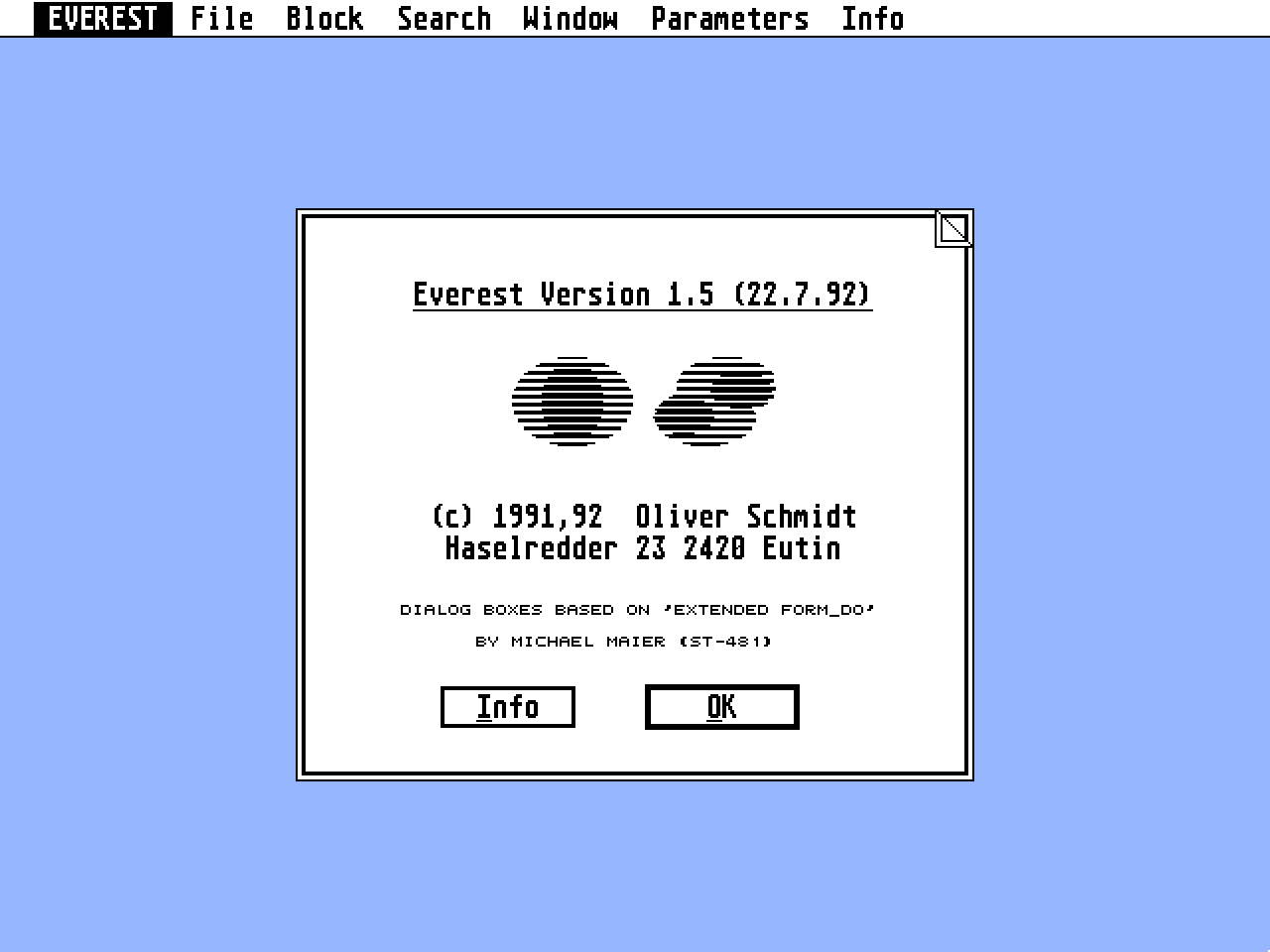
The folded over corner displayed at the top right of all dialog boxes has
two important advantages over normal GEM dialog boxes. Using the mouse,
clicking and holding down over one of these corners reveals the text hidden
behind the dialog. Holding down and moving the mouse enables any dialog box
to be repositioned as desired.
The Esc key will clear any data in a dialog text field.
The Undo key will restore a dialog text field to the entry it displayed
when it was last called.
The Shift + left/right arrow keys will move the cursor to the start/end of
any string entered in a dialog text field.


---------------------------------------------------------------------------
5.0  V E R S I O N S
===========================================================================

Version 0.0
-Very old version, no keyboard shortcuts in dialogs.

Version 1.0  5-4-1992
-First useable version. From this version Everest became Shareware.

Version 1.1  12-4-992
-Small bug with memory allocation sorted.
-Block paste optimised

Version 1.2  17-5-1992
-Bug in Block indent handling sorted.
-OK buttons now work with the numeric keypad "Enter" key.
-EVEREST.INF was not found unless "EVEREST" was also defined as an
 Environment variable. It is now also defined under the "PATH" entry and
 can is found sucessfully by SHEL_FIND.
-The Parameters from Search/Replace (Upper/lower case, Replace all)
 are now saved in the .INF file.
-The Matching bracket drop down menu option was added.
-The program code which hindered the cursor has been replaced. Fast typing
 no longer causes problems.
-Block indent improved.
-If a block is not marked the operation is carried out on the current line.

Version 1.3  8-6-1992
-Bug causing scroll problems with Control Y operations fixed.
-Keyboard layout bug fixed.
-Now prints under GEMDOS PRN:, multitasking errors avoided.
-Optional line/column display for cursor position added.
-The command to enable the block start/end point to be redefined using the
mouse + shift keys outside the current window is now possible and matches
the normal keyboard method

Version 1.4  14-6-1992
-Minor bugs marking blocks using the mouse fixed.
-Changes to the method used to load text files and alterations to internal
settings and memory allocation. The loading speed has been roughly doubled.

Version 1.5  22-7-1992
-Bug changing typefaces fixed.
-Now searches for PC HELP as well as TC HELP.
-Cursor blink parameter added.
-Program exit parameters added.
-Text lists and complete working layout can be saved.
-Keyboard call bugs fixed.
-The Error messages parameters can work with compiler generated error lists.
-The time taken to Save a file has been almost doubled.
-Printer parameters added.
-2 problematic, deeply buried bugs in the text loading code fixed.


---------------------------------------------------------------------------
6.0  T H E   S H A R E W A R E   P R I N C I P L E
===========================================================================

The Shareware principle offers the customer a fair deal. You can try the
program at your own convenience and decide whether to purchase or not.

Everest is Shareware. Everyone is granted permission to distribute the
pogram. If you find the program useful you are honour bound to pay the
Shareware fee to the author.
For you the reward for paying the Shareware fee is continued development.
The extent to which Everest is upgraded is largely dependant upon the
Shareware response from users.
On receiving your Shareware fee and address you automatically become a
registered user and can at anytime send a stamped addressed envelope for a
copy of the latest version.
Everest undergoes continual development and as a registered user your wish
list will be given due consideration. If you find a bug or have suggestions
to make please get in touch. I will do my best to remove bugs.
Additionally I am interested to hear form anybody interested in writing a
shell or something similar to integrate with the Editor perhaps to form
a multitasking Shell under MultiGem/TOS...

        Address:                   Bank Details:

        Oliver Schmidt             Kreissparkasse Ostholstein
        Haselredder 23             Kontonummer :  127.010.643
        2420 Eutin                 Bankleitzahl:  213.522.40

        From 01-07-93 the postcode will be:  23701 Eutin

============================================================================
EOF