
Atari ST - 1991
EDM Shell
- Genre
- Archiving
- Year
- 1991
- Language
- [unknown]
- Publisher
- [no publisher]
- Controls
- Mouse
- Distributor
- —
- Resolution
- Medium / High / VGA
- Developer
- [n/a]
- ST Type
- ST, STe, TT, Falcon030 / 0.5MB
- Licensed from
- —
- Programmer(s)
- Holmes, David
- Country

- MIDI
- —
- Software
- English
- Version
- 2.21
- Box/Instructions
- English
- Number of Disks
- 1 / Double Sided
- License
- PD / Freeware / Shareware
- Dump
- Download
- Serial
- —
- Dump format
- MSA
- Protection
- —
INSTRUCTIONS
    EDM SHELL 2.20  by David Holmes
    Copyright (c) 1991 David Holmes
    GEnie address: D.HOLMES14

         This is the latest version of an easy-to-use shell for
         handling ARC, LZH, ZIP, and ZOO functions.  It has been
         designed for use by both beginners and advanced users.
         Everything is already set-up for basic use, but it is also
         very versatile and configurable.  Its editable command lines
         ensure future compatibility while providing maximum
         flexibility.  It also adds a powerful CONVERT function which
         can convert an archive into any another format

         This program should run on any ST/STe/TT in any resolution.
         Please let me know of any incompatibilities.

         The program does not use GEM; instead, it uses a remarkable
         new interface called EDM.  Read the section on Using EDM for
         more information.  (NOTE FOR USERS OF VERSIONS BEFORE 2.00:
         EDM has been upgraded to 2.2, with several new features,
         listed in the section on EDM below.)

         This program is SHAREWARE.  If you use it, you must pay for
         it.  Please read the REGISTER.DOC file for information on
         registering.

         I'm open to suggestions for this program.  If there's
         ANYTHING you would like added or changed, just let me know.
         Write to me using the address in the REGISTER.DOC file, or
         send E-Mail on GEnie to [D.HOLMES14].  (Through U.S. Mail,
         please enclose a self-addressed stamped envelope or a GEnie
         address if you would like a reply.)

         You can also leave a message in the ST RoundTable BB on
         GEnie, page 475, category 2, topic 6.


    ABOUT THIS MANUAL

         Starting with version 2.20, this DOC file uses a new
         STEP-by-STEP system of organization, hopefully making it
         easier for everyone to understand.  Instructions for most
         tasks are listed as a series of steps, each main step
         numbered, each sub-step lettered, with full indenting.  Let
         me know what you think of the new organization!


    NEW STUFF

         Owners of previous versions, please read the included
         READ_ME.DOC file for features added since 2.00.  This manual
         contains all features present in the current version 2.20.


    WHAT IS AN ARCHIVE SHELL?

         Most archive programs do not support GEM, and you must use
         command lines to operate them.  An archive shell, such as EDM
         Shell, will handle all of the messy command lines, and allow
         you to only worry about what you are trying to accomplish.
         Using this one program, you can handle ARC, LZH (both lh1 and
         lh5), ZIP, and ZOO files all from one screen, hardly ever
         using the keyboard, if you so desire.


    SETTING UP

         1. For easiest use, place all of your archiving programs and
         this shell program in the same directory.  The first time you
         run the program, it will assume that the archiving programs
         are in the same folder as itself.

         2. If you chose to leave your archive programs in separate
         folders, you must configure the program.

                 a. To change the location of any of the archiving
                 programs, select "Configuration" from the Main Menu.

                 b. In the upper-left is a list of all the five
                 archiving programs.  Select the button of the program
                 you wish to locate, and you will be presented with
                 the "Set-Up Program" dialog box.

                 c. The current filename of the program is at the top.
                 To change it, either edit the filename manually, or
                 click on the "Locate..." button below it, then use
                 the fileselector to select the program.

                 d. Click on "OKAY".

                 e. Repeat steps b-d for each of the other archive
                 programs you will be using.

         3. You can install EDM Shell as an application for the
         following extenders: ARC, LZH, ZIP, and ZOO.  If you do this,
         any time you click on an archive file, EDM Shell will launch
         and ask what you want to do with the file.  You can also pass
         filenames any way your alternate desktop allows.

                 a. To install EDM Shell as an application from the
                 GEM desktop, click on EDMSHELL.PRG.

                 b. Select "Install application" from the Options
                 menu.

                 c. In the text input field, enter "ARC".

                 d. Repeat steps b and c, replacing "ARC" with "LZH",
                 "ZIP", and "ZOO".


         4. The program can run in either beginner mode, with five
         functions, or advanced mode, with ten.  The button at the
         bottom ("Use Advanced Menus" or "Use Beginner Menus") of the
         Main screen will toggle between them.  (The five new
         functions are user-definable!  See CONFIGURATION.)


    USING THE PROGRAM

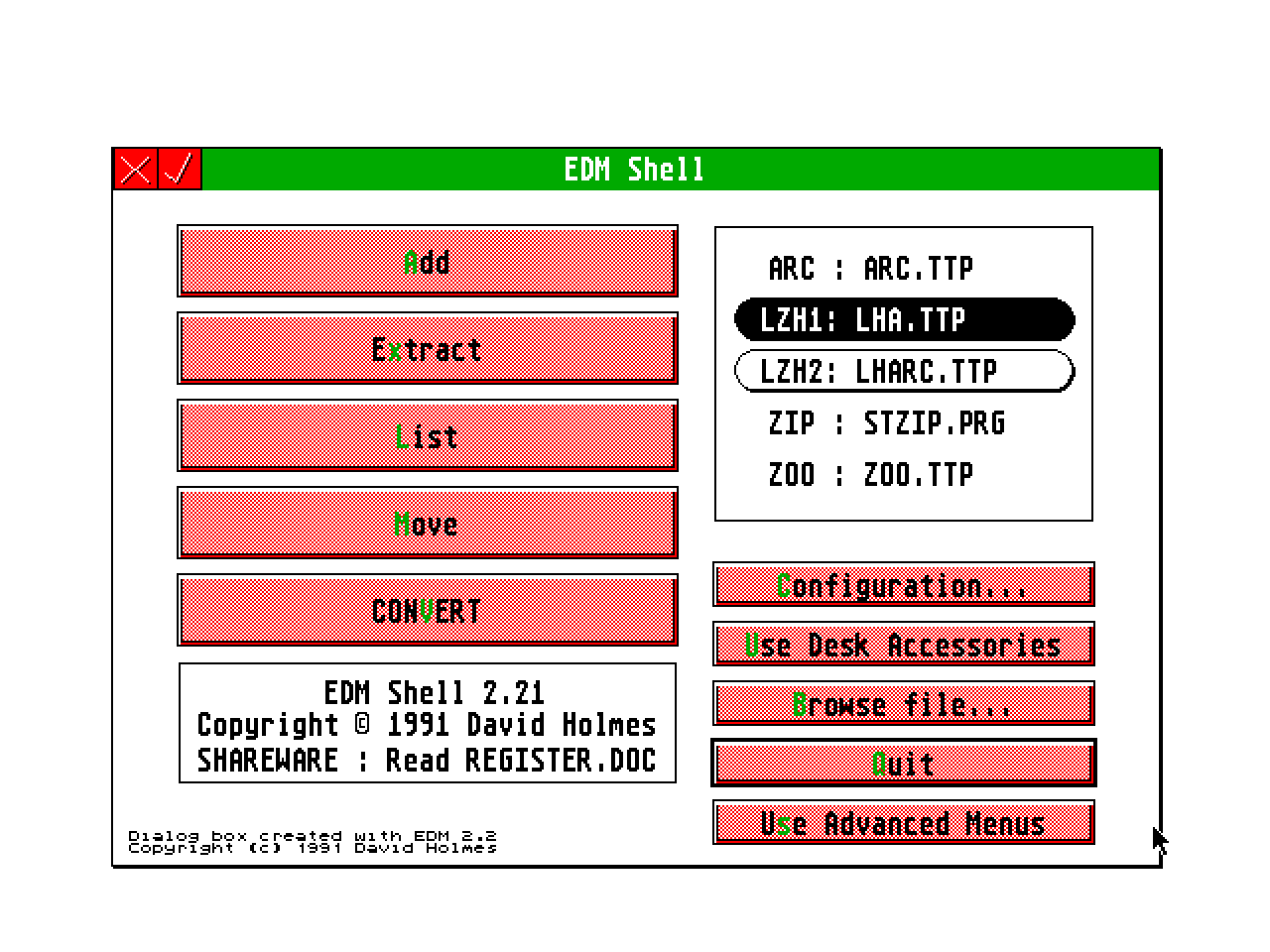
         Use the five buttons on the right to select whether you want
         to use ARC, LZH1, LZH2, ZIP, or ZOO.  The reason for two LZH
         buttons is because there are currently two, incompatible
         versions.  (These are normally referred to -lh1- and -lh5-
         compression types.)

         If you are using the EDM Fileselector (see CONFIGURATION,
         default is to use the EDM Fileselector), you will only be
         able to select between the two LZH programs.  This is because
         the EDM Fileselector uses multiple search masks, and will
         automatically assign ARC, ZIP, and ZOO files to the
         appropriate archive program; however, since the LZH extender
         is used for both LZH compression methods, you must select
         which you wish to use.

         Following is a brief description of the five main functions.
         For more information, read the docs included with the actual
         archive programs.

      > ADD: Select this to add files to an archive or to create a new
      archive.

         1. You will be presented with a fileselector.  Select the
         ARC/LZH/ZIP/ZOO archive to add to.  To create a new archive
         file, set the fileselector to the desired path, then type in
         the name of a new archive file.

         2. From the next fileselector, select the file you want to
         add.  (Wild cards are allowed.)  Clicking on "OKAY" without
         selecting a file will default to "*.*", and every file in the
         current directory will be selected.

         3. If "Multiple Add" is selected from the Configuration
         screen, the fileselector will reappear for you to choose
         another file.  Click on "Cancel" when you have no more files
         to add.

      > EXTRACT:  With this, you can extract all files from an
      ARC/LZH/ZIP/ZOO file.

         1. A fileselector will come up, where you should select the
         archive file to extract from.

         2. Then set the path you wish to extract to.  (Do not select
         a file.)

                 a. If you are using the EDM Fileselector, clicking on
                 "To Folder" will create a new folder (in the
                 currently displayed directory) using the name of the
                 archive file, minus the extender.  All of the
                 extracted files will appear in this folder.

                 b. If you are not using the EDM Fileselector, but
                 "Prompt to folder?" has been turned on in the
                 Configuration screen, an alert box will come up
                 asking if you wish to extract to a folder.  "OKAY" go
                 ahead as described in {a} above.  "Cancel" will
                 extract the files into the directory selected from
                 the fileselector.

      > LIST:  This will list all of the files in an archive.

         - Select the ARC/LZH/ZIP/ZOO file you want information on
         from the fileselector.  A listing of the files in the archive
         will be displayed.

      > MOVE:  This is similar to ADD, except that after a file has
      been added to an archive, the original file will be deleted.

         - See ADD for instructions on how to use this function.

      > CONVERT:  This will convert an archive to a different
      compression type (i.e. ARC to LZH).  This is an internal
      function of EDM Shell.

         1. First select the file you wish to convert.  (Note: The
         original file will not be deleted.)

         2. From the following dialog box, you can change the name of
         the new file after converting or set a new destination, in
         two possible ways.

                 a. Use the keyboard to edit the path and filename of
                 the new archive.  Be sure to end it with an extender,
                 preferably ".xxx", since the program will
                 automatically change it.

                 OR...

                 b. Click on "Browse..." and you will be presented
                 with a fileselector.  Set it to the destination path
                 you want, and type in the filename of the new
                 archive.

         3. Finally, click on the compression type you want to convert
         the file to.  The program will automatically handle
         everything else.

       > CONFIGURATION will call up the main configuration menu.

       > USE DESK ACCESSORIES will bring up a normal GEM menu for you
       to use any desk accessories.  Click on "Return to Main Menu" in
       the File menu when done.

       > BROWSE FILE will let you view a text file.

                 1. Before you can use this function, you must locate
                 a file viewer to use.  See "Set Paths" under
                 CONFIGURATION below.

                 2. After selecting this button, a fileselector will
                 come up allowing you to select any text file.  After
                 doing so, EDM Shell will launch your selector file
                 viewer, passing the name of the file you just
                 selected.

                 3. Quit your file viewer to return to EDM Shell.

         > QUIT will quit the program.

         > USE BEGINNER/ADVANCED MENU will toggle between two layouts
         for the Main Menu.

         - The Beginner Menu has only the five basic functions.  The
         Advanced Menu contains the five basic functions, plus five
         user defined buttons.  These user defined buttons are
         originally set up for "Verbose List," "Test," "Update,"
         "Freshen," and "Delete."

       > Passed filenames: From install application or launching a
       program passing a filename.

         EDM Shell will also accept passed filenames.  If the program
         has been installed for the ARC, LZH, ZIP, and ZOO extenders,
         anytime you double-click on any of these files, EDM Shell
         will run and ask you want you want to do with the file.  Your
         choices are "Extract," "List," or "CONVERT."  Read the
         respective descriptions above for information on each
         function.


    CONFIGURATION

         On the lower right of the Configuration Menu is a list of
         options.

         - "Hold Screen" will have the program wait for a keypress
         after doing any function.

         - "Multiple Add" will have the program continue to present
         you with a fileselector to add additional files until you
         select "Cancel."  Otherwise, you will return to the Main Menu
         after adding a file.

         - "Ask Delete" will have the program ask you if you want to
         delete an archive after extracting from it.

         - "Use EDM Fileselector" will toggle between the EDM
         Fileselector and the normal GEM Fileselector (or any
         replacement you have installed).

         - If EDM Fileselector is not selected, "Prompt Folder" will
         have the program present an alert box asking if you want to
         extract to a folder when doing any extract function.


       > SET PATHS will let you change the default paths and locate a
       file viewer.

         1. After selecting this button, a screen will come up showing
         the current defaults for the archive path, the add/extract
         path, and file viewer.  The archive path will be used
         whenever the program asks you to select an archive file.  The
         add/extract path will be used when you are asked to select a
         file to add, or a path to extract to.  The file viewer will
         be used whenever you use the "Browse file..." function in the
         Main screen.

         2. There are two ways to change either the archive path or
         the add/extract path.

                 a. Use the keyboard to edit the currently displayed
                 path, making sure to use existing folders.

                 OR...

                 b. Click on "Set path..."  You will be presented with
                 a fileselector which you can set to the path you
                 desier.

         3. There are two ways to locate the file viewer.  It MUST be
         able to accept a passed filename in the command line.  (NOTE:
         I recommend using either the freeware Mini_TX2 1.50a, or the
         shareware TX2 File Viewer 1.42c, which uses the EDM
         interface.  Both were written by myself and should be
         available on most online services.)

                 a. Use the keyboard to edit the currently displayed
                 path and filename, making sure enter the name of a
                 program that exists.

                 OR...

                 b. Click on "Locate file viewer..."  You will be
                 presented with a fileselector which you can use to
                 locate and select a file viewer program.


       > Editable command lines:  You can create new functions or edit
       the existing ones.

         1. To name the five user defined functions, type their names
         in the five text fields in the upper right of the
         Configuration Menu.  These names will appear on the buttons
         in the Main Menu and in the Program Set-Up dialog box.

         2. To edit the command lines for any particular program (or
         to locate any of the programs), simply select its button from
         the upper-left of the Configuration Menu.

         3. In the Program Set-Up dialog box, the nine boxes below the
         archive filename are for the command lines for that
         particular program.  This is to ensure future support of all
         archive programs as well as for you to create your own
         functions.  If the command line for your program is different
         from the defaults, just change it.

         4. The command line usually consists of two things: the
         command plus the filenames to pass.  For example, to add a
         file, most archivers use "a file.arc anyfile.ext".  The "a"
         tells it that it is to add a file.  The "file.arc" is the
         name of the archive file to add to.  Finally, "anyfile.ext"
         is the file to add.  In the editable command lines, you
         should have the command, followed by control keys to
         represent the filenames, making sure to include proper
         spacing, etc.  Each time EDM Shell finds a control key, it
         will present the appropriate fileselector.  They are as
         follows:

                 [CONTROL]-[A] Select archive file (this must always
                 be present)
                 [CONTROL]-[F] Select file to add
                 [CONTROL]-[X] Select extract path
                 [CONTROL]-[N] Enter filename (presents a dialog box
                 in which to enter the name of one file)

         Use the present command lines for examples.

         Be sure to save the configuration when you are finished, so
         that you will not have to go through all that again.

         When you save the configuration, the program will write the
         actual screen colors to the file, so if you don't like the
         default, simply change the colors using the control panel,
         then save the configuration.

         Hope you enjoy the program, and don't forget to read
         REGISTER.DOC!


    USING EDM

         ------------
         New for version 2.2:

         - EDM has been made more resolution independent.  It should
         take advantage of color in higher resolutions.

         - "3-D Grey" should now work in monochrome resolutions.

         - Text fields can now be selected with the mouse.

         - The first version of the new EDM Fileselector has been
         added.  It is not yet finished, but it is still usable.

         - Drag bars, "hot spots," and dynamic buttons have been
         added.
         ------------

         The dialog boxes used in the program are not GEM.  The
         program uses a new interface known as EDM, which can emulate
         GEM, but offers many additional features.

         There are three types of buttons:

         "Action buttons" close the dialog box and either perform an
         action or take you to another dialog box.  Their look differs
         depending on what mode you're using (see below).

         "Flag buttons" are shadowed rectangles.  When darkened, they
         are "on."  When blank, they are "off."

         "Option buttons" are shadowed rectangles with curved corners.
         Only one option can be selected from each group.

         Any of these can be select by left-clicking on them with the
         mouse. The keyboard can also be used.

         In action and flag buttons, there will usually be a
         highlighted letter.  When running the program in a color
         graphics mode, they will appear in a different color; in
         monochrome, they will be underlined.  You can select the
         buttons by pressing [ALTERNATE] plus the highlighted letter.
         (The "?" button can also be selected by pressing [HELP].)

         You will notice that one of the action buttons has a thicker
         border.  This is the "active" button.  You can cycle through
         the buttons by using the [TAB] key.  To cycle backwards, use
         [SHIFT]-[TAB].  The active button can always be selected by
         pressing [RETURN].

         Text fields will appear as a row of underline characters.
         Just type in what you want; only the allowable characters
         will appear.  You can use the left and right arrow keys, the
         [BACKSPACE] key, and the [DELETE] key as normal.  Also, the
         [ESC] key will clear the field.  To change to another field,
         use the up and down arrow keys (not [TAB]).  You can also
         click on a text field to move there.

         In the upper-left corner of most dialog boxes will be an "X"
         button and a checkmark button.  The "X" button is like a
         close box.  It will simply exit the dialog box as if you
         selected "Cancel".  Note if you have changed some options in
         the dialog box, these changes will be lost unless you use
         "OKAY".

         Click on the checkmark button to bring up the EDM Set-Up
         Menu.  From this menu you can choose from three distinct
         looks, and three different ways to press buttons.

         The three looks are as follows:

         "GEM clone" does what it says.  EDM attempts to make the
         dialog boxes look like a normal GEM dialog.

         "Decorative" is the default look.  It uses shaded buttons and
         a highlighted title bar.

         "3-D Gray" presents everything drawn in shades of gray,
         creating a 3-D effect.

         You can also choose three ways to press action buttons:

         "Push buttons" will have it appear as though the button is
         being pressed in.  This does not work in GEM clone mode.

         "Highlight buttons" will simply change the color of the
         button.

         "Flash buttons" is similar to highlight, except that the
         button flashes a few times after you first select it.  Note
         that this works on all buttons, not just action buttons.

         Experiment with the different looks and feels and select the
         one you like the best.  Note that the change will not take
         place until you exit this menu.

         Also in the EDM Set-Up Menu, "Save defaults" will save the
         selected look and button press to a small file called
         "EDMSHELL.EDM".

         Using the EDM Fileselector 0.1

         The EDM Fileselector is different from the standard GEM
         fileselector in many ways.  There are two scrollable areas:
         the left box is for directories, the right is for files.
         Between the two boxes are the search masks.  At the top is
         the current path, and the currently selected file is on the
         right, just above the exit buttons and drive selector.

         To change drives, click on the drive's button in the box on
         the lower right.  To change directories, click on the
         directory in the box on the left.  You can also edit the path
         at the top with the keyboard.  Click in the left box NOT over
         a directory name to change to the directory you typed in.
         Note: ".." means the previous directory.  It is the same as
         the close box in the GEM directory.  This is the more common
         way of referring to a previous directory.  (A quick way to
         get to the root directory is to click on the driver letter in
         the box on the left.)

         The EDM Fileselector supports multiple search masks.  Each of
         the highlighted extenders will be presented in the file list.
         Selecting "*.*" will turn off all of the other masks and
         display all files in the directory.

         To select a file, click on it in the box on the right, or
         type in the filename.  Then, select an exit button on the
         right.  They are usually "OKAY" and "Cancel", but can change
         depending on the fileselector's function.  Double-clicking
         will select the file and the top exit button.

    Program and instructions copyright (c) 1991 David Holmes
    GEnie address: D.HOLMES14