Atari ST - Rimik Enterprises - 1989
DTPaint
- Genre
- Graphics - Picture Editing
- Year
- 1989
- Language
- [unknown]
- Publisher
- Rimik Enterprises
- Controls
- Mouse
- Distributor
- —
- Resolution
- High / VGA
- Developer
- Digital Graphics Systems
- ST Type
- ST, STe, TT, Falcon030 / 0.5MB
- Licensed from
- —
- Programmer(s)
- Bergman, Mike
- Country

- MIDI
- —
- Software
- English
- Version
- 1.0 [preview]
- Box/Instructions
- English
- Number of Disks
- HD Installable
- License
- Game Demo or Preview - Commercial
- Dump
- Download
- Serial
- —
- Dump format
- MSA
- Protection
- —
INSTRUCTIONS
DTPaint Desk Accessory w/Active Windows v1.0md
Monochrome Version

all code and documentation Copyright 1989, 1990
by Michael Bergman


Well, It's been a long year since I originally wrote ImageEditor
DA and I promised a more friendlier user interface.  I said that
it would take no longer than a couple of months and I was right.
What I didn't bargain for was the time it would take to develop
some more sophisticated graphic tools.

What you have here is a demo version of that effort.  This desk
accessory does not save in .IMG format, although it will save
blocked images in a propriatary format.

You may have noticed that the only other file in the archive is
the desk accessory itself.  There are no "support files".  DTPaint
is totally self-sufficient.  All code, resources, and images are
embedded in the accessory.  This way, you are not surprised to
find that you have less memory that what you expected.  Also, it
makes resource handling a tad more stable.

Over and over again I get the same questions:  "Why a desk
accessory?"  "Don't you think a desk accessory is less effective
than a 'real' program?"

The reason for a desk accessory paint program is that regular
paint programs are a dime a dozen.  You can probably name that
many right now, both commercial and shareware.  The idea of a desk
accessory paint program is to let you, the user, create or edit
pictures without having to leave the program you are currently
using.  This allows greater flexiblity of the environment and
interactivity with the current job.  In other words, you don't
have to quit the current job, start up another graphics creation
program, load the picture, edit, save, quit, load in the original
program, load the saved files and then load the editted picture.
All you have to do is call up the desk accessory, edit a picture,
save it and import to your current program.  It almost qualifies
as a multitasking environment!

The differences between this program--DTPaint--and ImageEditor are
vast although DTPaint was borne from ImageEditor.  DTPaint is a
full paint program.  In other words, you can not only edit
existing pictures but create them from scratch as well.  I have
maintained some of the keycommands from ImageEditor, but
everything can be accessed from "The Menu" (press  or select
the DTPaint desk accessory menu) and the Toolbox (press
 t or select "Show Toolbox" from "The Menu").  Both
will pop-up under the mouse so you don't have to go hunting for
them.


                           Page 1 of 8

What is "Active Windows"?

Active Windows is a convenience feature.  It allows you to access
the Toolbox without actually having to click on it to activate it.
The Toolbox, if it is open, will automatically activate as soon as
the mouse leaves the picture window and will deactivate when the
mouse enters the work area of the picture, except if the mouse is
also over the Toolbox itself.  You can toggle the Active Windows
feature by pressing .  By making the Active Windows feature
"inactive", the windows will act just like every other GEM
windowing system.  If you do decide to use Active Windows, it is
best to keep the Toolbox up at the menu bar on the right.  That
way, you won't "lose" the Toolbox under a full window.  Just move
the move into the menu bar, wait for the Toolbox to activate then
bring the mouse over the Toolbox and make a selection or move the
Toolbox.


How about a tour of DTPaint?

Let's start with "The Menu".  The easiest way is to press the
 key and "The Menu" will appear under the mouse.  The
entres include:

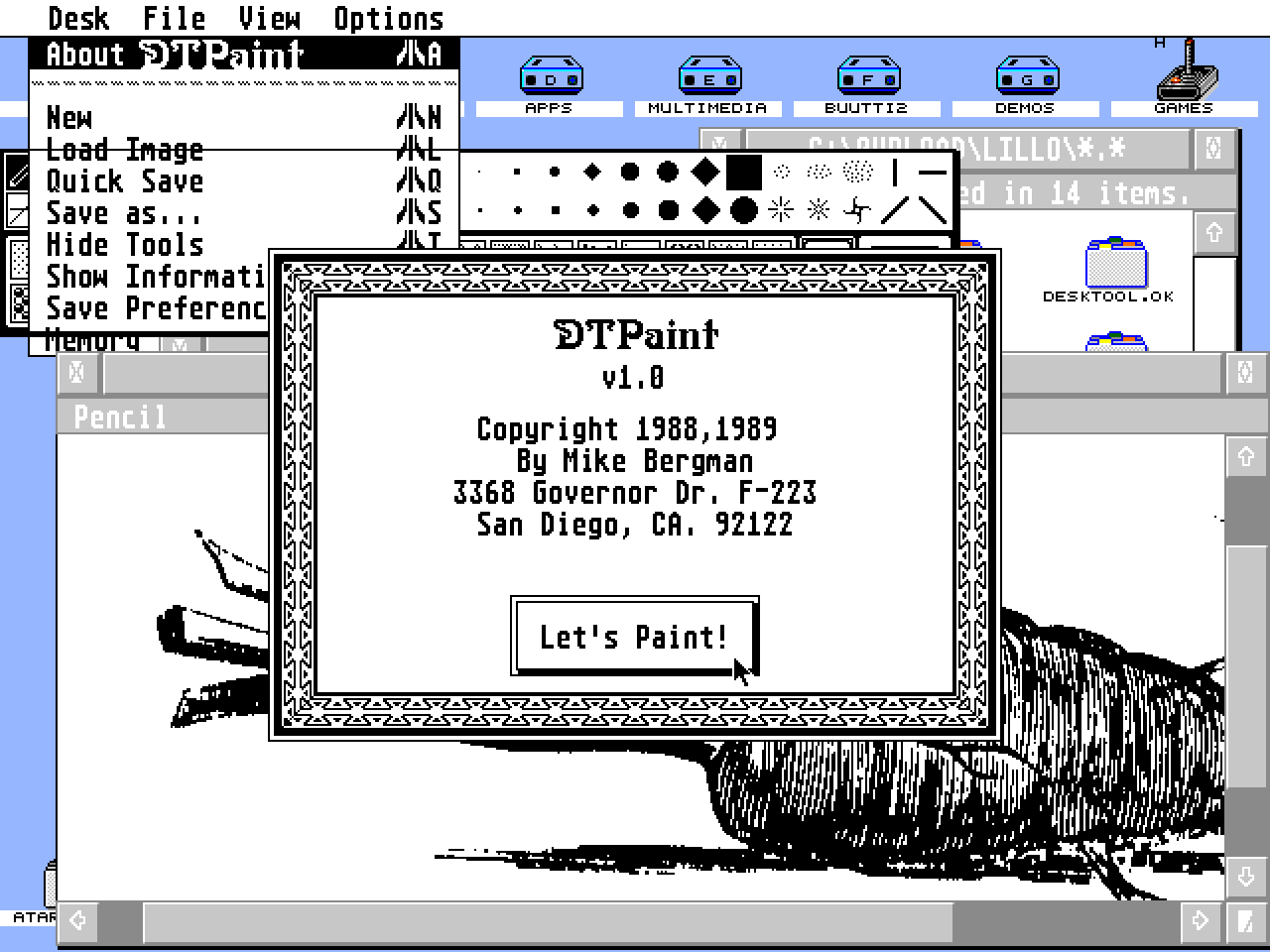
About DTPaint            Brings up the obligatory "About..." box.

New                      Lets you create a new picture.

Load                     Load in an existing .IMG, MacPaint or
                         Degas Elite picture.

Quick Save               Saves the picture under the existing file
                         name.

Save As...               Lets you save the current picture under
                         another name.

Show/Hide Tools          Shows or hides the Toolbox.

Show Information         Shows picture's width, height, resolution
                         and compression.

Save Preferences         Lets you save the Tools' attributes and
                         memory configuration.

Memory                   Allows you to free or allocate memory
                         dynamically.


                           Page 2 of 8

Next, let's look at the Toolbox:

First off, the Toolbox, which should have come up under your mouse
(unless it is in the menu bar, in which case it will be just under
the menu bar), is movable.  All you have to do is press the left
mouse button anywhere in the Toolbox area and drag it across the
screen.  It should be noted that, although you can press the mouse
button anywhere in the Toolbox, if you presss it while the mouse
is above an icon or fill pattern or brush pattern, you will
activate that particular tool or pattern.  It is always best to
drag the Toolbox at the middle of the Toolbox, at the Fill Pattern
Display (at the bottom right corner) or on an active icon/tool.

Along the bottom of the Toolbox are the standard Atari fill
patterns.  All fill patterns are auto-locked which means that it
doesn't matter where the window is or what section of the picture
you are editing, the fill pattern will automaticlly lock onto the
left edge of the actual picture.  The program will adjust the fill
pattern to match the section of the picture you are working on.
The patterns are editable and loadable.  If you double-click on
one of the fill patterns you will get a dialogue box that will let
you edit the pattern, save it to file, or load in a new pattern
file.  When you exit the dialogue box, the new pattern will appear
in the box where the old one was and a 32 pixel representation
will appear in the Fill Pattern Display.  Next to the Fill Pattern
Display is a white and a black box.  The box that is outlined is
the active box.  By selecting these boxes, you can reverse the
colors of all of the fill patterns in the pallette.

At the top right corner are the brush patterns and the line
patterns.  You may only select or edit brush patterns when the
brush tool icon is active.  Brushes can be editted, saved and
loaded just like fill patterns.  In fact, their file formats are
identical so they can also be interchanged.  In other words, fill
patterns can be used as brush patterns and vice versa.

Line patterns can only selected when using the line, oval, arc,
pie, box, round box and polygon tool icons are active.  Line
patterns can only be editted.  They cannot be saved or loaded.


                           Page 3 of 8

At the top left corner are the tool icons.  The are, from left to
right and top to bottom:

Pencil
     Just a simple drawing tool used for scribbling and
scratching.  The Pencil has three modes:  black, white and
opposite.  Double-click on the Pencil icon and an alert box will
open up to let you choose which mode you want to use.  In the
opposite mode, the pencil will draw in the color opposite of the
color under the mouse when you press the left mouse button.
Release the left mouse button to stop drawing.

Brush
     Use the brush patterns at the top right of the Toolbox plus
the fill patterns to brush patterns over the picture.  Press the
left mouse button and apply the "paint".  Release the left mouse
button to stop "painting".  The fills will be applied opaquely
unless you hold the  key down when you first press the
left mouse button, then it will apply the fills transparently.

Airbrush
     A random pixel changer that will change the pixel to fit the
chosen fill pattern.  The radius can be adjusted from 1 to 50 by
double-clicking on the Airbrush icon.  Hold the left mouse button
down while you paint and release when you are finished.

Floodfill
     This will fill any area with a chosen fill pattern.  You can
choose to fill a white area or a black area by double-clicking on
the Floodfill icon.

Eraser/Sandpaper
     This tool will erase anything on a white background or a
black background.  The modes can be selected by double-clicking on
the Eraser icon.  There is another mode called "Sandpaper".  This
mode oblitterates anything under it and creates a chaos of black
and white pixels.  The effect can be much like charcoal.

Text
     A GDOS Text tool.  This will allow you to use up to eight
GDOS screen fonts.  Double-click on the Text icon to select other
features such as 90 degree text rotation, transparent, etc.  The
light text mode will take the current fill pattern and superimpose
it upon the output text.  This desk accessory is also G+Plus
compatible, which means that you can load in different Assign.sys
files provided G+Plus is loaded.  GDOS does not have to be
resident for this tool to work.  The Text tool can still use the
fonts resident in ROM.  This tool also lets you access the
extended ascii set.  Press the "up" cursor key for the upper 128
characters and the "down" cursor key for the lower 128 characters.
The default is "-128".  To use the Text tool, click inside the
graphic window and type.  You can move the text around with the
mouse.  When you are finished, press  or the right mouse
button.


                           Page 4 of 8

Magnifier
     This feature is one of the few things that hasn't changed
since ImageEditor.  You can select the magnification by pressing
 1 - 5 which is x2 through x32.  There is a box on the
left side of the split view, this is the magnified area.  That
box can be moved by placing the mouse inside the box and when it
turns into an open hand, press the left mouse button and drag.
Moving the mouse to the right side of the split view and you can
edit the magnified area with the pencil.  To exit Magnified mode,
press the  key or the Close Window box.

Jack Knife
     The Jack Knife allows you to cut an irregular section out of
the current picture and paste it elsewhere or save it.  Click the
left mouse button to start the cut and click again to close the
loop.  Normally, the Jack Knife has no effect on the underlying
picture when you cut, but if you hold the  key down,
that section will be removed.  If you hold the  key
down when you put the knifed image on the picture it will copy the
image to the picture transparently.  To release the knifed image
and clip buffer, just double-click the mouse inside the window and
the regular knife mouse should appear.  To save a Jack Knife
image, double-click on the Jack Knife icon.  Jack Knife images
should be saved with a .CLK extender.  To load an image, make sure
the clip buffer is clear and double-click the Jack Knife icon and
a file selector will appear.

Lasso
     This works exactly the same as the Jack Knife but the effect
is different.  The Lasso will tighten around all black borders.
This is meant to be used when you want to make a sloppy cut but
don't want any of the white are that you would normally get with a
Jack Knife.  Lasso images should be saved with the extender .CLL.

The Pattern Camera
     The Pattern Camera will allow you to capture any pattern on
the screen and use it as a fill pattern.  Clicking on the Camera
icon will put you into the capture mode.  Click the left mouse
button to capture the pattern and the right mouse button to
cancel.  The pattern edit dialogue box will come up automatically
in case you want to edit the fill or save it to file.

Reverse Colors
     This will reverse the colors of the entire image.

Block
     This works like the Lasso and Jack Knife except that it cuts
rectangular blocks.  Block files should be saved with a .CLB
extender.

Lines/Rays
     Double-click the Lines icon to choose the features in
Lines/Rays such as drawing modes, end types etc.  For Lines, click
the left mouse button to start the line and the right mouse button
to end the line.  For rays, the same is true, but you must press
the left mouse button to lay down more rays.

Ovals
     With this tool you can draw circles and ellipses.  Click the
left mouse button to start and click again to end.  To select
features double-click on the Oval icon.


                           Page 5 of 8

Arcs
     All you have to do is click the left mouse button to start
the Arc.  Click again to anchor the start of the arc and click one
more time to finish it off.  A dialogue box will come up for the
different features of the Arc tool if you double-click on the Arc
icon.

Pies
     This tool works the same as the Arc tool.

Boxes
     This tool works the same as the Oval tool.


Round Boxes
     This tool works the same as the Box and Oval tool.

Bezier Curves
     This tool will allow you to construct bezier curves with up
to 64 control points.  Note:  as you use more control points, the
redraw will slow down since it needs to calculate all of the
points.  Four to ten points are recommended.  You can change the
drawing attributes by double-clicking on the Bezier icon.

Pipeline
     This feature has not been fully tested yet.  This will allow
DTPaint to talk to other program that uses the DTPaint pipeline,
to swap blocks of information and will allow other programs to use
DTPaint's image compression algorithms.  Full documentation will
be forthcoming as soon as all of the features are tested.

Flip Picture
     This will flip an image left to right or top to bottom.

Picture Capture/Dump
     This feature will allow you to dump a section of the screen
to file as an .IMG picture.  Normally, the Toolbox will disappear
when select this feature but that can be overridden by pressing
the  key.

Crop/Pad
     This will allow you to change the dimensions of the picture
you are working on.  You can trim off excesses from any side, or
pad the picture if it isn't the correct size for what you need.
The dialogue box will come up automatically.


                           Page 6 of 8

Some things you should be aware of:

For some reason DTPaint and NeoDesk don't get along very well at
all.  I have used it in conjunction with v2.01 and it seems to
work fine, but some of my testers have been having problems with
later versions.  So far, there are no clues as to the real
problem.

This version will work with TOS 1.4 and the Moniterm monitor.  In
fact, all of the dialogue boxes will come up under the mouse when
you are using the Moniterm.  Otherwise, they will be centered on a
regular Atari monitor.

There are two compression schemes available on this version.  One
is very fast but eats up a lot of disk space.  The other is slow
but very efficient.  It is the most efficient scheme possible
while still maintaining compatiblity with other DTP programs.
You can toggle the compression algorithm by pressing the F4 key.

The F1 key will force the mouse to appear, if you happen to lose
it.

The F2 key will allow you to change the resolution and aspect
ratio of the picture.  The four example at the bottom of the
dialogue box can be selected directly.  Just click on one of the
examples.

 and  offer one level of undo.

You may find that the mouse buttons do not respond well under
DTPaint.  This is not a fault of the program.  The easiest way to
rectify this is by loading the Control Panel desk accessory and
adjusting it so that it is comfortable to work with, then write
out a desktop.inf file with these new settings.

Although, this desk accessory allows you to allocate and free
memory dynamically there are a few things to note:  Due to a bug
in TOS if you allocate memory, run a program, exit and free the
memory, the memory will become fragmented.  This desk accessory
tries to overcome this problem by allowing you to allocate memory
from a fragmented section.  The fragmented section must be at
least 80 Kbytes.  Also, if you have freed up memory and are
running a program that takes all memory for itself (i.e.: some of
the Timeworks products and Flash) then you will not be able to
allocate any memory and the memory dialogue box will continue to
pop up until you press [Exit] on the dialogue box.


Well, I beleive that covers just about everything as far as the
usage of DTPaint.  I am in the process of writing some tools to go
along with DTPaint and a color version and that may be finished by
the end of the month (but you've heard that before).

DTPaint is not quite available for sale.  We are in the process of
making it available commercially and when that happens, we will
make the official announcement.  Until that time, I thought you
might want to take a look at this and give it a spin.


                           Page 7 of 8

For legal purposes:
I make no warranties or guarantees with respect to this product
and the operation or use of this product.  I cannot be held
responsible for lose of data or information as a result of the use
or misuse of this program.

Atari and related symbols are trademarks of the Atari Corp.
Timeworks is a trademark of Timeworks, Inc.
Moniterm is a trademark of the Moniterm Corp.
NeoDesk is a trademark of Gribnif Software.
G+Plus is a trademark of Codehead Software.
I own ImageEditor, lock, stock and circuitry.


Michael Bergman
3368 Governor Dr. Ste. F-223
San Diego, CA. 92122
BOOK / MAGAZINE REVIEWS (1)
International TOS Software Catalog · Winter, 1992