
Atari ST - 1990
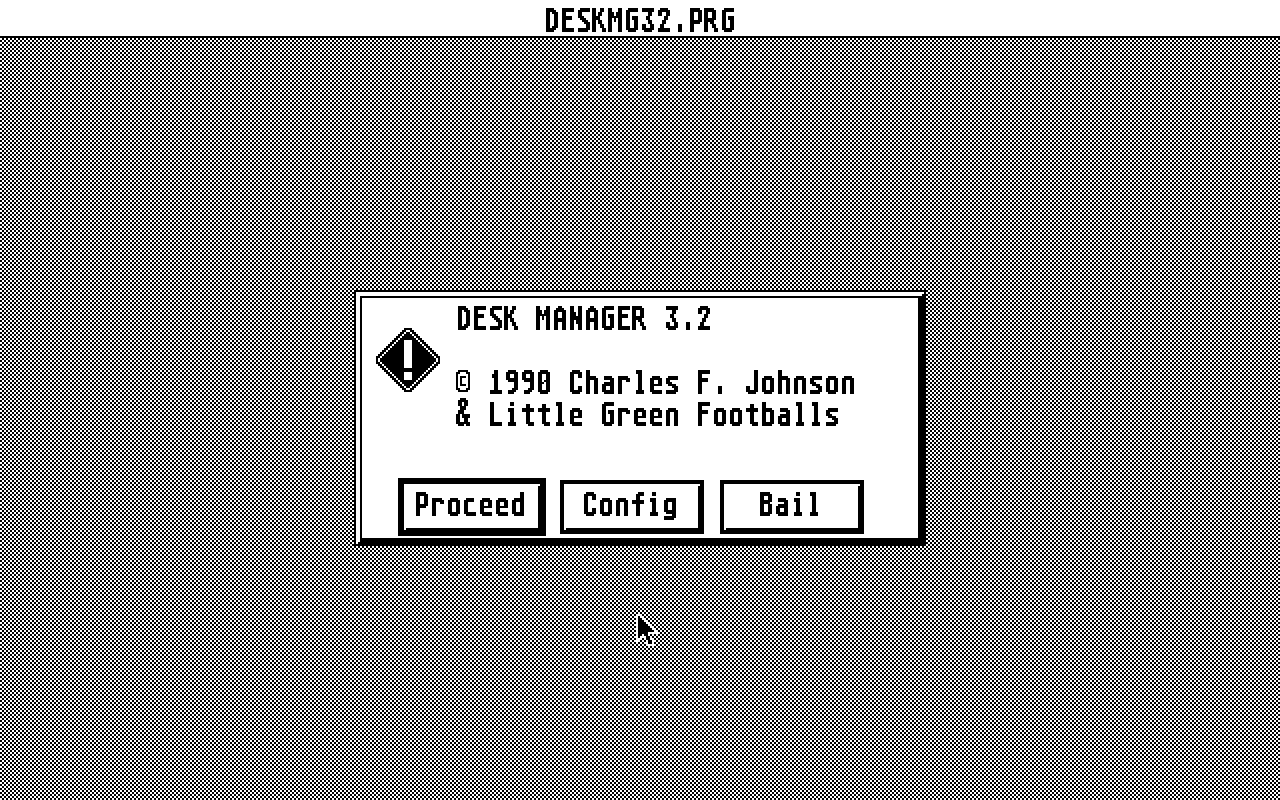
Desk Manager
- Genre
- Tape / Disk / Cartridge Utility
- Year
- 1990
- Language
- [unknown]
- Publisher
- [no publisher]
- Controls
- Mouse
- Distributor
- —
- Resolution
- Medium / High / VGA
- Developer
- Little Green Footballs
- ST Type
- ST, STe, TT, Falcon030 / 0.5MB
- Licensed from
- —
- Programmer(s)
- Johnson, Charles F.
- Country

- MIDI
- —
- Software
- English
- Version
- 3.2
- Box/Instructions
- English
- Number of Disks
- 1 / Double Sided / HD Installable
- License
- PD / Freeware / Shareware
- Dump
- Download
- Serial
- —
- Dump format
- MSA
- Protection
- —
INSTRUCTIONS
                      DESK MANAGER 3.2

       Copyright c 1988, 1989, 1990 Charles F. Johnson
             and Little Green Footballs Software

             Revision: Tuesday, January 23, 1990


     Desk Manager is a program that goes in the AUTO folder of
your boot disk.  It will automatically select the correct
DESKTOP.INF file for your desired resolution, and allow you to
choose which AUTO programs and desk accessories will load.  In
addition, if one of your AUTO programs is named GDOS*.PRG (the
asterisk means "any characters"), Desk Manager will also let you
choose the ASSIGN.SYS file which will be used with GDOS.  And one
of the nicest things about it - even though Desk Manager runs from
the AUTO folder it still lets you use the mouse to select files!

     The original version of Desk Manager was published in ST-Log
and only allowed the choice of desk accessories.  The latest
versions of Desk Manager have many significant improvements over
the original.  Up to 128 DESKTOP.INF files, AUTO programs,
ASSIGN.SYS files, and desk accessories can be displayed and
selected from.  A "timeout" feature has been added, so that if you
don't press a key for a configurable amount of time on any
selection screen, Desk Manager continues to the next screen.  You
can abort the program without changing anything at any time, or
back up to previous screens after exiting them.  Desk Manager can
display a startup picture during bootup before entering the
selection screens, in either Spectrum 512 compressed (color) or
DEGAS uncompressed (monochrome) format.  A "Help" function is also
added, to clear up any confusion about how to use Desk Manager.
Desk Manager works on color, monochrome and extended resolution
monitors, takes up very little disk space, and was written
entirely in 68000 assembly language.


*** NOTE: If you're already familiar with the basic operation of
*** Desk Manager, you may want to skip ahead to the section at the
*** end of this document titled "NEW STUFF."


                    Copyright Information
                    ---------------------

     Desk Manager (DESKMG32.PRG) and the documentation
(DESKMG32.TXT) are:

     Copyright ½ 1988, 1989, 1990 Charles F. Johnson
     and Little Green Footballs Software.

     All rights reserved.

     Desk Manager is distributed as SHAREWARE.  This means that
you are free (under the conditions explained below) to give copies
of the program to friends, upload it to bulletin boards, etc.  If
you end up using the program, you are expected to become a
registered user by sending a shareware payment of at least $15.00
to:

     Charles F. Johnson
     P.O. Box 1250
     Pacific Palisades, CA 90272

     Shareware can be a feasible alternative to the normal means
of distribution; but it will only work if you do send in your
registration fee.  So if you'd like to see further updates to Desk
Manager and other useful shareware programs, your support will
make a difference!

     If you have suggestions for improving Desk Manager, your
opinions will carry more weight if you're registered; I'll work to
include any suggestions that seem useful.  If you have an account
on Delphi, GEnie, or Compuserve, please include your user name or
ID number when registering - this is the easiest way for me to get
in touch with you if I need to.

     If you'd like an acknowledgement that I've received your
registration fee, please include a self-addressed stamped envelope
along with your payment.  If you also include a disk (and enough
postage) I'll fill it up with the latest versions of all Little
Green Footballs shareware products and mail it back to you.

     Desk Manager may be freely distributed as long as both of the
above-mentioned files are included, and as long as neither file is
altered in any way whatsoever.  The program may NOT be sold or
included with a commercial product without the express written
consent of the author.  Also, this documentation may not be
reprinted without the express written consent of the author.


               Preparing to use Desk Manager
               -----------------------------

     First, if there is no pre-existing AUTO folder on your boot
disk, you must create one.  You can do this from the desktop by
opening a window on the drive containing your boot disk, and
choosing "New Folder" from the "File" menu.  Enter AUTO in the
dialog box that appears, and press Return.  The AUTO folder will
be created.

     Now, copy DESKMG32.PRG into the AUTO folder.  Do this by
double-clicking on the folder name (or icon); this will open the
folder.  Then click and drag DESKMG32.PRG to the open AUTO
window.  For best results, DESKMG32.PRG should be as close to the
first program in your AUTO folder as possible.  Remember that
AUTO programs run in the order in which they are written to the
folder.  If you already have programs in your AUTO folder, you
may have to copy them all to another disk, delete them, and copy
them back in the order you wish them to run, to ensure that
DESKMG32.PRG runs first.

     NOTE: If your hard disk driver needs to run from the AUTO
folder (it shouldn't if you are autobooting from the hard disk),
the driver should be copied into the AUTO folder _before_
DESKMG32.PRG.

     IMPORTANT:  Do NOT rename DESKMG32.PRG!  The program writes
configuration data to itself to avoid the need for a separate
data file, and looks specifically for the filename DESKMG32.PRG.
If you've given it a new name, the configuration option will not
work (although the program itself will still run).

     Now, with the AUTO folder still open, create another new
folder inside AUTO called DESKMGR.  This folder-inside-a-folder
will hold your DESKTOP.INF files and your ASSIGN.SYS files.

     Arrange your desktop the way you like it for each resolution
and save it with the "Save Desktop" function in the "Options"
menu.  After saving your desktop, rename DESKTOP.INF to
LOWDESK.INF, MEDDESK.INF, or HIGHDESK.INF, depending on the
resolution.  Then copy these .INF files to the DESKMGR folder
inside AUTO.  Now, whenever Desk Manager starts up, it will read
the correct DESKTOP.INF file for the current resolution and copy
it to the boot drive so GEM will find it when the desktop runs.

     To use the startup picture option, copy any Spectrum 512
compressed picture (*.SPC) to the DESKMGR folder and rename it to
DESKMGR.SPC.  Monochrome users should copy a DEGAS uncompressed
picture (*.PI3) to the DESKMGR folder and rename it to
DESKMGR.PI3.  People with both monitors may have both DESKMGR.SPC
and DESKMGR.PI3 in the DESKMGR folder.

     If you have any ASSIGN.SYS files (used by GDOS), rename them
to something more descriptive (e.g. WORDUP.SYS, EASYDRAW.SYS,
etc...as long as you keep the .SYS extension) and copy these
files into the DESKMGR folder as well.  (If you are using
CodeHead Software's G+PLUS instead of GDOS, this option will
still work.)  You're now ready to go.


                  Running Desk Manager
                  --------------------

     The first time you run Desk Manager, it will ask you
"Which drive holds the AUTO programs?" and "Which drive holds the
accessories?" You can type any letter from A to P for the AUTO
programs, since some current hard disk drivers will let you boot
from any drive; but you can only type 'A' or 'C' at the
"accessories" prompt.  (Floppy disk users will most likely type
'A', hard disk users will probably use 'C'.)

     After the "AUTO program" and "accessory" prompts Desk
Manager will ask you, "Write DESKTOP.INF to which drive?"  Type
the letter (A through P) of the drive to which you wish to write
the DESKTOP.INF file.  This will usually (but not always) be the
same as the drive from which your desk accessories run.

     Next, Desk Manager asks how many seconds to hold the
startup picture.  Type a number from 0 to 9 (0 means 'don't show
the picture').

     The next prompt asks you for a 'timeout length'.  This is
the number of seconds that Desk Manager will wait for input
before proceeding automatically.  After you answer this prompt,
Desk Manager asks you whether you'd like to it to ring a bell
when it's awaiting input (in case you have a habit of dozing off
at the computer as you boot up).

     The next question you have to answer is "Default: Run or
Bypass?" This is asking you whether you would like Desk Manager
to go through its selection screens each time you boot up (unless
you type the "Run/Bypass" key [see below] before Desk Manager
runs), or to be bypassed (unless you type the "Run/Bypass" key).

     Desk Manager next asks you "Which key will you use to
Run/Bypass Desk Manager?" At this prompt, you should type the key
you wish to use to "invert" the normal operation of Desk Manager.
In other words, if your copy of Desk Manager is set to "Run" and
you do not want to see the selection screens at bootup, type the
"Run/Bypass" key before Desk Manager runs (at bootup).  If Desk
Manager is set to "Bypass," you will not see the selection
screens unless you type the "Run/Bypass" screen before Desk
Manager runs.

     The last question you'll need to answer is, "Write
DESKTOP.INF even when bypassing?"  This lets you write the
DESKTOP.INF file even if Desk Manager is set to bypass
automatically unless Undo is pressed.  This way, when you change
monitors (if you're lucky enough to own both color and monochrome
monitors), the desktop will still be set up correctly even if you
don't actually run Desk Manager.

     At this point Desk Manager will show you a list of all the
configuration choices you've made, and ask you "Are these choices
correct?"  Type Y to continue, or N to start the configuration
process over if you've made a mistake.

     After you've answered all these questions and confirmed your
choices, Desk Manager asks if you want to save this
configuration.  Type 'Y' to save, and all the choices you've just
made will be written directly into the DESKMG32.PRG file itself,
so you won't have to answer these questions again.  Any other key
continues without saving the configuration.

     REMEMBER: you can always reset your configuration data at
any time by typing the Help key before Desk Manager runs.

     IMPORTANT NOTE: Do not rename the DESKMG32.PRG file or you
will be unable to save your configuration! You will also be
unable to save your configuration if you use a program like PACK
or DC SQUISH on Desk Manager.  (DESKMG32.PRG must be un-packed or
un-squished before the configuration save feature will work
again.  Desk Manager is so small anyway that it doesn't really
make sense to Pack it.)

     Desk Manager will now attempt to read LOWDESK.INF,
MEDDESK.INF, or HIGHDESK.INF (depending on the current res) from
the \AUTO\DESKMGR folder and write it to the main directory of
the boot drive as DESKTOP.INF.  If Desk Manager is unable to find
one of these three default .INF files when it runs, the first
selection screen will be for the DESKTOP.INF file.  All files in
\AUTO\DESKMGR with an extension of .INF will be displayed and you
may choose one in the manner described in the next paragraph.
When you select an .INF file, it will be immediately read into
memory and re-written to the main directory of your boot disk as
DESKTOP.INF.  Desk Manager will then proceed to the AUTO Program
selection screen.

     In the AUTO selection screen, Desk Manager reads the
names of all files with an extension of .PR? ('?' means 'any
character') in your AUTO folder and displays them in the upper
half of the screen.  These are all your AUTO programs, which will
be automatically executed when you boot your computer if their
extensions are '.PRG'.  When Desk Manager is ready to accept
input, you'll hear a bell tone and see an arrow pointer resting
on the first name in the upper left; you can move this pointer
around with the arrow keys or the mouse.  Type Return or press
the left mouse button to select and de-select files, and type Esc
or press the right mouse button to continue to the next screen.
If you don't type anything for about 2.5 seconds following the
bell, Desk Manager will continue to the next screen.  (This
"timeout" feature is active in all the Desk Manager selection
screens.)  Typing any key will cause the timeout feature to be
deactivated for the current screen.

     If Desk Manager finds a file named GDOS*.PRG in your
AUTO folder after processing the AUTO programs, you will then see
a list of all the ASSIGN.SYS files which you've copied into the
\AUTO\DESKMGR folder.  Move the pointer among the names and
select one by typing Return or pressing the left mouse button.
The chosen file will then be read into memory and immediately
written out to the main directory of your boot disk as
ASSIGN.SYS.  If Desk Manager does not find a GDOS*.PRG file
in the AUTO folder the ASSIGN.SYS selection screen will be
bypassed.

     The last selection screen displays the desk accessories in
the main directory of your boot disk.  All files with an
extension of .AC? will be shown sorted alphabetically, to a
maximum of 128.  The selection procedure works just as with the
other screens, with the keyboard or mouse.  Since the desktop
allows a maximum of six desk accessories, you may only select six
filenames on this screen.  If you try to select more than six,
you'll hear a bell to alert you that you've reached the limit.

     While in the ASSIGN.SYS or Desk Accessory selection screens,
you may return to any previous screen by typing the Backspace
key.  If you type Backspace while on the AUTO Programs screen,
you will enter the DESKTOP.INF selection screen, even if one of
the default .INF files has already been installed.  On any screen
the Help key will display a brief explanation of how to set up
and use Desk Manager, and the Undo key will immediately quit
the program, without changing any filenames on the current
screen.  Also on any screen, you may type the 'W' key to turn
disk write verify on and off.

     In the AUTO and Desk Accessory selection screens, any
programs or accessories that are already active will be shown in
inverse.  Therefore, to go to the next screen without changing
the current setup all you have to do is hit the Esc key (or wait
for the timeout).  In either of these screens, typing Clr Home
will de-select all files and let you start with a clean slate.

     When you use a color monitor, Desk Manager will default
to using the medium resolution DESKTOP.INF file, MEDDESK.INF.  If
you wish to boot into low resolution (using LOWDESK.INF), type
'L' any time before Desk Manager runs.

     If you wish to bypass Desk Manager entirely, type Undo
any time before the program runs.  To reconfigure Desk Manager
to use different drives for AUTO programs and accessories
(like you do the first time it runs) type Help before the program
runs.

     You may notice that the desk accessory filenames are
alphabetized, while the AUTO programs are not.  There's a reason
behind this seeming inconsistency.  The order in which desk
accessories load is rarely very important; in fact, the GEM
desktop seems to have its own way of ordering the accessories,
regardless of the order in which they actually load.  Therefore,
Desk Manager sorts the accessory names alphabetically to make it
a bit easier to find a particular accessory in a screen full of
names.

     However, the order of the AUTO program names on the Desk
Manager screen is the same as the order in which they will run.
Many times, the order of the AUTO programs is important; for
example, if you use a reset-proof RAMdisk, you'll probably want it
to run before anything else (even Desk Manager) because most such
RAMdisks employ a "double-boot" procedure.  As a consequence,
any programs copied into the AUTO folder before the RAMdisk will
run twice.

     Also, many AUTO programs are picky about the order in which
they run, especially if they do any fooling around with system
vectors or other tricky stuff.  The problem is, there's really no
way to tell from the desktop in what order the AUTO programs will
run.  None of the "View" options will show you which programs were
copied into \AUTO first.  Desk Manager shows the true
arrangement of the AUTO folder programs, and can also help you
to diagnose incompatibilities between various programs.


          Running Desk Manager from the GEM Desktop
          -----------------------------------------

     When you double-click Desk Manager from the GEM desktop
to run it, an alert box will appear, asking if you want to
reinitialize the AUTO folder programs.  If you answer 'Yes', then
after running, Desk Manager will perform a warm start (equivalent
to pressing the reset button) so that the programs in your AUTO
folder can reload.

     If you answer 'No' to this prompt, Desk Manager will give
you the option of reinitializing your desk accessories without
actually rebooting your system, through the use of a poorly-
documented GEM call (shel_write).  But there's a drawback to
using this feature -- sometimes it will work, other times it will
crash.  Unfortunately, this is due to problems in the shel_write
call itself and there's nothing Desk Manager can do to fix
it...so use this feature at your own risk!


                          Caveats
                          -------

     My lawyer (if I had one) would probably want me to say that
I cannot be responsible for any damages caused by the use or
misuse of Desk Manager.  The responsibility for operation of
the program is assumed entirely by the user, and no guarantees of
any kind are made as to its usefulness for a particular purpose.

     With that out of the way, let me just say that in three
years of use Desk Manager has never caused damage to any disk to
my knowledge.

*** NOTE: One thing to keep in mind is that Desk Manager works by
*** renaming AUTO programs and accessories.  (It does NOT leave
*** behind any resident code when it runs...after it's finished,
*** it's gone from your memory.) Be CAREFUL not to hit the reset
*** button while the "Renaming..." or "Creating..." messages are
*** on the screen; you could destroy a disk's directory if you do
*** it at the wrong second.  (This is not a problem with Desk
*** Manager; the same is true of hitting reset while writing
*** anything to a disk at any time!)

     If you already have more than six accessories on your boot
disk with extensions of .ACC, it may be a good idea to rename the
ones you aren't using with an extension of .ACX before you run
Desk Manager for the first time.

     If you have a suggestion for Desk Manager, you may write to
the address listed above.  If you have a question about its use,
the fastest way to reach me is to leave Email on Delphi,
Compuserve, or GEnie to:

                  GEnie      - C.F.JOHNSON
                  Compuserve - 76004,2232
                  Delphi     - CFJ


************************** NEW STUFF ******************************

                      DESK MANAGER 3.0!
                      -----------------

     Desk Manager 3.0 contains a major new feature: you can create
"preset files" which will set up your entire system with one
keypress or mouse click!  These preset files contain all the
information that Desk Manager needs to select your DESKTOP.INF
file, AUTO programs, ASSIGN.SYS file, desk accessories, and ANY
other "custom" files you designate.  The "custom" files can be
copied from one place to another or simply renamed in place,
letting you use Desk Manager to select configuration files for any
type of AUTO program or desk accessory (as one example) if you
wish.

     When Desk Manager runs, it looks in the \AUTO\DESKMGR folder
for files with an extension of .PRE.  This is the extension used
by Desk Manager to denote its preset files; any .PRE files in the
\AUTO\DESKMGR folder will be sorted alphabetically and displayed
in a selection screen.  If preset files are found, they will be
the first thing Desk Manager displays, before any other file
types.  Preset files can have an optional 32-character title that
will appear at the bottom of the Desk Manager selection screen as
you move the cursor through the list.

     NOTE: Make sure you've read and understood the instructions
in "Preparing to Use Desk Manager" before attempting to set up and
use preset files!

             The Desk Manager Preset File Creator
             ------------------------------------

     A separate utility program is included to help you create
preset files for Desk Manager -- DMPRESET.PRG.  The Preset File
Creator contains on-screen documentation explaining how to use it;
just run the program and follow the prompts.

                     Preset File Format
                     ------------------

     Preset files are ordinary plain-vanilla ASCII text files,
with each line terminated by a carriage return/line feed
combination.  You can create and edit these files with any word
processor or text editor, as long as it has the ability to "Save
as ASCII" or print to disk.  (The included Preset File Creator
does not edit existing preset files; it only creates new ones.)

     An example preset file might look like this:

------------------------------------------------------------------

; Desk Manager: My Basic Setup

; DESKTOP.INF File
HIGHDESK.INF

; AUTO Programs
G+PLUS.PRG
HOTWIRE.PRG
LGSELECT.PRG
MACUTLT2.PRG
PINHED14.PRG
SPOOLER.PRG
TEMPL112.PRG

; ASSIGN.SYS File
PSCAPT.SYS

; Desk Accessories
MULTDESK.ACC

; Custom Files
C C:\AUTO\DESKMGR\RAMDISK.CCP C:\CODE_RAM.CCP
C C:\AUTO\DESKMGR\BIGMONTR.MLT C:\MULTDESK.MLT
R C:\AUTO\DESKMGR\DESKMGR.PI3 C:\AUTO\DESKMGR\DESKMGR.PIX

------------------------------------------------------------------

     Each line in the preset file must start flush with the left
margin.

     The first line in the preset file must start with the text
"; Desk Manager:" (excluding the quotes of course).  Desk Manager
checks this first line to make sure the file you select is a real
Desk Manager preset file.  Anything following the colon at the end
of "Desk Manager:" is taken as the title for that preset file, and
will be displayed when Desk Manager shows the preset file
selection screen.  You should use the title for a descriptive
comment about the purpose of the preset file.  (An eight-character
filename just isn't enough for this, most of the time.)

     In our example, the first line is followed by a blank line.
The blank line is optional.

     Each group of filenames in the preset file must be preceded
by a line which starts with a semicolon.  The text following the
semicolon does not matter, but I'd suggest you use the comments in
the example preset file (or something like them), just so you know
the purpose of each group of files.  If the line following the
comment line is blank, NO files in that group will be selected.

     The next two lines designate the name of the file which will
be copied to the name DESKTOP.INF when Desk Manager executes the
preset file.  This file should be located in the \AUTO\DESKMGR
folder (see "Preparing to Use Desk Manager" above.)

     The next section of the preset file contains the names of the
AUTO programs you wish to have renamed to .PRG when this preset
file is executed.  All AUTO programs that are not listed in this
section will be renamed to .PRX, which causes the system to ignore
them during bootup.  There may be up to 128 filenames in this
list.

     Following the list of AUTO programs is the name of the file
which will be copied to ASSIGN.SYS.  This file, like the .INF
file, should be located in the \AUTO\DESKMGR folder.

     Next is the list of desk accessories that Desk Manager will
rename to .ACC when the preset file is executed.  Any files not
listed here will be renamed to .ACX, so the system will ignore
them during bootup.

     The last section of the preset file contains the list of
"custom files".  Custom files can be either copied from one
location to another, or renamed where they are.  The first
character of each custom file line denotes which action will take
place when Desk Manager executes the preset file; if the first
character is "C" the file will be copied from the first name to
the second.  If the first character is "R" the file will be
renamed from the first name to the second.  (NOTE: If you choose
to rename a file, the two filenames must be located on the same
drive.  They may however, be in different directories on that
drive; GEMDOS performs a 'Move' operation if a file is renamed
from one directory to another on the same drive.)


    Option to Reboot If Files Before DESKMG30 are Changed
    -----------------------------------------------------

     Desk Manager 3.0 now detects if you've changed the status of
an AUTO program that runs before it, and gives you the option of
doing a warm or cold boot if you have.


       Running Desk Manager from the Desktop or a Shell
       ------------------------------------------------

     In Desk Manager 3.0, I've removed the option which allowed
you to reinitialize the desk accessories without actually
rebooting the system, because it was just too unreliable and
because I don't think anyone was actually using it.

     Now, when you run Desk Manager after bootup either from the
GEM desktop or from a shell program such as CodeHead Software's
"HotWire", you'll see an alert box which gives you the option to
either run Desk Manager as is, or reconfigure Desk Manager by
answering the series of questions again.  (See "Running Desk
Manager" above.)  When Desk Manager is finished, it will put up
another alert box asking if you wish to reboot the system, and
giving you the option of doing either a warm or cold boot.

     (NOTE: a "warm" boot is the equivalent of pressing the reset
button on the back of your ST, while a "cold" boot is the
equivalent of turning your computer off and on again.  A cold boot
will wipe out any reset-proof ramdisks etc. that you may have
installed.)

*******************************************************************

                      DESK MANAGER 3.1
                      ----------------

     Version 3.1 of Desk Manager follows quickly on the heels of
version 3.0, to fix a bug which caused preset files to work
incorrectly if there were no accessories listed.  You can now
leave any of the fields in a preset file blank, and Desk Manager
will either not copy any files (in the case of the DESKTOP.INF and
ASSIGN.SYS files) or rename all the files to .??X (in the case of
AUTO programs and desk accessories).

     Desk Manager 3.1 also includes a slightly revised version of
the DMPRESET Preset File Creator, that allows you to leave the
DESKTOP.INF entry blank.  (The version supplied with Desk Manager
3.0 would not proceed unless you selected a DESKTOP.INF file.)

*******************************************************************

                      DESK MANAGER 3.2
                      ----------------

              Timeout Values Up to 99 Seconds
              -------------------------------

     When configuring Desk Manager 3.2, you will be allowed to
enter a timeout value up to 99 seconds in length, for either the
picture display time or the selection screen timeout.  Previous
versions of Desk Manager limited you to a maximum of 9 seconds.

                 Cursor Wrap-Around Option
                 -------------------------

     Desk Manager 3.2 allows you to specify whether you wish the
cursor to "wrap around" when it reaches the edges of the selection
screens.  This is one of the questions you'll be asked during the
Desk Manager configuration process (see "Running Desk Manager"
above.)

             Exit From Preset Selection Screen
             ---------------------------------

     When configuring Desk Manager 3.2, you will be given the
choice of exiting from the preset selection screen when the
timeout expires, without having to go through the individual
screens for INF files, AUTO programs, SYS files, and desk
accessories.  If you don't type a key or move the mouse before the
timeout expires, Desk Manager will install the default preset file
for the current resolution (if one exists - see below) and exit.

                    Default Preset Files
                    --------------------

     Desk Manager 3.2 lets you install separate default preset
files for either color or monochrome systems.  (If you have both
color and mono monitors, this lets you switch between them very
easily.) When Desk Manager 3.2 runs, it searches the \AUTO\DESKMGR
folder for files called either MONO.PRE or COLOR.PRE, and will
automatically install the correct one for the current monitor.
Even if you don't have both monitors, you can still use this
feature to set up a default preset configuration.

     If you "Bypass" Desk Manager, the default preset file will
not be installed.  (I figure if you say "bypass" you mean
"bypass".)

            Assign Preset Files to Function Keys
            ------------------------------------

     Desk Manager 3.2 now lets you call up any preset file
directly, simply by typing a function key of your choice.  20
function key combinations are supported; F1 through F10 and
Shift-F1 through Shift-F10.  The new Preset File Editor (see
below) lets you insert and change function key assignments in your
existing preset files.

              Display Function Key Assignments
              --------------------------------

     If you type the Help key while Desk Manager is displaying the
preset selection screen, the function key assignments for all
preset files will be shown at the bottom of the screen.  While the
function key help menu is shown, you may type any of the assigned
function keys to immediately select that preset file.  Any other
key will return to the main Desk Manager selection screen.

                   NEW PRESET FILE EDITOR!
                   -----------------------

     The Desk Manager Preset File Creator has been greatly revised
and (hopefully) improved, and as a result is now called the Desk
Manager Preset File EDITOR.  The Preset Editor not only lets you
create new preset files; you can also edit your existing preset
files, using a series of selection screens and commands very
similar to those in Desk Manager itself, and even insert or delete
entries in more than one preset file at a time.

     The operation of the Desk Manager Preset File Editor is
self-explanatory; there are on-screen prompts and help messages at
every step, and the program is menu-driven.  If there's a big
hue-and-cry for it, I'll write documentation for the Preset Editor
-- but it really shouldn't be necessary.  Try it and let me know
your opinion, on Genie or Compuserve.

     A couple of things about the Preset Editor do need to be
documented, however.  First and foremost: before using the Desk
Manager Preset File Editor, be sure to set things up according to
the instructions in "Preparing to Use Desk Manager" (above).  Any
DESKTOP.INF and ASSIGN.SYS files you want to choose from should
already have been copied into the \AUTO\DESKMGR folder, any AUTO
programs should be in the \AUTO folder, and any desk accessories
should be in the root directory of the drive you're using.

     Note that one of the selections in the Preset Editor's main
menu is titled "Prompt For New Name".  If you click on this entry
it toggles between "YES" and "NO".  If this entry says "YES", then
when you choose to insert or deletre entries in one or more preset
files, the Preset Editor will prompt you (with the file selector)
for the name for each file as it modifies them.  This allows you
to save the preset file under a new name, for example, if you've
changed just a few entries and wish to keep the original preset
file.  If "Prompt For New Name" says "NO", then you will not be
warned after selecting the preset file(s) to modify; the Preset
Editor will just go ahead and modify the files where they are.


*******************************************************************