

Atari ST - ?
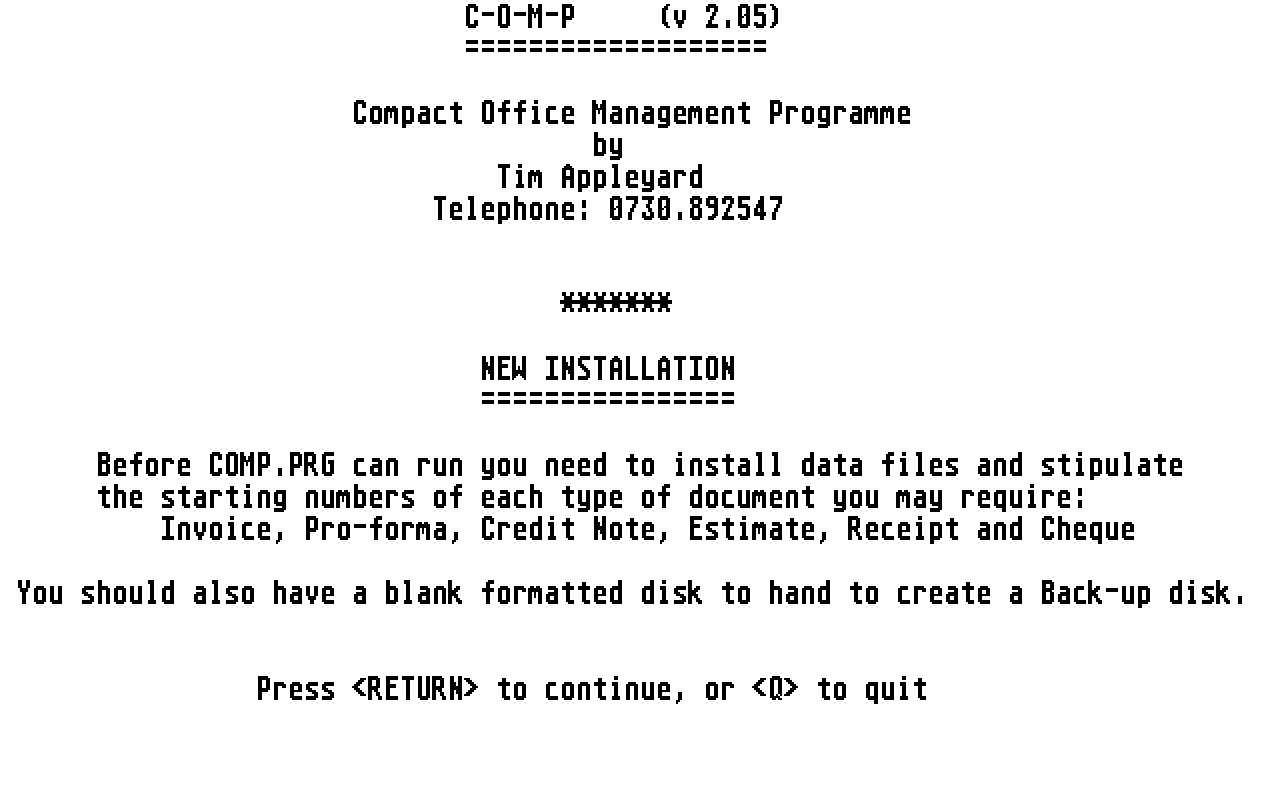
COMP - Compact Office Management Programme
- Genre
- Accounting / Business / Finance / Income
- Year
- —
- Language
- [unknown]
- Publisher
- [no publisher]
- Controls
- Keyboard / Mouse
- Distributor
- —
- Resolution
- Medium / High
- Developer
- [n/a]
- ST Type
- ST, STe / 0.5MB
- Licensed from
- —
- Programmer(s)
- Appleyard, Tim
- Country

- MIDI
- —
- Software
- English
- Version
- 2.05
- Box/Instructions
- English
- Number of Disks
- 1 / Double Sided
- License
- PD / Freeware / Shareware
- Dump
- Download
- Serial
- —
- Dump format
- MSA
- Protection
- —
INSTRUCTIONS
C - O - M - P (v 2.4)
=====================
Compact Office Management Programme
--------------- by ----------------
Tim Appleyard
Telephone: 0730.892547
C-O-M-P is an accounting programme for small businesses or sole traders
providing the following facilities:
ADDRESS DATA-BASE ......with extensive FIND, SORT and LABEL options
AUDIT TRAIL ............of all financial movements
BACK-UP ................automatic back-up of changed data files on exit
BANK ACCOUNTS ..........1, 2, CASH-POINT withdrawal, CREDIT CARD account
BOUGHT LEDGER ..........with 10 column user-definable purchase analysis
CASH-FLOW ANALYSIS .....by days, weeks, months, quarters or years
CASH SALES/PURCHASE ....entries
CREDIT CARD SALES ......and separate accounting for each card company
CURRENCY ...............work in œ, $, Dm, Fr, Ps, L, TL, Kr, f. or Yen
DEBT LETTERS ...........automatic printing for overdue accounts
DELIVERY/PACKING NOTES..can be printed at the same time as invoices
END-of-PERIOD ..........procedures: auto print-out and back-up systems
ESTIMATES ..............convertable to JOB-SHEETS, PRO-FORMAS, INVOICES
FOREIGN LANGUAGE .......characters accessible for overseas documents
FUNCTION KEYS ..........user-definable (50 characters) for text entry
GARAGE APPLICATION .....option: PUMP RECORDS, Car details, etc.
GRAHPICAL DISPLAY ......of Cash-flow and Invoice Analyses
HELP SCREENS ...........accessed by mouse click
INVOICE ANALYSIS .......by Labour, Goods, VAT, any other nominated item
INVOICING ..............with auto addressing, terms of business, etc.
JOB SHEETS .............convertable to PRO-FORMAS or INVOICES
KEY-BOARD CHARACTERS ...modified to match language of currency
MEMO ...................from customer file on screen for new documents
PASS-WORD ..............protection on reports, etc. and bad accounts
PETTY CASH BOOK ........10 column user-definable cash purchase analysis
PRINTING ...............use headed paper or heading files in programme
RECEIPTS ...............serially numbered and printed
RUNNING- and SUB-TOTALS displayed on screen during document writing
SALES LEDGER ...........with analysis by cheque, cash and credit card
STANDING ORDER .........facility with automatic up-dating
STATEMENTS .............30/60/90 day options with over-due items flagged
STOCK FILE .............auto quantity update, R.R.P., valuation, etc.
STOPPED-ACCOUNT ........facility automatic on bad accounts
SUB-TOTAL ..............column automatically tabulated
TYPE-WRITER MODULE .....including large variety of character sizes
UN-FINISHED INVOICES ...can be left open for "slate" accounts
V.A.T. DAY BOOK ........totalling input, output and tax-due any period
C-O-M-P is designed to be used without a manual, all options being made
clear on the screen using Pull-Down Menus and command boxes activated
by left mouse click or by initial letter of the command. Rounded boxes
can be activated by . Right mouse click gives help screens.
The programme is designed to be totally "user friendly". It is fast
because all necessary data is held in memory, but "data safe" because
all new documents and value changes are written immediately to disk.
C-O-M-P is a tool, not a master, and will allow you to run your
business in your way in almost every respect, except altering financial
or V.A.T. files or the Audit Trail, so that accountants, tax officers,
etc., can accept the reports without query.
LOADING THE PROGRAMME: To load the programme turn off your computer,
insert the disk and switch on again. C-O-M-P requires MEDIUM or HIGH
resolution.
Before running the main programme (C-O-M-P.PRG) for the first time you
must run INSTALL.PRG Other C-O-M-P programmes on the disk are:
CASH_FLO.PRG: The cash-flow module from the main programme which is
put in as a separate module to save programme
and memory space. If you have a 520ST you can
run this as a stand-alone programme.
COMP_COP.PRG: Useful copying programme for those with only one drive.
COMP_MRG.PRG: Very easy to use MAIL MERGE programme.
COMP_STK.PRG: The stock control module from the main programme. You may
run this as a stand-alone programme.
COMP_TYP.PRG: Type-writer emulator, used by the main programme but also
useful as a stand-alone programme.
FOREIGN.PRG: Printer conversion programme to utilize the foreign
language characters of your printer
FILE SIZES: with a 1040ST up to about 1250 documents and 300 addresses
with a 520ST up to about 100 documents and 75 addresses
These are variable, every 100 docs using about 40K memory and every
100 addresses using about 20K. Thus, with a 520ST you could
configure it for 50 documents and 200 addresses, etc. Note that old
documents can be deleted at the end of any financial period.
You are advised to use a "TRIAL" installation to start with to see how
things work. This will give you space for 30 documents. Once you have
installed a full working version you cannot re-install the programme or
change any of the numbering sequences except the Cheque numbers.
A full working version of the programme may be installed on HARD DISK
if required.
The following information is also available within the programme under
the HELP MENUS:
HELP INDEX 1
Page ========== Page
---- ----
11 ABANDON DOCUMENT 11 CODES
19 ABANDON PAYMENT IN 5 COMMAND BOXES
21 ACCOUNT STATUS 14 CONVERTING
21 ADDRESSES 20 CREDIT CARDS
19 ADJUSTMENT 5 DATE ENTRY
15 ALLOCATING 21 DELETE ADDRESSES
26 ARCHIVED DATA 25 DELETE DOCUMENTS
25 AUDIT TRAIL 6 DELIVERY/PACKING NOTES
5 BACKING UP 11 DOCUMENT LENGTH
25 BAD DEBTS 25 DRAWINGS
19 BANK ACCOUNTS 15 DUPLICATE
5 BATCH ENTRIES 14 EDIT DOCUMENT
11 BLANK LINE in Document 27 ERRORS
25 BOUGHT LEDGER 30 END OF PERIOD PROCEDURES
26 CASH FLOW 14 ESTIMATES
19 CASH PURCHASES 22 EXPORT DATA (Address file)
19 CASH SALES 9 FILE SIZES
19 CHARGES 21 FIND ADDRESS
6 CHEQUE BOOK NUMBERS 33 FOREIGN LANGUAGES: CHANGE
22 CHOOSE ANY PRINT CURRENCY/PRINTER CHARACTERS
Page Page
---- ----
16 FORMATS 29 PUMPS (Garage Applications)
13 FUNCTION KEYS 19 RECEIPTS
7 GARAGE APPLICATIONS 9 RE-SET MENU
23 IMPORT DATA (Address File) 21 RESTORE ADDRESSES
17 INSTALLATION 24 SECONDARY ADDRESS FIELDS
25 INVOICE ANALYSIS 21 SORT CODES
13 INVOICE RECEIVED 19 STANDING ORDERS
11 JOB DESCRIPTION 18 STATEMENTS
12 JOB SHEETS 6 STATEMENT BACK-DATE options
22 LABELS 13 SUB-TOTALS
12 LABOUR 11 & 31 STOCK FILE USE & MANAGEMENT
16 LETTER-HEADS 21 STOPPED ACCOUNT (under MEMO)
5 & 9 MAXIMUM FILE SIZES 34 SUGGESTIONS BOX
21 MEMO 6 SYSTEM OPTIONS
5 NUMERICAL ENTRY 16 TERMS OF BUSINESS
6 & 13 OVER-DUE ACCOUNTS 12 TRIGGER WORDS
8 PASS-WORD 10 TYPE-WRITER MODULE
26 PROFIT 12 UN-FINISHED INVOICES
12 PRO-FORMAS 15 VIEW DOCUMENT
GENERAL ADVICE 5
==============
BACKING UP: You should use two bak-up disks alternately. C-O-M-P will tell
you which you used last and AUTO-SELECT will copy all necessary files.
COMMAND BOXES, (and MENU BAR) operate by mouse click or entering the initial
letter of the command. Rounded boxes can be activated by .
or = "QUIT" whenever QUIT is an option.
DATE ENTRY: Only one digit for the DD(day) or MM(month) need be entered but a
stop (.) must be placed between them. enters the current date.
NUMERICAL ENTRY: If the cursor jumps to the next line you have not entered a
number when necessary. You may still do so regardless of cursor position.
BATCH ENTRY: After creating a new Document or Address the programme must re-
index files. This is postponed by using until the batch is ended.
HELP menus (click Right Mouse Button) will always take you to the relevent
page. <+> or <-> will then move forward or backward 1 page. to print it.
MAXIMUM FILE SIZES (Docs/Adds) should be minimum to ensure quick sort times.
Before ending COMP check on Re-set for adequate file space for next session.
SYSTEM OPTIONS 6
==============
6 or 9 Allows printing of extended statements going back 60 or 90 days
(NOTE: If "90 days", etc. is set, documents settled within 90 days, etc.
cannot be deleted from the system.) (Default setting: 30 days)
"K" gives keyboard control at Menu Bar (blank screen) and at Line Selection
for faster typists. It also allows you to enter at Menu Bar for "Find"
address record, without going to the Address sub-menu.
1,2 or 3: On Statement printing, letters will be printed for a/cs overdue
more than 1, 2 or 3 months. (The letter is: \resource\overdue.let
which may be edited in text mode of a word processor).
"D" shows deleteable documents, but slows down the screen display
"I" enables Cheque/Cash INPUT to an account in credit
"N" DELIVERY NOTES can be printed on Invoice Printing
"P" enables the password facilities. (see page 8)
Other options are to avoid you having to answer the question Yes/No if you
never want to use those facilities.
STOCK CONTROL: see page 32
GARAGE APPLICATIONS: see next page LANGUAGES: see page 33
GARAGE APPLICATIONS 7
===================
If you use the System Option "G" the 3rd. Telephone Number in the Address
file is converted to "MAKE OF VEHICLE" and replaces the Customer's Reference
on all documents.
In the Cash Flow Module, the user-variable "Trigger-Word" for Invoice
analysis no longer operates, but is replaced by "FUEL" (which includes "Fuel"
"Petrol", "Diesel" in upper or lower case but beginning with a capital
letter.
The PUMPS module becomes accessible. See page 29
PASS-WORD 8
=========
The Pass-word is not obligatory, and may be put in or changed at any time
using the Re-set menu. It is intended for use in a general office situation
to give security only to certain functions:
If PASSWORD is enabled, (by "P" in the System Options) you need the password
to do the following:
Raise a NEW DOCUMENT for any account more than 60 days in arrears
Remove a "STOP" from an account (see page 21, under MEMO)
View or print REPORTS (except Credit Card Slip listings)
View BANK STATEMENTS
DELETE documents of any kind
REMOVE DELETED Addresses
Change the SYSTEM OPTIONS (and thus disable "Password")
Change the rate of V.A.T.
EXTRA Stock Control functions (see page 31)
RE-SET MENU 9
===========
Use RE-SET for a larger system or when changing any of the variable settings.
Check the available memory (top right of Re-set screen) before increasing
Document or Address files sizes.
FILE SIZES: Documents Addresses 1040ST 520ST
--------- --------- ------ -----
Memory requirements: 40K per 100 20K per 100 Programme: 460K 460K
Disk storage:(about)100K " 100 80K " 100
Maximum number of Documents (without addresses): 1400 150
" " " Addresses ( " documents): 2800 300
CONFIGURATIONS: 0 = Trial installation, single disk
* 1 = Programme installed on Single data disk
* 2 = " " " Two data disks, drives A and B
* 3 = " " " Hard disk
* For an installable version see MAIN MENU under "DESK" 'About COMP'
SYSTEM OPTIONS see page 6 PERIOD END see page 30
TYPE-WRITER see page 10 STOCK FILE see page 31
TYPE-WRITER MODULE 10
==================
TYPE-WRITER is a quick and simple module for form filling, envelope
addressing, labelling, notices, etc. If the Function Keys are on (on the
Re-set menu your printer can be set to almost any print style of which it is
capable.
The Function Keys act as toggle switches (ON/OFF) and all Functions are
switched off by .
If you use the Function keys to control your printer please remember that the
upper row of Function Key commands is only activated when the key
is on.
This version was designed for a NEC Pinwriter P2200. If your printer behaves
strangely, please contact your supplier or the address on page 34 of this
help file.
NOTE: The programme COMP_TYP.PRG may be run as an independant unit provided
the folder 'RESOURCE' is present.
ENTERING NEW DOCUMENTS 11
======================
A CUSTOMER/CLIENT CODE must refer to an entry already made in the address
file. If it is a new account you must first enter at least the CODE in the
Address file. All codes can be entered in upper or lower case.
JOB DESCRIPTIONS: Do not enter two consecutive blanks. It will shorten
the underlining of the description or displace the tabulation of the item
costs when the document is being printed.
STOCK FILE is accessed by pressing Alt + S (if Function Keys are 'ON')
Both Stock Codes and Descriptions will be searched. More details on page 32
ON COMPLETION of last "detail" entry, press twice to continue.
Note: a BLANK LINE may be entered by pressing , , .
ABANDONING an entry can be done at the start by pressing for the
code and then using the QUIT choice, or at the end of the completed entry.
DOCUMENT LENGTH: In Colour mode you are limited to 18 item lines,
otherwise the maximum is 27. If you go beyond line 9 the screen will re-
configure to give you the extension you need.
12
JOB SHEETS may be converted later into Invoices, Pro-formas or Estimates
(see page 14)
UN-FINISHED INVOICES will not be dated, included in statements or added
to the VAT Day-Book. Further items can be added using the EDIT function
from 'Document List' or by the same function you can 'Convert' the
document to a normal invoice.
PRO-FORMA invoices: Provided you have entered the Job No. on the Pro-forma,
when you invoice the completed job under the same job number all pro-
forma payments will be shown and deducted from the amount due.
LABOUR: If you enter the words 'Labour', 'Fee', or 'Commission' in upper
or lower case on any item line, but starting with a capital letter, it will
be separated out in the Cash-Flow Analysis module.
TRIGGER WORDS: Bear in mind that any word, such as 'Paint' 'Parts' or
'Expenses' (up to 12 characters but Case-sensitive), can be specified in
the Cash-Flow Analysis module to separate out elements in your invoices,
so do not put 'Fee' and 'Expenses' on the same item line.
N.B.: "Trigger words" cannot be set for a Garage Installation (see page 7)
13
FUNCTION KEYS if set to 'ON' on the Re-set screen can be used for text
entry. This also sets the key to 5 spaces and enables the Sub-
Total function. (You may EDIT the function keys and print a 'KEY-MASK'
through the Function Key Option on the Re-set Menu.)
SUB-TOTALS: When Function Keys are set 'ON' pressing and
together will move you to the right of the Item Line and any figures then
entered will be tabulated and a running sub-total displayed at the foot
of the screen. This is cleared automatically by an entry not using this
facility.
OVER-DUE ACCOUNTS: If the last statement contained payments due, more than 30
days a warning will be given, more than 60 days the password is necessary to
proceed (if Password is enabled. (see page 8))
(also see 1/2/3: page 6 and A/C STATUS: page 22)
INV. RECEIVED is for use when paying several invoices on one cheque. The
Cheque-out module only allows you to enter one invoice per entry for V.A.T.
DOCUMENT LIST 14
=============
LIGHT TYPE indicates items or figures not brought into the calculations.
Outstanding credits or debits may be cleared by allocation.
EDIT cannot be used for Invoices, Credit Notes or Pro-formas. It is not
right to edit an already issued document of this kind.
CONVERT ESTIMATE allows you to convert an Estimate into an Invoice or a Pro-
forma, but once converted it cannot again be edited. (Don't forget to give it
a Job No. if converting to Pro-forma.)
CONVERT UN-FINISHED INVOICE closes the invoice and, if not given a date by
editing, will date it at to-day's date.
CONVERT JOB SHEET allows you to convert a job sheet into an Invoice, Pro-
forma or Estimate. Unless the date is put in with Edit, it will be given
to-day's date.
ALLOCATE enables Cheques Paid In or Credit Notes to be off-set or allocated
to outstanding invoices.
15
DUPLICATE: Any document other than a Payment entry may be duplicated. It
will be given the next appropriate number automatically and you will then
need to edit details such as Date and Customer Code before filing it.
LAST PAGE, if used when listing by customers, will go back 16 documents
regardless of the true 'last page'.
VIEW of a cheque already allocated will display under "Items" the Invoice
to which the allocation was made.
PRINT DOCUMENT: see page 16
PRINT STATEMENT: see page 18
DOCUMENT PRINT 16
==============
LETTER-HEADS: You can use pre-printed paper if your printer accepts
single sheet feeding. Otherwise you may set up your own headings using a
Word Processor and creating the heading you want as a TEXT file. Save it
on your COMP disk in the "HEADERS" folder. The "NO Letter-head"
default gives 7 blank lines before the document begins. You may alter
that by using dummy letterhead files, as "4_BLANKS" already in the
folder.
To switch different letterheads on/off use the RE-SET option on the
menu bar. If you click on "Letterhead:" and press no letter-
head will be printed.
FORMATS: The lay-outs for each document can only be changed by
alterations to the programme. Please contact your supplier. However,
the programme will automatically adjust the line spacing to the length of
document being printed.
TERMS OF BUSINESS: can be edited for any single document before it is
printed, or they can be changed for the whole system through the Re-set
menu.
INSTALLATIONS 17
=============
SINGLE FLOPPY DRIVE, 360K: To maximize disk space copy READ_ME folder, and
all Root Directory files except INSTALL.PRG onto a new programme disk and
then run INSTALL.PRG on the original disk. After installation, copy DATA and
RESOURCE folders to a new data disk. Run COMP.PRG from your new programme
disk. When prompted for which disk drive, change disks and enter "A".
(If you intend to use COMP_COP.PRG or COMP_TYP.PRG these tow programmes must
also be on the data disk.)
SINGLE FLOPPY, 720K or TWO FLOPPY DRIVES: If your data files grow too large
you may configure your system as above.
HARD DISK: COMP.PRG may reside in any directory, but all other folders and
files must be located in a first level sub-directory called COMP.
STATEMENTS 18
==========
Payments received and allocated against an invoice will show the invoice
number. If they are allocated to several invoices the first two will be
listed. More will be indicate by "etc."
Any uncleared item will be listed however old it is and whatever the period
specified (30,60 or 90 days). (see page 6)
Invoices will show their Job Numbers.
To get a complete statement of all transactions, enter the statement date as
"1.1.90" or other early date.
If the two total figures do not agree, there is an accounting error.
Printing "ALL" statements will only produce statements for those accounts
where the balance is not zero.
Printing "DRAFT" statements compresses and speeds up the printing and enables
you to view the statements before final printing.
BANK/CASH SECTION 19
=================
Use the ADJUST option (A) to set up opening balances.
ADJUSTMENTS to any account which are to be entered in the Ledgers are taken
to be CHARGES.
All entries will automatically be posted to the Day-book, etc., except
Adjustments, cash transfers between Bank accounts, and payments from Credit
Card Companies (see page 20)
ABANDONING an entry can be done by pressing for the code and then
when asked to re-enter it, or at the end of the entry.
STANDING ORDERS started before the date of entry will be calculated and
accounted retrospectively in the Bank and VAT (if appropriate) files. If
a Standing Order puts the Bank balance in debit no warning will be given.
RECEIPTS can be printed for any payment received, but only those for CASH
or CREDIT CARD payments will be numbered.
Credit cards: page 20
CREDIT CARD SALES 20
=================
CREDIT CARD IN function records sales by credit card and treats them in every
way as an ordinary Account or Cash Sale, for V.A.T. etc. However cheques
paid in from Credit Card Companies will not be posted to the VAT DAY-BOOK.
Up to 9 different cards can be set up using the Re-set menu and a listing of
credit card slips by card companies can be printed using CRED CARD A/Cs under
REPORTS. Entries in this file will be DELETED when you delete entries in the
Sales file.
CREDIT CARD PURCHASES
=====================
There is no connection between Sales and Purchases. Purchases by Credit Card
are treated exactly as another bank account, but without cheque numbers.
ADDRESS SECTION 21
===============
SORT CODES (used in label & list printing): Take great care establishing
a system of codes with up to 3 characters. If 'P' is Personal, 'B' is
Business, and 'C' is Club Member, then PF might be Personal/Friend, and
PS Personal/Supplier. If B1 & B2 are two businesses and X = Christmas
Card, then selecting from C to PF seeking X's will give a Club+Personal
Card list (all the X's from C to PF), while B to B seeking S will give
Suppliers to all Businesses. The search character will be found in what-
ever position it occurs.
DELETE: is not final until you run the REMOVE DELETED module. Until then,
by pressing DELETE you can RESTORE a deleted entry (shown in half-tone).
MEMO can be used for any short note. It will be displayed on the screen
when creating a document for that account. If you enter 'Stopped' as the
memo, then no document can be raised for that account until the 'Stop' is
removed (by editing the Memo in the Address file).
"No. OF LABELS" entry enables printing any number of labels (up to 99)
whenever that address is printed as a label. Press for one only.
A/C STATUS: set by the system; cannot be changed. -1,-2 or -3 indicate an
account over-due more than 30, 60 or 90 days on the last statement. You may
use -1, -2 or -3 to list such accounts.
PRINT prints one address only
FIND is not case sensitive.
ALPHABETICAL ORDER refers to the Name Codes, not the Names themselves. 22
LABELS: Duplicate labels will automatically be printed according to the
figure set in "No of Labels" in the Address File.
CHOOSE ANY: allows you to print any specified fields from the ADDRESS FILE
and to select on any SORT CODE. However, the output is not tabulated across
the page except for Telephone numbers, but listed in a block. If any entry
that is called for is a blank then no line space is left, but a blank line
is put between each record.
EXPORT FILE: can be used to export any data lists from the Address files to
the printer or to a disk file.
(FIELD LIST and MAXIMUM LENGTHS on page 24)
ADDRESS IMPORT MODULE 23
=====================
Extreme care must be taken in setting up the text file from which new
address data is to be read.
Each RECORD must be on one line and must consist of 18 fields.
Each FIELD, which may contain any symbol from the key-board except inverted
commas, must be enclosed in inverted commas and separated from the next by
a comma, thus:
"ABC","Jo Bloggs","2, High St.","Sometown,","County.","","","","","A1", etc.
Most good data-base programmes can export data to disk in this form, usually
known as 'ASCII format', but be sure no exported fields such as house names
contain inverted commas.
If you have a data file prepared and continue with this module the new
addresses will be added to your current address files, so see that you have
made a back-up first. If you have no address files in the Data folder, new
files will be created. See that you have enough space on the RE-SET menu
for the new entries.
(FIELD LIST and MAXIMUM LENGTHS on page 24)
NOTES FIELD AND MAXIMUM 24
---------------- ORDER LENGTH
Any field may be * 1: NAME CODE (in capitals) 5 (must be 2 or more)
Alpha/Numeric * 2: Name 30
except Field 18 3: Address line 1 30
---------------- 4: Address line 2 30
Any field may be 5: Address line 3 30
empty except 6: Address line 4 20
Field 1 7: Address line 5 20
---------------- 8: Address line 6 10
Any field may be 9: Exchange 15
in mixed cases *10: STD Code 10
except *11: Telephone number 10
Fields 1 and 17 12: 2nd number 15
---------------- 13: 3rd number/Vehicle 15 (Vehicle in 'Garage'
"PRIMARY" fields 14: Memo 15 Installation)
marked "*" are *15: Notes (line 1) 30 (Shown in Screen lists)
held in memory. 16: Notes ( " 2) 80
Others are *17: SORT CODE (in capitals) 3
"SECONDARY" and 18: No. of Labels (numbers) 2
are read from disk
REPORTS 25
=======
Any entry with "d" beside it has been printed out, archived if necessary (see
page 26), and is now old data which can be DELETED using DELETE OLD DOCS on
the Re-set menu. An entry without a "d" will not be deleted whatever its
date. (This does not apply to Cred. Card slips, which are deleted at the same
time as Sales entries.)
BAD DEBTS (Un-cleared invoices) can be removed and listed when you archive
the relevant month's data using the Cash Flow module. (See next page)
AUDIT TRAIL: The file "Audit.log" contains a permanent record of movements
of all items in the financial files. Do not delete an Audit File. Your
accountant or the Inland Revenue may wish to see it. After you have printed
it out you may start a new one, but each new file is serially numbered.
PETTY CASH BOOK ) analyse entries by user-defined columns as set up through
BOUGHT LEDGER ) the Re-set Menu.
CASH FLOW MODULE: see next page
CREDIT CARD A/Cs: see page 20
CASH FLOW MODULE 26
================
INVOICE ANALYSIS: Invoices for any period NOT archived are read line by line
and sub-totalled under 4 heads: "Trigger-word" (see page 12), Labour, Other
items, V.A.T. They are also sub-totalled as "Settled" and "Outstanding".
SALES & PURCHASES are analysed each by Cheque, Cash and Credit Card.
DRAWINGS (Payments to 'Self') are analysed by Cheque and Cash
GROSS PROFIT is calculated as an absolute figure and a percentage of Sales
over purchases, but excluding drawings.
ARCHIVED DATA: Having done a monthly cash-flow analysis, you may be asked to
do another from an earlier date for Archiving purposes. Data is automatical-
ly filed in "Archive.dat" sequentially from Monthly cash-flow figures and
there may be a month missing.
Notes: 1. Archived data ignores "trigger words".
2. You cannot delete documents required for archive data until you
have run a Cash-flow Analysis for the required period.
3. Any month containing BAD DEBTS cannot be archived unless they are
written off. You will be prompted to do so when necessary.
4. A bad debt will automatically "STOP" the account. (see page 21)
IDENTIFICATION of ERRORS 27
=========================
0 to 7 Probably nothing serious. Try again. Seek help if it persists
8, 12 Memory full. Remove accessory files or your system is too large
or -39 for your computer. Move to Configuration #2 on the Re-set
menu.
16 to 24 Most unlikely. Try again, re-booting if necessary.
25 or 35 Input wrong, not numeric.
26 to 34 Most unlikely. Try again, re-booting if necessary.
36 Importing addresses: un-paired quotation marks.
37 DISKETTE FULL. TAKE NOTE OF THE NEXT SCREEN.
38 to 54 Unlikely. Try again, re-booting if necessary.
55 Data files may be corrupted. Try again, then use back-up data
files if necessary.
56 to100 Most unlikely. Try again, re-booting if necessary.
- 1 to -11 Physical problems with the disk. Use a back-up.
-13 or -36 Diskette or file is write protected.
-33 or -34 A file or folder is missing from the disk.
Advice for FULL DISK: page 28
ACTION IF DISKETTE IS FULL 28
==========================
EXIT THE PROGRAMME and click on the disk ikon and pull down 'FILE' to see the
disk statistics. If the disk is indeed full, copy any Back-up files in the
DATA folder which were made when you deleted old records, to another disk. If
there are no ****.BAK files to remove you may have a problem! You can temp-
orarily remove the ADD_1.DAT, ADD_2.DAT and HELP.TXT files. Very roughly, to
delete half the records from a file as 'Old' will need spare space equal to
half the size of the original file.
If there is still not enough space to delete records, print out all financial
reports and copy the data files to another disk. You may delete TEMPORARILY
all data files except INV_1.DAT, INV_2.DAT, CASH.DAT and BANK.DAT from your
working disk and still run the programme. If you were in the middle of de-
leting old data, delete the ****.DAT file concerned and rename the ****.BAK
file as ****.DAT before proceeding.
The only other probable cause of trouble is that your file sizes set on the
RE-SET screen are too large for your system, since most of the data in those
files is held in memory. You will gain a little more space by removing any
****.ACC files from the disk. If none of these suggestions work please contact
your supplier or the address on page 34 of this help file.
FUEL PUMP MODULE 29
================
NOT YET INSTALLED
END OF PERIOD PROCEDURES 30
========================
PRINT OUT Sales and Purchase Ledgers, the VAT Day Book and Credit Card lists
if appropriate. Run a MONTHLY Cash Flow Analysis starting 6 months before
the last month of your accounting period, and archive it. Print out the
Audit Log and start a new one.
DELETE Documents, Sales, Bank and Cash entries from "Beginning of File" to
the end of your accounting period. Delete the VAT entries only if your VAT
Period coincides with your accounting period.
BACK-UP by copying all the ****.BAK files and any AUDIT.*(numbered) files but
not .LOG, that have been created in the DATA folder, to a separate disk (not
your working back-up disk) and keep it in a safe place. Then delete the
files you have copied from your working data disk.
PERIOD END does all the above for you except copying and deleting the old
files. (Note: Automatic Back-up Selection copies the active data files)
STOCK FILE 31
==========
If 'Password' is active (see page 8), the password is necessary to access
EXTRA MENU items, see or edit costs, edit sell prices, sort and delete items
UPDATE NUMBERS is for multiple revision of Quantity-on-Hand figures
PRINT EXTENDED and LIST DELETED give stock valuations
COST ON: displays cost prices and allows costs to be entered during 'ADD'
MARK-UP ADVICE ON: displays R.R.P. when using 'EDIT' and automatically enters
a 'Sell' figure when ADDING items if 'COST' is switched on.
CODES: should be unique. There is no check on this until file is sorted
SELL Price: excludes V.A.T. Text can be entered (e.g. 'Sample')
UNITS: must be single (e.g. 'Yd' not 'Yds') C-O-M-P adds 's' for multiples
FIND: is not case-sensitive and will search both Codes and Descriptions
SYSTEM OPTION CONTROLS for using Stock items in Documents: see next page
32
STOCK FILE OPTIONS in Documents (Using Re-set Menu SYSTEM OPTIONS screen)
===============================
S: STOCK CODES will be shown on document Item-lines
U: UNIT COSTS and Stock Codes will be shown on document Item-lines
Q: QTY in STOCK will be automatically up-dated by NEW (not edited) documents
Stock items can be called into a document in 4 different styles:
1. With no quantities asked for or listed, by putting a minus sign as the
first character in the Item Description (e.g. "-Postage and Packing")
when first setting up the Stock File or by editing the item
2. With quantities (whole numbers tabulated), units and descriptions shown
(This is the default style)
3. As No.2 above with Stock Code shown before the description ("S" above)
4. As No.3 above with Unit Costs shown after the description ("U" above)
N.B. To accommodate extra line length printer character width is changed
for Styles 3 and 4
FOREIGN LANGUAGES / CHANGE PRINTER CHARACTERS 33
================= =========================
You may use a wide range of foreign characters available on your printer by
adding TO THE END of the System Options list (on the Re-set screen) "*" and
one of the following numbers:
0 : U.S.A.
1 : France 2 : Germany 3 : United Kingdom
4 : Denmark (I) 5 : Sweden 6 : Italy
7 : Spain 8 : Japan 9 : Norway
10 : Denmark (II) 11 : Netherlands 12 : Turkey
CURRENCY CHANGES:
----------------
With *1, *2, etc. the currency used throughout the programme will remain in
sterling, but by using **1, **2, etc., the entire system will be changed to
the appropriate currency for the country selected.
34
If you have any suggestions for inclusion in a later version of this
programme, or any real problem, please get in touch at the address below:
T.A. Appleyard
5, The Green
LISS, Hampshire
GU33 7AP
ENGLAND
Telephone: 0730 892547