

Atari ST - ?
Batch Startup
- Genre
- Tape / Disk / Cartridge Utility
- Year
- —
- Language
- [unknown]
- Publisher
- [no publisher]
- Controls
- Keyboard
- Distributor
- —
- Resolution
- Low / Medium / High
- Developer
- [n/a]
- ST Type
- ST, STe / 0.5MB
- Licensed from
- —
- Programmer(s)
- Levine, Murray
- Country

- MIDI
- —
- Software
- English
- Version
- 1.1
- Box/Instructions
- English
- Number of Disks
- 1 / Double Sided
- License
- PD / Freeware / Shareware
- Dump
- Download
- Serial
- —
- Dump format
- MSA
- Protection
- —
INSTRUCTIONS
 .......................................................
/		 :					\
:   STARTUP.PRG  :  Batch Startup Program Version 1.1	:
:		 :	by Murray Levine		:
:		 :	CIS # 74435,1015		:
:		 :					:
\................:....................................../

	STARTUP.PRG is a Batch Startup program that executes commands
from the file startup.inf upon booting your ST.  STARTUP.PRG must be placed
in the \AUTO\ folder on boot drive (usually A).  It first looks for the
file STARTUP.INF in the same directory and if it can't find it, it tries to
locate it in the main directory (ex. A:STARTUP.INF).  From now on, these
two files can be the only files you need in the AUTO directory because all
other files to be executed can be located in their original drive and folder
and can even have parameters past to them.  You no longer have to make sure
of the order that you copied your files to the AUTO directory because
STARTUP executes programs as they are listed in STARTUP.INF.

	The format for pragrams to be executes is to list the complete program
name followed by any parameters to be passed.  any command or program name
can be followed by a comment.  Any text on a line that follows a ';' will
be treated as a comment.  For example,

a:\supboot.prg			; Supra Hard Drive driver program
c:\bin\touch.prg a:startup.inf	; Update timestamp for info file

would first load the hard drive driver program supboot,prg from drive A: and
then update the timestamp for teh file a:startup.inf.

	There are a few unix-like commands that are used in the STARTUP.INF
file as well as some other special commands.  All commands must be in lower
case, however, the filenames may be in lower or upper case.  The allowable
commands are as follows:

Copy Files:
    cp file1 file2	- copy file1 to file2
    cp file1 ... dir	- copy file1 and other files to the directory dir

    The cp command is useful for copying files to a ramdisk.  Wildcards
    are also accepted.

    cp b:\src\*.c c:\		; Copy source files to ramdisk c:

Remove files:
    rm file ...

    The rm command removes the listed files.  As with cp, wildcards are
    also accepted.  Be carefull, though, about doing an   rm *.*
    so you don't wipe out a disk by accident.

Create directory
    mkdir dir ...

    The mkdir command creates the subdirectory dir.

Remove directories
    rmdir dir ...

    The rmdir command removes the specifies subdirectories.  An error will
    occur if the specified subdirectory is not empty or does not exist.

Display files:
    cat file ...

    The cat command displays the listed files on the console.  Useful for
    displaying any title screen information.  Once again, wildcards are
    accepted.  Pressing ctrl-C during the display of a file aborts displaying
    that file and goes  on to the next file if there is one.

Change directory:
    cd dir

    The cd command changes the default directory to either a disk drive or
    a subdirectory.

    cd b:	; changes default drive to b:
    cd b:\auto  ; change to drive b:, subdirectory auto

    The cd command is usefull if when running prgrams you don't wan't to list
    the complete filename (drive and directory) and if the program being
    executed expects to find certain files (data files) in the default
    directory.

Display text:
    echo string
    echo -n string
    echo -i string

    The echo command displays the following string (list of words) on the
    screen followed by a carriage return.  If the -n option is used, the
    carriage return is not printed.  If the -i option is used, the string
    is printed in inverse video.  The echo command is useful for
    displaying what is happening at different points of the boot process.

    As an example, I use the following:

    echo -n The time is
    c:\bin\date.prg		; display the current time

    This will display:  The time is Sat Jan 24 1987 12:24pm

Setting variables
    set var = string	- set variable var to string
    set var = $<	- set variable var to a string entered from keyboard
    set			- display all variables

    The set command allows the user to set up to 20 variables whose variable
    names can be up to 8 characters in length.  If string is to be more than
    than one word then it should be in quotes, e.g. "This is a string".  If
    The string is $<, then the variable waits for a string to be entered from
    the keyboard.  This string can then be tested later using the if command.
    Using set without any arguments will display all of the variables and
    the string values associated with them.

Conditional statements
    if (string1 cond string2) then
	commands
    endif
    if (string1 cond string2) then
	commands
    else
	commands
    endif

    The if command is used to compare two strings based on the specified
    condition cond.  If the comparison is true, the commands follwing the
    then statement will be executed.  An optional else statement can be
    used if the comparision is false.  The if command must end with the
    endif statement.  There can be as many as 9 nested if statements,
    however be sure that there are enough endif statements to match them.
    String1 and string2 can be either strings or variables.  The possible
    conditions are as follows:

	==	is equal to
	!=	is not equal to
	<	is less than
	>	is greater than
	<=	is less than or equal to
	>=	is greater than or equal to

The special commands used by Startup are as follows:

Use medium or low resolution:
    res medium
    res low

    The res command will set a color system to medium resolution or low
    resolution during the boot process.  On monochrome systems this command
    has no effect.

Turn the cursor on or off:
    cursor on
    cursor off

    The cursor command turns the cursor on or off again.  Since during the
    boot process TOS dosn't turn on the cursor, you can now see where the
    cursor is for entering text.  You can even turn it back off again after
    running a certain program if you wish.

Turn the keyclick on or off:
    keyclick on
    keyclick off

    The keyclick command trurns off the keyclick if you get annoyed by it
    while entering input and let's you turn it back on if you want after
    running a certain program.

Clear the screen:
    clear

    The clear command clears the screen and places the cursor in the upper
    left hand corner.  This can be followed by the cat command to display
    a title page.

Display of each line
    display on
    display off

    The display command turns on or of the display flag.  When the display
    is on, the each line will be displayed in full including comments until
    the display is turned off.  The default is display off.

Ask if program should be run
    ask filename [arg ...]

    The ask command asks the user if he wishes to run the program denoted
    by filename.  The output is as follows:
	Execute autotime.prg (Y/N)?
    Typing a Y will execute the program, any other key will skip the
    execution of the program.  This can be useful for example if a user
    does not wish to load GDOS when he boots up, but wishes to load GDOS
    the next time he boots teh system.

System variables
    $res	- contains the screen resolution ("low","medium","high")
    $desktop	- contains the screen resolution in the desktop.inf
		  file ("low","medium","high").  If the desktop.inf
		  file does not exist, the variable is set to "none".
    $cwd	- current working directory or pathname

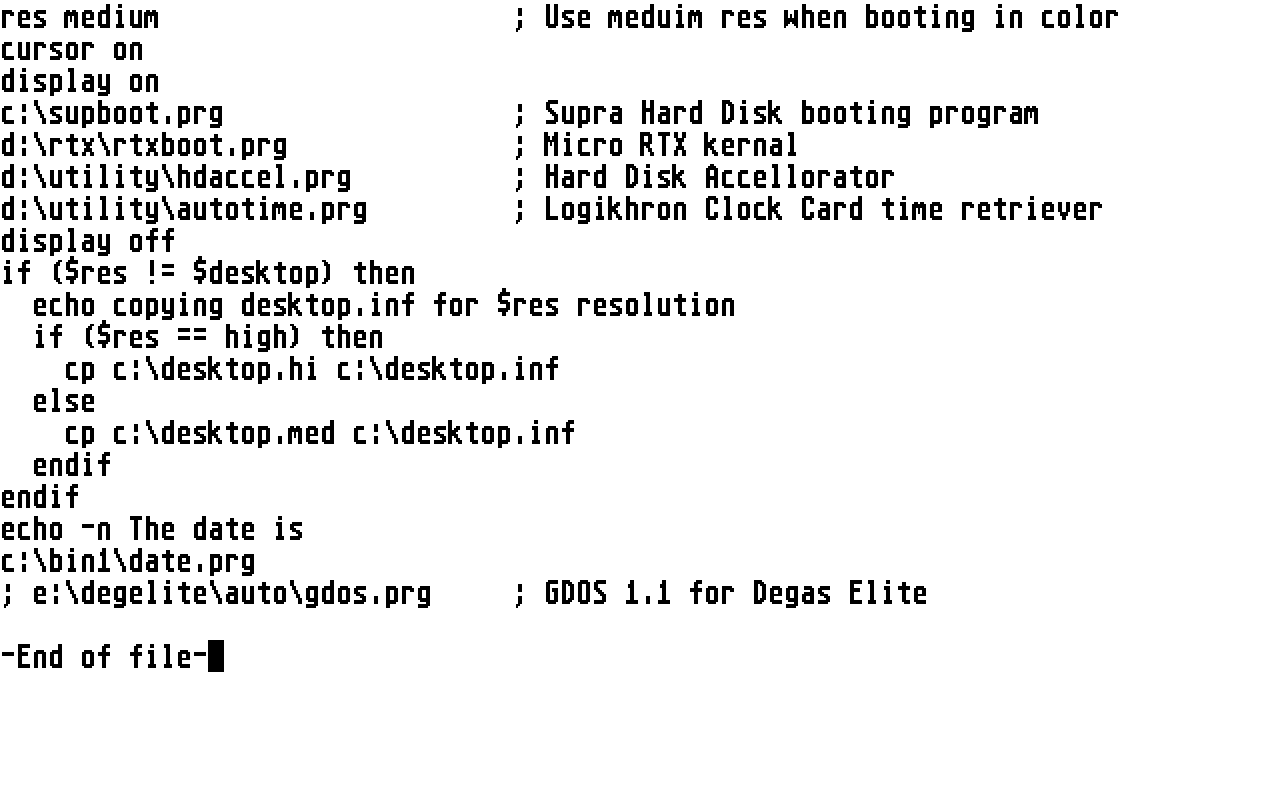
The following sample startup.inf file is the one I currently use during my
boot process.

res medium			; Use meduim res when booting in color
cursor on
display on
c:\supboot.prg			; Supra Hard Disk booting program
d:\rtx\rtxboot.prg		; Micro RTX kernal
d:\utility\hdaccel.prg		; Hard Disk Accellorator
d:\utility\autotime.prg		; Logikhron Clock Card time retriever
display off
if ($res != $desktop) then	; Check desktop.inf resolution
  echo copying desktop.inf for $res resolution
  if ($res == high) then
    cp c:\desktop.hi c:\desktop.inf	; set desktop.inf for high res settings
  else
    cp c:\desktop.med c:\desktop.inf	; set desktop.inf for med res settings
  endif
endif
echo -n The date is
c:\bin1\date.prg
ask e:\degelite\auto\gdos.prg	; GDOS 1.1 for Degas Elite


Any comments or suggestions for a future version are welcome.

		Murray Levine   CIS # 74435,1015