

Atari ST - 1991
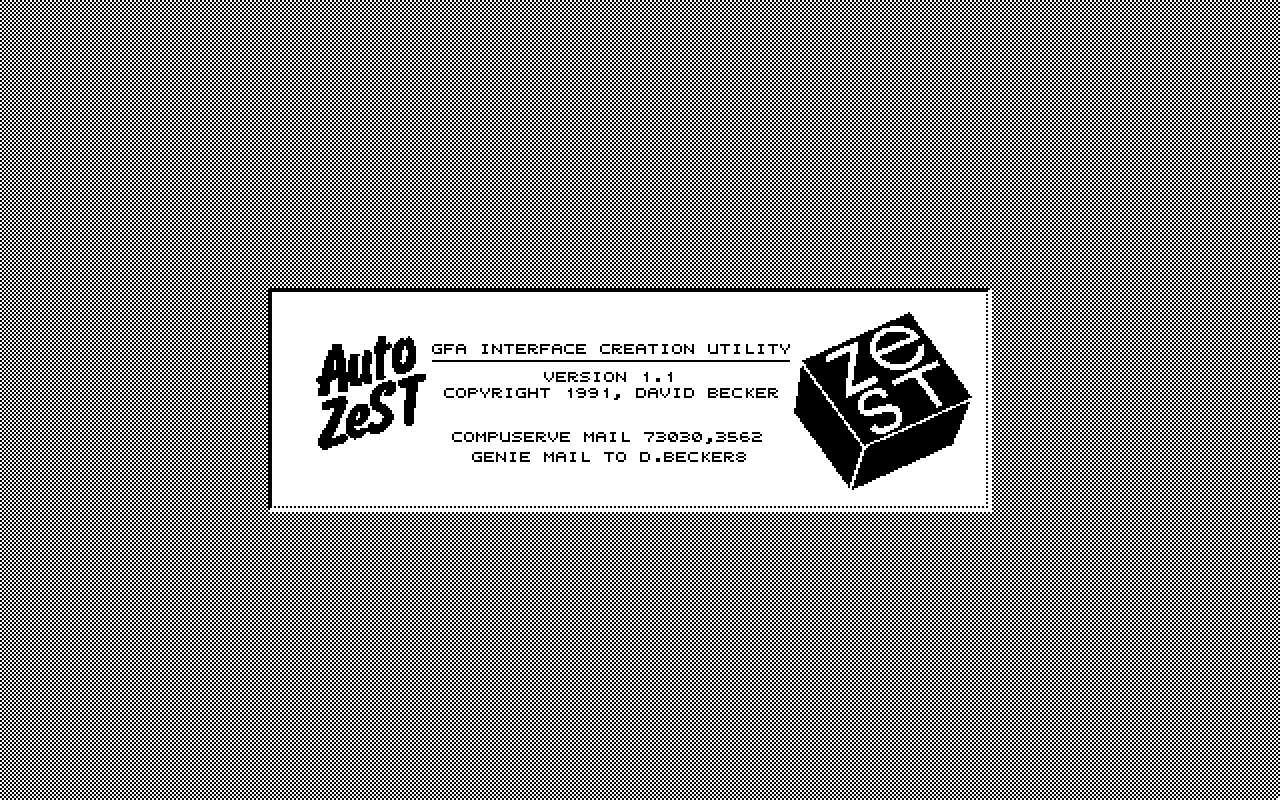
Auto ZeST
- Genre
- Programming - Aids / Routines / Tools
- Year
- 1991
- Language
- GFA BASIC
- Publisher
- [no publisher]
- Controls
- Keyboard / Mouse
- Distributor
- —
- Resolution
- High
- Developer
- [n/a]
- ST Type
- ST, STe, TT, Falcon030 / 0.5MB
- Licensed from
- —
- Programmer(s)
- Becker, David
- Country

- MIDI
- —
- Software
- English
- Version
- 1.1
- Box/Instructions
- English
- Number of Disks
- 1 / Double Sided / HD Installable
- License
- PD / Freeware / Shareware
- Dump
- Download
- Serial
- —
- Dump format
- MSA
- Protection
- —
INSTRUCTIONS
                                 Auto ZeST
                       ------------------------------
                       GFA Interface Creation Utility

                        Copyright 1991, David Becker
                         Compuserve mail 73030,3562
                          GEnie mail to D.Becker8

Prologue
-------------------------------------------------->
Since the ZeST GFA interface code was introduced I have had many, many
letters and phone calls asking for more! As of this writing you can find:

                CRISSCROSS  (othello/gomuku/go hybrid game)
       ZeST DRAW POKER  (Draw poker, slot machine and high card game)
                   POKER SQUARED  (Solitaire poker game)
  and of course the ZeST DESKTOP (calendar, database, paint and typewriter)

on both of the major online services as well as many local BBS systems.


Introduction
------------------------------------------------->
Other software authors are at this moment developing programs that
incorporate the ZeST look and feel. Many have expanded the original simple
GFA source code and added their own bells and whistles. I even saw a
colour version at the last computer show! I encourage development and
enhancement of the original concept. ZeST was originally an experiment in
emulating the 'look and feel' of the NeXT computers graphic user interface.

The ZeST interface can provide a quick and easy 'front end' to your existing
code or act as a simple alternative to learning the complexities of GEM
dialogs, resources, windows, etc. Many new users to the ST may have basic
code left over from other computers. With a little conversion and the
ZeST interface you can have your original creations up and running on
the ST in hours!

The first GFA code listing included with the ZeST DESKTOP still required
patience together with trial and error to write the button_press routines
and design the screen just right. I think I can relieve you of this burden.

Introducing AUTO ZeST, a utility that completely automates the
creation of ZeST screens, front ends, windows, buttons, boxes and sliders!
Kind of like a poor man's NextStep in GFA. AUTO ZeST will save authentic GFA
code to disk that can then be merged right into the GFA editor.

AUTO ZeST will run on all ST platforms with a monochrome monitor. Please
disable the CPU cache on the MegaSTe and run at 8 or 16mhz.


What makes up a ZeST interface?
---------------------------------------------------->

ZeST Windows...............not unlike a GEM window with a title bar at the top
                           and a close button on the far upper left. ZeST
                           windows cannot be moved but may contain any number
                           of buttons, sliders, text boxes, etc.

ZeST Buttons...............A 3D pushbutton that can be pressed with the left
                           mouse and will in turn activate your own code.
                           You can add text right over top of a button.

ZeST Text Boxes............Carved inset box with a white background for text
                           or graphic output.

ZeST Info Boxes............Carved inset box with desktop background. Can be
                           layered with other boxes or buttons for interesting
                           three dimensional displays.

ZeST Line Boxes............Thin carved inset line box for surrounding and
                           highlighting other buttons, boxes and text.

ZeST Lines.................Single horizontal or vertical carved lines.

ZeST Sliders...............Not unlike GEM slider boxes with movable sliding
                           buttons inside a carved slot.

ZeST Platforms.............Raised platforms look like buttons but are usually
                           much larger and are not active. They can contain
                           buttons, boxes, sliders, etc.


Using Auto ZeST to create and edit a ZeST interface
----------------------------------------------------------->

When first run, you will be greeted with the information box. Press any key
or click the mouse to remove it (you can recall it later with the HELP key).
You are now in the EDIT screen which should be blank with the desktop
background. Clicking the RIGHT mouse button will call up the OPTION buttons
but first lets draw a window...

                       ...(click CANCEL if you popped up the OPTION buttons)

Hold down the LEFT mouse button and with it depressed drag the mouse down and
to the right. The outline of the new box follows the arrow until you let go
of the mouse button. The CHOICE buttons now appear on one side of the screen.
The box outline you have just drawn can now become a ZeST window with a
title bar on the top and a close box to the left, a ZeST button that moves in
and out, a ZeST text box for displaying alphanumerics, an info box carved
into the desktop, a line box cut only at the border, a platform  or a ZeST
slider. (We will talk about vertical and horizontal lines a bit later).

Click on the type of box you wish to create or click CANCEL and draw the
outline box over again! You can continue adding buttons and boxes to your
screen until the cows come home. If you wish to create a row of buttons or
boxes and have them line up side by side then use the ARROW keys. Every time
you press an arrow key the outline of the previous box will appear in the
direction of the arrow and you will be asked what type should be created.
By alternately pressing the arrow keys and mouse button you can create some
pretty impressive button panels very quickly.

Another neat feature for creating multiple copies of anything is to draw a
giant outline box and then when the choice buttons pop up press any number
on the numeric keypad (far right side of your keyboard). A little indicator
box will appear showing the number of copies set and the direction they will
be created. You can change the creation direction from 'up-down' to
'left-right' by pressing the number again and again. Hit any other key to
cancel the copies. With the copy indicator set, simply click on the type of
button you want to create and the giant outline box will fill with the desired
number in the desired direction.

Error checking is kept to a bare minimum throughout the program so don't
create active buttons and sliders that overlap and please don't hang stuff
off the edge of the screen.

Drawing a line is easy. Just make sure that the horizontal or
vertical sides of your outline box are overlapping and then click the line
button. If you are new at using the mouse this may take a bit of practice.

You can create horizontal or vertical slider boxes simply by defining an
outline box and clicking the slider button. The sliding gadget will always
default to 1/5 the length of the entire slider box. If you define a long
outline box up and down you will get a vertical slider and if you define a
long outline box side to side you will get a horizontal slider. Makes sense!

A safety buffer holds the last creation command and if you hit the UNDO
key you can cancel and remove your LAST creation.


Let's click the RIGHT mouse button and look at the OPTION buttons.
--------------------------------------------------------------------->

Add text
-------->
You can add text anywhere on you screen by clicking the first option. Text
is usually used to mark the tops of buttons. After activating text creation
the mouse will disappear. Simply type your text using the keyboard and then
you will be able to move it around with the mouse. ESC will clear the text.
When you have the text centered on the button (or wherever) just press
the LEFT mouse to put it down. UNDO removes the LAST text placement
if you make a mistake. You can continue placing text on the screen
until you click the RIGHT mouse button.

If you hold the ALTERNATE key when placing a text character down you will set
the "carbon copy" flag and another copy of the same character will appear at
the mouse position ready for placement in a different location. This is handy
when creating ruler displays for sliders or text boxes.

If you hold down the CONTROL key when placing a text character down you will
set the "increment" flag and a copy of the next letter or number higher will
appear at the mouse position. Great for creating calendars or calculator
keypads! Hitting BACKSPACE or ESC clears either flag.

Save with ZeST code
------------------->
The most important feature of Auto ZeST is the ability to save code to disk.
The second option saves the entire ZeST interface code (all of the
procedures that are needed to control the drawing and manipulation of boxes,
buttons and windows) along with the custom routines and procedures needed to
reproduce and control your interface creation. Everything will be saved
in one tidy package. Just merge the listing into the GFA editor and run!

Save procedures only
-------------------->
The third option is to save only the procedure associated with your custom
interface. With this option you can create secondary screens that can be
imported and called from your existing ZeST program. The procedure will take
on the name of the file chosen with the file_selector and includes both the
draw and mouse control routines in one.

Save the ZeST logo
------------------>
The fourth option saves the ZeST logo code to disk so that you can reproduce
this graphic in your own program. The procedure contains an explanation
on how to easily PUT the logo anywhere. In fact, all the code written by
Auto ZeST is commented with remarks pointing to key variables and functions.
I must however assume a basic understanding and a working knowledge of GFA3.
The ZeST code will not teach you programming but will certainly make it easier.

Create a new screen
------------------->
The option to create a new screen will destroy anything previously created,
use this option with caution. You don't have to press this button when Auto
ZeST is first run. You are ready to create from the moment the EDITOR desktop
first appears.

Toggle ruler on/off
------------------->
The ruler will be toggled on and off with each press of this button.
You may find the ruler helpful when lining up boxes on either side of the
screen. While the ruler is on you will not have access to the very top or
the far left of the screen, keep this in mind.

Test this interface
------------------->
Option number seven allows you to physically manipulate the screen. Push
the buttons, try out the sliders, have some fun! The right mouse button exits
back to the edit screen.

Scan this interface
------------------->
Scan each piece of your interface with confirmation. As each element of your
interface appears the ST will wait for either a left mouse button press to go
ahead or a right mouse button press to bypass and delete the displayed element.
Just hit the 'Q' key to abort this "step by step scan" and continue as normal.

Load an interface
----------------->
Every time you save ZeST code to disk, Auto ZeST quietly saves a secondary
file with the same name and the extension (.ZST). You can reload previously
saved interfaces by choosing this option and double clicking on any (.ZST)
file when the selector comes up. You will lose any work up to that point
when loading a new ZeST screen.

If you hold down the ALTERNATE key when selecting your (.ZST) file you can
scan each piece of the interface with confirmation just as you would using
the "scan this interface" option explained above. (You only have to hold down
ALT until the first box appears).

Quit to the desktop
------------------->
You will be prompted to confirm that you wish to exit the program.

Cancel
------>
Just in case you bring up the option menu by mistake.

Help!
----->
Pressing the HELP key while in the edit screen brings up a few
reminders that may come in handy.


I hope Auto ZeST is just what you've been looking for. It is FREEWARE so
don't hesitate to copy it, use ZeST in your own programs, share it with
friends, sell it through the user group or upload it to local BBS systems.
If you do use ZeST in one of your own programs I would appreciate a copy.

                                              Dave Becker
                                              211-7291 Moffatt Road
                                              Richmond, British Columbia
                                              Canada, V6Y 1X9

                                              Compuserve 73030,3562
                                              GEnie D.Becker8


Hints and comments on version 1.0
--------------------------------->

- the safety buffer is purged everytime you toggle the ruler on or off,
  begin creating a new outline box or when you exit the text editor.

- the mouse is shaped like a crosshair during edit, an arrow during button
  selection and a pointing hand during a screen test.

- if you define an outline box for multiple copies the last shape created is
  sometimes slightly smaller or larger than the rest. This is because the
  number of copies did not divide evenly into the size of the outline box .

- save ONLY the (.ZST) file by using the extension .ZST instead of .LST when
  the file_selector appears.

- you can click the right mouse button a second time to CANCEL and remove
  either the OPTION or CHOICE buttons when they appear.

- ZeST buttons, sliders, platforms, windows, etc. are meant to be placed on
  the desktop background fill. They look crummy when placed on a stark
  white background.


Hints and comments on version 1.1
--------------------------------->

- a new algorithm now calculates multiple copies more precisely. Even
  though multiple elements will now always be the same width it is possible
  there will be a few pixels left over at the end of any outline box.
  Auto ZeST calculates the size of each copy as close as is possible and
  then throws away the extra few pixels at the end. It is unusual for these
  few empty pixels to be noticeable but if you wish to add the little fellas
  to the last button (as Auto ZeST did in version 1.0) then hold down the
  ALTERNATE key when clicking on the choice buttons.

- some cosmetic changes were made to centre the OPTION box buttons.

- the CHOICE buttons can now appear on either side of the edit screen
  depending on the location of your outline box.

- the UNDO flag did not always reset, this has been fixed.

- I've included a GFA listing with Auto ZeST called ENTRY.LST
  Simply merge this file into the GFA editor. It's a quick and simple
  text entry box procedure for use with the ZeST interface.

- I've also included a .ZST file called DEMO.ZST that you can load directly
  into the Auto ZeST editor. It's kind of a graphic equalizer demo that I
  thought you might get a kick out of!


Check out my other programs online
------------------------------------>

Utilities
--------->
         SmartDate ............. set your ST system date automatically
         Dingbat! .............. use graphic characters to rename files
         Inksaver .............. set your Deskjet to draft on bootup
         FastFix  .............. turn of key click and fix screen dumps
         Monitor Magic ......... green/amber colour screen emulator
         System Sentry ......... protect your ST and hard drive

Applications
------------>
         Fontswap .............. Postscript typeface substitution for DTP
         OnSchedule ............ Create schedules and print shifts 3 ways
         F11 ................... Function key template designer
         Exchange Rate Printer.. Create custom currency exchange rate charts
         Jiffydraw ............. Quick and easy DEGAS mono paint program
         Portfolio Partner ..... Portfolio/ST compatible address book
         cdBASE ................ Simple and fun compact disk database
         ZeST Desktop Demo ..... calendar, database, typewriter and paint
         AutoZeST .............. create ZeST interfaces automatically for GFA
         ScanMate .............. Organize & print frequencies for PRO scanners

Entertainment
------------->
         PaiGow Poker .......... Play against the ST or over the phone line
         Frustration! .......... Two player word search game
         Desktop Repeat ........ SIMON like desk accessory game
         CrissCross ............ Go/Othello/Gomuku hybrid game
         ZeST Draw Poker ....... High card, slot machine and draw poker
         Poker Squared ......... Poker solitaire, very addictive
         Online Backgammon ..... Play over the modem or against the computer
         Television Toonz ...... Guess these original themes from past shows
         GridLock .............. This toy provides stress relief thru software.

Stay tuned
---------->
         dbWriter .............. Full featured text processor with mail merge,
                                 spell check, page preview and more!
         Your History! ......... Print historical happenings, holidays and
                                 famous events for any day (even your birthday!)