
Atari ST - 1987
SI RAM Disk
- Genre
- Memory
- Year
- 1987
- Language
- [unknown]
- Publisher
- [no publisher]
- Controls
- Mouse
- Distributor
- —
- Resolution
- Medium / High
- Developer
- ST Informer
- ST Type
- ST, STe / 0.5MB
- Licensed from
- —
- Programmer(s)
- [unknown]
- Country

- MIDI
- —
- Software
- English
- Version
- —
- Box/Instructions
- English
- Number of Disks
- 1 / Double Sided
- License
- PD / Freeware / Shareware
- Dump
- Download
- Serial
- —
- Dump format
- MSA
- Protection
- —
INSTRUCTIONS
     This particular program was produced by one of the staff at
ST Informer as a Share-Ware PD program and also to advertise the
newpaper to potential subscribers. It's pretty decent as ram
disks / printer buffers go as it allows you to allocate or
deallocate the buffers and change their size as needed. Following
is a description of the major features:

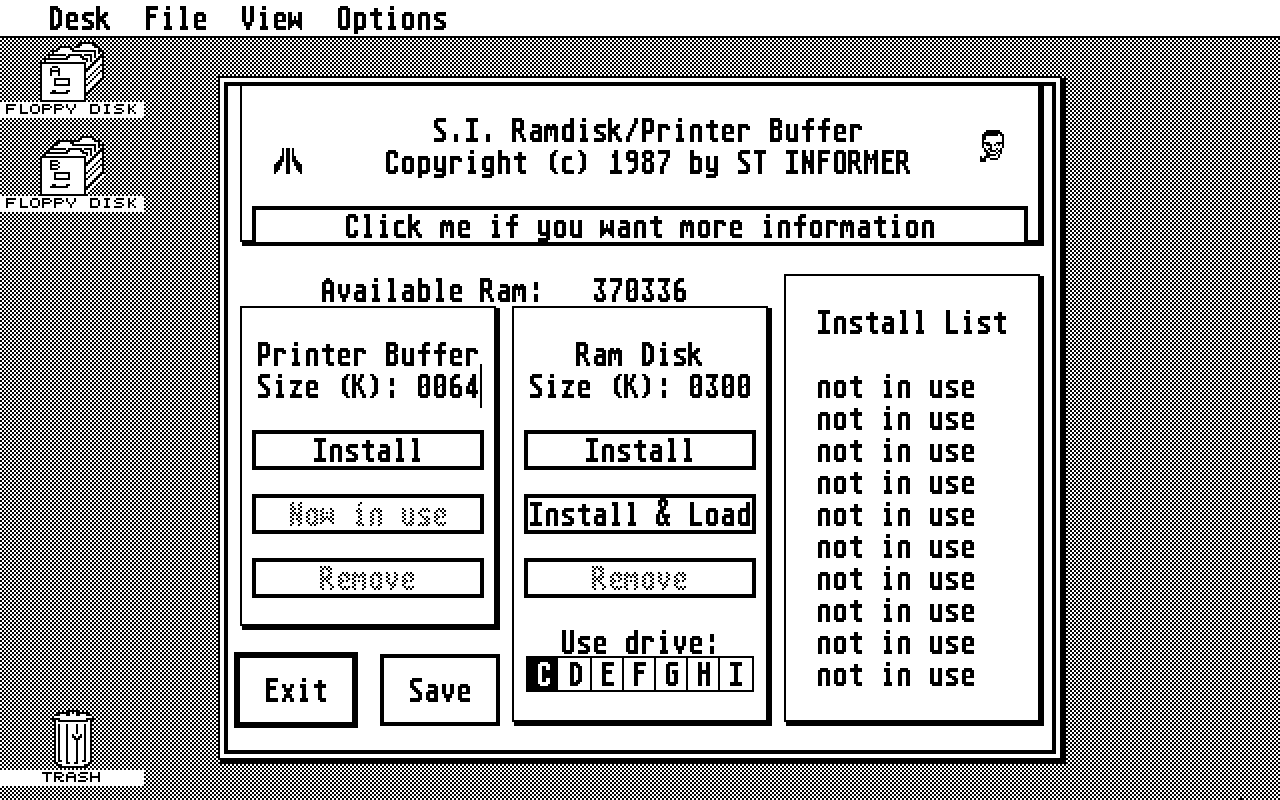
1 - The printer buffer is about what you would find in most
printer buffer programs. It intercepts output to the printer and
redirects it to an area of ram for printing at the slower speed of
the printer. To use it, click on the size text and enter a
suitable number of k, say, 64 for 64,000 bytes. After setting the
size, click on Install. You will note that the Install button is
then disabled, and that Remove then becomes active. You can remove
the buffer at any time; for instance, to increase the size of the
buffer you would remove it, change it's size, then install it once
again. The last button of the trio becomes active if there is text
in the buffer to be printed. You can click on it and cancel the
print run if you so desire.
     Note: the driver routine for the background printing uses the
200hz system clock interupt to send characters. Up to ten
characters are sent during one interupt interval (if the printer
can take them) so the maximum throughput is 2000 characters per
second. Although a much slower speed would suffice for text, we
ran in to a problem when doing bit image work. The printer became
very slow as a much greater amount of data is needed for a line of
graphics than is needed for text.

2 - The ram disk is also conventional. Set the size (like for the
printer buffer), then choose which drive will be identified as the
ram disk. The allowable drives are C through I, selected at the
bottom of the center box. Remember, you'll need to create an Icon
for the drive to be able to use it from the Desktop (refer to the
Atari reference manual that came with your computer). Now click
the Install button and the drive will be available for use. To
remove the ramdisk click on the Remove button. You may then set a
new size and re-install it if need be.
     Another feature of the ramdisk is it's autoload function. To
do this, select one of the ten Install List text items with the
mouse. A file selector will then appear and allow you to select a
file or entire directory to copy to the ramdisk when it is
installed. To select a file to autoload, use the file selector in
the normal manner to enter the drive, path and file desired. The
autoloader will re-create the path (folders) on the ram disk then
copy the file into it.
     You may also copy all the files in a given directory by
leaving the file Selection line blank. The auto loader will then
use the wildcard expression at the end of the path to load all
files that match. For instance, if the final path selected was
'C:\NEOCHROM\*.NEO' then a folder called NEOCHROM will be created
on the ramdisk and all files with a .NEO extender in that folder
on drive C will be copied there. Note: to finalize a selection in
the file selector, click on 'OK'. To remove a selection from the
auto load list, click on the 'Cancel' button; in this case the
selected line in the list will be replaced with 'not in use'. You
can easily tell if an item in the list is a single file load or an
entire directory copy; a file has the filename printed in the list
where a directory copy will have the first 12 characters of the
path listed.
     To perform the auto copy, click on the Install & Load button
in the ramdisk section. This has the same effect as Install, but
then the auto loader is activated. Remove will work the same way.

3 - Click on the Save button to save the current settings of the
accessory. This includes all the auto load information, size of
buffers, and if they are installed or not; i.e. if you used
Install & Load and the ramdisk is still installed at the time
you click Save, the ramdisk will be installed at your selected
size and auto loaded on powerup.

4 - Click on Exit to leave the dialog box when you are finished.

     Final note: for some reason there is a bug in the memory
management routines of TOS. Sometimes when you remove one of the
buffers not all the memory that you should have is shown in the
Available Ram spot. A usual remedy for this is to exit the
accessory, and list a text file to the screen (double click on a
text file from the desktop, then click on SHOW from the resulting
dialog box). After doing this, the memory size should be correct
(although in rare cases it isn't, and the computer will need to be
reset to free the memory). At this time there is no fix for this
problem. It will be up to Atari to someday correct this bug.

     And a last final note: The accessory program GET_DEFS is a
short accessory that sets some of the options of the desktop that
normally needs the control panel to do. This frees up some memory
used by the otherwise useless control panel, and frees some slots
in the desk pull down menu for other accessories to use.
     The heart of this short program was added to this ramdisk /
printer buffer program so GET_DEFS.ACC is not needed. This frees
even more memory and allows for a full six accessories to be used
(GET_DEFS.ACC alone had to be counted as one of the allowable six,
even though it took no slot in the accessory list).