Atari ST - 1988
Intersect RAM Baby
- Genre
- Memory
- Year
- 1988
- Language
- [unknown]
- Publisher
- [no publisher]
- Controls
- Mouse
- Distributor
- —
- Resolution
- Medium / High / VGA
- Developer
- Intersect Software
- ST Type
- ST, STe, TT, Falcon030 / 0.5MB
- Licensed from
- —
- Programmer(s)
- [unknown]
- Country

- MIDI
- —
- Software
- English
- Version
- 1.0
- Box/Instructions
- English
- Number of Disks
- —
- License
- PD / Freeware / Shareware
- Dump
- Download
- Serial
- —
- Dump format
- MSA
- Protection
- —
INSTRUCTIONS
                        INTERSECT RAM Baby

                           VERSION 1.0
                             06/06/88


     This is a public domain RAM disk and print spooler.  The speed of
this RAM disk is much improved over that in the popular INTERSECT RAM
disk that it replaces; as a matter of fact, it is nearly twice as fast
as the original. It is functionally similar to its predecessor except
that drives C through P may be designated for installation.  The print
spooler is installable in any size and may be removed (as can the RAM
disk) and re-installed at a different size.  Also included is the
ability to save startup settings so that the RAM disk, print spooler
or both may be auto installed at bootup.  By popular demand, we have
also given you the option of turning off the sounds and the warning
messages.

                  Putting RAM Baby On Your System

     To use this accessory you must place RAMBABY.ACC on your boot
disk so that it will be included as a desk accessory the next time you
start your ST.

                        Using RAM Baby

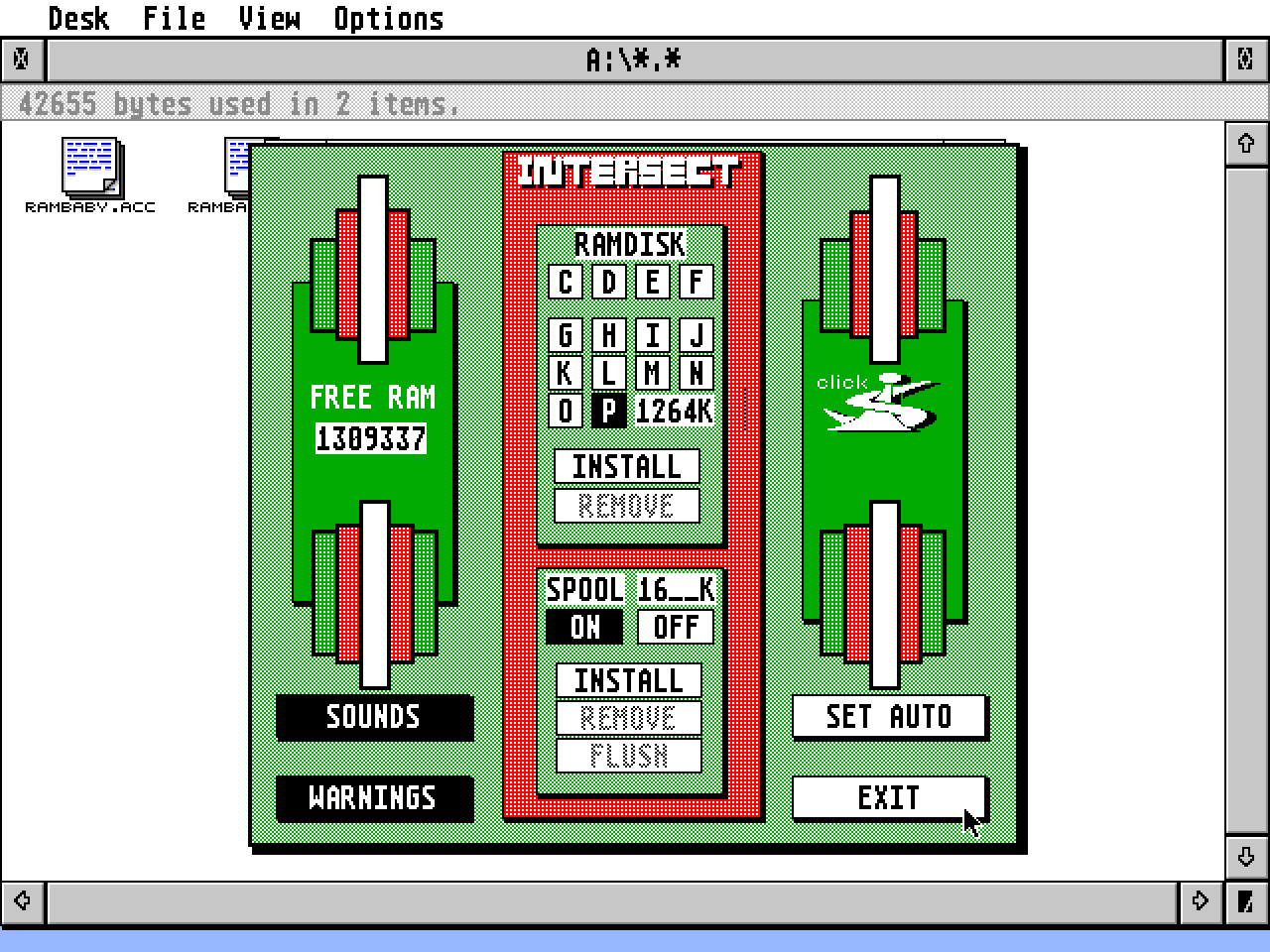
     To use RAM Baby you need only click on the INTERSECT RAM Baby
selection bar contained within the Desk heading of the; Desktop's menu
bar.  RAM Baby will then present you with a dialog box containing the
selector buttons for the RAM disk and print spooler.  A display of the
currently available memory appears in the middle left of the dialog.

     To install the RAM disk simply enter the size, in K-Bytes, that
you wish to allocate, click on the appropriate drive letter and press
the INSTALL Button.  Provided that there is enough memory, a success
tune will be played, failure to install is usually due to lack of
memory.

     Once installed the RAM disk can be removed by selecting the
REMOVE button.  ALWAYS remove the RAM disk and print spooler before
changing screen resolutions!  Also note that, once removed, any data
in the RAM disk or print spooler is lost!

     To install the print spooler simply enter the size, in K-Bytes
that you wish to allocate and press the spooler INSTALL Button.
Provided that there is enough memory, a success tune will be played,
failure to install is usually due to lack of memory.  The print
spooler may be removed by selecting the REMOVE button.  ALWAYS remove
the Print Spooler and RAM disk before changing screen resolutions!
Also note that, once removed, any data in the print spooler is lost!

     The possible reasons for installation failure of either the RAM
disk or print spooler are as follows:

-    Requested memory size exceeds that which is available (Make sure
     that the size selected is less than memory available).


-    Requested RAM disk memory size less than that which is required
     for the disk control blocks (installing a RAM disk of less than
     20K is pointless).

-    The drive specified is already installed in the system (this will
     occur if you have a RAM disk or a hard drive currently active as
     the disk unit specified when you click INSTALL).  If you have
     reset your system with the RAM disk installed you should simply
     install the RAM disk by clicking on the OK button in the warning
     dialogue.  If, however, you actually have an active disk on the
     specified drive you should click on the Cancel button, select an
     available drive and click on INSTALL again.

     After successfully installing press the EXIT button to close the
RAM Baby selector box.

     Before you can actually access the RAM disk from the Desktop you
must tell GEM about it.  This is done by clicking once on any drive
icon (so that it is highlighted) and selecting the Install Disk Drive
selection bar in the Options header of the menu bar.  The Install Disk
Drive dialog will be presented.  Change the drive identifier to match
the RAM disk drive you have installed (C through P).  You may then
optionally change the icon label to RAM disk.  To complete the
installation press the Install button and the new disk Icon will
appear somewhere on the Desktop.  Move it to where you like and it is
ready for use.  If you want the Icon to always appear automatically
when you boot just save your desktop at this point.

     The RAM disk and/or print spooler may also be set up so that they
automatically install when you boot your ST.  This is accomplished by
creating an auto boot file, which can be done from the RAM Baby dialog
box.  To create the auto boot simply set the drive specification,
desired RAM disk size and print spool size in the RAM Baby dialog and
press INSTALL on either or both.  Once it is installed as you wish it
to boot, simply press the SET AUTO button and the file RAMBABY.AUT
will be written to your boot disk.  The next time that you boot your
system RAM Baby will configure itself exactly as you had last set it.

                 Print Spooler Special Features

     The RAM Baby print spooler has some special features not
available in most ST print spoolers.  These features are activated
from the RAM Baby dialogue box and function as follows:

-    Spooler "ON" is the normal state of the print spooler and desig-
     nates that it is active (if installed) and spooling output.

-    Spooler "OFF" will stop output from the spooler and allow you to
     directly print.  Printing of data left in the spooler will
     continue when "ON" is re-selected.

-    Spooler "FLUSH" will empty the contents of the spooler, this is
     effectively the same as removing and re-installing the spooler.

                  Memory Management Limitations

     The memory management in your ST operating system has several
limitations that will affect the way that you handle RAM disk and
print spooler installation as follows:

     1.)  When changing resolutions you must first de-install the RAM
disk and print spooler by clicking their respective REMOVE buttons.
(All data in the RAM disk and print spooler will be lost at that time
so make sure that you have backed up anything you will later need).
Failure to de-install before a resolution change will cause
unpredictable results.

     2.)  When the RAM disk or print spooler is first removed the
memory available indicator will often not show the total amount of
memory available.  To reclaim all available memory you must run a
program from the Desktop (showing a file will do the job just fine).

     3.)  Never install the RAM disk or print spooler from within a
program unless you intend to de-install it before you exit the
program.  The ST operating system will treat the memory allocated like
program memory and free it when you return to the Desktop, the results
of which are unpredictable.  You may however de-install or view
available memory at any time.  In summary, always install the RAM disk
or print spooler from the Desktop and you will not experience this
problem.

                        Quick Instructions

Installation:

- Place RAMBABY.ACC on your boot disk.
- Re-boot your system.
- Click on INTERSECT RAM Baby desk accessory.
- Set desired RAM disk size (leave enough room to run programs).
- Select desired RAM disk drive ID (C through P).
- Click on the RAM disk INSTALL button.
- Set desired print spooler size.
- Click on the print spooler INSTALL button.
- Click on the SET AUTO button if you wish to auto install on
  future system startups (tune will play when boot file is written).
- Click on EXIT button.
- Install selected drive icon by clicking on Install Disk Drive in
  Options menu (save Desktop now to eliminate this step in the
  future).

Removal:

- Click on INTERSECT RAM Baby Desk Accessory.
- Click on REMOVE button for either RAM disk, print spooler or both
  (tune will play).
- Click on EXIT button.

     The RAM Baby is Supplied by:  INTERSECT Software Corp.
                                   2828 Clark Road, Suite 10
                                   Sarasota, Fl.  34231

     Copyright 1988, INTERSECT Software Corp.  This product may be
     distributed freely provided that this documentation accompanys
     it.

RAM BABY IS PROVIDED  WITHOUT WARRANTIES OF MERCHANTABILITY AND FITNESS
FOR A PARTICULAR PURPOSE.  INTERSECT SOFTWARE CORP. WILL NOT BE LIABLE
FOR DAMAGES DUE TO LOST DATA OR ANY CONSEQUENTIAL DAMAGES.