

Atari ST - 1990
Ocultar
- Genre
- Copying / Protecting / Dumping
- Year
- 1990
- Language
- GFA BASIC
- Publisher
- [no publisher]
- Controls
- Keyboard / Mouse
- Distributor
- —
- Resolution
- Low / Medium / High
- Developer
- [n/a]
- ST Type
- ST, STe / 0.5MB
- Licensed from
- —
- Programmer(s)
- Hafner, Carl J.
- Country

- MIDI
- —
- Software
- English
- Version
- 1.5
- Box/Instructions
- English
- Number of Disks
- 1 / Double Sided
- License
- PD / Freeware / Shareware
- Dump
- Download
- Serial
- —
- Dump format
- MSA
- Protection
- —
INSTRUCTIONS
                                    OCULTAR
                                  Version 1.5
                                 =*=*=*=*=*=*=

                 (C)1990 Carl J. Hafner   ALL RIGHTS RESERVED
                 --------------------------------------------

               OCULTAR [o-cool-tar'],va.  1. To hide,to conceal,
               to disguise. to secrete, to mask, to hoodwink, to
               cloak.  2. To keep back,to keep secret what ought
               to be said.

                                  DISCLAIMER
                                  ----------

 The author cannot be responcible for any damage to your equipment, other
 software or hardware products or mental or physical well being caused by
 the use, misuse, abuse or inability to use this program. The author also
 makes No Guarantee as to the compatability of this program with other
 software or hardware products.

 Using this program means that you understand and agree with the terms
 just explained. If you do not agree, DO NOT use this program.


              IF YOU HAVE DOWNLOADED THIS PROGRAM FROM A "B.B.S"
              --------------------------------------------------

 You are free to copy and distribute this program as long as the files -
 OCULTAR1.PRG \ OCULTAR2.ACC \ OCULTAR2.RSC \ OCULTAR.DAT \ OCULTAR.DOC
 REGISTER.DOC and QUIKTIPS.DOC are included, are NOT MODIFIED in ANY way,
 and NO FEE of ANY TYPE is incurred upon the recipient.

 This program is SHAREWARE. If after trying it you decide it is of use to
 you, you are asked to register for a nominal fee. You may register by
 using either the enclosed REGISTER.DOC, or by filling out the required
 information on a blank sheet of paper and mailing it in. All documents
 included with this program are saved in ASCII format and may be printed
 out directly from the desktop.


                               REGISTERED USERS
                               ----------------

 You ARE NOT free to make copies of this program for ANYONE other than
 yourself or family members who may have access to the computer you are
 using in your home. If you are using this program in a work environment
 you are asked to ensure that NO copies of this program are made by either
 friends, colleagues or clients.

 Allowing distribution of the registered program is a violation of your
 registration agreement and will result in the instant revocation of your
 registration. You will not be eligible for updates and will not be
 eligible to register again.

 By registering your copy you are stating that you understand and agree
 with the terms just explained. If you do not agree, DO NOT use this
 program.

 ALL registered users will receive notification of updates as they become
 available and will receive those updates at a substantially reduced
 fee. The update fee is to cover the cost of the disk and the postage and
 handling. No additional fee will be charged for the program itself.


                              TABLE OF CONTENTS
                              -----------------

 1) Setting Up
      Loading The Program
 2) Creating A Password
 3) Engaging Password Protection
 4) The "Backdoor" Option
 5) Tips
 6) Statistics

 7) Credits


                                  SETTING UP
                                  ----------

 Ocultar works in LOW, MEDIUM and HIGH resolution. It will work on both a
 floppy disk and a hard disk.

 1) The first thing that you must have if you are using anything below TOS
    1.4 is an AUTO folder. Select the drive you are using as your "boot"
    drive and create a folder named AUTO by choosing the "Create Folder"
    option from your Desktop Menu.

 2) Place OCULTAR1.PRG in your AUTO folder and temporarily rename it
    OCULTAR1.PRX. If you are using a program such as SuperBoot you will
    need to place OCULTAR1.PRG before SUPERBTA.PRG in your AUTO folder.
    Consult the manual governing any such program as to the requirements
    of that program.

 3) Place OCULTAR2.ACC and OCULTAR2.RSC in the root directory of your boot
    drive (not in a folder).

 4) Reboot your computer to install OCULTAR2.ACC and OCULTAR2.RSC.


                             CREATING A PASSWORD
                             -------------------

 OCULTAR2.ACC and OCULTAR2.RSC will now be installed as Desk ACCessories
 and will be accessible from the Desk Menu on your Desktop (assuming you
 have less than 6 accessories preceeding it).

 1) Select Ocultar from the Desk Menu.

    The first thing that Ocultar will do is to search for it's ReSourCe
    file. This is to ensure that the password file, OCULTAR.DAT is being
    written to the correct path. Certain programs such as NEODESK may
    change your boot path to something other than "C:\*.*". In the case
    of NEODESK your current path may be "C:\NEODESK\*.*". Simply open a
    desktop window to Drive C to change the current path specification
    to "C:\*.*".

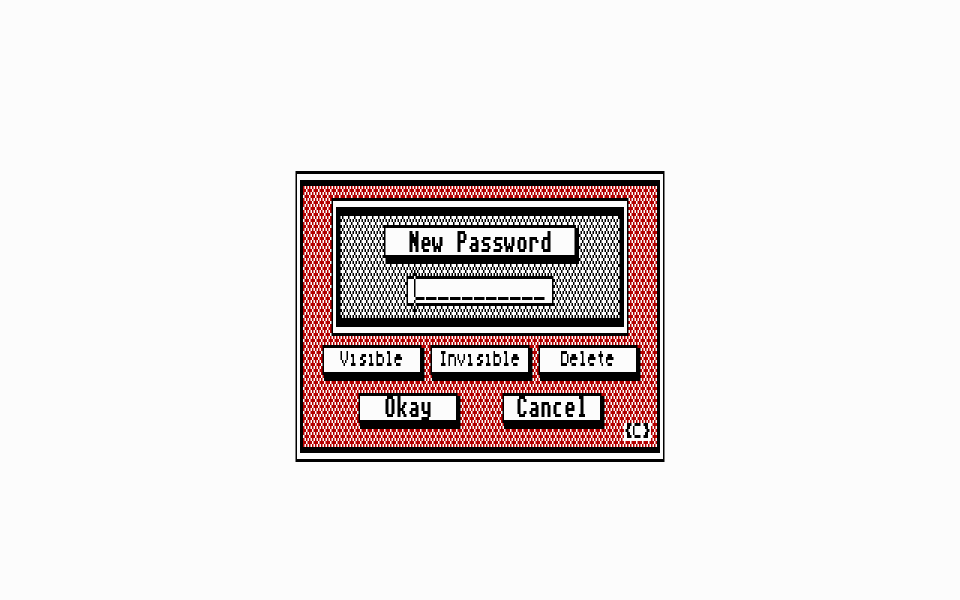
 2) Enter a Password of up to 11 characters.

    Below this are the Password Files Status buttons.

 3) Select either VISIBLE, INVISIBLE or DELETE.

    VISIBLE: This option creates a password file which is visible from the
             GEM desktop. Since the Password is saved in ASCII (text only)
             format, anyone who double-clicks on this file may find out
             your password.

  INVISIBLE: This option creates a password file which is invisible from
             the GEM desktop. No-one will be able to see it (including
             yourself). To get it back, simply enter a new password (or
             the same one), and choose Visible.

   CAUTION:  DO NOT reorganize a disk drive without first deleting all
             hidden OCULTAR.DAT files. If you do, the remaining files will
             appear as lost-clusters, or allocated clusters not in files.
             The author CANNOT assume liability for loss of data or damage
             to data that may result from such actions.

   DELETE:  This option erases the file OCULTAR.DAT completely. It is the
            same thing as dragging the file to the TRASH can, the exception
            being that it will also erase the file if it is invisible.

 The file OCULTAR.DAT must be in the same path as OCULTAR2.RSC in order for
 any of these functions to work properly.

 When you are done click on OKAY to create your new Password file. If you
 click on CANCEL (or hit the  key) the entire procedure will be
 aborted.


                        ENGAGING PASSWORD PROTECTION
                        ----------------------------

 1) Open your AUTO folder and rename OCULTAR1.PRX as OCULTAR1.PRG.

 2) Make note of your Password as you will now need it to gain access to
    your system.

 3) Reboot your computer.

 The first thing to appear after OCULTAR1.PRG has been activated is a prompt
 to LOGON < V >isibly or < I >nvisibly.

   < V >isible:   Allows you to see your password as you type it in.
   < I >nvisible: Does not let you see the password as you enter it.

 4) Hit either < V > or < I >.

 5) You will next be prompted to LOGON your password. Enter your password
    and hit .

    If the Password is correct the program will allow you to proceed. If it
    is incorrect it will keep prompting you until you enter the correct
    Password.


                             THE BACKDOOR OPTION
                             -------------------

 By popular demand a "backdoor" option has been added. A backdoor is a
 password which is ALWAYS accepted by the program, regardless of what the
 current password is. This allows you to gain access to your system in the
 event that you have forgotten the current password, or someone has played
 a mean trick and changed it when you weren't looking.

 If you would like a backdoor into your program, specify the password you
 would like on the appropriate line of the registration form. This WILL NOT
 affect the normal operation of the program and the password you create
 with the program will be as valid as your backdoor. In other words, both
 passwords will give you access to the system. One DOES NOT cancel out the
 other.

 If you DO NOT want a backdoor into your program leave the BACKDOOR PASSWORD
 line of the registration form blank. Either that or put a giant magic
 marker slash through that line. DO NOT put "none" or "I don't want one"
 on this line as this would mean that you wish to have such a line as your
 BACKDOOR PASSWORD.

 To illustrate how a backdoor works I have included one with the BBS version
 of this program. The backdoor into this program is the word "Help".
 Normally this could be the password you specify on your registration.
 Create a Password file using OCULTAR2.ACC and then reboot your computer.

 At the LOGON prompt choose isible. If you enter your backdoor password,
 in this case "Help" the program will open your password file and print
 your current Password on the top of the screen. You now know the correct
 Password to access your system.

 As I mentioned earlier the backdoor DOES NOT replace the Password you have
 created with the program. Simply enter your current password to access
 your system.

 NOTE: You may wish to specify a backdoor password which is fairly obscure
       and cannot be easily figured out. You ARE NOT limited to 11 characters
       with your backdoor password. An example of such a password could be
       QwertY/2+lWEt  or  plW..uN87yYy+dQb.

       Please be VERY specific when requesting your backdoor password as
       this password will be written directly into the code of the program
       and cannot be changed unless you return your original registered
       disk.


                                     TIPS
                                     ----

 For maximum security, OCULTAR1.PRG should be the FIRST file in your AUTO
 folder. For consistent security OCULTAR2.ACC\RSC should always remain in
 the root directory of your boot drive. This allows the file OCULTAR.DAT
 to be written to a commonly accessed area.


                                  STATISTICS
                                  ----------


 OCULTAR1.PRG uses VERY little memory (5,120 bytes) and releases it
 IMMEDIATELY after you run it. It DOES NOT require any autobooting programs
 such as STARTGEM to operate.

 OCULTAR2.ACC when installed requires close to 100,000 bytes to run. Those
 of you with memory restrictions need not be concerned by this. OCULTAR2.ACC
 is ONLY required to create a new password. Once the password is created
 you can disable OCULTAR2.ACC by renaming it OCULTAR2.ACX. OCULTAR1.PRG
 will completely control your password operations from this point on. You
 ONLY need OCULTAR2.ACC if you wish to change the password.


                                   CREDITS
                                   -------


Written in GFA Basic 3.07  (C)1988 GFA Systemtechnik
SuperBoot is (C)1990 Gordon W. Moore
NeoDesk is (C)1988,1989,1990 Gribnif Software.
Ocultar is (C)1990 Carl J. Hafner
StartGem is a Public Domain Utility.

Correspondence:
---------------
Carl J. Hafner
RD 2, Box 184C
Hawley, PA. 18428

GEnie:      C.HAFNER
CompuServe: 71510,431

Thank You for your interest and support and most of all for supporting the
SHAREWARE concept.
                    Uncle Carl