

Atari ST - 1994
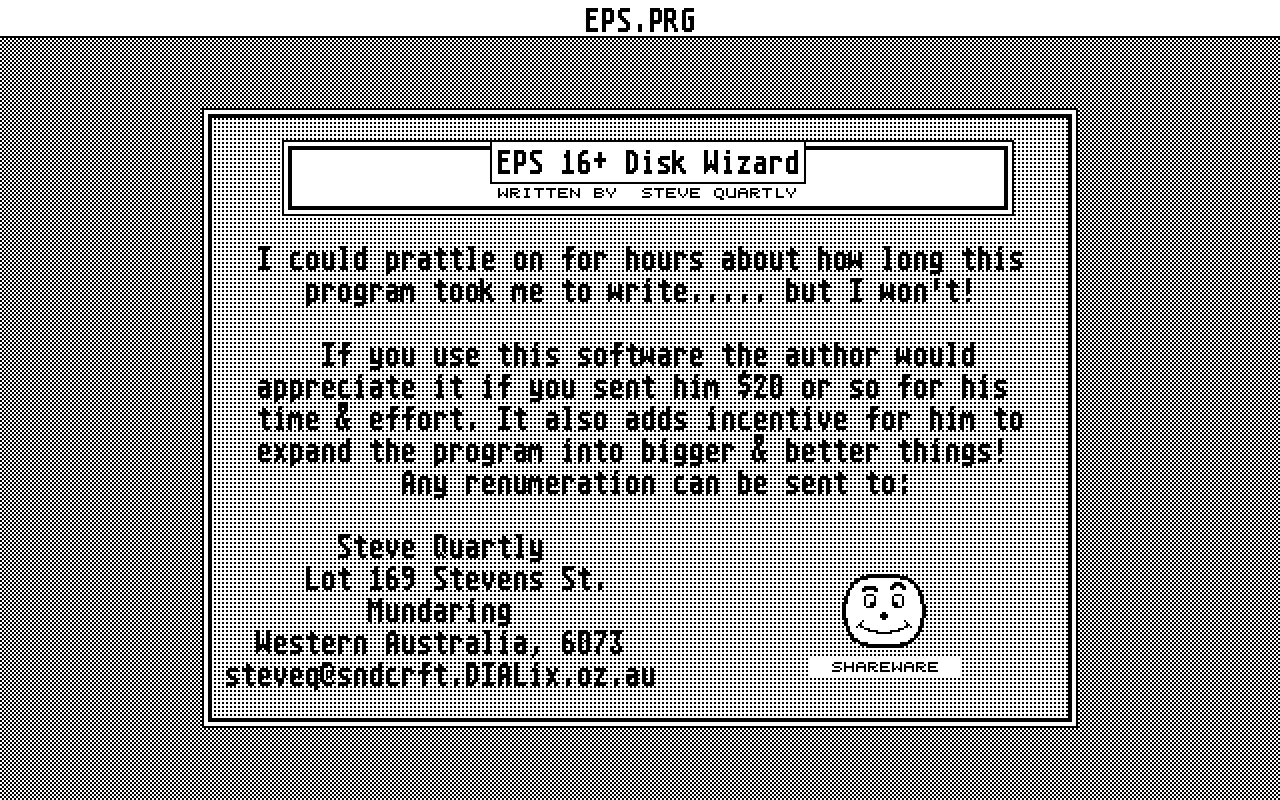
EPS 16+ Disk Wizard
- Genre
- Tape / Disk / Cartridge Utility
- Year
- 1994
- Language
- [unknown]
- Publisher
- [no publisher]
- Controls
- Mouse
- Distributor
- —
- Resolution
- Medium / High
- Developer
- [n/a]
- ST Type
- ST, STe, TT, Falcon030 / 0.5MB
- Licensed from
- —
- Programmer(s)
- Quartly, Steve
- Country

- MIDI
- —
- Software
- English
- Version
- 2.31
- Box/Instructions
- English
- Number of Disks
- 1 / Double Sided / HD Installable
- License
- PD / Freeware / Shareware
- Dump
- Download
- Serial
- —
- Dump format
- MSA
- Protection
- —
INSTRUCTIONS
                          EPS 16+ Disk Wizard
                          -------------------
                             version 2.31
                             ------------

                        written by Steve Quartly
                        ------------------------

Thanks must go to Gerry Leone for helping me by beta testing  the
software before it was released, so....... Thanks Gerry ! :-)

Thanks  must  also go to Chris Parker who's help  was  invaluable
whilst writing and debugging the format routine which is  written
almost entirley in assembler.


Files
-----

EPS.PRG        -> The program.
EPS.RSC        -> The resource file for hi-res.
EPSMED.RSC     -> The resource file for med-res.
READ.ME        -> This help file.
EPS__130.OS    -> Version 1.30 of the EPS 16+ operating system.
EPS_249.OS     -> Version 2.49 of the EPS operating system.
                  (For those with the updated ROM's)
EPS_235.OS     -> Version 2.35 of the EPS operating system.
                  (For those without the updated ROM's)
ASR_200.OS     -> Version 2.00 of the ASR operating system.
                  (For those with the updated ROM's)
ASR_161.OS     -> Version 1.61 of the ASR operating system.
                  (For those without the updated ROM's)

History
-------

Version 1.0
-----------

Released 1/4/1992.


Version 2.0
-----------

Released 1/5/1992

Modified title on the back of the disk label.
Added Disk Cataloguing Function.
Modified code to run on both Hi-res & colour monitors.

Version 2.1
-----------

Released 23/5/1992

Modified Atari -> EPS Disk write routine to recognize .GKH format,
(read only).
Added Effects to printout of disk labels.

Version 2.2
-----------

Released 28/11/1993

Fixed a bug in the code which affected the .EDE disk write function.
Consequently  an  .EDE  file could be written  to  the  Atari,  but  not
converted back to an EPS disk. This is now corrected.

Disk  Wizard  now  recognizes how many floppies  are  connected  to  the
system. The Copy Disk/File now reflects this in it's dialog box.

Version 2.31
------------

Released 5/2/1994

Disk Wizard now recognises ASR-10 file types.

Conversion from ASR files to EPS 16+ files implemented.

New implementation of writing operating system.
Operating systems for EPS v2.49 & v2.35, EPS 16+ v1.30, & ASR v2.0
& v1.61 are now supported.

Fixed a bug which meant some ST's would not be able to write .EFE files
correctly.

Fixed a bug where some FAT table entries were incorrectly terminated.

Banks/Songs/Seq's are now included in Disk Label print-outs.

Corrected error trap for a full directory as opposed to a full disk.

Added a 'MORE' button to a directory listing.

Disk Cataloguing is now completely functional with floppy disks.


Overview
--------

This  program is designed to be used with EPS & EPS 16+ disks as a  disk
manager. ASR is now supported. It's functions include:

Directories
Printing Labels
File Deletes
Formatting disks
Changing Disk Labels
Copying Files/Disks - using the .EFE & .EDE standard.
Converting ASR files to EPS 16+ files.

Shareware
---------

This software is (c) Copyright 1994. It is not public domain.

It is released under the shareware scheme.

That is,  if you use this software the author,  me :-), would appreciate
it  if you would send him the small sum of $US20,  or more if you  like!
for the time and effort put into writing this software. $-)

Any money can be sent to:

Steve Quartly
169 Stevens St.
MUNDARING
Western Australia, 6073
steveq@sndcrft.DIALix.oz.au

It  was  originally written for my own private use but  it  is  becoming
increasingly  obvious that there are other people out there with a  need
for this software.

Legal Stuff
-----------

   Any commercial usage or selling without the author's written
authorization is strictly forbidden. Also commercial distribution of
Disk Wizard and it's relative files is *NOT* allowed without written
permission from the author. This also means the distribution on cover
disks, disk magazines etc.

Disclaimer

   This software is provided *AS IS*, without warranty of any kind,
either expressed or implied. In no event will I, Stephen Quartly, be
liable for direct, indirect, incidental or consequential damages or
data loss resulting from the use or application of this software. The
entire risk as to the results and performance of this software is
assumed by you.

   This software is distributed in the hope that it will be useful, but
without any warranty; without even the implied warranty of
merchantability or fitness for a particular purpose.


                           Brief Instructions
                           ------------------

As  most of the functions in this software are self  explanatory,  these
instructions a only a brief summary of how they work.

Disk Directory
--------------

This will list on the screen all INSTRUMENTS/BANKS/SONG.SEQS/SYSEX/MACRO
etc....  These will all be displayed at the same time, so you can see at
a  glance what is on your disk.

Selecting ANOTHER DISK will re-read the directory of the disk.
Selecting PRINT LABEL will print a disk label of the currently displayed
disk.  With AUTO PRINT on,  every time you put in a new disk and  select
ANOTHER DISK, a label will automatically be printed.

When a disk label is printed,  instruments & effects are printed on  the
label. This follows the release of Wave Boys Effects disk.

Only Epson compatible printers are supported at this stage.

NOTE: As directories are not really necessary on floppies, this software
will  list  them  but not let you access  them.  You  can  never  access
directories at any time with this program.

Added 1/1/1994
--------------
If a '#' is displayed between the file name and the block size then this
file is an ASR file.

The CONVERT button allows you to convert a disk that has ASR files on it
and make them compatible with an EPS 16+. THIS IS A HACK! Doing this may
crash your EPS 16+ (of course it won't harm it). Everything I have tried
so far will load into the EPS 16+. But I can't guarantee it, Ensoniq have
changed the file headers for a reason. Disk Wizard merely changes them
back to what an EPS 16+ expects. So this is only for those of us with
EPS's that wish to try and load ASR files.

***WARNING: ASR users should NOT modify their disks using this function
            unless using a backup!

***NOTE: This changes the data on the disk and it cannot be reversed, so
         do this with a backup copy of your disk.

A MORE button has now been added to the directory display. If there are
more files on the disk than can be displayed on the screen, clicking on
'MORE' will display them.

Delete File
-----------

This will delete which ever EPS 16+ file you have selected from the file
selector box.

NOTE: This operation is irreversible.


Write Label
-----------

This will change the EPS 16+ label on the disk.  You have no constraints
on what characters you can use,  however the EPS 16+ only uses uppercase
and  numbers,  so  you  may type in something here that  the  EPS  can't
display.

NOTE:  Changing a disk label may affect a subsequent bank load,  so make
sure that any banks that use this disk are re-saved.

Format Disk
-----------

This  will format an EPS disk.  If you select BOTH  SIMULTANEOUSLY  both
drives A:  & B: will be formatted at the same time. The speeds up things
quite a bit.

*** WARNING!!! ***
------------------

This routine was a nightmare to write as the Atari's ROM will only allow
you to format starting from sector 1.  The EPS needs to format sector 0.
Consequently to get this routine working,  I am making direct calls into
low memory.  This is 'illegal', but has to be done or this whole program
is useless.  It works 100% on TOS 1.4 & I suspect TOS 1.6 will work  too
although this has not been tested.  I don't know what will happen on TOS
versions lower than 1.4. If you have problems see the bug report below.

NOTE:
Formatting on TOS 1.62 is now confirmed to be working.

Copy File/Disk
--------------

This will copy files to and from EPS & Atari disks,  and disk images  to
and from Atari disks.

Copy File
---------

To  copy  a  file  select what you want from  the  menu  box,  source  &
destination  drives can be selected,  source and destination file  types
can be selected.
If  you copy to Atari,  it will be copied using Gary Gieblers  IBM  .EFE
file format,  this makes all Atari .EFE files compatible with IBM's .EFE
files.

Copy Disk
---------

See Copy File except insert the words Copy Disk!

When  you copy a EPS disk to an Atari file it uses the Gary Giebler  IBM
.EDE file format.  Once again this makes all Atari .EDE files compatible
with IBM's .EDE files.

Disk Wizard will also recognize Goh King Hwa's .GKH file format. It will
automatically extract either the .EDE or the .GKH format.  This will  be
transparent to the user. It will not, however, write the .GKH format. Any
disk written to an Atari disk will be in the .EDE format.


NOTE:  Generally my copy alogorythms are VERY fast. However there is one
exception.  If the file on EITHER the Atari  or  EPS is  fragmented  the
copy speed drops DRAMATICALLY. I will look at trying to speed this up in
future versions.

Catalogue
---------

This  function  allows  you  to  catalogue  all  your  EPS  disks.  Only
instrument and effect files will be catalogued.

Using Catalogue:

If you haven't got a hard disk, put a formatted Atari floppy disk in a
drive.
This is the disk where the data file will be written.
Using the Atari file requester enter a file name and click on OK. Now
put your EPS disk in a drive and select the appropriate drive.

As you are cataloguing you will be prompted to swap to and from your
Atari and EPS disk from time to time.

Once  you  are  at the Catalogue menu,  you will see  the  name  of  the
instrument/bank,  simply select the type of instrument you would like it
categorised under.  Then click on ADD/NEXT FILE.  The next file will  be
displayed, and you can continue.

If  you  wish to give an instrument 2 or more categories  then  use  ADD
FILE.  This adds the instrument with the selected category but does  not
go to the next file.  Use ADD FILE as many times as you like,  just make
sure your last entry is terminated with a ADD/NEXT FILE. This is handy
for cross referencing files, e.g. it sounds like voices AND flutes.

Use  SKIP FILE to skip the current instrument/effect name and go to  the
next.

The database format written to disk is shown below:

TRUMPET     :DISK000:BRASS       :1200
TRUMPET     :DISK000:TRUMPET     :1200

Here  the instrument TRUMPET has been categorised twice,  once as  BRASS
and  once as TRUMPET.  The file can be as big as you have free  room  on
your disk.  This file can then be imported into any database and  sorted
however you wish, comment fields can be added etc...

Doing the cataloguing this way allows you to use your favourite database
and allows you to have the full powerful features of your database.

NOTE:
If your database does not support a ':' as a delimiting character, just
use a search and replace in any word processor to change it to what your
database is expecting.

Write O.S.
----------

Use this function to copy the Operating System to a EPS floppy.

Files included are:
EPS__130.OS    -> Version 1.30 of the EPS 16+ operating system.
EPS_249.OS     -> Version 2.49 of the EPS operating system.
                  (For those with the updated ROM's)
EPS_235.OS     -> Version 2.35 of the EPS operating system.
                  (For those without the updated ROM's)
ASR_200.OS     -> Version 2.00 of the ASR operating system.
                  (For those with the updated ROM's)
ASR_161.OS     -> Version 1.61 of the ASR operating system.
                  (For those without the updated ROM's)

Firstly, select whether your O.S. file is coming off a floppy or your
hard disk, now insert your EPS disk and select the appropriate drive.

The copy will now commence.

NOTE: The Operating System can only be written to a blank, formatted,
EPS disk.


BUGS!
-----

I  have  spent more time de-bugging this program than  actually  writing
it!!  I am not silly enough to think that I have found them all,  so  if
you find any,  I apologise! Please use the bug report form at the bottom
of this document and send it to me either electronically or by post.


                            BUG REPORT FORM
                            ---------------

Please  fill  this  in  as  accurately  as  possible.  Include  AS  MUCH
INFORMATION  AS YOU POSSIBLY CAN.  It doesn't matter how obscure it  may
seem, any bit of info. will help me debug it.

Name:     _________________________________ (optional)

Address:  _________________________________ (optional)

Phone:    _________________________________ (optional)

Type of Computer: _________________________________

Amount of Memory: _________________________________

TOS Version:      _________________________________

Number of floppy drives: __________________________

Disk Wizard Version No.: __________________________

Bug Symptoms: _________________________________________________________

Describe EXACTLY what you were doing and the process you went through to
achieve it:


Post   this   to  the  above  address  or  mail  it   on   Internet   to
steveq@sndcrft.DIALix.oz.au