

Atari ST - Timeworks - 1986
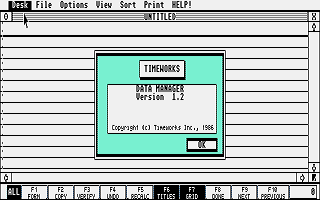
Timeworks Data Manager
- Genre
- Database / Spreadsheet
- Year
- 1986
- Language
- [unknown]
- Publisher
- Timeworks
- Controls
- Keyboard / Mouse
- Distributor
- —
- Resolution
- Low / Medium / High
- Developer
- Timeworks
- ST Type
- ST, STe / 1MB
- Licensed from
- —
- Programmer(s)
- —
- Country

- MIDI
- —
- Software
- English
- Version
- —
- Box/Instructions
- English
- Number of Disks
- 1 / Single Sided
- License
- Commercial
- Dump
- Download
- Serial
- —
- Dump format
- ST
- Protection
- —
INSTRUCTIONS
                   DATA MANAGER ST UPDATE FILE

Low Resolution
This program will not operate correctly in low resolution. You must load
using either medium or high resolution.

Sample Data Bases
Your program disk contains five sample data bases:
1. Mailing list---MAILING.DMF
2. Personnel Tracking---PERSON.DMF
3. General Ledger Records---GENERAL.DMF
4. Sales Analysis---SALES.DMF
5. Sample---SAMPLE.DMF
There is also a sample report format for Sales Analysis called SALES.VDF.
Use the Open Old option to load one of these data bases into the computer.

Column Formats
Once you select a format for a field with a fixed format (numeric, calculation,
or your format), that format cannot be changed. If you decide you no longer
need this field as you designed it, delete the column and add a new one.

Illegal Calculations
If a zero incorrectly appears as the result of a calculation, the calculation
itself may be at fault. The program cannot identify all illegal formulas (eg.
trying to find the square root of a negative number). Another possibility is
specifying a numeric format that is too small for the result.  Sometimes,
after performing a sort or a recalculation (F5), a field will appear to
contain incorrect data. This is because the data is longer than the field.
This can be remedied by widening the field or column.

Disk Size Limit
Your data base can only be as large as one data disk. If your data base is
larger than a single disk, you will have to delete records one at a time to
make the data base fit on your disk. If, while you are saving a file, the
computer finds that there is not enough space on your disk, you will see a
dialog box titled Insufficient Disk Space. In this box there is another box
titled Selective File Delete. This box allows you to remove a file in order
to make room for a new file. The Delete Original box allows you to delete the
original version of the file that you are trying to save. If you do not wish
to delete a file, insert another disk and click the Changed Disk box. The file
will be saved on the new disk. The Format box allows you to format another data
disk if you do not have a formatted disk ready.

Form Page Maximum
You can display up to 50 fields on the form-style view of your data base at
the same time. However, there is no limit to the number of fields in the data
base itself. Each record can hold as many as 6500 bytes (characters).

The Status Box
In the Status box, the Amount of Data is the approximate number of characters
in the data base, while the File Size is the amount of space the data base
will occupy on a disk.

Page Width on Report Heading and Size Box
If your data base is larger than a single screen and you wish to store the
entire data base using the To  Word Writer File or To Ascii File options,
you must increase the page width on the Report Heading and Size box from
its default setting of 80 characters.

The Concatenate Option
When specifying your label format, you must set Concatenate (in the Modify
Column dialog box) for each field you want printed on the same line and
separated by a single space - except the first. For example, if you want the
fields City, State, and Zip Code to appear on the same label line with one
space between each, Concat. must be set for State and Zip Code for the label
to be printed correctly.

Graph Program Operation Files
During your use of the Graph program, the computer will save several work files
on your data disk without letting you know. You must have enough free space on
your data disk for these files, or the Graph program will not operate
correctly.

Drawing Graphs
Do not try to draw a graph when neither New or Old has been chosen from the
FILE menu. This will cause the program to fail.

Importing Data to Graph
When you are importing data to the Graph program from DATA MANAGER, you can
leave the process by pressing UNDO.