

Atari ST - 1990
ST-Page
- Genre
- Word Processing
- Year
- 1990
- Language
- Machine Language
- Publisher
- [no publisher]
- Controls
- Keyboard
- Distributor
- —
- Resolution
- Medium
- Developer
- [n/a]
- ST Type
- ST, STe / 0.5MB
- Licensed from
- —
- Programmer(s)
- Warnestam, Robert
- Country

- MIDI
- —
- Software
- English
- Version
- 1.36
- Box/Instructions
- English
- Number of Disks
- 1 / Double Sided
- License
- PD / Freeware / Shareware
- Dump
- Download
- Serial
- —
- Dump format
- MSA
- Protection
- —
INSTRUCTIONS
                                ST-PAGE


                    Cut out those typing terrors with
                  Robert Warnestam's friendly text editor


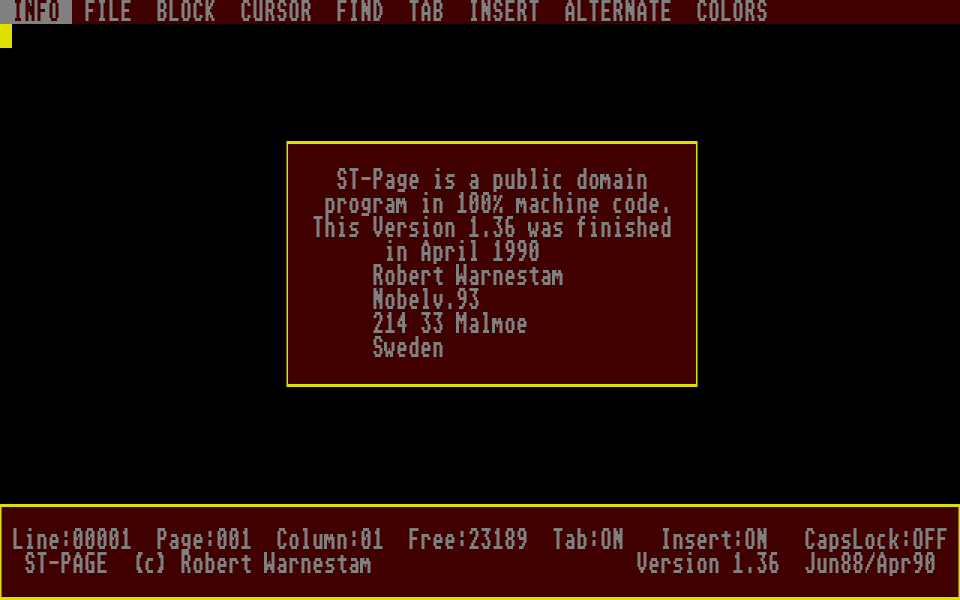
ST-Page is an ultra-fast editor written in 100% machine code using Fast BASIC's
built-in assembler. It produces pure ASCII files which makes it ideal for
entering C, Pascal, assembly language and even BASIC source code. Or if you
simply want to type out a few notes or a letter. Its very compact size means
that it takes up very little space on your utility disk and it's quick to
load.

    After booting up the program (in medium resolution only), you'll see the
menu bar at the top of the screen and the first item will be highlighted. To
highlight a different option hold down the Control key and press cursor left or
right.

    To change the menu bar ink colours press Control+cursor right until the
"COLOURS" option is highlighted. Press Control+cursor down to pull down the
menu and Control+cursor down again to highlight "Block Ink". Hit Return and
another menu will pop up with a list of possible colours which you can
highlight with Control+cursor up and down. Press Return after selecting your
colour and the ink will change.

    You can change the "Block Paper" option too - this is the menu paper
colour. The text ink and paper colours are on the same "COLOUR" menu and can be
changed in the same way as the menu ink and paper.

    You can type in text just like any other text editor, but remember to hit
Return at the end of the line as there is no word wrap facility. The editor
features automatic indent, which is useful when entering lines of source code
when programming.

    To load a text file use Control+cursor left or right to highlight the
"FILE" menu option then press Control+cursor down. Highlight "Load File" and
hit Return to display the standard GEM file selector. Select the file to load
as usual and click on the OK button.

    There is a built in Help screen which is accessed via the "Help" option on
the "INFO" menu. Take a quick peek at this if you're not sure of a command or
function.

COMMAND            FUNCTION
Control+Left       Move menu cursor left
Control+Right      Move menu cursor right
Control+Down       Open menu
        Left       Move cursor left
        Right      Move cursor right
        Up         Move cursor up
        Down       Move cursor down
  Shift+Left       Move cursor to left end of line
  Shift+Right      Move cursor to right end of line
  Shift+Up         Move cursor 22 lines up (page up)
  Shift+Down       Move cursor 22 lines down (page down)
        Tab        Move cursor X steps right
Control+Tab        Toggle tab on/off
        Insert     Insert a space under cursor
  Shift+Insert     Insert a new line under cursor
Control+Insert     Toggle insert on/off
        Delete     Delete character under cursor
  Shift+Delete     Delete line at cursor
        Clr/Home   Move cursor to top of screen
  Shift+Clr/Home   Move cursor to bottom of screen