Atari ST - 1991
PRG Flags
- Genre
- Patch / Driver
- Year
- 1991
- Language
- Compiled C
- Publisher
- [no publisher]
- Controls
- Mouse
- Distributor
- —
- Resolution
- Low / Medium / High
- Developer
- Atari Corporation
- ST Type
- ST, STe, TT / 0.5MB
- Licensed from
- —
- Programmer(s)
- Badertscher, Ken
- Country

- MIDI
- —
- Software
- English
- Version
- —
- Box/Instructions
- English
- Number of Disks
- 1 / Double Sided / HD Installable
- License
- PD / Freeware / Shareware
- Dump
- Download
- Serial
- —
- Dump format
- MSA
- Protection
- —
OTHER VERSIONS WITH THE SAME TITLE (1)
INSTRUCTIONS
PRGFLAGS - a utility to set flags in program headers
Copyright c 1991, Atari Corporation
All Rights Reserved

Starting with Rainbow TOS, some bits at the start of each program file
gained a special meaning.  One of the Rainbow TOS utilities, MAKEFAST,
allowed you to set the "Fastload" bit in the program header, which tells
TOS not to clear all of RAM before running a program.  On machines with
a lot of memory, this can speed program load time significantly.

Now, on the TT, there are two more bits that can make your programs go
faster.  PRGFLAGS is a GEM and/or command-line utility to allow you to
modify and view these bits in a program header.  Because some programs
use RAM in ways that TT RAM can not be used, PRGFLAGS lets you set up
programs so that they are fast, compatible, or both.  The new "Run in TT
RAM" flags lets you tell TOS whether it should try to load the program
into the faster TT RAM or restrict it to ST RAM only.  The "Use TT RAM"
flag tells TOS that when a program asks for more memory, TOS should try
to give it TT RAM if possible.


You can use PRGFLAGS one of two ways, from the desktop, in a dialog,
clicking your way around, or on the command line, giving it arguments.
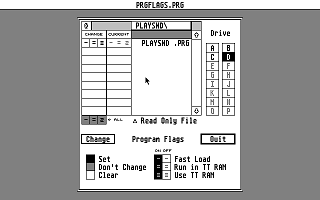
The dialog looks much like a standard file selector, with a few added
features.  To the left of the list of files are a set of buttons and a
set of indicators which let you view and modify the program flags of
the programs displayed.  To the right of the file window is the
familiar stack of drive buttons.  One quirk of the PRGFLAGS drive
buttons is that they will not let you select a drive that has no files
or directories on it.

In the name bar of the file window is a pop-up menu that lets you
quickly navigate directories.  You can move around directories in
PRGFLAGS the same way you do in the file selector, except that there is
no text line for you to enter a specific directory name.  If you pop up
the directory menu, you can quickly return to any parent directory of
the one being displayed simply by clicking on it.

PRGFLAGS displays a list of all executable files that it can find in a
specific directory.  This includes both programs and desk accessories.
Immediately to the left of the file list is a display list which shows
the current state of the programs' "Fastload," "Run in TT RAM" and "Use
TT RAM" flags.  In the far left is a set of buttons that allows you to
set or clear the flags.

Underneath the file window is a row of buttons labeled "All."  If you
set the flag values using any of these buttons, all files in the
currently selected directory will be modified, regardless of whether
they are visible in the file window or not.  You can verify this for
yourself by selecting one of those buttons and scrolling up and down in
a big list of files.  You will see that all the files in the directory
are set to the state of the "All" button you clicked.

Read only files are indicated in the file window with a "delta"
character, just like on the TT/MegaSTE desktop in text mode.  You CAN
modify the program flags of read only files using PRGFLAGS.

If you have a TT or Mega STE, you can use PRGFLAGS by dropping a file
onto it on the desktop or in a window.  When the dialog comes up, it
will display the directory of the file you dropped onto PRGFLAGS, and
the file name will flash so you can quickly find it in the file window.

One more point: if you set some buttons to modify files in a directory
and you try to change directories or quit PRGFLAGS, it will ask you
whether you want to update the flags or discard your changes.

People who like to use command lines can use PRGFLAGS from the command
line or from a makefile.  For information on command line options run
prgflags with the arguments "h h" from your shell.  PRGFLAGS supports
the GEMDOS extended arguments standard, so you can feed it as many
filenames as you like.  Even in command mode, PRGFLAGS will not let you
modify a non-executable file.

A tip for command line users:
  "prgflags 0 0 "
will display the current program flags for .

You'll find the answers to any questions you may have about PRGFLAGS in
the ST RoundTable on GEnie.  Leave a message in Category 14 of the ST
Bulletin Board (M475;1 to get there, or use ST Aladdin!) and you'll find
lots of people there, including the author, willing to help you.

  Ken Badertscher
  Atari Corp. System Software Engine
  February 15, 1991