Atari ST - TOU - 1987
PC-Ditto
- Genre
- Hardware - Emulation / OS Fixing
- Year
- 1987
- Language
- [unknown]
- Publisher
- TOU
- Controls
- Keyboard
- Distributor
- —
- Resolution
- Low / Medium / High
- Developer
- [n/a]
- ST Type
- ST / 0.5MB
- Licensed from
- —
- Programmer(s)
- [unknown]
- Country

- MIDI
- —
- Software
- English
- Version
- 2.03
- Box/Instructions
- English / Spanish
- Number of Disks
- 1 / Double Sided
- License
- Commercial
- Dump
- Download
- Serial
- —
- Dump format
- MSA
- Protection
- —
OTHER VERSIONS WITH THE SAME TITLE (3)
INSTRUCTIONS
README.1ST 18 de Enero de 1987
Nota preliminar:
La actual versión de PC-DITTO ha sido acondicionada
especialmente por TOU S.A. para que funcione correctamente en
monitor monocromo. Como podrán comprobar, los programas de este
disco se leen mucho más rápidamente que los de un disco conven-
cional, y se ejecutan más rápidamente sobre todo cuando se les
somete a una mayor sobrecarga. Se ha liberado esta versión de
los errores de la primera versión monocroma suministrada por
ROBTEK.
¡¡¡ No formatee nunca este disco !!!. En el momento de la
ejecución de la versión monocroma de PC-DITTO, este disco debe
estar presente en la unidad A:, pudiendo retirarse una vez que
haya salido la pantalla principal del programa. Puede realizar
copias de seguridad de este disco por los métodos habituales,
pero la versión monocroma sólo funcionará si el disco original
está en la unidad A:. En caso de deterioro del programa original,
puede borrar (no formatear) el disco original y transasarle los
programas que conserva en la copia de seguridad, con lo cual vol-
verán a funcionar. (si hay algún problema, puede acogerse a la
garantía de TOU).
List of files and folders on pc-ditto master disk:
README.1ST
CERTPGMS.DOC
\STPROGRAMS
PC-DMENU.PRG
PC-DITTO.PRG
PC-D.1
\PCPROGRAMS
PC-DFMT.EXE
PC-DDRVR.SYS
SPEEDY3.EXE
QWICKEYS.COM
1. README.1ST This file: contains information regarding the files on
your disk, latest updates to those files, and a summary of
general problems and solutions which have been encountered by
users.
2. CERTPGMS.DOC Contains a list of software certified (i.e., tested
fully) on pc-ditto.
3. \STPROGRAMS Folder containing files which run under the Atari
GEMDOS. These files should be copied to an Atari format disk
(see your User manual for details).
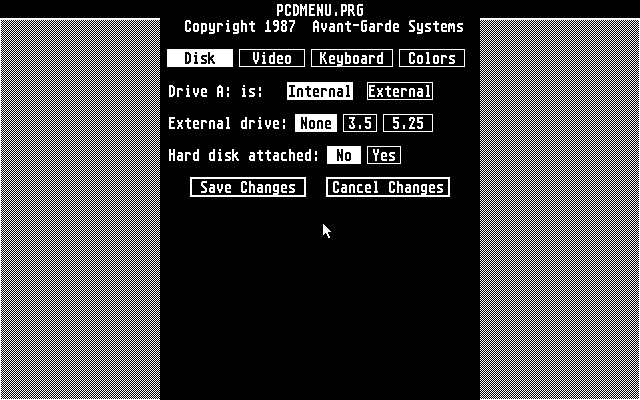
4. PC-DMENU.PRG This program allows you to change the characteristics
of pc-ditto to your taste. Such parameters as colors used by the
monochrome and graphics palettes, disk drive assignments, and
others. This program is menu driven, with built-in help. Your
user manual also explains how to get started. This program
should be run first, before pc-ditto, to ensure the configuration
of pc-ditto is correct for your usage.
5. PC-DITTO.PRG This is the main program. Clicking this program will
start the IBM compatible emulation using the preferences selected
in the pc-dmenu program above.
6. PC-D.1 This is part of the pc-ditto.prg main program. It must also
be contained on the same disk as pc-ditto.prg for it to work
correctly.
7. \PCPROGRAMS This is a folder containing IBM-type programs. These
files should be copied to an IBM format diskette. They only run
under PC or MS-DOS. Again, see your user manual for more
information concerning the copying and setup of these programs.
8. PC-DFMT.EXE This program will format 80-track high-capacity 3.5"
disks under DOS versions below 3.2. It will also perform regular
formatting, similar to the FORMAT utility program. This program
is menu-driven with built-in help. Please see the user manual
for additional information on the creation and use of high-
capacity 3.5" disks, as well as some of the problem and solutions
below.
By the way, since DOS versions below 3.2 do not recognize a high-
capacity disk (720K) without a device driver, DOS versions below
3.2 cannot be installed on a high-capacity disk (the device
driver is not present when DOS first starts up).
For single-sided disk owners, this program can create 80-track
format disks, providing 360,000 characters (360K) of storage.
9. PC-DDRVR.SYS This is a DOS device driver used to access high-
capacity (720K) diskettes using DOS versions below 3.2. It can
also be used to read and write Atari GEMDOS format disks, for
those DOS versions that may have trouble doing so, otherwise.
See your user manual for an in-depth discussion of high-capacity
disks and use of this driver under your DOS.
--------------------Provided at no charge----------------------------
10. SPEEDY3.EXE A public-domain program which may be useful from time-
to-time to speedup the screen display of some DOS versions;
primarily DOS versions below 3.0. Testing of this program has
been limited. Therefore, try running it after you start your DOS
and before you run any applications. For many applications (e.g.
dBase series), it does speed screen displays around 30% faster.
Other applications, such as Lotus 1-2-3, there appears to be no
effect. Because of the public domain nature of this program, it
should be tested with your applications to determine if it has
any real value. Also, if you should encounter any flakyness
using it, please let us know. To date, we have not encountered
any problems, but the possibly always exists with any product.
11. QWICKEYS.COM This program, like Speedy3.exe, is public domain. It
will often speed cursor and repeat key use. Again, as with
Speedy3.exe, please try it with your application to determine if
any real enhancement is perceived.
HARD DISK USERS -- PLEASE READ -- VERY IMPORTANT INFORMATION
--------------- ----------- --------------------------
1. pc-ditto currently supports only one physical hard drive (logical unit
number 0). More drives may be supported in the future.
2. To access the hard disk, you MUST use DOS version 3.0 or higher.
Versions of DOS below 3.0 can not access your hard disk, and if
used to write to the hard disk, WILL destroy information or even
make the hard disk unusable until re-formatted.
3. Formatting the entire physical hard disk requires you use the proper
Atari GEMDOS hard disk utility. Once formatted, DOS can then
format individual partitions for its use, if you need.
It is not necessary to format a partition with DOS FORMAT, unless you
wish to install DOS on that partition.
***** WARNING: DOS can not access any partition on a hard disk with less
than 4.2 Meg (4,206,080 characters)!!! To do so WILL mean
disaster to files in that partition. (Sorry, but this is a DOS
requirement we can not get around --- and, we have tried!)
Also, not that this will occur often, but DOS can not access
partitions with more than 32Meg sizes.
4. DOS may be installed on your hard disk for autoboot using the DOS
FORMAT, SYS, and SELECT utilities. FDISK may be used to inspect
the partition information, but it is not allowed to actually
update that information.
5. If you have only one partition on your hard disk, only one operating
system may be installed on it to AUTOBOOT. That is, if you can
automatically start GEMDOS from your hard disk, you cannot
install DOS on that same partition to automatically start. So,
you may have one or the other; not both.
6. Multiple partitions are supported. Under GEMDOS, each partition is
assigned a drive letter. IBM XT hard drives may have more than
one partition, but only one is active for use by DOS (the others
are considered to have different operating systems, and thus are
inaccessable to DOS).
We provide a solution to this problem by treating multiple partitions
the same way as GEMDOS does: assign a drive letter to each
partition. For DOS, this means each partition is treated as
being a separate, physical drive with only one partition.
7. If you format a partition, whether you install DOS or not, we will
recognize that partition as potentially bootable. As such, DOS
can only be booted from the first hard drive in a system (drive C:).
This means, if you do not format the first partition on your hard
drive, but do format the second, third, or fourth, then we must
treat that partition as letter C:. The remaining partitions are
sequentially lettered for D:, E:, and F: (if used). The letters
are assigned in a circular fashion. So, after the last partition
has been assigned a letter, the first partitions are assigned the
next letters.
If DOS is to be booted, it must reside on the FIRST DOS bootable
partition in the group. In other words, if partitions 1 and 3
are formatted as DOS drives, and partitions 0 and 2 are GEMDOS,
DOS will be bootable only from partition 1.
The following table will hopefully summarize this mess:
Bootable DOS partition Partition assigned to drive
---------------------- ---------------------------
if you have four partitions C: D: E: F:
-- -- -- --
0 0 1 2 3
1 1 2 3 0
2 2 3 0 1
3 3 0 1 2
if you have three partitions
0 0 1 2
1 1 2 0
2 2 0 1
if you have two partitions
0 0 1
1 1 0
We use this method, because many will set up the hard disk to autoboot
GEMDOS. GEM autoboot requires partition 0; leaving partitions
1, 2, and 3.
This is not ideal -- because now the partition drive letters are not
the same under both DOS and GEMDOS.
But, you can use the ASSIGN command under DOS and other DOS utilities
to rearrange drive letters provided to partitions. (This is an
advanced topic. So, we leave investigating this alternative to
advanced DOS users). For most of us, we prefer to keep it simple
and just keep a list of the partitions assigned GEMDOS versus DOS.
NOTE: Again, this only applies when you format a partition under DOS.
If you do not format any partitions, then the drive letters will
be the same under both systems.
8. When using DOS and you do the first DIR on a hard disk letter, after
the list of programs, the DOS will provide you with free space.
This may take a few seconds, as the DOS will read areas on the
disk to determine the remaining space left. This will occur only
on the first time. Thereafter, DOS keeps up with the free space.
9. We recommend using the BUFFERS=16 option in the CONFIG.SYS file on
your DOS startup drive. (See your DOS reference guide for details).
This can speed up hard disk operations significantly.
10. DOS utility CHKDSK will report "Probable non-DOS disk. Continue
(Y/N)" on hard disk partitions not formatted by DOS. Answer, Y.
They are correct, but this is normal, even for some IBM compatible
add-on hard drives.
11. Use caution, when installing some copy-protected software on a hard
drive. Some software uses all kinds of information about its
location on the hard drive to see if it has been copied (by
relocation). Consequently, it will fail to work if your backup
and restores do strange things to disk formats, partition sizes,
and so on. There are no hard and fast rules here. Just use caution;
the same applies to IBM and compatible hard drive users, anyway.
12. pc-ditto has only been tested with a single SUPRA 3.5" 20MEG drive.
We will test additional drives, as we can obtain them, or as you
come across new controller/drive combinations. Please call if
you have problems. (Thanks).
13. If you format a partition, but do not install DOS on it, and then try
to boot it, you will receive "Non-system disk" message. Just press a
key and start the DOS from a floppy. See the information above, if
you have formatted more than one partition with DOS FORMAT.
STARTING DOS FROM A HARD DISK
Once you have installed DOS on your hard disk, pc-ditto will boot it:
1. First, pc-ditto will try to boot drive A:, just in case you wish to
override the DOS on the Hard disk.
2. If there is no floppy disk present, then booting from the hard disk is
tried.
3. Finally, if there is no bootable partition, pc-ditto will ask for a
disk in drive A:, or you may ESCape back to GEMDOS.
If you should leave a GEM disk in a drive, pc-ditto will report an error
and ask you to insert a DOS disk or return to GEMDOS.
PROBLEMS AND SOLUTIONS GENERALLY ENCOUNTERED
PROBLEM: Because IBM compatible 3.5" diskettes are double-sided, IBM
compatible 3.5" software can not be used in an Atari single-sided
drive (SF 354 or equivalent.)
(This generally applies to Atari 520 ST owners; 1040 ST machines
contain one built-in double-sided drive.)
SOLUTION: 1. Purchase a double-sided 3.5" drive (recommended because this
format is the wave of the future and single-sided will become
more rare), OR
2. Copy your PC-DOS and IBM compatible programs to single-sided,
3.5" disks. (NOTE: some copy-protected software will not copy;
thus you're left with solution #1 above).
Generally, you may receive assistance with transfering your
software to single-sided disks from local Atari user groups or
your local Atari dealer.
PROBLEM: Your software is on 3.5" single-sided disks. You want to use it
on an IBM compatible with double-sided 3.5" drives.
SOLUTION: 1. Your disks may be read/written by any Atari ST with single-
or double-sided 3.5" drives.
For IBM and compatibles, with 3.5" drives, the disks are usable
only in the 40-track format.
This is done by using the FORMAT program, (under DOS 3.2 and
above, do not use DRIVEPARM or DRIVER.SYS). Single-sided disks
formatted with 40 tracks contain approximately 180,000 characters
(180K). Double-sided disks formatted with 40 tracks contain
approximately 360,000 characters (360K).
2. If you are not technically experienced and can not obtain
technical assistance, we recommend you purchase a double-sided
drive. The cost of the drive will most likely be worth avoiding
the technical frustrations you will encounter.
3. However, if you are technically experienced or fearless and
brave, the following explains the procedure for creating a 3.5"
disk readable by both the Atari ST and IBM compatible.
A. To format a 3.5" disk for single-sided, 40-
track operation under DOS using
FORMAT x:/1
where x is the letter of the drive
containing the 3.5" disk.
Then, use the disk as you would any other,
except for the much limited space. This means
you may copy files to and from it, as well as
read and write it on an IBM or compatible.
B. To format a 3.5" disk for double-sided, 40-
track operation under DOS using
FORMAT x:
where x is the letter of the drive
containing the 3.5" disk.
Then, use the disk as you would any other,
except for the much limited space. This means
you may copy files to and from it, as well as
read and write it on an IBM or compatible.
PROBLEM: You have a 5.25" disk drive and a 3.5" disk drive attached to my
Atari ST. You have selected drive A: to be the 3.5" drive.
But, my copy-protected software on 5.25" disk does not start.
SOLUTION: Most copy-protected, 5.25" software expects to be started in
drive A:. This means that you must select the 5.25" drive as
drive A:.
PROBLEM: My software is on 5.25" diskettes and requires two drives (A: and
B:), but my B: drive is a 3.5" drive.
SOLUTION: Copy the second 5.25" disk (normally in B: drive) to a blank 3.5"
disk. Then, use the first disk in the 5.25" drive and THE COPY
of the second in the 3.5" drive.
(The type of drive and size of media is generally tranparent to
DOS and its programs).
PROBLEM: You have a double-sided, 3.5" disk drive, but when you format the
disk you only get 360K instead of 720K data space.
SOLUTION: 1. For DOS versions below 3.2, you should use the PC-DFMT
program on your master pc-ditto disk. See your pc-ditto manual
for copying the PC-DFMT program to an IBM format disk, if you
have not already done so.
The menu option tracks per disk should be set to 80 and the sides
per disk set to 2. This will provide 720K usable space. (For
your DOS to access this special disk, you must use the PC-
DDRVR.SYS file, also (as described in your pc-ditto user manual).
2. For DOS versions 3.2 and higher, you may use the DOS
utilities FORMAT and DRIVER.SYS, (both described in your DOS
reference guide). Or, you may continue to use the utilities
mentioned in 1. above.
Because many people have experienced problems using DOS 3.2 and
3.3 to create 720K disks, the following is an example of
procedures we use when starting with a master DOS diskette:
STEP WHAT YOU TYPE REASON
1. Boot new DOS We must be operating
3.2 or 3.3 under the correct
DOS when using its
FORMAT and DISKCOPY
utilities.
2. Format a FORMAT x:/S Replace x
blank diskette with A or B (whichever is
a double-sided. 3.5" drive).
3. Copy the files Copy FORMAT:COM B: You will need
FORMAT.COM and Copy DRIVER:SYS B: these files to
DRIVER.SYS to the to format the
newly formatted 720K Disk later
disk in drive X:
4. Create CONFIG. Copy CON: CONFIG.SYS
SYS file on the DEVICE=DRIVER.SYS/D:0
newly formatted DEVICE=DRIVER.SYS/D:0
disk in drive X: {Press F6 key} {Press RETURN}
5. Tell pc-ditto (use pc-dmenu; see You must use this
drive A: is to your user manual newly formatted
be the 3.5" disk for more information) disk to use the
in drive x: new file, CONFIG.SYS
6. Reboot computer
using newly formatted
disk containing DOS
You will get messages This means drive C:
"Loading External and D: refer to
Disk for Drive C" 720K disks, explicitly
"Loading External
Disk for Drive D" Drive C: and A: are
the same drive. Drive
D: and B: are the same.
C: and D: are just
used in FORMAT and
diskcopy for creating
or copying 720K disks.
A: & B: may contain
any format disk, but
may only Format/Copy
disks under 720K
(320K or 36K or 180K
or 160K).
7. To format a For Example:
720K diskette, FORMAT C:/S
specifying drive
C: or D:
8. Create a CONFIG. Now you have
SYS on that disk a 720K, bootable
(see step 4 above) DOS diskette
To Disk-copy 720K disk to another 720K disk using double-sided diskettes
1. DISKCOPY C: C: 1. This copies a
or 3.5" diskette
2. DISKCOPY C: D: to another 3.5"
diskette using
the same disk
drive.
2. This copies a
3.5" diskette
to another 3.5"
diskette using
two disk drives.
PROBLEM: You have on 3.5" drive and one 5.25" drive connected to your ST.
Your software requests the disk in the 5.25" drive be placed in
the 3.5" drive.
SOLUTION: This problem is most often encountered when installing a software
program (i.e. customizing a package for user's taste). The
software master disk is in one drive, then moved to another for
installation.
1. In the PC-DMenu, select B: drive as (none) and A: drive as the
drive you will use for installation. Then restart pc-ditto. DOS
will have only one drive, and will request that you swap disks in
and out of the single drive.
OR
2. Because of the technical complexities and changes in new
versions of software, contact your local Atari user group or
dealer for assistance.
PROBLEM: Copying files to/from IBM disk to Atari disk on the Atari ST
SOLUTION: The Atari GEMDOS can read and write almost any format of MSDOS
disk used on an IBM PC or compatible.
Also, files may be copied to/from IBM/compatible disks on the
Atari.
These facts are obscure, as they are not heavily promoted by
Atari Corporation.
CAUTION: Atari disks created/formated by the GEMDOS, however,
can not always be read by PC/MS-DOS (even versions 3.2 or
higher). This brings us to the next problem and solution.
PROBLEM: I tried to read a GEMDOS disk using DOS. I tried this on the
Atari using pc-ditto, and on an IBM compatible. But, the disk
appears to not be readable.
SOLUTION: The GEMDOS format is almost compatible with the DOS version 3.2
720K 3.5" format, but not quite.
1. You may use our device driver, pc_ddrvr.sys, to read and
write your GEMDOS disks under DOS;
OR
2. You may copy them to a disk which was formatted by PC/MSDOS.
This may be done on either an IBM/Compatible, or by using pc-
ditto on the ST. Then, use that disk on your PC/compatible.
NOTE: Any files may be copied, except for copy-protected programs,
but the most common use is to transfer a text file between the
two computers.
PROBLEM: I have a second 5.25" drive connected to my Atari ST. But, when
I try to use it, no disk I try will read properly using GEMDOS.
SOLUTION: There are several technical reasons why your drive may not
respond when using GEMDOS.
First, if you can use the drive with pc-ditto, then electrically
your connection is probably sound. Therefore, you may need to
tell GEMDOS about the drive speed. One program we have found
success with is SIXMS.PRG, a public domain product, available on
many public domain bullentin board systems. Use of this program
permits you to read and write 5.25" diskettes.
Second, if you can not use the drive with pc-ditto, then it most
likely is connected incorrectly. In that case, you may need to
seek help from your local dealer, the company who sold the drive,
or even a local Atari ST user group.ADS (1)
ARTICLE (1)
News
TRIVIA (1)
Development
Spanish release 2.0x has faster screen redraw on monochrome systems due to bug found and fixed by the Spanish distributor of the software.
Translation of their release notes:
README.1ST January 18, 1987
Preliminary Note:
The current version of PC-DITTO has been specially adapted by TOU S.A. to run correctly on a monochrome monitor. As you can see, the programs on this disk read much faster than those on a conventional disk, and they run faster, especially when subjected to greater overload. This version has been freed from the errors of the first monochrome version supplied by ROBTEK.
Never format this disk!!! When running the monochrome version of PC-DITTO, this disk must be present in drive A: and can be removed once the main program screen has appeared. You can make backup copies of this disc using the usual methods, but the monochrome version will only work if the original disc is in drive A:. If the original program becomes corrupted, you can erase (not format) the original disc and transfer the programs you retained in the backup to it, and they will work again. (If there are any problems, you can use the TOU warranty.)
The current version of PC-DITTO has been specially adapted by TOU S.A. to run correctly on a monochrome monitor. As you can see, the programs on this disk read much faster than those on a conventional disk, and they run faster, especially when subjected to greater overload. This version has been freed from the errors of the first monochrome version supplied by ROBTEK.
Never format this disk!!! When running the monochrome version of PC-DITTO, this disk must be present in drive A: and can be removed once the main program screen has appeared. You can make backup copies of this disc using the usual methods, but the monochrome version will only work if the original disc is in drive A:. If the original program becomes corrupted, you can erase (not format) the original disc and transfer the programs you retained in the backup to it, and they will work again. (If there are any problems, you can use the TOU warranty.)
BOOK / MAGAZINE REVIEWS (1)
ST / Amiga Format · March, 1989Rating: 3/5