

Atari ST - HMM Piip Oy - 1990
John the Composer
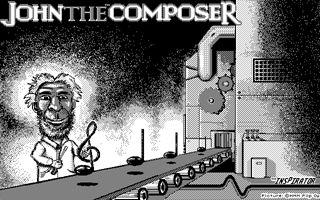
- Genre
- Music / Sound
- Year
- 1990
- Language
- [unknown]
- Publisher
- HMM Piip Oy
- Controls
- Keyboard / MIDI-Device / Mouse
- Distributor
- —
- Resolution
- Medium / High
- Developer
- Inspirator
- ST Type
- ST, STe Enhanced, TT / 1MB
- Licensed from
- —
- Programmer(s)
- Ilvessalo, Juha
- Country

- MIDI
- Yes
- Software
- English
- Version
- 1.2 [preview]
- Box/Instructions
- English
- Number of Disks
- 1 / Double Sided
- License
- Game Demo or Preview - Commercial
- Dump
- Download
- Serial
- —
- Dump format
- MSA, Other
- Protection
- —
OTHER VERSIONS WITH THE SAME TITLE (2)
INSTRUCTIONS
Welcome to the JohnTHEComposer Demo.

Some of the features have been disabled in order to not let you
enjoy the full fun of the commercial version, which you will
no doubt enjoy at least as much as all those press reviewers who have
given JOHN top reviews. In the demo version you will not be able to
control structure, chords, performance order, etc. You will however
be able to try out some of the great features and you will see the
extent of control available in the commercial version.

JOHN is an interactive composer with artificial intelligence.
He will compose for you with as much or as little help from you
as you wish to give. You can also compose with JOHN in such a way
that JOHN will guide you in the process of music making.

JOHN was developed in association with a large school of pop and
rock music in FINLAND. There was a need to develop and demonstrate
basic principles of improvisation and musical composition to students.
Much original thought was necessary as the rules for
classical music could not be applied as such to constantly
developing styles of music.

As new theories of music were developed, JOHN could be used to test
these theories like a tireless diligent pupil who would do exactly
what the teacher said.

In this way we were able to see if our theories were right. If the
computer gave us garbage, the fault was entirely with our faulty
input. Inputting classical rules did not result in a wide variety
of output.

JOHN has been given much room in order that his creative experiments
not be curbed. Do not give him much power if you wish him to stay
in traditional styles.

JOHNTHECOMPOSER contains some preset installations for some MIDI equipment.
Installation files are named *.BND, and are situated in *.STL folders. Choose
'Load Orchestra' to install your equipment  from inside JOHNTHECOMPOSER before
you 'do it + play' a composition. Many MIDI equipment require a certain state
to be in to work correctly in multitimbral mode, to receive prg-change commands
etc. If you have not previously looked into these possibilities, with the help
of your synthesizer manual, do the following:

* Ensoniq SQ 1:                         (press)
1 Choose EDIT MIDI.                      EDIT, MIDI
2 Move to 'Status'                       >
3 Choose 'EXT' as status                 ^, ^. ^
4 Move to MIDI (mode)                    >, >
5 Choose MULTI                           ^, ^
6 Select the instr. of ch. 8 to be 86    TRACK, 8, left DRUMS, 6
7                                        SOUNDS

* Korg M1:
1 Select a Combination memory position.
2 Select 'Edit Combi'. Select Combi 40 'Midistack'.
3 Move to 'Prog Select' and select Timbre 1 to be sound I09  (drums).
  The other sounds you can choose from inside JOHNTHECOMPOSER.
4 Move to 'Midi Channel' and select the MIDI channels:

               Timbre 1  Timbre 2  Timbre 3  Timbre 4
                  1         2         3         4

5 Move to 'Windowbottom' and change Timbre 3 to be C-1.
  (as others already are).
6 Move to 'Transpose' and change Timbre 4 to be 0.
  (as others already are).
7 Move to 'Prog Change' and check, that all timbres are set to [ENA].
8 Move to 'Save'. Name the combination e.g. JOHN.
9 Move back to COMBI. Now you can change sounds etc. from JOHNTHECOMPOSER.

* Proteus 1:
1 Select MIDI MODE to be MULTI(MODE).
2 Select channels 2, 3, 4 and 10 to be ON. using the MIDI ENABLE function.
3 Select channel 10 to be instrument 14: Rock Drums 1.
4 Now you can change sounds etc. from JOHNTHECOMPOSER.

* Roland MT-32:
  Turn power on. You can change sounds etc. from JOHNTHECOMPOSER.

* Roland U-20 / U-220:
1  Select EDIT
2  Move with cursor to 'Sound' and press ENTER.
3  Move with cursor to 'Prt' and press ENTER.
4  Move with cursor to 'MIDI' and press ENTER.
5  Move with PART to Part 1.
6  Move with cursor to 'Rx Ch' and set with VALUE 'Rx Ch=1'
7  Select Rx Ch of part 2 to be 2 etc. See 5-6.
8  Select EDIT
9  Move with cursor to 'Sound' and press ENTER.
10 Move with cursor to 'R.Prt' and press ENTER.
11 Move with cursor to 'Rx Ch' and set with VALUE 'Rx Ch=10'
12 Press SOUND

* Yamaha RX-drum machines:
  Make the drum machine to receive on MIDI channel 10. For the other sounds
  you need another sound source (ST/MIDI).