Atari ST - GST Software - 1986
GST Fractal Generator
- Genre
- Graphics - Miscellaneous
- Year
- 1986
- Language
- Compiled C
- Publisher
- GST Software
- Controls
- Mouse
- Distributor
- Electric Distribution
- Resolution
- Low / High
- Developer
- [n/a]
- ST Type
- ST, STe, TT, Falcon030 / 0.5MB
- Licensed from
- —
- Programmer(s)
- Dickens, Martin / Chalkley, Howard
- Country

- MIDI
- —
- Software
- English
- Version
- —
- Box/Instructions
- English
- Number of Disks
- 1 / Double Sided / HD Installable
- License
- Commercial
- Dump
- Download
- Serial
- —
- Dump format
- MSA
- Protection
- —
INSTRUCTIONS
GST FRACTAL GENERATOR
=====================

Introduction
============

Welcome  to the GST Fractal Generator,  the program that  exploits
the Atari ST graphics to the full.   With this program you will be
able to generate and display the most fantastic graphic images you
could  imagine,  yet  they are derived from a  deceptively  simple
mathematical  formula.   We  hope you have as much fun  using  the
Fractal Generator as we had writing it!

You  may  make  backup  copies of this  disk  for  your  own  use,
however,  YOU MUST NOT DISTRIBUTE OR MARKET THIS SOFTWARE TO THIRD
PARTIES IN ANY FORM WHATSOEVER.

Copyright (C) 1986, GST Holdings Limited.  All rights reserved.


Printing the Manual
===================

This document is the instruction manual for the Fractal Generator.
To print it,  return to the Desktop,  then double-click on READ.ME
and click the Print option.


Fractal Geometry
================

Fractal  Geometry is a modern branch of mathematics  pioneered  by
mathematician Benoit B Mandelbrot,  fellow at  IBM Thomas J Watson
Research Center in New York.

Fractal Geometry is the study of a family of shapes that cannot be
described by conventional geometry.   A principal feature of these
shapes  is  that  the complexity of  their  appearance  cannot  be
reduced  by examining them with greater magnification.   The  best
known physical example of this is the snowflake.

The  GST Fractal Generator allows you to explore  the  theoretical
fractal  shape known as the Mandelbrot Set.   For  those  familiar
with mathematics, this is the map of iterations of the formula:

          2
     Z = Z + C

where C is a point in the complex plane and Z is initially zero.

For each point C,  this formula is iterated until Z>2 or a defined
maximum  number of iterations is exceeded.   The actual number  of
iterations  performed for each point is represented on the  screen
as a colour.

For those unfamiliar with mathematics,  the Mandelbrot Set is  one
of the most complicated and beautiful objects you can draw.

If  you want to read more about Fractal Geometry,  we suggest  you
start with the August 1985 edition of Scientific American.


Running the Fractal Generator Program
=====================================

If  you have a colour monitor,  ensure you are in LOW  resolution,
then double-click the FRACTALC.PRG icon.

If  you have a monochrome monitor,  double-click the  FRACTALM.PRG
icon.

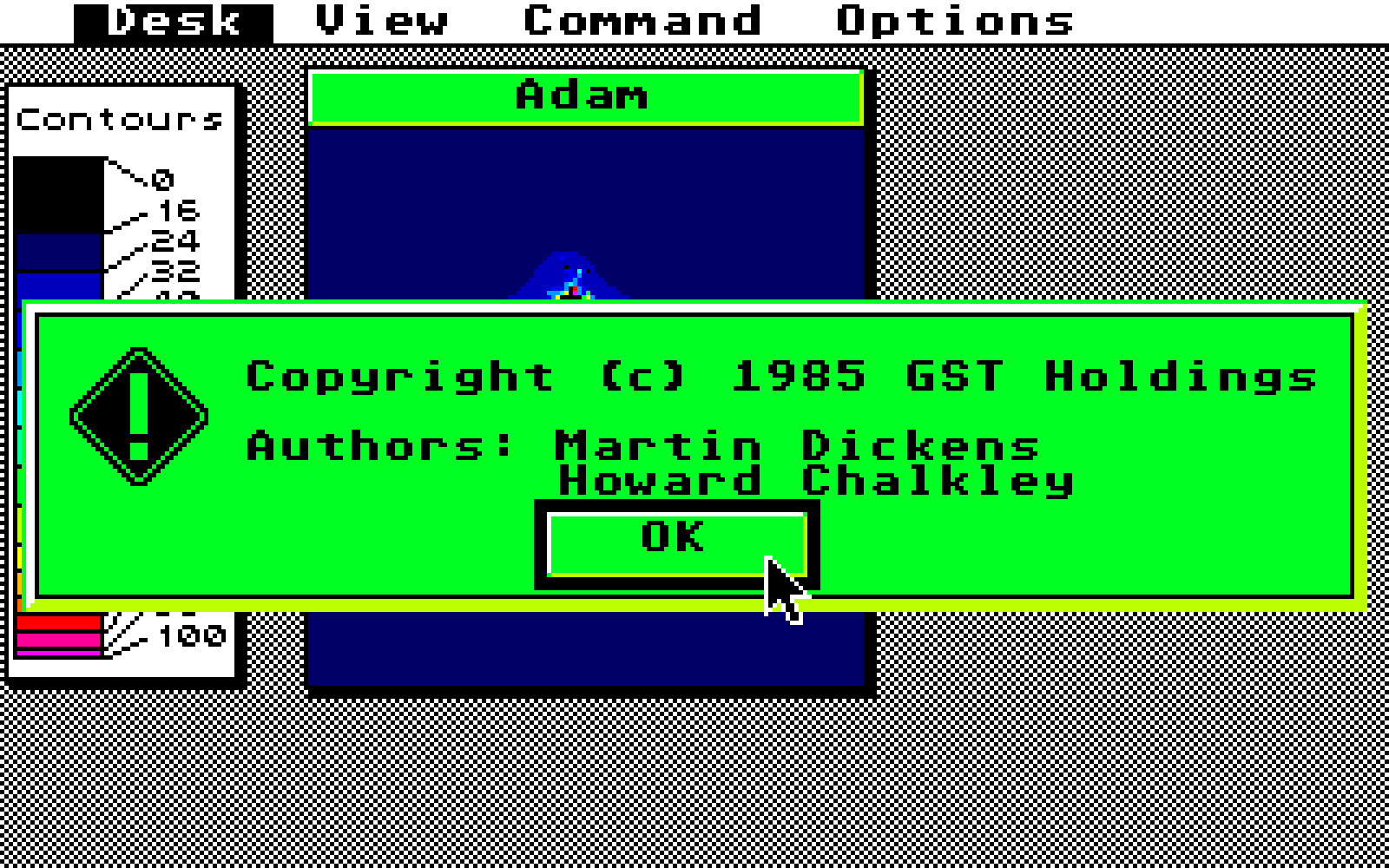
The program will recolour the desktop to black and white  stipple,
then it displays a menu bar,  a Contour window and a window called
Adam  which shows the complete Mandelbrot set which has been  pre-
drawn and loaded from disk.


Operating the Microscope Zoom Feature
=====================================

When  you load the Fractal Generator it will default  to  Generate
mode  in Medium resolution and Low precision (these values can  be
changed by using the drop-down menus).

To operate the zoom, drag a rubber box around the area you wish to
magnify  using the mouse.   This area will be highlighted and  you
will  be asked to confirm your selection.   If  you  confirm,  the
program will draw a white box in the parent window to indicate the
position and a new fractal image will be drawn in a child window.

This  process can be repeated several times (until you run out  of
RAM), but only the last four images will be shown on the screen at
any one time.

You will be surprised how far you can zoom in, because the Fractal
Generator has a magnification factor of up to 8 million times!


Searching and Manipulating the Family Tree
==========================================

The  fractal images stored in RAM and displayed on the screen  are
arranged  as a family tree.   To search and manipulate this  tree,
select Display mode from the View menu.

To  move from the Child window to the Parent  window,  use  Select
parent in the Command menu.

To  move from the Child window to one of its own  children,  click
the mouse within the appropriate white box in the window.   If you
click within the intersection of two boxes,  the smaller one  will
be selected.

To delete the current Child window from RAM,  select Delete  child
from the Command menu.   Note that the program will  automatically
re-sort the tree at this stage to avoid leaving "orphan" images in
RAM.

To switch back to fractal generation mode,   select Generate  from
the View menu.

Using these facilities you can create a family tree of interesting
images that can be saved and reloaded from disk.


Changing Resolution
===================

Resolution defines the minimum size of the colour block used  when
drawing the fractal image.   Select either Coarse,  Medium or Fine
resolution  from the Options menu.    Each finer resolution  level
will  take  around three times longer to draw  than  the  previous
level.

When you are generating a fractal image you can choose to halt the
process  at  the end of each resolution pass by holding  down  the
mouse button until a message appears.

You can also redraw an existing Child window at higher  resolution
by  choosing  the required options and then  selecting  Regenerate
from the Command menu.


Changing Precision
==================

Precision  defines  the maximum number of times that  the  fractal
generation formula is iterated before deciding that the point lies
within  the Mandelbrot Set,  indicated by painting a black  colour
block.

Select Low, Medium or High precision from the Options menu.

At  high  magnification  levels you will need  High  precision  to
display fine detail,  but beware:   if your image displays a large
area  within  the  Mandelbrot Set,  it will take a  long  time  to
generate.

You  can also redraw an existing Child window at higher  precision
by choosing the required option and then selecting Regenerate from
the Command menu.


Reading Fractal Images from Disk
================================

You  can  read a pre-stored fractal image from disk  by  selecting
Load  fractal  in the command menu.   This will display  the  File
Selector showing all files with the .FRC extension.  Select one of
these  and it will be read into RAM and inserted into  the  family
tree.

If  you select auto Palette from the Options menu,  the new  image
will reset the contour and colour maps to those in use when it was
saved.

After  reading an image from disk,  the Adam window is redrawn  to
enable you to search the tree for the loaded image.

Some  fractal images are already stored on disk,  but  these  will
only work with a colour monitor, monochrome images will have to be
generated from scratch.


Writing Fractal Images to Disk
==============================

You  can save your current Child window to disk by selecting  Save
child in the command menu.   This will display the File  Selector.
Choose  an existing name or type a new name for your file  (use  a
.FRC extension),  then click OK.   The Child window together  with
the contour map and colour palette will be saved to disk.


Full Size Blow-up Images
========================

Select Blow-up mode from the View menu to show a large version  of
your  current  Child  window.   This is  generated  in  ultra-fine
resolution and ultra-high precision,  so it may take some time  to
generate,  particularly  if your image contains a lot  of  "inside
black" points.

You  cannot  recontour your image or save it to  disk  in  Blow-up
mode, so ensure that these are done before you draw the blow-up.

When the blow-up has been generated,  the program will ask whether
to return to menu operation.  If you select OK the picture will be
cleared,  otherwise  the picture will be displayed with the  mouse
disabled.  Click the mouse to regenerate the prompt.

To return to normal display after drawing a blow-up image,  select
Panels display from the View menu.


Recolouring Your Fractal Image
==============================

Use  the  ST Control Panel to change the colour  of  your  fractal
image.   If  you save the image to disk,  the colour map  will  be
saved too.


Recontouring Your Fractal Image
===============================

Use  the Contour window to modify the colour gradient by  dragging
the mouse in the colour boxes to change their size.   Then  select
Recontour  from the Command menu to redraw the Child  window.   If
you save your fractal to disk, the colour map will be saved too.

You  can automatically recontour each image you draw by  selecting
auto Contour from the Options menu.


Modifying the Fractal Generator Program
=======================================

The sources of the Fractal Generator are provided on disk.   These
are written in GST C with assembler inserts.  Each source file has
a .C extension.

Also included are the files FRACTAL.LNK (the link control file for
the  GST  Linker) and FRACTAL.LIB (a special library for  for  the
Fractal Generator program).

To  modify  the  program you will need  a  GSTC  Compiler,  please
contact your dealer for details.

THE SOURCE FILES ARE COPYRIGHT (C) 1986 GST HOLDINGS LIMITED.  YOU
ARE NOT PERMITTED TO DISTRIBUTE OR MARKET MODIFIED VERSIONS OF THE
FRACTAL GENERATOR PROGRAM IN ANY FORM WHATSOEVER.


Exit from the Fractal Generator
===============================

To  exit from the Fractal Generator,  select Quit in  the  Command
menu.  The program will exit to the GEM Desktop.