

Atari ST - Wintertree Software - 1991
GramSlam Grammar and Style Checker
- Genre
- Word Processing
- Year
- 1991
- Language
- [unknown]
- Publisher
- Wintertree Software
- Controls
- Mouse
- Distributor
- —
- Resolution
- Low / Medium / High / VGA
- Developer
- [n/a]
- ST Type
- ST, STe, TT, Falcon030 / 0.5MB
- Licensed from
- —
- Programmer(s)
- Comeau, Phil
- Country

- MIDI
- —
- Software
- English
- Version
- 3.20
- Box/Instructions
- English
- Number of Disks
- 1 / Double Sided
- License
- Commercial
- Dump
- Download
- Serial
- —
- Dump format
- MSA
- Protection
- —
INSTRUCTIONS
             The GramSlam Grammar Checker 9-Jun-91 3.20
                         Phil Comeau Software
                         43 Rueter St.
                         Nepean, Ontario
                         Canada K2J 3Z9
                         (613) 825-6271

                             N O T E
    GramSlam is NOT public domain. You may make copies of GramSlam
    for your own use, but you may not sell, give, or lend copies of
    GramSlam to other people or organizations without the express
    permission of Phil Comeau Software.

    GramSlam is provided "as is" without warranty of any kind,
    expressed or implied. Phil Comeau Software is not responsible for
    any damages, including any lost profits, lost savings, or any
    other incidental or consequential damages arising from the use of
    GramSlam.

Thank you for purchasing GramSlam!

The GramSlam Grammar Checker checks documents for common grammar and
writing-style problems.  When it finds a problem in your document,
GramSlam describes the problem for you and offers a suggestion for
improvement. GramSlam can check document files created by all major
word processing, text editing, and desktop publishing packages.

GramSlam runs on an Atari 520ST, 1040ST, STe, Mega, and TT computers
in all resolutions that support 80-character-wide screens. It works with
all TOS versions. It can be run from the GEM desktop or as a desk
accessory.

This file describes any changes or additions to GramSlam made since
the manual was printed.


===========================================================================
Manual Changes
===========================================================================

Introduction
------------

GramSlam can be run on a TT computer, including the new resolutions
supported by the TT except "TT low."


Installing GramSlam
-------------------

The term "GEM application," used in the installation instructions on pages
2-3, refers to GEM programs run from the desktop. The term "GEM program"
can be substituted for "GEM application."

Note that the installation instructions on pages 2-3 apply to both hard
disk drives and floppy diskettes.

GramSlam no longer uses the GRAMSLAM.RSC file. Please ignore
references to GRAMSLAM.RSC on pages 2-3.


Running GramSlam
----------------

See the reference to "GEM applications" in the "Installing GramSlam"
section, above.

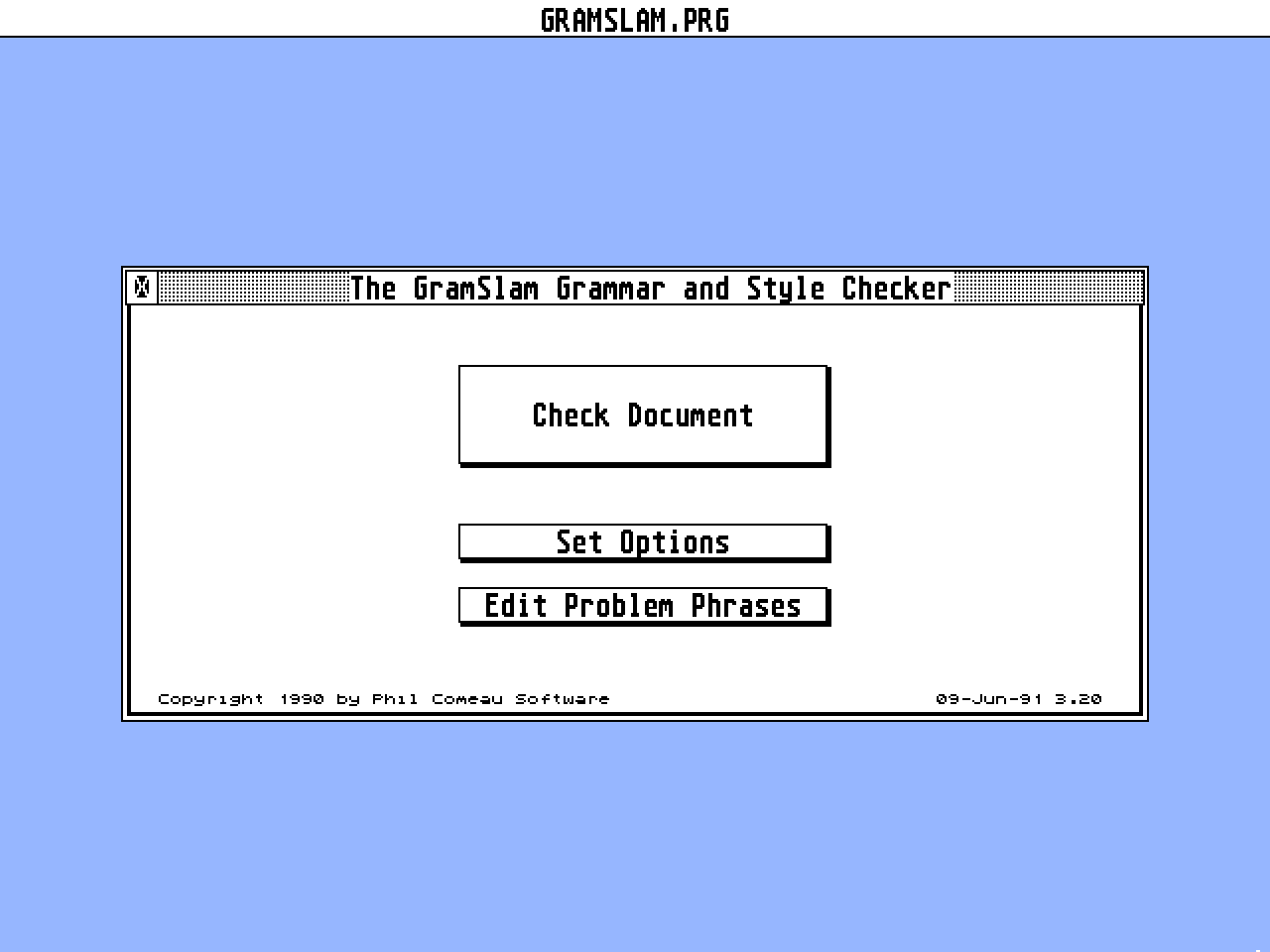
The main dialogue no longer contains an "Exit" button. The "Exit"
button is replaced by a close box, which is located at the upper-left
corner of the dialogue. The close box looks and acts much like the
close box appearing in the upper-left corners of GEM windows. Click on
the close box to exit (or close, when running as a desk accessory)
GramSlam.


Setting Options
---------------

Two new buttons appear in the "Output Options" section of the "Set
Options" dialogue: "Record all problems" and "Record only selected
problems." These buttons affect the way GramSlam uses the disk file
and printer output options. The buttons act as "radio buttons,"
meaning only one of them may be selected at any time. The buttons are
described below.

Record all problems: When the "Record all problems" button is selected,
GramSlam writes a report describing each problem to the printer or
GRAMSLAM.OUT, if the "Printer" or "GRAMSLAM.OUT" output options are
selected. This is the way GramSlam operates normally, as described in
the manual.

Record only selected problems: When the "Record only selected problems"
button is selected, GramSlam writes only the problem reports you specify
to the printer or GRAMSLAM.OUT. This allows you to record significant
problems and ignore the insignificant ones. You specify which problems
reports you would like to save via the "Record" button on the problem-
report dialogue (see "Checking a Document," below). To use this feature,
you must select the "Screen" output option and the "Printer" or
"GRAMSLAM.OUT" (or both) output options.


Checking a Document
-------------------

GramSlam now shows the problem word or phrase near the center of the
context. The problem word or phrase is shown in bold letters (red on
a color monitor).

Two new buttons have been added to the problem-report dialogue:
"Record" and a close box.

Record. The "Record" button is used with the "Record only selected
problems" button in the "Set Options" dialogue (see "Setting Options,"
above).  The "Record" button is enabled only if the "Record only
selected problems" button is selected and either the "Printer" or
"GRAMSLAM.OUT" output option is selected. Pressing the "Record" button
tells GramSlam to record the displayed problem report to the printer
or the GRAMSLAM.OUT disk file. Press the "Record" button before you
press the "Continue" button.

Using the "Record only selected problems" option and the "Record" button,
you can record significant problems and ignore the rest. The following
example describes how you might use this feature. Suppose you wish to
check a large document and store the problem reports in the GRAMSLAM.OUT
disk file. This file could grow very large if your document contains
many problems. Not all of the problems reported by GramSlam are
significant, however -- some problem reports are really just warnings.
To record only significant problems in GRAMSLAM.OUT, select the
"Record only selected problems" button in the "Set Options" dialogue.
Also select the "Screen" and "GRAMSLAM.OUT" output options. Have GramSlam
check your document as usual. When GramSlam presents a problem-report
dialogue on the screen, decide whether the reported problem warrants
further attention. If so, select the "Record" button, then click on
"Continue." GramSlam will record this problem report in GRAMSLAM.OUT.
If you decide the reported problem is not significant, leave the "Record"
button unselected, and GramSlam will not record this problem report.

Close box. The close box suspends the GramSlam desk accessory at the
point where a grammar or writing-style problem was detected, so you
can return to your word processor to correct the problem, then reopen
GramSlam. GramSlam will resume checking your document from the point
where it was suspended.  You can move back and forth between GramSlam
and your word processor in this manner, interactively checking and
correcting your document. (When GramSlam is run as a GEM program from
the desktop, the close box acts in the same manner as the "Quit"
button.)

To use this feature, you must run GramSlam as a desk accessory (see
"Running GramSlam," page 4). Your word processing program must
display a GEM menu bar and support desk-accessory access. You must
also select the "Screen" output option (see "Setting Options," page
7).

From your word processor, save your document to disk. Start the
GramSlam desk accessory as usual (see "Running GramSlam," page 4).
Have GramSlam check your document (see "Checking a Document," page
11). When GramSlam reports a problem you would like to correct, click
on the small close box located at the upper-left corner of the
problem-report dialogue.  The GramSlam desk accessory closes, and you
return to your word processor where you can correct the document.

Once you have corrected your document, you must save it to disk
again. This is necessary because GramSlam checks your document on
disk; it cannot check it from your computer's memory.

If the document you are checking is on floppy disk, do not remove the
floppy disk from the drive until GramSlam has completely checked it.

Restart the GramSlam desk accessory by selecting the "GramSlam" entry
in the "Desk" menu again. GramSlam resumes checking your document
from the point where you suspended it.

If, after returning to your word processor, you forget which problem
was reported or forget the context surrounding the problem, just
reopen the GramSlam desk accessory and the same problem report will
appear again. Click on the close box to return to your word processor.

If you decide not to correct the problem after returning to your word
processor, reopen GramSlam, then click on the "Continue" button to
continue checking.

If you forget to save your document to disk after making a
correction, GramSlam will report the problem again when you reopen
it. Click on the close box to return to your word processor. Save
your document to disk, then reopen GramSlam.

When you return to your word processor to correct a problem, avoid
making changes to the parts of your document that preceed the
problem. When you suspend GramSlam, it remembers the position of the
first word of the reported problem. If you change the position by
editing preceeding characters, GramSlam may miss words or count some
words twice.


Grammar and Style Problems
--------------------------

The severities of certain very common words in the "Often confused
with..." class (page 16) have been lowered to two so they will not be
reported at the default reporting severity (three). These words are:
"your" and "you're"; "there," "their," and "they're"; and "to" and
"too." Other words in this class have the severity stated in the
manual.

The severity of contractions (page 15) has been lowered to two to they
will not be reported at the default reporting level.


Document Statistics
-------------------

GramSlam reports statistics concerning the verb "to be" to let you
know whether the style of writing used in your document is, on
average, "active" or "passive." The distinction between "active" and
"passive" is described on page 20. If you would like to make your
writing more direct (i.e., more "active"), try to lower the "%
Sentences Containing 'To Be'" statistic.

Forms of the verb "to be" are "passive" verbs. GramSlam considers the
following as forms of the verb "to be": "be," "is," "was," "were,"
"been," "are," and "am." These words appearing in contractions (such
as "isn't" and "weren't") are also considered passive. To make your
writing more direct, look for sentences containing these verbs and try
to rewrite them.

Often, "passive" sentences do not contain a subject, as in

    The book was placed on the shelf.

Adding a subject makes the sentence clearer:

    The book was placed on the shelf by the librarian.

The sentence is still indirect and passive: a passive verb is used
("was"). Reorganizing the sentences makes it active, direct, and
clear:

 The librarian placed the book on the shelf.


Limitations
-----------

The note on page 25 regarding GramSlam and word processors should not
be taken to mean GramSlam does not work with files produced by word
processors.  GramSlam has been successfully tested with files produced
by most major word processing programs. If you encounter a problem in
using GramSlam with your word processor files, please contact Phil
Comeau Software (see "Customer Support" below).


===========================================================================
Known Problems
===========================================================================

None.


===========================================================================
Tips
===========================================================================

This tip was submitted by Joseph E. Meehan of Columbus, Ohio:

Does your word processor allow you to view or edit multiple documents
in separate windows? If so, you can take advantage of this feature to
view problems reported by GramSlam while you edit your document.
Here's how you do it:

 1) Run GramSlam. Click on the "Set Options" button, then select
    "GRAMSLAM.OUT" in the Output Options. If you like, you can
    also deselect "Screen." You could also use the "Record only
    selected problems" button, as described above.

 2) Return to GramSlam's main dialogue, then click on the "Check
    Document" button to have GramSlam check your document for
    grammar and writing-style problems.

 3) Exit GramSlam after it has finished checking your document,
    and return to your word processor.

 4) Load your document into your word processor.

 5) Load GRAMSLAM.OUT into your word processor's other window.
    Because GRAMSLAM.OUT is an ASCII file, you may need to use
    your word processor's "Import ASCII File" feature to do this.
    Check your word processor manual.

 6) You can use your word processor's scrolling features to view
    the problem reports in GRAMSLAM.OUT. If you have a keyboard
    macro accessory such as CodeKeys from CodeHead Software, you
    can define a macro to select the GRAMSLAM.OUT window, scroll
    down to the next problem report, then return to your document
    window, all with a single keystroke!


===========================================================================
Customer Support
===========================================================================

If you have questions about using GramSlam or have any problems with
it, you can contact Phil Comeau Software in any one of the following
ways (in order of preference):

    1. On GEnie (mail address P.COMEAU1).

    2. On CompuServe (id 72060,3056).

 3. Via the Internet (comeau@crc.skl.dnd.ca).

    4. Leave a message for Phil Comeau on the NCAUG BBS
       (613) 737-1133 or (613) 738-8637 (2400/1200 8N1).

    5. Phone (613) 825-6271.

    6. Mail.
BOOK / MAGAZINE REVIEWS (1)
International TOS Software Catalog · Winter, 1992