

Atari ST - 1997
Everest
- Genre
- Word Processing
- Year
- 1997
- Language
- [unknown]
- Publisher
- [no publisher]
- Controls
- Keyboard / Mouse
- Distributor
- —
- Resolution
- Medium / High / VGA
- Developer
- [n/a]
- ST Type
- ST, STe, TT, Falcon030 / 0.5MB
- Licensed from
- —
- Programmer(s)
- Schmidt, Oliver
- Country

- MIDI
- —
- Software
- English
- Version
- 3.6E beta
- Box/Instructions
- English
- Number of Disks
- 1 / Double Sided
- License
- PD / Freeware / Shareware
- Dump
- Download
- Serial
- —
- Dump format
- MSA
- Protection
- —
OTHER VERSIONS WITH THE SAME TITLE (4)
INSTRUCTIONS
============================================================================
E V E R E S T
The simple and genial GEM Text Editor.
Compatible with all TOS compatible computers and operating systems
============================================================================
Disclaimer
Every effort has been taken to ensure the information in this file is
correct but you use the program entirely at your own risk!
Neither the author nor any appointed agents accept any liability for
any loss, or consequential loss, you may suffer as a result of using
Everest. All trademarks used are recognised and acknowledged.
1. Introduction
1.1 Files and file structure
a) INF File
b) File Lists (LIS)
c) Abbreviation Files (KRZ)
1.2 Getting Started with EVEREST.PRG
2. The Menus
2.1 Everest
2.2 File
2.3 Block
2.4 Search
2.5 Window
2.6 Parameters
2.7 Info
3. Keyboard
3.1 How to change the shortcuts
3.2 Keyboard commands
4. Dialogs
5. Protocols
5.1 AV-Protocol
5.2 SE-Protocol
6. Versions
7. The Shareware principle
7.1 Distribution conditions
7.2 How to register
****************************************************************************
1.0 I N T R O D U C T I O N
****************************************************************************
Everest is a easy to learn ASCII text editor. Listed below are just
some of the tasks Everest is ideal for:
- HTML authoring
- Email editor
- Programming
- Text entry prior to further processing via other programs (e.g. TeX)
- Editing configuration files without changing the existing text format
- Writing batch files
Everest offers the following features:
- Runs with all TOS compatible computers and with all known hardware
extensions (apart from ST low resolution (320x200).
- Fast scrolling on all models.
- No cursor overrun (or similar annoying glitches)
- Standard GEM interface
- OLGA support for interactive connectivity with other OLGA aware
applications.
- Turbo C Editor compatible keyboard shortcuts
- Capable of loading large files without problems
- Almost every command can be controlled via the keyboard, drop down
menus or dialogs (including block marking!).
- Supports GDOS (monospaced) fonts, provided GDOS (or GDOS replacement
such as NVDI) is installed (The fonts supplied with Gemini
are particularly recommended).
- No separate external RSC file, so Everest is well suited to residing
outside folders on the root directory.
- Everest employs dynamic memory allocation to leave the maximum
possible memory for other applications. Ideal for multitasking
environments and accessories.
- Hard tabs.
- GEM Clipboard support.
- Turbo-C Help Accessory and 1STGUIDE support.
- Up to 10 open files - although most TOS versions only support seven
open windows various utilities are available to increase this limit,
WINX is recommended for TOS. Most of the alternative operating
systems support more than ten windows).
- Wildcards
- File Lists
- Abbreviations (Krzels)
1.1 Files and file structure
============================
Everest is suited for editing standard ASCII files. The line ending is
defined by the code 10 or the codes 13,10. Maximum line length is 300.
Unfortunately it is not possible to edit files that contain Null
Characters, i.e. characters with ASCII Code 0. Everest allows an
alternative character to be specified to replace the Null Character.
To use Everest only the file EVEREST.PRG is needed, however the
following files make Everest even easier to use:
a) INF File: EVEREST.INF
Everest creates or updates this file using the 'Save setup' option
from the 'Parameters' drop down menu. EVEREST.INF contains all
configurable parameters from the 'Parameters' drop down menu with
additional Search/Replace, printer and window position parameters.
After registration your name and key is can also be saved in the INF
file.
Important!
Distribution of an INF file containing registered user details is
NOT allowed! Please be careful if you re-distribute your copy.
If you want to return to Everest and find everything exactly as you
left it use 'Save setup' to create or update EVEREST.INF.
b) File lists: EVEREST.LIS by default
A file list is a standard ASCII file that should have the extension
LIS.
Each line has the following structure:
=
, , , are the window coordinates, 1000 is maximum
screen width/ height.
is the number of the function key you have to press
to top the corresponding window. If the window number is zero the
file is loades as an Abbreviation File.
is the number of the function key you have to press
to jump to this label.
is the line number the label points to.
= can to be repeated if there's more than
one label set for this file.
These parameters may be omitted beginning from the right.
If a file list is created with Everest, the names of all currently
loaded and named files and the window layout is written to this
list. So you can easily save and restore complete working layouts
with several file lists.
c) Abbreviation files: EVEREST.KRZ by default
An Abbreviation file is a standard ASCII file in which contains each
line contains a definition of frequently used words. Abbreviations
files are case sensitive and defined as follows:
1) Commonly used text, entered directly:
For example, a line 'Something to abbreviate' can be expanded by by
typing 'Som' or 'Someth' then pressing the [Esc] key.
You only need to enter enough characters to uniquely identify your
desired expansion. If there are no other lines beginning with 'S'
then 'S[Esc]' would be enough to expand the abbreviation to
'Something to abbreviate'.
Everest takes the word to the left of the cursor as the word to
search for an abbreviation. For example 'Something to[Esc]' will not
be expanded, because the word 'to' specifies the abbreviation. If
the abbreviation is too short this may have more than one possible
expansion, obviously this is more likely to happen when attempting
to expand a single character. Everest searchs in alphabetical order
and uses the first (legitimate) expansion it finds.
2) Abbreviations (Krzels) where the abbbreviation is different to the
expansion:
In these cases the abbreviation and the expansion must be separated
using an '=' equals character. For example, if the Abbreviation file
contains the line 'stoa =Something to abbreviate' typing 'stoa[Esc]'
or 'st[Esc]' replaces the abbreviation with the expansion 'Something
to abbreviate'.
3) Auto-detected single character abbreviations:
All single character abbreviations are expanded immediately without
typing [Esc].
This is particularly useful for HTML or TeX authoring. For example
typing the pound sign 'œ' can be automatically expanded to the HTML
standard '£' - or anything else you like!
Using the '~' tilde character it's possible to determine the cursor
position after expansion, here's an example: The Abbreviation file
contains the line 'writeln(~);'. Type 'w[Esc]' to expand to
'writeln();' and you will find the cursor positioned between the 2
brackets.
Use the '=' equals character to define abbreviations with line feeds.
Here's an example: The abbreviation file contains the following lines:
if=IF (~) THEN BEGIN
= =END
After typing 'if[Esc]' you will get:
IF () THEN BEGIN
END
with the cursor positioned inside the brackets. Each abbreviation can
contain up to a maximum of 1000 lines.
Word separator characters like "-.,:;_[} cannot be used within an
abbreviation. But there's an exception: At the end of an abbreviation
it is possible! So you can define the following abbreviations:
test.:.,)(
t{=test{~}
If you type 't{[Esc]' this will be expanded to test{} with the cursor
between the two brackets. If you type 'test.:.,[Esc]' or 'test[Esc]'
both will be expanded to 'test.:.,)('.
Abbreviations do not even have to be defined yet can still be used to
expand commonly used words! Try hitting the [Esc] key after typing the
start of a word and if this isn't defined in the abbreviation file
Everest searches the current text for a word with the same beginning.
If found this word is used as the defintion for the expansion.
1.2 Getting Started with EVEREST.PRG
====================================
If you are using an unregistered version, a dialog box appears,
offering you a chance to enter your registration details. After
registrating and saving the INF file this dialog will no longer appear
on starting Everest.
Everest can be called from a command line or a shell. Additionally (for
example using Thing, Gemini or NeoDesk) and multiple files can be
'Drag&Dropped' onto the Everest icon for automatic opening and editing.
Optionally the line or line/column position for the cursor can be
passed as parameters. (The first line/column position has the number
one, zero is interpreted as one).
To search for a file Everest uses the GEM function 'SHEL_FIND', and
takes into account the actual entry in the 'PATH' environment variable.
If 'EVEREST' is defined as an environment variable Everest will search
this path for its configuration file EVEREST.INF.
If 'EVEREST' is not defined as an environment variable Everest will
search the path defined under the 'PATH' environment variable, using
'SHEL_FIND', for its configuration file EVEREST.INF.
The file EVEREST.KRZ will also be searched for in the same directory as
EVEREST.INF and if found will be used as default Abbreviation file.
If the command line does not specify a file to load EVEREST.LIS will be
searched for and used as the standard file list.
If there is only one file with the extension LIS in the command line
this file will be taken as the standard file list (instead of
EVEREST.LIS).
If you quit Everest automatically saving the standard file list, then
this file is used.
Problems:
If Everest cannot find its INF, LIS or KRZ files when the program is
launched, TOS searches for these files (via SHEL_FIND). Some older TOS
versions take drive A: as the boot device and not the hard disk - so a
bad PATH environment for GEM is created. The problem is, 'SHEL_FIND'
thnn looks at drive A, even if it doesn't contain a disk.
All these problems will vanish if you save EVEREST.INF and an (empty)
file list (EVEREST.LIS) and an (empty) abbreviation file (EVEREST.KRZ)
in the same directory as EVEREST.PRG. Another possibility would be to
try an alternative hard disk driver or Auto folder program which
installs a correct PATH evironment before GEM is installed.
****************************************************************************
2.0 T H E M E N U S
****************************************************************************
Nearly all commands offer keyboard shortcuts. These are shown on the
right in drop down menu commands and as underlined characters in dialog
and alert boxes.
2.1 Everest
===========
- About Everest
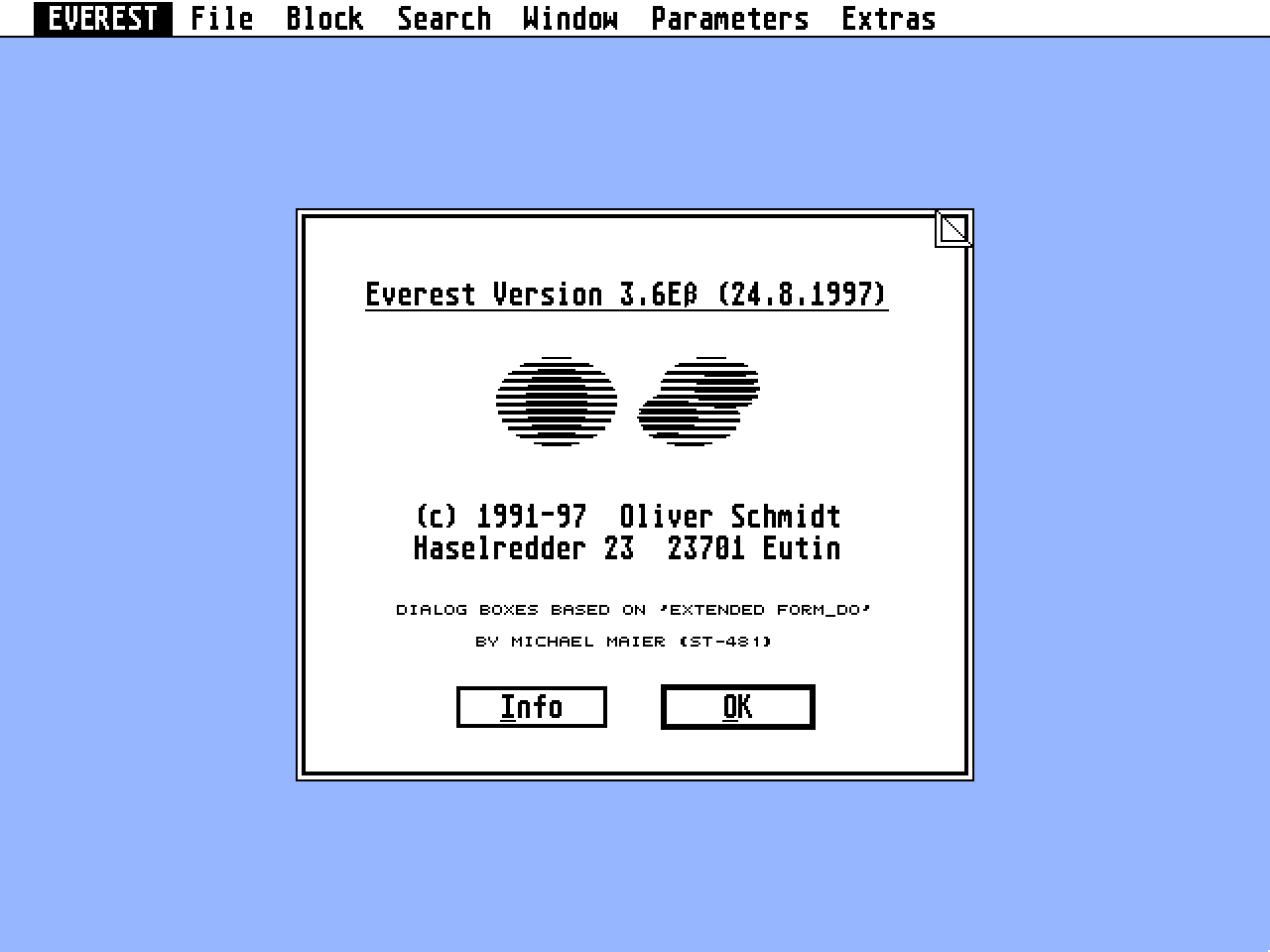
A dialog box appears containing the copyright message and version
number. Select 'Info' to display the registration dialog and your
personal key details. This dialog box is the same as the dialog
displayed after starting an unregistered version of Everest.
After entering your registration details the file selector appears
which can be used to save your details in 'EVEREST.INF'. This
registration method means that (unless the INF file format is
changed) you can use your existing INF file with future Everest
releases.
2.2 File
========
- New ([Control]+N)
A new untitled file is opened in memory. The first time an untitled
file is saved a proper filename must be entered via the file
selector.
- Open ([Control]+O)
The file selector is appears and after selecting a filename the text
is loaded into memory. If the loaded file is not in ASCII format the
display may well contain garbage characters!
- Merge ([Control]+M)
The file selector appears enabling an existing file to be selected
and merged into the existing text. If a block is marked, it's
replaced by the merged text.
- Close ([Control]+U)
If the text has been changed a dialog box appears offering a last
chance to save the text before it is removed from memory. If the text
is unchanged the file is immediately closed and removed from memory.
- Save ([Control]+S)
The text is saved under the filename and path shown in the window
title bar. The window remains open so that the file can be further
edited.
- Save as ([Control]+M)
The file selector appears enabling a filename and path to be entered.
After saving a dialog box appears from which either the original or
the new filename and path can be chosen for the name of the file
being edited.
If a block is marked a dialog box appears offering a choice between
saving the entire file or just the marked block.
If the file already exists, a warning message appears and you can
decide whether to overwrite the existing file or cancel the
operation.
- Cycle windows ([Control]+W)
Each window in turn becomes the topmost window.
- Save changes ([Shift]+[Control]+S)
Saves every changed file. Untitled files are not affected.
- Close all ([Shift]+[Control]+U)
Each window is closed. To define the handling of changed files, use
the Program exit parameters option.
- Print/Printer parameters ([Control]+P)
Use this option to print the text in the active window. Before
printing or if no window active, you can change the printer
parameters:
Convert Atari 'á' to IBM 'á'; when enabled (crossed) this option
enables the 'á' character to be printed in IBM compatible printer
modes.
Send page break after specified number of lines; when enabled
(crossed) page breaks will be generated by Everest, many printers
with sheet feeders don't need this option.
Send formfeed after end of text; when enabled the paper is ejected
after printing.
Left margin width; by entering a number of space characters before
each line it is possible to move the left margin to the right as
desired.
If a block is marked a dialog box appears offering a choice between
printing the entire file or the marked block only.
- Quit ([Control]+Q)
If all open files are unchanged Everest will quit. Edited files are
handled according to the parameters set in the 'Program exit' menu
option.
You can also quit the editor via [Control]+Numeric keypad. All
changed files will be saved and Everest sends the return code to the
program that invoked Everest.
2.3 Block
=========
The block function follows the widely adopted Cut, Copy, Paste
principle. This works as follows, a text block is marked (block marking
methods are explained later) and displayed in reverse video. Using the
Cut or Copy options from the 'Block' menu places the marked text into
block memory where it is stored until the next time the Cut or Copy
command is used. Text stored in block memory can be inserted into the
text at the cursor position using the Paste or Copy commands.
Block marking methods:
a) Using the mouse;
Position the mouse over the desired starting point for the block
then click and hold down the left mouse button. Move the mouse to
the desired end point for the block and release the mouse button.
The marked block will be displayed in reverse video. If you move the
mouse over the window border the window will automatically scroll in
that direction.
If a block is already marked the start/end positions of the block
can be easily changed. Hold down either [Shift] Key and click using
the mouse on the desired new block start/end position. The text
between the new position and the existing start/end position is now
shown marked in reverse video.
Another method of marking a block is to position the cursor at the
desired start/end point and holding down either [Shift] Key click
the mouse on the other start/end point. The text between the cursor
and the mouse position will be marked and displayed in reverse
video.
Double click on any bracket ({[]}) and the text between this bracket
and it's matching opening/closing bracket will be marked and
displayed in reverse video. If no matching bracket is found no text
will be marked and the error bell will sound.
Double click on any word and the word will be marked and displayed
in reverse video.
Important!
If a line containing a configured error message (refer to Chapter
2.6 for a detailed explanation of error messages) is double clicked
on, it is not marked but instead the corresponding error location is
jumped to.
Triple click to mark a paragraph. The paragraph's ending is defined
in the 'Formatting parameters' menu. You can also double click
whilst holding the [Control] key down instead of triple clicking.
b) Using the keyboard;
Pressing [Control]+A positions the block start point at the cursor
position and enters block marking mode. The cursor is moved to mark
the desired text, which is displayed in reverse video. All the
commands which reposition the cursor are available, the arrow keys,
keyboard shortcuts and drop down menu options (eg. the 'Search', 'Go
to label' and 'Go to line' options). The window automatically
scrolls in the appropriate direction to display the cursor. Normal
text entry is temporarily suspended in this mode. Pressing
[Control]+A a second time exits block marking mode. [Control]+I also
selects the word at the actual cursor position.
c) Using the keyboard and mouse in combination.
Commands:
- Delete & Delete line ([Control]+Y)
Deletes the marked block. If no block is marked, the line the cursor
is on is deleted.
- Cut & Cut line ([Control]+X)
The marked text block is removed from the active window and stored in
the block memory. If no block is marked the line the cursor is on is
cut.
- Copy & Copy line ([Control]+C)
The marked text is copied into the block memory. If no block is
marked the line the cursor the cursor is on is copied into block
memory.
- Paste ([Control]+V)
The text stored in the block memory is inserted at the cursor
position. If a block is marked the contents of the marked block is
deleted and replaced with the text stored in the block memory. The
block end point is automatically adjusted and remains marked and
displayed in reverse video.
- Paragraph format ([Control]+Z)
The marked block will be formatted as a paragraph. If no block is
marked then the paragraph at the actual cursor position is taken. The
right margin can be defined in the 'Formatting parameters' menu with
the option 'Word wrap/line length'. The second line of a paragraph
defines the left margin.
- Indent left/right ([Control]+J or K)
Moves a marked block left or right. [Control] over indentation is
provided in the 'Formatting parameters' option in the 'Parameters'
menu. This option is of particular benefit to programmers and comms
users.
- Set block start ([Control]+A)
Activates block marking using the keyboard. The cursor is moved to
mark the desired text, which is displayed in reverse video. All the
commands which reposition the cursor are available, the arrow keys,
keyboard shortcuts and drop down menu options (eg. the 'Search', 'Go
to label' and 'Go to line' options). The window automatically scrolls
in the appropriate direction to display the cursor. Normal text entry
is temporarily suspended in this mode. Pressing [Control]+A a second
time exits block marking mode.
It's obviously not sensible to select this option using the mouse and
is only included for completeness. It does however, serve as a
reminder of the keyboard shortcut!
- Select word ([Control]+I)
The word under the current cursor position is marked as a block.
Typing [Control]+I twice automatically opens the 'Search' dialog with
the selected word ready to use.
2.4 Search
==========
- Search ([Control]+F)
Attempts to find a character string (maximum 43 characters) within
the active window. A dialog box appears into which the search
character string is entered.
Parameters:
Direction; the search direction can be either forwards or backwards
from the current cursor position. If the search fails and the
start/end of the text is reached the direction is automatically
reversed if the 'Auto reverse search direction' option in the 'Screen
elements' dialog is enabled.
Match upper/lower case; when enabled (crossed) the case of the search
string will be matched, otherwise the case of the search string is
ignored.
Whole words; this option is useful to find, for example, a variable
'i' within your program source code. Using this option Everest
ignores all occurrences of the letter 'i' within other words. If this
option is enabled it's not possible to find a string consisting of
two or more words. For example, 'test.test' will not be found,
because the '.' character is recognised as a word seperator.
You can use the wildcards '*' and '?'.'*' represents any text string
(the string may even be empty), '?' represents any single character.
Example: If the 'Wildcard' option is enabled a search for
'Abc*defg?hi*jkl' finds 'Abcdefg1hi123jkl' and
'Abc123defg1hi123jk456jkl' but not 'Abcdefghijkl' or
'Abc123defg1hi123jk456jk'. In contrast to all other dialogs 'Cancel'
does NOT discard all the changes made in the dialog box. 'Cancel' in
this context means 'leave the dialog without searching'.
- Search again ([Control]+G)
Attempts to find the character string previously entered and searched
for using the 'Search' option (above). The search proceeds from the
current cursor position using the 'Search' option parameters. The
search is halted when the start/end of the document is reached and if
the 'Auto reverse search direction' option in the 'Screen elements'
dialog is enabled the search direction is automatically reversed in
the 'Search' dialog. To continue the search in the opposite direction
re-select this option.
- Search selection ([Control]+I)
Attempts to find the character string (50 significant characters)
marked using the mouse. The string must be contained on a single
line. The first 50 characters of the string are automatically entered
into the 'Search' option and the search proceeds from the current
cursor position using the 'Search' option parameters. The search
stops when the start/end of the document is reached and if the 'Auto
reverse search direction' option in the 'Screen elements' dialog is
enabled the search direction is automatically reversed in the
'Search' dialog. To continue the search in the opposite direction
re-select the 'Search again' option.
If no block is marked [Control]+I can be used to mark the word under
the cursor. Typing [Control]+I a second time automatically opens the
'Search' dialog with the marked word entered ready for use.
- Replace ([Control]+R)
Attempts to find the 'Search for' character string within the active
window and replace it with the 'replace with' character string. A
dialog box appears into which the search and replace strings are
entered. If a block less than one line is marked, [Control]+R
automatically enters the marked character string into the 'Replace'
dialog.
You can search AND replace with wildcards. Example: Search for
'Abc*defg?hijkl' and replace it with 'Mnopqrstuvw*x?yz'. Then
'Abc123defg4hijkl' will be replaced with 'Mnopqrstuvw123x4yz' and
'Abcdefg1hijkl' will be replaced with 'Mnopqrstuvwx1yz'.
The search stops when the start/end of the document is reached and if
the 'Auto reverse search direction' option in the 'Screen elements'
dialog is enabled the search direction is automatically reversed in
the 'Replace' dialog. To continue the replace in the opposite
direction re-select this option.
Parameters:
In addition to the parameters provided in the 'Search' option
(above):
Replace all; when enabled (crossed) every occurrence of the search
character string will be replaced by the replace character string,
otherwise the first occurrence of the search character string only is
replaced by the replace character string.
Prompt for each; as each occurrence of the search text it found the
text will be marked and a dialog will appear offering the option to
replace or not.
- Replace again ([Control]+T)
Further occurrences of the 'Search for' character string are searched
for and replaced with the character string previously entered in the
'replace with' field (above). The search proceeds from the current
cursor position using the 'Replace' option parameters. The search is
halted when the start/end of the document is reached and if the 'Auto
reverse search direction' option in the 'Screen elements' dialog is
enabled the search direction is automatically reversed in the
'Replace' dialog. To continue searching in the opposite direction
re-select this option.
- Go to line ([Control]+L)
A dialog box appears displaying the current line number. Enter the
desired number into the dialog box and the cursor moves to the start
of the line number entered.
- Matching bracket ([Control]+B)
Position the cursor over any bracket character ([{}]) and select this
option to move the cursor to the matching bracket. If no matching
bracket is found the warning bell is sounded.
- Find Error ([Control]+E)
The line containing the cursor is checked for 'Error messages' as
defined in the 'Error messages' option from the 'Parameters' menu. If
an error message is found the appropriate file is loaded and the
cursor is positioned on the appropriate line number. If the file is
already loaded the window is topped, and not loaded repeatedly. This
function can also be activated by double clicking on a line.
- Set label ([Control]+Function key)
A popup menu appears displaying the 10 label fields. The current line
number and filename can be assigned to any field. Using the 'Go to
label' option (below) or the relevant key combination the cursor can
be quickly placed at the desired line number in any loaded file.
- Go to label ([Shift]+Function key)
A popup menu appears displaying the 10 label fields. To move the
cursor to the desired line number within a loaded file select the
desired entry.
2.5 Window
==========
- Tile horizontally ([Alternate]+H)
All windows are displayed across the full width of the screen one
above the other without overlap.
- Tile vertically ([Alternate]+V)
All windows are displayed the full height of the screen in columns
adjacent to one another without overlap.
- Stack ([Alternate]+C)
All windows are displayed overlapping each other.
- Toggle size ([Alternate]+X)
This option performs the same function as the standard GEM window
gadget in the top right of the window and is included for
completeness only.
2.6 Parameters
==============
- Insert mode ([Insert])
Characters typed at the keyboard are entered into the text at the
cursor position. If the cursor is positioned over an existing
character the characters to the right of the cursor are moved over to
make room for the new characters. If the maximum line length is
exceeded an error dialog will appear.
- Overwrite mode ([Insert])
Characters typed at the keyboard are entered into the text at the
cursor position and overwrite any existing characters, which are
lost.
- GEM Clipboard On ([Alternate]+K)
The GEM Clipboard will be used for all block operations. Before this
option can be used a CLIPBRD folder containing SCRAP.TXT must exist
(and be known to GEM) where Everest can find it. This can be set up
manually or more conveniently using a clipboard accessory such
CLIPBORD.CPX via Atari's XCONTROL.ACC. The advantage of using the GEM
Clipboard is its ability to exchange data with other GEM Clipboard
compatible programs.
- GEM Clipboard Off ([Alternate]+L)
Memory is used to store text, this is quicker than using the GEM
Clipboard option which stores the text in a file on disk.
- Screen elements ([Alternate]+R)
- Scroll bars; The scroll bars to the right and bottom of the active
window reflect the position of the text displayed in the active
window within the overall text. The scroll bars can be updated
either:
While scrolling; reflects the current position of the window within
the text even during scrolling.
After scrolling; offers a distinct speed advantage but the position
within the text is only displayed by pausing the scroll action.
- Dialogs; Dialog boxes may be displayed either centrally or at the
mouse position. Parameters:
Screen centre; dialogs displayed at screen centre.
At pointer; dialogs displayed at the mouse position.
- Cursor parameters;
Text dependent/Free position; if the 'Text dependent' option is
enabled, the cursor can't be moved over the line ending.
Cursor Style; can be either a vertical line, a block or mode
dependent. Mode dependent sets the cursor to a vertical line in
Insert mode and a block in Overwrite mode. Flashing cursor; when
enabled (crossed) the cursor will flash, making it easier to find.
Cursor position; when enabled (crossed) the line number and column
are displayed in the Window title bar. The current position is
updated during a typing pause (this method is used to avoid
adversely affecting the speed of Everest).
- 'Failed search' dialog; when enabled an alert box will appear each
time a search string cannot be found, useful if you can't hear the
bell.
- 'Auto-reverse search direction'; when enabled, the search direction
is automatically reversed, when a search/replace operation reaches
the start/end of the document.
- Select block after paste; When disabled a pasted block is not marked
after pasting which is a fast way to work. When enabled the pasted
block is marked and can be simply indented using [Control]+J (or K).
- 'Typing deletes selected block'; when enabled, typed characters
replace the selected block. You may only restore the block with undo
if you have typed only one character. So enabeling this option can
be dangerous.
- Typeface ([Alternate]+T)
If GDOS (or equivalent) is installed GDOS fonts can be used instead
of the system font within Everest. The first time this option is
selected the available fonts are loaded into Everest, so the dialog
may take a longer than normal to appear. This approach minimises the
time taken to load Everest.
Some GDOS fonts may cause display problems when displayed in reverse
video and others do not display correctly at all sizes. Use FONTFIX
or similar utility to correct these typefaces. The fonts supplied
with Gemini are especially recommended.
The dialog box contains a preview display showing the currently
active typeface and size. The size and style can be changed using
scroll arrows or cursor keys and the changes are shown in the preview
display.
If GDOS is not installed only the size of the system font can be
changed.
- Formatting ([Alternate]+W)
'Word wrap', 'Line length' and 'Automatic indentation' can be defined
depending on the file extension.
Tabs; The preset tab width for up to 10 different file extensions can
be set from this dialog. Wildcards are allowed. The tab width must be
between 1 and 20. If you type the [Tab] key and Real tabs is enabled,
the Tab character (Code 9) is inserted at the cursor position. If
Real tabs is disabled, the corresponding amount of spaces is
inserted.
If 'Word wrap' is enabled then the cursor will jump into the next
line while typing if the right margin is reached. 'Line length'
defines the right margin.
An option especially handy for programmers is:
Automatic Indentation; when enabled (crossed) the Return key will
return the cursor to the position under the first column used in the
preceding line.
- Miscellaneous parameters ([Alternate]+M)
- The 'Block indent' options allows you to determine how a block is
indented with the [Control]+J (or K) option. If 'Tabulator' is
activated then a tab is inserted at the beginning of every line each
time the block is indented right. Instead of tabs a number of spaces
or a text string can be used. This is especially handy for comms
users where existing mail can be copied and pasted into a reply with
the '>' character automatically inserted at the start of each line
for example.
- If you want to reformat a paragraph the paragraph ending is
recognised by Everest with the following options:
Additional Carriage Return; A additional CR at the end of the line
means that the paragraph ends here. You can create a CR by
[Shift]+[Return]. However this method is not very well supported by
Everest. The 'Blank line' or 'No trailing space' options are better.
'Blank line'; An empty line acts as a paragraph seperater.
'No trailing space'; This is the most common method. Every line
which is not the last line of a paragraph has a space character at
the end. Only the last line has no trailing space. If a paragraph is
formatted Everest automatically inserts the spaces according to this
method.
Important: If you use this option it is suggested you do not delete
trailing spaces while saving a text. This option can be found in the
'Miscellaneous' dialog.
- Save text; Line Feed at line end; may be useful for exchanging text
files with other systems. CR/LF at line end (default); most Atari
applications and printer drivers expect this combination.
Delete trailing spaces; when enabled (crossed) any extra space
characters at the end of each line will be deleted. But be careful!
If you use Everest's word wrap all paragraph information will be
lost, because a space at the line ending means that the paragraph
continues to the next line.
Backup file: *.BAK; When a text is saved it will normally replace
the existing file on the disk. When the Backup file option is
enabled the existing file extension is changed to BAK and then the
text is saved. This means you will always have two versions of a
text on your disk: the current one and the previous one. Of course
you may change the extension BAK if you prefer.
- Null character code; Allows you to define a character to which a
Null character is changed while loading (default 32=Space) and a
character that is saved as a Null character (default 0).
- Error messages ([Alternate]+E)
This option enable programmers to configure Everest to respond to
compiler specific error messages. Non-programmers can safely ignore
this menu entry! Compiler error messages are entered into the dialog
using the '%' marker for the filename, the '#' marker for the line
number and the '$' marker for the column number. Everest can now
search for these error messages, typically in the error file
generated by your compiler. Use the 'Find error' drop down menu
option, [Control]+E keyboard combination or double click on any line.
If a matching error message is found the file containing the error is
loaded, topped and displayed. If the error message contains a line
number the cursor will be placed at the start of the line containing
the error otherwise the cursor will be placed at the start of the
first line.
If no filename is specified and it is the only file loaded then the
cursor will be positioned at the start of the line defined in the
Error message. If more than one file is loaded the cursor will be
positioned at the start of the line defined in the Error message of
the next available file (as if you had used the 'Cycle windows' menu
option (this only makes sense if two files are loaded)).
Example Heat-and-Serve C error message entries for Everest:
Error 1: error in % (#):
Error 2: warning in % (#):
- Abbreviations ([Alternate]+A)
The file selector appears. The actual active Abbreviation file is
selected as default. Now you can load another Abbreviation file. The
previous one will be forgotten. If you try to load an empty filename
then the memory used by the Abbreviaiton file is released and no
other Abbreviation file is loaded. More about Abbreviations is '1.1
Files and file structure'.
- File lists ([Alternate]+F)
Save file list; select this option to save the filenames, cursor
line/column and window layout of all currently loaded and named files
to a file called EVEREST.LIS. This file will be automatically loaded
if found in the same directory as Everest. Other lists can easily be
created by saving the lists under a different path or filename.
Load file list; a further dialog appears offering the following
options:
Save all; all loaded files are closed and saved (named only). The
file selector appears for selection of a new file list.
With Query; all loaded files will be closed. A dialog appears for
each changed file offering a last chance to save or discard the
changes. The file selector appears for selection of a new file list.
Merge new; existing files remain loaded and the file selector appears
for selection of a further file list. An alert will inform you if the
maximum number of windows available is reached and subsequent files
on the file list will not be loaded.
You can read more about File lists in '1.1 Files and file structure'.
- Program exit ([Alternate]+Q)
Save edited/changed text; on selecting the 'Quit' menu option all
changed text is automatically saved. A dialog will still appear to
offer a last chance to save unnamed but changed files.
Prompt for each; on selecting the 'Quit' menu option a dialog for
each file appears in turn offering a last chance to save the file.
All-in inquiry; when you want to quit Everest a dialog appears where
all active texts are shown. There you can decide to save a text or
not.
Save parameters to .INF file; when enabled (crossed) this option
saves the user defined parameters to a file called EVEREST.INF in the
current directory. If EVEREST.INF is present in the same directory as
Everest it is automatically loaded next time Everest is run.
Save standard file list; when enabled (crossed) the standard file
list will be saved to the current directory. If no file list was
mentioned on the command line, EVEREST.LIS is the standard file list.
Otherwise the file list from the command line is the standard file
list.
If EVEREST.LIS is present in the same directory as Everest it will be
automatically used next time Everest is run.
* A tip
Enable both the last two options to return to Everest as if you
hadn't left it.
- Save set up ([Alternate]+S)
Saves the parameters and window layout to EVEREST.INF in the current
directory. (See also chapter 1.1 Files and file structure.)
2.7 Info
========
- Loaded files ([Alternate]+I)
Displays the current memory allocation for each file and the Block
memory used. Click on any filename to quit the dialog and top the
selected window. You may also press the corresponding function key
instead.
- Help ([Shift]+[Help])
Help screens for the Keyboard and Mouse can be displayed.
- Help Acc ([Help])
Only useful to programmers with the Turbo C Help Accessory or
1STGUIDE loaded.
****************************************************************************
3.0 K E Y B O A R D
****************************************************************************
3.1 How to change the shortcuts
===============================
There is no menu in Everest to change the keyboard shortcuts. If you
want to do this you need a debugger or a (disk) monitor.
Behind the characters ALTTAB and behind CTLTAB are tables which define
the keyboard shortcuts. The length of each entry is three words. The
first word is the ASCII Code of the shortcut character in upper case.
The next two words define the menu title and entry. Each table ends
with 0 as ASCII Code. You may extend each table up to the characters
END. It is possible to move an entry from one table to another. You
also may change the ASCII Code of the shortcut characters. In the
unchanged Everest the entries are in the order as they appear in the
menu. This facility is provided for your convenience. Please do NOT
distribute modified copies of Everest to anyone!
3.2 Keyboard commands
=====================
[Undo] Restores line or block
[Shift] + Left/right arrow Cursor to line start/end
[Control] + Left/right arrow Cursor to last/next word
[Shift] + [Control]+Left/right arrows Move window left/right
[Shift] + Up/down arrow Scroll window up/down
[Shift] + Up/down arrow Cursor to first/last line in
window
[Shift] + [Control]+Up/down arrows Move window up/down
[Shift] + Backspace/Delete Delete to line start/end
[Control] + Backspace/Delete Delete previous/next word
[Home] Cursor to text start
[Shift] + [Home] Cursor to text end
[Alternate] + Numeric keypad Insert character by ASCII
code
[Control] + Numeric keypad Save and quit with return
code
Function key The window with the corresponding
number is topped. If there exists
no such window, the fileselector
is invoked and you can load a text
into the corresponding window.
****************************************************************************
4.0 D I A L O G S
****************************************************************************
All underlined buttons can be optionally selected by pressing the
relevant key together with the [Alternate] key. The turned over corner
displayed at the top right of all dialog boxes has two important
advantages over normal GEM dialog boxes. Using the mouse, clicking and
holding down over one of these corners reveals the text hidden behind
the dialog. Holding down and moving the mouse enables any dialog box to
be repositioned as desired. The [Esc] key will clear any data in a
dialog text field. The [Undo] key is equivalent to selecting the Cancel
button. [Shift]+[Undo] will restore a dialog text field to the entry it
displayed when it was last called.
The [Shift]+left/right arrow keys will move the cursor to the start/end
of any string entered in a dialog text field.
****************************************************************************
5.0 P R O T O C O L S
****************************************************************************
5.1 AV-Protocol
===============
Detailed information, in English, about the AV-Protocol can be found in
the Thing alternative desktop documentation. Everest supports
AV_SENDKEY, AV_OPENWIND and VA_START.
Another program can send keyboard events to Everest. 'mbuf' must
contain the following entries:
mbuf[0] = Message code AV_SENDKEY=0x4710
mbuf[1] = ap_id of sending program
mbuf[2] = 0
mbuf[3] = Keyboard status
mbuf[4] = Pressed key as it is provided by evnt_multi. (ASCII Code:
bit 0..7, Scancode: bit 8..15)
You may also open Everest's file selector with a predefined path.
mbuf[0] = AV_OPENWIND=0x4720
... s.a.
mbuf[3],mbuf[4] = Pointer to the path
mbuf[5],mbuf[6] = Pointer to wildcard
This option is useful for Treeview
Another program can send a command line to Everest with VA_START:
mbuf[0] = VA_START=0x4711
... s.a.
mbuf[3],mbuf[4] = Pointer to command line
This is useful for multitasking shells. For example, under MagiC, it's
possible to drag files onto the Everest icon which will be loaded into
Everest even if Everest is already running.
5.2 SE-Protocol
===============
The SE-Protocol was developed by Dirk_Steins@k2.maus.de and
Frank_Storm@ac2.maus.de.
The SE (Shell-Editor) protocol was invented for communication between
an editor and a shell under a multitasking operating system like
MagiC!. CHATWIN is a highly recommended programmable shell, that
supports the SE-protocol.
The shell has to announce to Everest via the SE_INIT message. Everest
asks via AV_PROTOKOLL if the shell understands AV_SENDKEY. If the shell
understands AV_SENDKEY, it's possible with the EXTRAS/ SHELL option to
strike a key that will be sent to the shell.
The options EXTRAS/ MAKE and EXTRAS/ COMPILE cause Everest to send
ES_MAKE and ES_COMPILE:
- MAKE: All changed texts are saved. If the option 'Close all texts
after make' in the PARAMETERS/ PROGRAM_EXIT menu is checked, all
texts are closed. Then Everest sends ES_MAKE with a NULL-parameter
for the makefile.
- COMPILE: the actual text is saved and its filename is given to the
shell via the ES_COMPILE message.
Everest understands the following messages:
SE_OPEN Everest loads the given file.
SE_ERROR The given file is topped. If it's not loaded it will be
loaded. The cursor is moved to the desired position and the
given text will be shown in an alertbox.
SE_ERRFILE With this message it's possible to hand over two filenames.
One file can be regarded as the compiled file. This file
will be topped, if it's loaded, if not, it will be loaded.
The other file may be regarded as the error list. If this
file is already loaded, it will be closed and then reloaded.
SE_QUIT The shell is terminated and gives Everest notice about this.
SE_TERMINATE The shell wants Everest to quit.
SE_CLOSE Everest saves every changed file.
More detailed information about the SE-Protocol can be found in the
file SEPROTO.H. Look also at the simple test program SE_TEST.PRG. Both
files are in the folder SE_TEST.
****************************************************************************
6.0 V E R S I O N S
****************************************************************************
Version 0.0
- First release, no keyboard shortcuts in dialogs.
Version 1.0 5-4-1992
- First usable version. From this version Everest became Shareware.
Version 1.1 12-4-992
- Small bug with memory allocation sorted.
- Block paste optimised
Version 1.2 17-5-1992
- Bug in Block indent handling sorted.
- OK buttons now work with the numeric keypad 'Enter' key.
- EVEREST.INF was not found unless 'EVEREST' was also defined as an
Environment variable. It is now also defined under the 'PATH' entry
and can is found successfully by SHEL_FIND.
- The Parameters from Search/Replace (Upper/lower case, Replace all)
are now saved in the .INF file.
- The Matching bracket drop down menu option was added.
- The program code which hindered the cursor has been replaced. Fast
typing no longer causes problems.
- Block indent improved.
- If a block is not marked the operation is carried out on the current
line.
Version 1.3 8-6-1992
- Bug causing scroll problems with [Control]+Y operations fixed.
- Keyboard layout bug fixed.
- Now prints under GEMDOS PRN:, multitasking errors avoided.
- Optional line/column display for cursor position added.
- The command to enable the block start/end point to be redefined using
the mouse+[Shift] keys outside the current window is now possible and
matches the normal keyboard method
Version 1.4 14-6-1992
- Minor bugs marking blocks using the mouse fixed.
- Changes to the method used to load text files and alterations to
internal settings and memory allocation. The loading speed has been
roughly doubled.
Version 1.5 22-7-1992
- Bug changing typefaces fixed.
- Now searches for PC HELP as well as TC HELP.
- Cursor blink parameter added.
- Program exit parameters added.
- Text lists and complete working layout can be saved.
- Keyboard call bugs fixed.
- The Error messages parameters can work with compiler generated error
lists.
- The time taken to Save a file has been almost doubled.
- Printer parameters added.
- 2 problematic, deeply buried bugs in the text loading code fixed.
Version 2.0 15-9-1992
- A simple word wrap has been added.
- Full background window support
- Now menu_ienable is used to modify the menu tree.
- Better method to avoid cursor overrun.
- Bug within program start fixed.
- Bug fixed that causes 'Address Error' while typing.
- Memory is now released after a dialog has been moved.
- 'Show 'failed search' dialog' option added.
- Wildcards possible in Search AND Replace dialog.
- Bug fixed that caused trouble with line numbers bigger then 32000.
- AV_SENDKEY, AV_OPENWIND and VA_START message support added.
- Better handling of slow printers. Unfortunately the print must go via
'Cprnout' again, because 'Fwrite' causes too much problems.
- The help options also searches for 'PC_HELP' and '1STGUIDE'.
Version 2.1 17-10-1992
- Mouse status now inquired with 'evnt_multi' instead of 'graf_mkstate'
while scrolling.
- Memory Error fixed. This error can cause memory protection problems.
- Some bugs in block handling fixed.
- 'Merge' option implemented.
- 'Undo' option for [Control]+Y.
Version 2.2 2-1-1992 and 16-1-1993
- While selecting a block with the mouse the scroll speed will be
higher if the distance between mouse position and window frame is
larger.
- Selectric support to load more than one file at once. (Bug fixed at
16-1-1993)
- [Shift]+mouse button allows you to hold the mouse button down.
- Redraw error with KAOS has been fixed.
- 'Search selection' does it even if no block is marked. In this case
the word under the cursor will be taken into the Search dialog.
- Extended Accessory entry.
- [Control]+Numeric keypad allows you to quit Everest with Return code.
Version 2.3 17-4-1993
- Bug within the 'Merge' option has been fixed.
- From now it is possible to quit the 'Loaded files' dialog with
function keys.
- Bug that occurred with Selectric has been fixed.
- When sizing a window Everest now tries to maintain the cursor
position.
- When starting Everest with command line parameters the File list
EVEREST.LIS (if present) will be ignored.
- Command line evaluation has been improved.
- 'Undo' option now works with the Block cut, paste, delete and merge
options.
Version 3.0 29-8-1993
- Bug fixed that occurred while replacing with two question marks.
- The Typeface parameters can be changed with the cursor keys as well
as with the scroll arrows.
- It is now possible to move a window outside the displayed screen.
- Background scrolling has been improved.
- If there is only one file with extension LIS in the command line then
this file is taken as standard File list.
- 'Search selection' has been improved.
- 'Prompt for each' option has been added in the Replace dialog.
- Abbreviation files implemented.
- The 'Help Acc' option causes no longer a 'Memory Violation' under
MultiTOS.
- Null character options implemented.
- In the case that no full path is given to the 'Find error' option,
Everest searches the file in the directory of the Error file.
- Program and docs translated to English.
- It is possible to delete a block with the [Delete] Key.
- Word Wrap, Line length and Automatic Indentation can be defined
depending on the file extension.
Version 3.1 20-2-1994
- The [Delete] key after expanding an abbreviation works now correctly.
- WM_BOTTOM Message implemented.
- 'The file ... does not exist. Create a new file?' Message removed,
because it's unnecessary.
- WINX's scrollboxes are now supported.
- Everest works now correctly, if the windows are moved over the left
screen border (under WINX).
- Two new menu entries in the FILE-menu: 'Save changes' and 'Close
all'.
- The cursor column can be defined in the 'Sample Error messages'
dialog.
- If GEM doesn't recognise the scrapdir, Everest takes the environment
variable SCRAPDIR.
- Because many people asked for more flexible cursor handling, it's now
possible to choose between text dependent and free cursor
positioning.
- Optionally a formfeed can be send to the printer after printing a text.
- Everest can create backup files.
- You can save a marked block using the 'Save as' option.
- Everest supports the UFSL, a font selector that can be used by all
programs like a file selector (UFSL = Universal Font selector).
Version 3.2 27-2-1994
- Unfortunately there was a bug in version 3.1 which was not saving marked
blocks properly. Hopefully this bug is now fixed.
- The English has been fine-tuned (Open file(s), Save block as, Save
file as) etc.
Version 3.3 30-4-1994, 20-5-1994 and 28-5-1994
- Search and replace improved (faster and less bugs).
- Option to disable the auto-reverse direction in the search/replace
dialogs, much requested.
- 'Whole word' option added to the search/replace dialogs.
- Better menu structure in the 'Block' and 'Search' menus.
- New 'Replace selection' and 'Select word' menu options.
- 'Compose' now works correctly in any mode with Everest.
- The cursor column position is maintained after a 'Delete line'.
- Line feeds within abbreviations now possible. 1000 lines max.
- ST-Guide support implemented.
- 'vst_unload_fonts' system call implemented to avoid some problems
with AMC-GDOS.
- It's now possible to click on the text to select dialog options.
- 20-5-1994 Bugfixed: abbreviations with line feeds and screen redraw
after dialogs.
- 28-5-1994 Bug that occurred with 32k color graphic cards has been
fixed.
Version 3.4 29-10-1994 and 5.11.1994
- Bug within the Replace option with wildcards has been removed.
- Typing the [Undo] key in a dialog is now equivalent to selecting the
Cancel button. Type [Shift]+[Undo] to restore dialog text fields.
- The file selector is now invoked with the path that was active at
last. To invoke the file selector with the path of the active window,
hold the [Shift] key down while selecting the File Open menu entry.
- It's now possible to switch between the Insert and Overwrite mode by
typing the [Insert] key.
- You may define abbreviations that have word separator characters at
their ending. For example t{=test{~}.
- It's now possible to use abbreviations that are not defined. If you
type the [Esc] key after typing the beginning of a word that is not a
defined abbreviation, Everest searches the actual text if there's a
word with the same beginning. If so, then this word is taken for
expansion.
- If the Help-Accessory is now invoked without any selection, then it's
not neccessary to deselect the taken word afterwards.
- Extended file lists: The window number and the set label are saved
into the file lists.
- Pressing a function key invokes the fileselector to load a text into
the corresponding window if the window doesn't already exist.
- You may configure Everest to delete a marked block if text is typed.
Look at the Paramters/ Screen elements dialog!
- It's now possible to use tabs that consist of spaces instead of the
special Tab character. You can configure this in the Parameters/
Formatting dialog.
Version 3.5 11-8-1995 and 18-8-1995
- Everest makes now all possible wind_get(WF_NEXTXYWH) calls after
wind_get(WF_FIRSTXYWH). Perhaps this will avoid an error within
Geneva (not tested!).
- Everest doesn't check all characters if an external font selector is
used.
- The handling of the Changes Flag after block saving has been
corrected.
- SE-Protocol (Make, Compile) implemented.
- New option 'Abandon' in the File menu.
- Error removed that caused Everest to crash when the TAB key is
pressed while no window is open.
- Everest understands now the message AP_TERM.
- It's now possible to delete a marked block with the Backspace key.
- Use Control '~' to swap the actual line with the previous line,
Alternate '~' to swap the actual line with the next line.
- Printing via GDOS is supported.
- Drag&Drop font selector protocol implemented (Message FONT_CHANGED).
- Scrolling with [Shift]+[Control] keeps the cursor in the same line.
- Use [Alternate]+- to swap the two characters immeditely left of the
cursor.
- It's now possible to drag an object from another program and drop it
in Everest's window. Everest demands ASCII files with the ".TXT"
Option in the Drag&Drop protocol. If the [Shift] key is pressed,
Everest demands the name of the dropped objects via 'ARGS'. Everest
merges the contents of the pipe. Gemini and Ease send only ARGS, so
with these Shell it's only possible to get the filenames of icons.
- Press [Shift] during Copy/Paste operations to append the marked text
to the clipboard.
- Mouseblanker implemented: The mouse arrow is switched off while text
is typed.
- MagiC/MultiTOS iconify implemented.
- In the file list the name of the abbreviation file is stored under
the window number 0.
- Everest now supports Freedom, the multitasking file selector which
supports long filenames (with spaces).
- Bug fixed in the path handling of the environment variable EVEREST.
- No message is overread any longer. This is important for the
SE-protocol. (18-8-1995)
- After SE_ERROR the ES_ACK message is send before the alertbox is
displayed. Everest sends ES_ACK as soon as it doesn't need the memory
the pointers in the 16 Byte Messagebuffer point to. (18-8-1995)
- After SE_CLOSE every changed file will be saved. No window is closed.
This proceeding is according to the SE-protocol documentation.
(18-8-1995)
- The displayed filename in iconified windows may now be longer then 12
characters. To see the whole filename it may be necessary to change
the width of the iconified windows. This is possible with the
ICFS-CPX. (18-8-1995)
- Distribution conditions changed. (18-8-1995)
Version 3.6á (22-7-1997)
- Pdomain(1) call implemented, the MagiC file selector now recognises
Everest is able to handle long filenames.
- SE_OPEN only loads the file, if it is not loaded yet. Otherwise the
loaded file is topped.
- Filename quoting works now with ' and ".
- [Shift]+[Control]+W toggles to the window that was used last. This
option allows you to toggle between two windows without clicking
through all other windows.
- [Control]+W ignores iconified windows.
- After iconifying the top window the window that was topped last will
be topped.
- Everest now supports the MagiC file selector in a window.
- Everest supports the OLGA protocol as an OLGA server.
- It's now possible to display only the filename without path in the
window title - useful for very long paths.
- All one character abbreviations (krzels) are now expanded
immediately without typing [Esc].
This is particularly useful for HTML or TeX authoring. For example
typing the pound sign 'œ' can be automatically expanded to the HTML
standard '£'
Please do check through your abbreviation (krzel) files for any existing
single character expansions or they will be automatically expanded!
If you want to use single character krzels without automatic expansion
you should append a dummy character, e.g. write 'a_=test' instead of
'a=test'. Typing 'a[Esc]' will then expand to 'test'.
- After saving a changed krzel file Everest automatically updates the
internal krzel table. (24-8-1997)
- Unfortunately there was some 68030 Code within the version of 22-7, which
has now been removed. (24-8-1997)
****************************************************************************
7.0 T H E S H A R E W A R E P R I N C I P L E
****************************************************************************
7.1 Distribution conditions
Everest is Shareware NOT public domain. Please feel free to evaluate
Everest for up to six weeks. If at the end of this period you can't
bring yourself to delete Everest you must register.
Everest may be freely distributed by PD/Shareware libraries and BBS's
so long as Everest and its documentation always remain together and
complete with all its files and documentation.
Changes to the program and/or documentation is forbidden. The software
and documentation listed below constitute Everest and is protected
under international Copyright law.
The EVEREST.INF file must NOT under any circumstances be distributed as
the registered version contains your personal key details.
7.2 How to register
The shareware fee is only 20 DM. If you want to pay with cheque, please
send only DM (EuroCheque preferred). If you want to pay cash, you can
send the fee in any stable currency (e.g. $15 or œ10). PLEASE PAY CASH
IF POSSIBLE!!!!
Alternatively you can register Everest in the UK through InterActive.
Please read SUPPORT.TXT included in this distribution for more details.
After receiving the Shareware fee you will receive a personalised key.
This key together with your name is entered into the Everest
registration dialog and can be saved in the Everest INF file. After
saving the INF file with a key the registration dialog no longer
appears when starting Everest.
Existing Registered users can request a free key.
The reward for paying the Shareware fee is Everest's continued
development. The extent to which Everest is upgraded is largely
dependent upon the Shareware response from users. On receiving your
Shareware fee and address you automatically become a registered user
and can at any time until informed otherwise send a stamped addressed
envelope for a copy of the latest version, or send 5 DM instead
Everest undergoes continual development and as a registered user your
wish list will be given careful consideration. If you find a bug or
have any suggestions or comments to make please get in touch. I will do
my best to remove bugs.
Address: Bank Details:
Oliver Schmidt Sparkasse Ostholstein
Haselredder 23 Kontonummer : 127.010.643
23701 Eutin Bankleitzahl: 213.522.40
Germany
My email addresses are:
oschmidt@computerlabor.math.uni-kiel.de
stu30109@mail.uni-kiel.d400.de (use this one only if the
first one doesn't work)
The latest German Everest version is maintained for download at:
URL: http://www-computerlabor.math.uni-kiel.de/~oschmidt/everest.html
The latest English Everest release is maintained by InterActive at:
URL: http://www.cix.co.uk/~inactive/
--------------------------------------------------------------------------
EOF