

Atari ST - 1990
Edit
- Genre
- Word Processing
- Year
- 1990
- Language
- [unknown]
- Publisher
- [no publisher]
- Controls
- Keyboard / Mouse
- Distributor
- —
- Resolution
- High
- Developer
- Invisible Man Software
- ST Type
- ST, STe / 0.5MB
- Licensed from
- —
- Programmer(s)
- Mallinson, John
- Country

- MIDI
- —
- Software
- English
- Version
- V2
- Box/Instructions
- English
- Number of Disks
- 1 / Double Sided / HD Installable
- License
- PD / Freeware / Shareware
- Dump
- Download
- Serial
- —
- Dump format
- MSA
- Protection
- —
INSTRUCTIONS
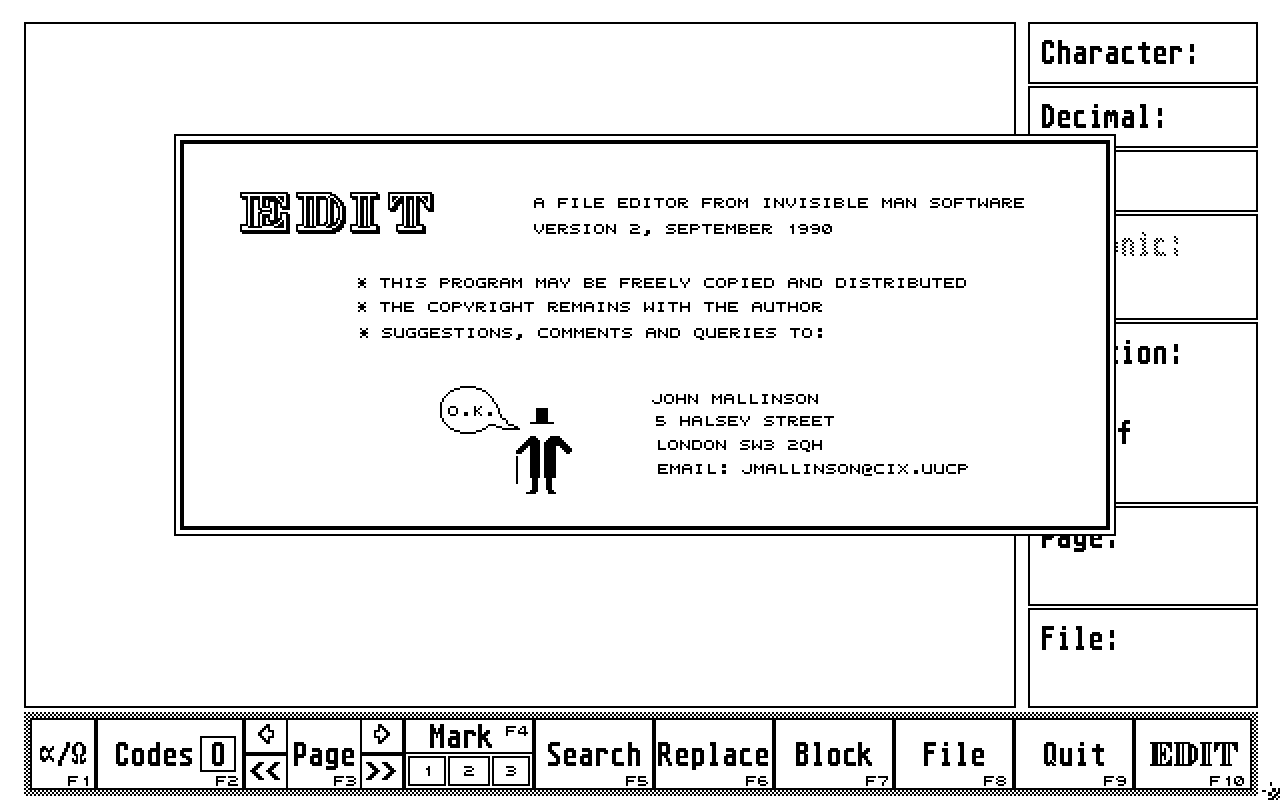
Edit


This program is a file editor rather than a word processor or text
editor. This means that it can load and display any type of file
(text, program, graphic etc) and allow you to edit it: the result
of careless editing of binary files can be catastrophic so a
certain caution must be used!

The program only runs in mono. The size of file that can be edited
is limited by available RAM or, if your computer has more than a
Megabyte of available memory, is restricted to 1Mb.

The quickest way to find your way round the program is to run it
and then press the Help key. The cursor changes to a '?' and
clicking over the different parts of the screen or menu gives
different help messages.

The menu bar along the bottom of the screen is accessed by
pointing and clicking with the left mouse button in the usual way.
Most of the menu functions can also be called by pressing one of
the function keys F1-10 as indicated. The default writing mode is
set to Overwrite - to change to Insert either press the Insert key
or click on the small box (O or I) in the Codes menu button. Caps
Lock is indicated by the Codes label changing to CODES and vice
versa. Pressing the Backspace and Delete keys will backspace and
delete as in a word-processor - to insert their codes (decimal 8
and 127) press Alternate + the key.

Moving around the screen is done with the mouse or cursor keys: if
using the cursor keys you can scroll onto the next or previous
page when you reach the end or start of the present one. Left
Shift + cursor key will move you to the right and left of a line
or top and bottom of the screen as appropriate. Clr Home takes you
to the beginning of a page, Left Shift + Clr Home to the end.

The display down the right hand side of the screen shows the
character under the cursor and its decimal and hexadecimal codes.
The Mnemonic box shows the conventional mnemonics for the
'control' characters - display of mnemonics is turned on and off
with Alternate + m, the default position is off to let the
program run faster.


Menu items:

α/Ω (F1)
This button allows you to set a range of characters for display or
for deletion. The display options are All (i.e. 0-255 decimal -
although obviously 0 and 32 cannot be seen), 33-126 which are all
the commonly used alphanumeric characters, or a range which you
define yourself by entering the lower and upper values (in
decimal) and clicking on the '? - ?' box. If a range is selected
the α/Ω changes to the lower and upper values selected.

Delete range lets you specify a range of characters which will be
deleted from the file in memory. The two predefined ranges are
0-31 (all the 'control' characters) and 127-255 (all the 'foreign'
characters). You can also set your own range of characters to be
deleted. Line Feed (decimal 10) and Carriage Return (decimal 13)
are handled differently: they are not deleted along with the other
characters if 0-31 is set so you must specify if you want to
delete them and will then be offered the possibility of replacing
either, neither, or both with spaces (decimal 32). If you wish to
remove or replace LF or CR it is much quicker to use the Range
option than to use Search and Replace.

Codes (F2)
This can be used to get round the problem of inserting characters
that cannot be easily accessed from the keyboard. Characters can
be entered as text or as sequences of decimal or hex codes. If a
block is defined Get Block will copy up to 23 characters into the
Text box. Clicking on Show Table will show a full ASCII character
table from which characters can be selected by clicking on them.
Pressing Return will put the code sequence into the file: it will
insert or overwrite depending which mode is active. Alternate + c
will repeat a codes insertion.

Page (F3)
The two small arrows move you forwards or backwards a page at a
time - this can also be done from the keyboard with Control +
right or left arrow key. Clicking on the 'chevron' symbols start
automatic paging forwards or backwards which can be stopped by
pressing the left mouse button. Page allows you to go to the
beginning or end of the file or to a specified page.

Mark (F4)
Click on Mark and you can set (or remove) up to three markers in
the file. Having set them the mark numbers are highlit and
clicking on the number (or keying Alternate + 1 to 3) will take
you to it. If the file is altered the markers will be moved or
removed as appropriate. Using Delete Range removes all markers.

Search (F5)
The display is much the same as for Codes and can be filled out in
the same way. A search may be set to have Case Match or not. When
a search string has been defined the search can be repeated with
Alternate + s.

Replace (F6)
Having defined a search string you are then asked to define a
replacement for it - also to set whether All or only Some
occurrences should be replaced. Replace can be repeated with
Alternate + r. Prolonged search or replace operations can be
curtailed by pressing either mouse key - it sometimes helps to
wiggle the mouse at the same time!

Block (F7)
Blocks are defined by clicking at the start with the left mouse
button and at the end with the right button. Clicking again with
the left will clear the block highlighting, clicking with the
right will extend the block from where it was started (this also
works if you are before the beginning of the block).

Having selected a block the options are Cut (which removes it and
keeps a copy), Copy (which doesn't remove it), Move (which moves
it to the cursor position) or Save (which lets you save it to
disk). Cut or copied blocks can be pasted back by selecting Paste
or keying Alternate + p.

If a block is defined and the Delete key is pressed you can delete
the whole thing. This can be reversed by pressing the Undo key -
this is the only deletion that Edit allows you to reverse.

Files (F8)
This has a number of options:
Save  -if a previous version exists on disk this will be
renamed with a .BAK extender if there is enough disk space.
Load  - replaces the file in memory by one from disk.
Merge  - a disk file can be inserted at the cursor position.
Clear  - clears the file in memory.
Rename - lets you rename a disk file.

You can also change the default disk drive, check available
memory, disk space, and details of any disk file (size, date etc).

Quit (F9)
If a file has been altered since loading you are prompted to save
it. Alternate + q does the same thing.

EDIT (F10)
This option clears the screen and displays a menu bar from which
you can use desk accessories if installed. Select Back to Edit..
to return to the program.


I hope this program proves useful. I am keen to hear any comments,
problems or suggestions.

John Mallinson, September 1990.