

Atari ST - 2010
Lost World (The)
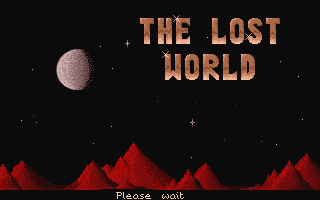
- Genre
- Arcade - Platformer (Multi-Screen)
- Year
- 2010
- Language
- Machine Language
- Publisher
- [no publisher]
- Controls
- Joystick / Keyboard
- Distributor
- —
- Players
- 1 / Demo
- Developer
- [n/a]
- Resolution
- Low
- Licensed from
- —
- Programmer(s)
- Leather, John
- Country

- Graphic Artist(s)
- Leather, John
- Software
- English
- Game design
- Leather, John
- Box/Instructions
- English
- Musician(s)
- [n/a]
- License
- PD / Freeware / Shareware
- Sound FX
- [n/a]
- Serial
- —
- Cover Artist(s)
- —
- ST Type
- ST, STe / 1MB
- MIDI
- —
- Version
- —
- Dump
- Download
- Number of Disks
- 1 / Single Sided
- Dump format
- Zip-packed folder
- Protection
- —
ADDITIONAL COMMENTS
New game which was originally written in 1989 but got never released. It lacks music / sound and 50 of the originally planned 100 levels are complete.
INSTRUCTIONS
Trapped on a level?

It might be possible in very rare cases that you can get trapped.
So, to kill yourself, press ESC where you can do the level again assuming you have lives left.
Before you kill yourself, you may want to bring up the spell menu by pressing SPACE.
One item of interest that often get you out of troubled spot is the repair
surface spell which pretty much restore the room as if you pressed ESC key
only that you don't lose a life. There should be ample of these potions
scattered around the game to prevent these kind of trapped scenarios.

Instructions:

This game uses both joystick and keyboard for movements.

Z = Left
X = Right
M = Down
K = Up
L = Jump / Fire
SPACE = Spell menu, move up (K) and down (M) to select a particular
spell and Fire (L) to select, Space to close spell window
F = Freeze
U = Unfreeze

On level 3 on the custard pie factory screen there is a switch at
the top right area of the screen in a ditch.
In order to pull this switch you press Joystick DOWN (M) and Fire (L)
at the same time to activate. In this case there is a lift to the left which
starts moving enabling you to access various potions.

The switches can do many things so you may have to pull it several times
to see what effect it has.

F10 abandon game and return you to the game menu.

It not meant to be in the public release but the * key takes you
back to TOS.

Game editor

The game itself has a built in editor which in the grand scheme of
things was in my view the selling point to the game had it gone commercial.

Anyway, the editor allows you to change every aspect of the game
levels including the ability to edit the some of the icons and the sprites themselves,
which is what taking the all the time with the instructions.

In order to enter the game editor; Move the mouse over the "Edit game"
option it and click.
In order to exit the editor and return to the game main page;
Click "Menu" (bottom left) and then click "Game menu".

To load / save the game move mouse over "Save" or "Load" and click
both left and right mouse button at the same time.
I used both buttons as a fail safe method to prevent accidentally saving / loading
over existing data. If you are stuck on a section, try clicking the left mouse button
 instead of right clicking it as sometimes I've programmed this as an escape function.
You'll have to experiment with all the menu items on this particular screen.
Also if something doesn't work, try the clicking both mouse button at the same time,
especially if it a drastic action such as clear room.

If you do create a new level you are best experimenting with level 98 and 99 which
shows you the minimum requirement to the level. If you don't include the sun or
the torch with flames icon on a level then the room goes dark during play. Try
play testing “midnight programmers” (level 7) to understand why and how useful
it to make dark levels. Just in case you haven't figured it out, you have to plan
your way to each empty torch holder to light the room up for around 5 seconds until
you reach the next one.

Also, in order to play a specific level in the game, select "Edit game" > "room",
move the cursor to 7th grid along and left click (Instead of right click) the mouse
to move the yellow box which indicate the starting level. Once you've moved this
box, right click it to select the level then select "menu" > "game menu" to go back
to the game. The next time you play the game, you will begin on level 7. This is useful
to play levels you've created or start from a level you have trouble mastering and you don't
want to start from level 1 again.