Atari ST - 1996
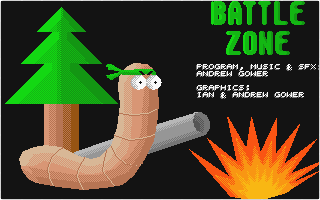
Battle Zone
 1 / 11
- Genre
- Shoot'em Up! - Miscellaneous
- Year
- 1996
- Language
- STOS BASIC
- Publisher
- [no publisher]
- Controls
- Mouse
- Distributor
- -
- Players
- 1 / 1 vs. 2 / Demo
- Developer
- Cunning & Devious Games
- Resolution
- Low
- Licensed from
- -
- Programmer(s)
- Gower, Andrew
- Country

- Graphic Artist(s)
- Gower, Ian / Gower, Andrew
- Software
- English
- Game design
- [unknown]
- Box/Instructions
- English
- Musician(s)
- [unknown]
- License
- PD / Freeware / Shareware
- Sound FX
- Gower, Andrew
- Serial
- —
- Cover Artist(s)
- —
- ST Type
- ST, STe / 0.5MB
- MIDI
- —
- Version
- —
- Dump
- Download
- Number of Disks
- 1 / Double Sided
- Dump format
- MSA
- Protection
- —
INSTRUCTIONS
Battle Zone
-----------
By Cunning And Devious Games
Copyright 1996

Programming, Music and SFX: Andrew Gower
Graphics: Andrew Gower and Ian Gower
Written in STOS and 68000 machine code

Introduction
Battle  Zone  is  a 2 player  strategy/skill  game.  Each  player
controls  an  army of worms,  the aim being to  use  the  various
weapons  at  your disposal to wipe out  your  opponent.  You  can
either play a friend, or against the computer.

Starting A Game
Once Battle Zone has loaded you will be presented with the  title
screen,  press  any key to jump to the main menu.  Here  you  can
choose 1 of 3 options. These are:

Single  Match - Starts a match between 2 armies of  your  choice.
Playing  against  a  friend  is  much  better  than  playing  the
computer.  The  computer  intelligence works best on  the  random
landscapes, and the 'food' landscape.

Tournament  -  You  can select from  3-10  Teams  of  worms.  The
computer will then decide which team plays which.  Winning  teams
move to the next round, and play each other to find the champions
of the tournament.

Edit Teams - Allows you to edit the team names and  members.  You
will  be presented with a list of all the teams,  select a  team,
and enter the new names as prompted.  It is possible to save  the
modified teams to disk. Select  then choose one of the
slots from 1-10.  Next time you play Battle Zone,  click on  edit
teams,  followed by  and the slot number, to load your
teams into memory.

Playing A Match
Once you have chosen your teams you will be asked which landscape
you  wish  to  fight across.  You can either choose  one  of  the
predrawn  landscapes from disk,  or ask the computer to  randomly
generate  a  new  landscape.  After  a  short  pause  whilst  the
landscape  is generated or loaded you will be taken to  the  main
game.

The game is turn based,  each worm takes it in turn to move, with
worms being selected from each players team alternately.  If  you
lose  a worm however you will get less turns per round,  as  that
worm will no longer get a turn.

The  screen will scroll to centre your first worm on the  screen.
You can move it around be using the left and right cursor keys to
move,  and the spacebar to jump.  Be careful not to walk off  the
edge or bottom,  as if you do your worm will die.  All objects on
the screen act as obstacles. There is no background scenery which
you can walk over, so if two objects overlap slightly they behave
as if they were just one object with the combined outline of  the
two.

Next you need to try and damage an opponent's worm. The teams are
colour coded.  Worms on 1 team have Red numbers above their name,
the  other team has yellow numbers.  These numbers represent  the
worm's remaining health. It is a good idea to go for a worm which
isn't very secure if there is one,  (For example, on a very small
island),  as  you  may be able to blast it off the  edge  of  the
screen, and kill it.

Once  you have decided which worm you want to attack you need  to
choose from one of the 14 skills detailed below to do it, you can
perform one action a turn, control than passes to the next worm.

Bazooka:  Select  the  first box on the bottom control  panel  to
select a bazooka. Press the right mouse button to arm the weapon,
and  a cross hairs should appear on the screen.  Your  worm  will
always  try to shoot through this.  Try moving the mouse  pointer
around to see how it affects the cross hairs position.  Once  you
have the angle you wish to fire the shell at,  click and hold the
left mouse button. The longer you hold it down the more power the
shell will be launched with. Your power can be seen in the box at
the top right of the control panel.  When you release the  button
the shell will be fired. It won't necessarily go straight to your
mouse pointer though,  as it will be pulled down by gravity,  and
blown by the wind. (Wind strength is indicated  in the box in the
bottom  right of the control panel,  by a brown line).  When  the
shell hits the landscape,  a small part will be blown  away,  and
any worms nearby injured.  Make sure you use enough power so that
the firing worm is not injured by his own weapon!

Rocket:  Similar to a bazooka except it homes in on it's  target.
Before arming the weapon,  click where you wish the rocket to aim
for.  Cross hairs will appear to indicate the target.  Next,  arm
the rocket and fire it using the same procedure as for  bazookas.
It is a good idea to shoot rockets up into the air,  with  plenty
of power,  and then let them home in on the target on their  own,
as  this  makes them less likely to hit the  surrounding  scenery
before getting there.

Grenade:  Also  similar  to a bazooka,  grenades  however  bounce
before  exploding making them harder to aim.  To  compensate  for
this they do more damage, and are effective further away from the
explosion. Grenade's aren't affected by wind either.

Cluster Bomb:  Similar to a grenade,  except when it explodes, it
fires  out  5  shells in random  directions,  which  then  damage
anything they hit.

Dynamite:  Move your worm to where you wish to drop the dynamite.
(Normally  on top of an enemy worm).  Then click the  left  mouse
button  anywhere on the main screen.  Now run away  quickly!  The
dynamite explodes shortly after being dropped, damaging any worms
nearby.

Air  Strike:  Air strikes can't be used until all the worms  have
had at least 1 go, as they are very powerful, and this allows the
worms the chance to move to some cover to protect them. To use an
air  strike  click  on the screen where you wish  to  target  the
attack.  An aeroplane will fly across the top of the screen,  and
drop bombs on the target. If there is anything above however, the
bombs  will hit this,  so worms can hide under overhangs  in  the
scenery to some extent.  The bombs drift left slightly, so if the
target  is  very low on the screen,  allow for this  by  clicking
slightly to its right instead.

Teleport: If your worm is stuck on an island, or wants to move to
a  more  strategic  position that can't be reached  on  foot  (or
tail?),  you  may wish to teleport it to a new  location.  Simply
click on the screen where you wish to go, and if there's anything
there to land on, you will be teleported.

Fire  Punch:  Move your worm so he is facing  another  worm,  and
click anywhere on the main screen. The other worm will be knocked
into the air in the direction your worms is facing by the  punch.
This will not damage it,  but if the worm is standing on a cliff,
you  may be able to knock it off the edge of the  screen  killing
it.

Tunnel:  Click  the right mouse button;  crosshairs  will  appear
indicating which way you wish to tunnel.  Move it to the  correct
direction,  and click the left mouse button.  The worm will begin
to dig in the selected direction. If there is nothing in front of
the  tunnelling  worm it will stop.  Be careful  when  tunnelling
downwards  not to tunnel right through the ground,  and  off  the
bottom of the screen.

Girders:  When you move the mouse on to the screen you will see a
girder  underneath the mouse pointer.  Move the girder where  you
wish to place it,  you can rotate it with the right mouse button.
To  place it on the screen click the left mouse  button,  and  it
will contribute to the scenery. Girders can be used as bridges or
placed  above  the worm,  as cover  from  incoming  shots.  Note:
Girders cannot be placed too close to any worm. If you cannot put
a girder on, try moving it away from any nearby worms.

Machine  Gun:  A short range weapon,  useful for finishing  enemy
worms off.  Click the right mouse button to arm the weapon,  then
click where you wish to shoot at. The target must be near to your
worm,  and there must not be any other scenery in the way. With a
machine  gun  you  get 2 shots,  and the firing  worm  cannot  be
injured  as a result of nearby blasts.  (It might be  blown  back
slightly however.)

Kamikaze: Face your worm in the direction you wish to attack, and
click the left mouse button.  The worm will fly across the screen
in a horizontal line doing considerable damage.  Any worm it hits
will instantly lose 80 health.  If the worm encounters scenery it
will fly through it for a short distance leaving a tunnel behind,
before exploding.  The only disadvantage of kamikaze is that  the
worm doing it dies as a result, useful if a worm is nearly dead.

Plasma Gun:  Similar to machine gun,  except it can fire straight
through scenery which is in the way. You only get 1 shot however.

Skip Turn:  If none of the above weaponary suits,  you can always
skip  your  turn,  by  selecting skip  turn,  and  then  clicking
anywhere on the main screen.

Limited Weaponary
You will notice that when you select a weapon,  the name will  be
displayed  above  the  control panel,  followed by  a  number  in
brackets.  This is the number you have remaining have.  Once  you
run out, you can't use that weapon any more.

Game Over
The  match  will end when one of the teams  has  been  completely
destroyed.  You  will be displayed a screen showing who  won.  It
also tells you which worm was best,  which was worst,  which  was
more  violent,  and which was most picked on.  Press any  key  to
return  to  the  title  screen,  or play  the  next  match  in  a
tournament.

Pre-drawn landscapes
On the disk there are several predrawn landscapes for you to play
across. It is also possible to draw your own. To do this you need
to draw three screens with your favourite art package,  and  save
them  in Degas uncompressed format (PI1).  These screens need  to
link together horizontally to make up the landscape. To save disk
space they can be compressed with Atomik afterwards if you wish.

To make sure your landscape looks right you will need to use  the
correct colour palette. The colour palette is as follows:

Colour    Red  Green Blue      Colour    Red  Green Blue
0         0    0     0         8         6    6     6
1         2    2     2         9         5    5     5
2         0    4     0         10        4    3     2
4         4    2     0         11        3    3     3
5         3    1     0         12        7    4     0
6         2    0     0         13        0    3     0
7         6    0     0         14        0    2     2

Don't use colour 3.  When you have finished drawing your picture,
colour 15 should be used to fill in all the areas which the worms
can walk on.

Once you have drawn your pictures,  copy them on to a blank disk.
Next they need to be renamed so the program can find them. Rename
the  first  picture  to  1.pi1,   the  second  picture   to
2.pi1,  and the third picture to 3.pi1,  where
is the name of your landscape (Maximum length 7 letters).

Load the game like normal, then insert your picture disk when the
title  screen appears.  When you start a match the  program  will
automatically detect the new landscape, and it will appear on the
landscape selection menu.
TRIVIA (1)
Releases
First 16-bit releases reviewed in UK Atari or multiformat magazines for Atari ST (1/1998)
BOOK / MAGAZINE REVIEWS (1)
Atari Computing (UK) · February, 1998Rating: 82%