Atari ST - Antic
Where is Space Dock?
 1 / 18
- Genre
- Picture / Slideshow
- Year
- —
- Language
- [unknown]
- Publisher
- Antic
- Controls
- Mouse
- Distributor
- Antic Publishing
- Players
- —
- Developer
- Antic Software
- Resolution
- Low
- Licensed from
- -
- Programmer(s)
- Hudson, Tom
- Country

- Graphic Artist(s)
- [unknown]
- Software
- English
- Game design
- —
- Box/Instructions
- English
- Musician(s)
- [n/a]
- License
- [unknown]
- Sound FX
- —
- Serial
- —
- Cover Artist(s)
- —
- ST Type
- ST, STe / 0.5MB
- MIDI
- —
- Version
- —
- Dump
- Download
- Number of Disks
- 1 / Double Sided / HD Installable
- Dump format
- MSA
- Protection
- —
INSTRUCTIONS
WHERE IS SPACE DOCK?

Well, when we wrote the ad copy for The Catalog in July, Space Dock
was one of the best animations we had.  Now, however, we've got a
library of much more advanced stuff, and we can fit a lot more of
the new animations on a disk (hence, there are SIX animations on
this disk).

So, we've decided to give you this disk instead of Space Dock.  But
don't worry... if you really want to get a copy of Space Dock, all
you've got to do is back this disk up and send the ORIGINAL back to us
-- and we'll copy Space Dock onto it and send it out to you.

Send this back, with a note requesting Space Dock (with your address on
it), to:

                  Customer Service
                  Antic Software
                  544 Second St.
                  SF, CA  94107


                  NOTES ABOUT THIS DISK


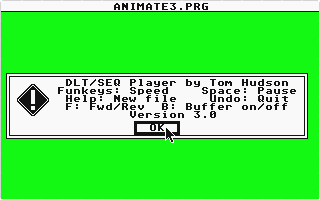
This disk can be auto-run by booting it in Drive A and then
clicking on the *.RUN file.

While running, you can use the following keys for control:

      F1-F10    --    speed
      F         --    Forward/Ping Pong toggle
      B         --    double Buffering on/off toggle
      Undo      --    Quit
      Help      --    Load new file
                      Note that you may have to click on the
                      *.SEQ/*.DLT buttons in the file
                      selector to display files.


This can be installed on your hard disk by editing the *.RUN file
with an ascii text editor (such as Micro emacs or the one in
Flash).  Just change the pathname from a:\ to whatever directory
you want to put the files in (don't forget to leave the trailing
comma in).  Then, use the GEM Install Application function to
install the ANIMATE3.PRG program with the RUN extender from
the Desktop.  Save your new DESKTOP.INF file, and you should
be able to click on the *.RUN file and the animations should
then sequence.