Atari ST - ST Format - 1993
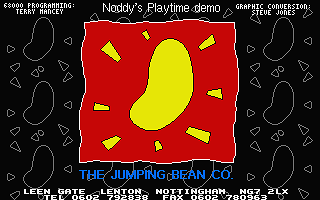
Noddy's Playtime
 1 / 7
1 / 7- Genre
- Education - Miscellaneous
- Year
- 1993
- Language
- [unknown]
- Publisher
- ST Format
- Controls
- Mouse / Keyboard
- Distributor
- Future Publishing
- Players
- 1
- Developer
- [n/a]
- Resolution
- Low
- Licensed from
- BBC Enterprises
- Programmer(s)
- [unknown]
- Country

- Graphic Artist(s)
- [unknown]
- Software
- English
- Game design
- [unknown]
- Box/Instructions
- English
- Musician(s)
- [unknown]
- License
- Game Demo or Preview - Commercial
- Sound FX
- [unknown]
- Serial
- —
- Cover Artist(s)
- —
- ST Type
- ST, STe, TT / 0.5MB
- MIDI
- —
- Version
- [preview]
- Dump
- Download
- Number of Disks
- 1 / Double Sided
- Dump format
- MSA
- Protection
- —
OTHER VERSIONS WITH THE SAME TITLE (1)
INSTRUCTIONS
NODDY'S PLAYTIME - PREVIEW FOR ST FORMAT
****************************************

Welcome to a preview version of Noddy's Playtime - a graded
creativity and entertainment package based on solid
educational principles for 3 - 7 year olds!  This is a
fully-functional demonstration of three of the ten programs
which make up this amazing package.  These are:

NODDY'S DRIVING MENU
********************
A game in which children can take control of Noddy's car
and drive it around Toy Town.  This forms a menu which
can be used to load all of the other games and activities
in the package.

NOAH'S ARK
**********
A jigsaw game.

NODDY'S PAINT POT
*****************
A junior art package.


A time-out of four minutes has been introduced into each
of these programs in this preview version.


***********************************************
*WHILE IN NOAH'S ARK OR NODDY'S PAINT POT -   *
*AFTER 4 MINUTES THE PROGRAM WILL RETURN      *
*TO THE MENU SCREEN.  AT THIS POINT THE TIMER *
*IS RE-SET.                                   *
*                                             *
*IF YOU ARE IN THE DRIVING MENU AND 4 MINUTES *
*ELAPSES, THE PROGRAM WILL RETURN TO THE      *
*DESKTOP.                                     *
***********************************************


The release version of Noddy's Playtime also includes:

RAILWAY STATION - memory game,
N & B WORKS - observational game,
CHIMNEY HOUSE - musical fun,
FARMYARD - animal matching,
MARKET PLACE - letter and word recognition,
POST OFFICE - counting and arithmetic skills, and
POLICE STATION - a maze game.

Noddy's Playtime features user-friendly icons so that even the
youngest member of the family can learn and have fun.  The
package allows a choice of three carefully defined learning
levels designed in consultation with educationalists.

The package includes:

Computer Software,
A comprehensive manual and parent/teacher guide,
A map of Toy Town,
A keyboard overlay, and,
A wobbler.


USING THE PREVIEW VERSION OF NODDY'S PLAYTIME
*********************************************
To use the preview version insert your cover disk in Drive A.
Open on the folder called NODDY and then double-click on
the file PLAYTIME.

The Options Screen will appear shortly after the Introductory
Screen.  From this screen children can:

- control the level of play in the package (this can be re-set
within any activity),

- select any game: Noddy will drive directly to the relevant
location and that game or Noddy's Paint Pot can be loaded,

- enter Noddy's Paint Pot without driving to a location, or,

- decide to drive Noddy around Toy Town.  In this case, if
children arrive at a game location (indicated by a taxi rank
on the Driving Menu) they can opt to load either the game-
related activity, Noddy's Paint Pot or return to the Driving
Menu.

To select one of these you should take the mouse pointer
to the relevant box and confirm your choice by clicking
on the left mouse button or by pressing Return.

You can control this preview using the mouse, the joystick
or from the keyboard using either the cursor keys.

To leave any part of this demonstration and return to the
Options Screen you should press Esc or, in the case of
Noah's Ark or Noddy's Paint Pot - click on Noddy's car.

The three activities which are included in this preview are:

NODDY'S DRIVING MENU
********************
In this preview the Driving Menu will allow children to
explore Toy Town.  They can control the movement of
Noddy's car using the arrow keys from the keyboard.

NOAH'S ARK
**********
In the window on the left of the screen are the jumbled pieces
of a jigsaw puzzle.  When placed together in the correct
order these will make a picture of an animal.  To do this you
should pick them up, one at a time, and place them into the
window on the right. Move the hand over a piece (using the
mouse, the cursor or keypad keys) and click on the left
mouse button or press Return.   Now move the piece into
its correct position in the window on the right and put it
in place by clicking on the left mouse button, or pressing
Return.

If you place a piece in an incorrect position you can pick
it up again and put it in a new position in either window.

If you want to check that you have placed any of the pieces of
the puzzle in their correct places you can do so at any time
by clicking on the Big Ears icon.  If all of the pieces which
you have placed are in the right places, Big Ears will nod his
head.  If any are in the wrong places, he will shake his head
and those pieces will be returned to the left window.

As with all of the games in Noddy's Playtime, Noah's Ark
has three levels of difficulty.  To change between these
press F10.

NODDY'S PAINT POT
*****************
Noddy's Paint Pot is a unique art package which has been
specifically designed so that even the youngest child can
enjoy using it.  It contains the major functions found in
dedicated art packages (Such as Electronic Art's DeLuxe Paint)
as a result, it will give children to confidence to be able to
creatively use such utilities at an early age.

Noddy's Paint Pot is presented on two screens:

The Menu Screen contains the various icons from which this
program is driven.

The Drawing Screen is the active drawing area.  By selecting
a drawing function (from among those represented by the large
icons in the centre of the Menu Screen)  the screen will rise
to reveal the Drawing Screen.  To return to the Menu Screen
children should click on the right mouse button or press the
Spacebar.  When on the Drawing Screen each of these functions
are controlled by pressing the left mouse button (or Enter or
Return) to start and repeating this operation to stop the
function.

It should be noted that the left mouse button must not be
held down while children are attempting to draw, this will
have no effect.  The reason for this is that young, small,
hands may find it difficult (if not impossible!) to hold down
the mouse button and draw at the same time.

The functions available from the centre of The Menu Screen are:

SPRAY CAN
LINE DRAWING
OUTLINE BOX
FILLED BOX
OUTLINE CIRCLE
FILLED BOX

All of the above functions use the currently selected:

COLOUR,
PEN SHAPE, and,
PEN SIZE.

These can be altered using the icons on the top right of the
Menu Screen.  The active colour can also be altered using the
Colour Strip on the Drawing Screen.

Additionally, a fill pattern function is available which uses
the currently active pattern.  This can be changed by clicking
on the arrows either side of the pattern selector box on the
top left of the Menu Screen.

CHARACTERS AND OBJECTS
Noddy's Paint Pot contains a number of characters and objects
which can be pasted onto pictures.  These can be scrolled
through by clicking on the arrows either side of the selection
strip.  If children click on any of the three visible objects
or characters the program will move to the Drawing Screen with
that object selected.  This can be pasted anywhere within the
picture by clicking on the left mouse.

OUTLINE PICTURES
At the bottom of the screen are two areas containing
outline pictures.

To select one of these click on it using the left mouse
button.  After confirming that they do wish to load this
picture children will be presented with it on the Drawing
Screen.  At this stage colour fill is active by default.
Children can therefore select the colours with which they
wish to shade various parts of the drawing.  If they press
the right mouse button at any time the program will return
to the Main Menu and any other function can be selected as
described above.

The remaining three functions in Noddy's Paint Pot are:

ERASE PICTURE
If children select this function and then confirm their choice
they will be able to clear the whole of the drawing screen.

SAVE PICTURE
Pictures created in the release version of Noddy's Paint Pot
can be saved but this function has been disabled in this
demonstration.

OOPS!
On the far right of the colour selector strip on the Drawing
Screen is Noddy's Oops! button.  Clicking on this will remove
the last function which was carried out.


When Noddy's Paint Pot is loaded from a taxi rank two
location-related outline pictures are available for children
to colour in.  When this utility is loaded from the main menu
screen they can choose from all 16 available pictures.
BOOK / MAGAZINE REVIEWS (1)
ST Review · April, 1993Rating: 93%